

Tenancy Policies
Configuring organisation-wide security and usage policies.
Tenancy policies apply to all users and Hubs assigned to a Tenancy. To implement more than one policy set, multiple Tenancies should be used. Policies are grouped into eight sections in the Tenancy Manager:
- Authentication & sessions
- Warnings and notifications
- Files & content protection
- Data lifecycle & retention
- Classification & tagging
- Project and record management (Fusion Hubs)
- Sharing & guest access
- Hub governance & oversight.
If a user is a member of multiple Tenancies, the DekkoCORE application applies the strictest combination of policies to that user. For example, if a Standard (non-SSO) user is in two Tenancies with the following authentication policies:
- 8-character password, 2FA ON
- 15-character password, 2FA OFF
The user will be made to use the stricter control from each Tenancy (indicated in bold): 2FA and a 15-character password. Note that a user only has one account with one password.
Only users with the Tenancy Manager role are able to modify policies. The exception is the Project and record management (Fusion Hubs) section, which Fusion Managers can also change, apart from nominating Fusion Managers. Please contact your account manager or DekkoSecure support to request the assignment or removal of an administrator on your Tenancy.
Saving policy changes
Policy changes are saved only from the bottom Update policies bar. Changes you make to a policy are not kept until you select Update policies.
Default policies
DekkoSecure typically engages clients in a consultative process to determine the best policy settings for their use case(s). For clients with policy requirements that vary depending on their use cases, multiple tenancies can be set up. Below is the standard tenancy policy configuration:
| Policy | Description | Default Setting |
|---|---|---|
| Minimum password length | Sets the minimum number of characters required for user passwords. | 12 characters |
| Session timeout (minutes) | Sets the period of inactivity after which users are automatically logged out. | 120 minutes |
| Previous version retention | Controls how long previous file versions are retained (in days). Once the expiry period is exceeded, previous versions are permanently deleted. | 365 days |
| File size upload limit (MBs) | Sets the maximum size of a single uploaded file in megabytes. A value of '0' allows unlimited file sizes. | 0 (no limit) |
| Disable PDF redaction feature | Turns off the PDF redaction capability for all users in this tenancy. | OFF |
| Enforce hardware attestation for passkeys | Forces passkey storage-binding to hardware only; prevents the use of software-only storage such as password managers | OFF |
| Enforce passkey | Everybody in your tenancy sets up a passkey at their next sign-in, and their account then has no password: they sign in with the passkey only. The passkey must support PRF, and be attested while hardware attestation is ON. Corporate (Entra ID) accounts are exempt. | OFF |
| Trusted Tenant | Allows Tenancy Managers to reset user passwords. Each user must log in at least once before this takes effect for that user. | OFF |
| Admins create accounts | Allows Tenancy Managers to create a username (non-email-based) account for an individual. | OFF |
| Disable deletion via DekkoDrive | Prevents files from being deleted through the DekkoDrive client. | ON |
| Enforce 2FA | Forces all users in the Tenancy to enable two-factor authentication at their next login if they have not already done so. | ON |
| Disable Public Hub | Restricts access to the Public Hub for all users in this tenancy. | ON |
| Information banner | Shows a banner at the top of the interface when a Hub belonging to this Tenancy is selected. | OFF |
| Invite message appendix | Appends custom text to the end of all Hub invites in the tenancy (maximum 2000 characters). | OFF |
| Status tagging (Manage tags) | Allows file and folder tagging across all Hub content in the tenancy. Tags are displayed in the status column. | OFF |
| Enforce classification | Requires classification labelling to be applied to all uploads and messages. | OFF |
| External File Verification | Enables external authenticity and ownership checking for all files in the tenancy by storing private hashes. | ON |
| Invite-only onboarding | Disables invite via sharing. New users must register via invite and join a Hub in the tenancy before files can be shared with them. | OFF |
| Malware scanning | Scans files uploaded to Hubs in the tenancy for malware. Files containing malware cannot be shared or downloaded. | OFF |
| Recycle bin | Moves deleted files to "Archive" instead of deleting them immediately. Files are permanently deleted once the expiry period (days) is exceeded. Shared file recipients cannot access archived files until the owner restores and re-shares them. | ON (7 days) |
| Data Expiration | Automatically deletes all data older than a specified age (in days) on a daily cadence. The checkbox or button opens the expiration menu to configure this. | OFF |
| Allow public submissions on folders | Lets folder owners and admins enable per-folder public submission links. Links can be disabled by folder owners and admins at any time. Submissions are anonymous, so malware scanning is recommended. | OFF |
| Allow guest links on folders | Share a folder with people who do not have a DekkoCORE account using a single expiring link, with optional guest uploads. | OFF |
| De-identified sharing | Replace the names and email addresses of your internal users with consistent aliases wherever external users would otherwise see them. | OFF |
| Limit users who can create Hubs | Restricts Hub creation to specified users or domains. A wildcard such as *@yourdomain.com permits all users on a domain, and multiple domains or users can be added. | ON |
| Region Protection | Restricts Hub access to approved regions. | OFF |
| Central Access Admin | Makes the nominated Central Access Admin a member of all Hubs in the tenancy with full permissions on all shared files. They cannot be removed by Hub administrators or file owners, and cannot be the same user as the Central Backup Account. | OFF |
| Central Backup Account | Makes the nominated Central Backup Account a member of all Hubs in the tenancy with Download only permission on all shared files. They cannot be removed by Hub administrators or file owners, and cannot be the same user as the Central Access Admin. | OFF |
Default Tenancy policies should not be considered recommendations. Governance requirements vary per-client and should be considered carefully based on the descriptions and content provided by DekkoSecure, in combination with your internal practices and business processes. Please contact your DekkoSecure account manager to discuss custom Tenancy policies.
Authentication & sessions
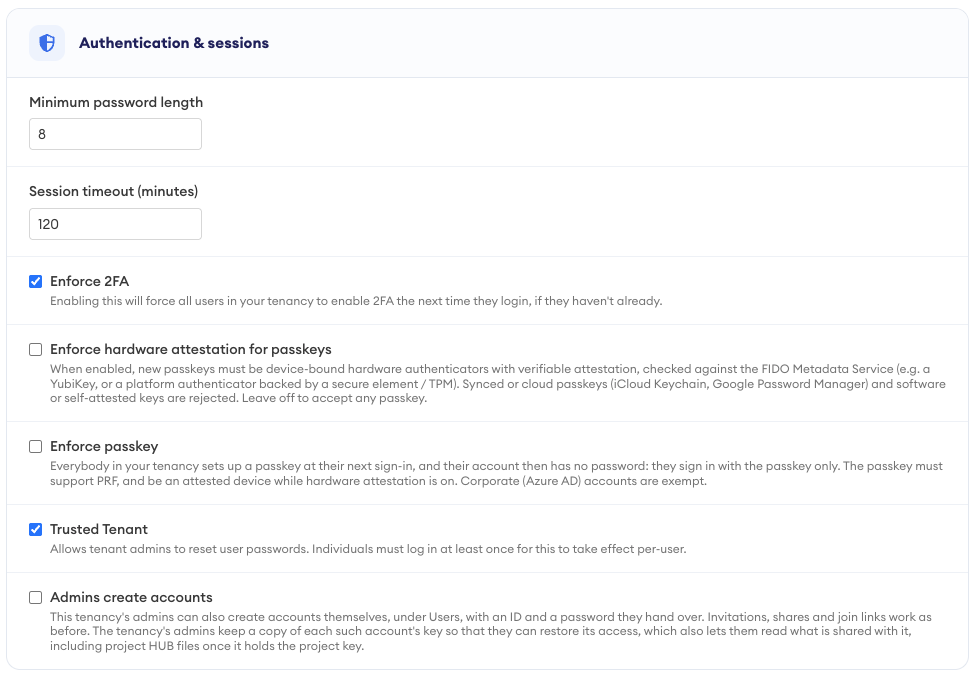
Minimum password length
Sets the minimum number of characters required for user passwords. This applies to Standard (non-SSO) accounts; users authenticating via SSO are governed by their identity provider's password policy.
Default: 12 characters
Session timeout (minutes)
Sets the period of inactivity after which users are automatically logged out. Users must log in again to resume their session.
Default: 120 minutes
Enforce 2FA
Forces all users in the Tenancy to enable two-factor authentication at their next login if they have not already done so. Users will be prompted to complete 2FA setup before they can continue into the application.
Default: ON
Enforce hardware attestation for passkeys
When enabled, new passkeys must be device-bound hardware authenticators with verifiable attestation, checked against the FIDO Metadata Service. Examples include a YubiKey or a platform authenticator backed by a secure element or TPM. Synced or cloud passkeys (iCloud Keychain, Google Password Manager) and software or self-attested keys are rejected. Leave the policy off to accept any passkey.
This policy applies to passkeys registered after it is enabled; it forces passkey storage-binding to hardware only and prevents the use of software-only storage such as password managers.
Default: OFF
Enforce passkey
Everybody in the Tenancy sets up a passkey at their next sign-in, and their account then has no password: they sign in with the passkey only. The passkey must support PRF, and be attested while hardware attestation is ON. Corporate (Entra ID) accounts are exempt.
Default: OFF
Trusted Tenant
Allows Tenancy Managers to reset user passwords. Each user must log in at least once after the policy is enabled before this takes effect for that user.
Default: OFF
Admins create accounts
Allows Tenancy Managers to create a username (non-email-based) account for an individual. Tenancy Managers are responsible for securely communicating credentials to the user.
Default: OFF
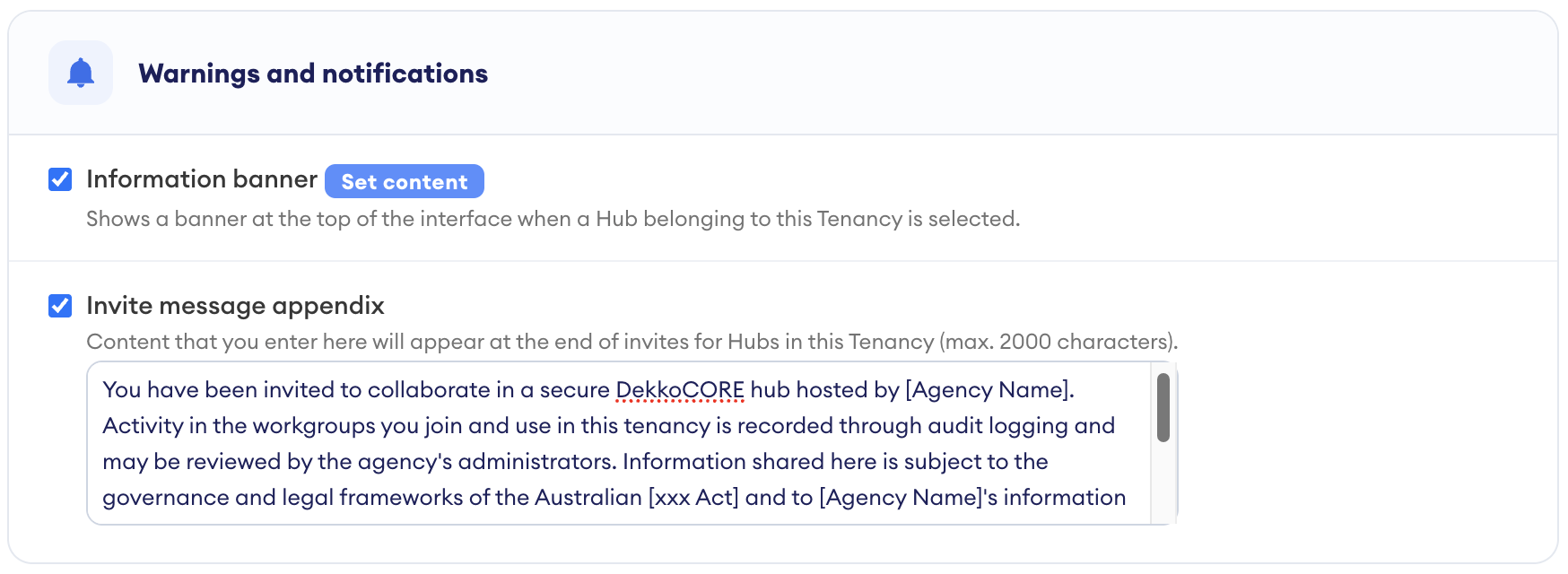
Warnings and notifications
Information banner
Shows a banner at the top of the interface when a Hub belonging to this Tenancy is selected. The banner can be customised with up to 200 characters and 36 different background colours.
Default: OFF

Invite message appendix
Appends custom text to the end of all Hub invites in this Tenancy (maximum 2000 characters). This policy is typically used for legal disclaimers or branding purposes.
Default: OFF
Files & content protection
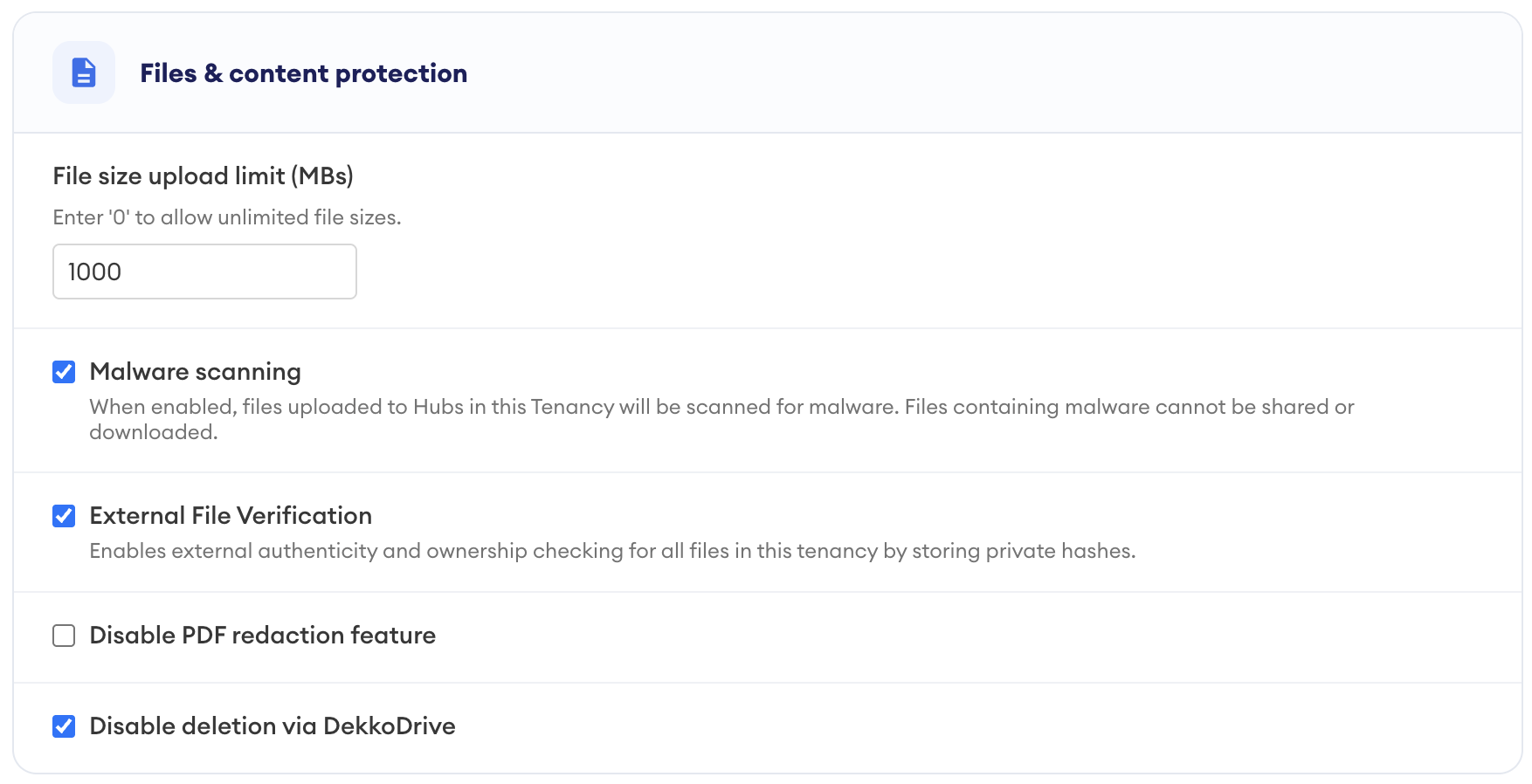
File size upload limit (MBs)
Sets the maximum size of a single uploaded file in megabytes. Enter '0' to allow unlimited file sizes. If a limit is set, it also applies to public submissions, preventing uploads that exceed the policy.
Default: 0 (no limit)
Malware scanning
When enabled, files uploaded to Hubs in this Tenancy will be scanned for malware. Files containing malware cannot be shared or downloaded. Enabling this policy is recommended when public submissions are allowed, because submissions are anonymous.
Default: OFF
External File Verification
Enables external authenticity and ownership checking for all files in the Tenancy by storing private hashes. This allows a file's authenticity and ownership to be verified independently of the platform.
Default: ON
Disable PDF redaction feature
Turns off the PDF redaction capability for all users in this Tenancy.
Default: OFF
Disable deletion via DekkoDrive
Prevents files from being deleted through the DekkoDrive synchronisation client. Files can still be deleted from the web application, subject to user permissions.
Default: ON
Data lifecycle & retention
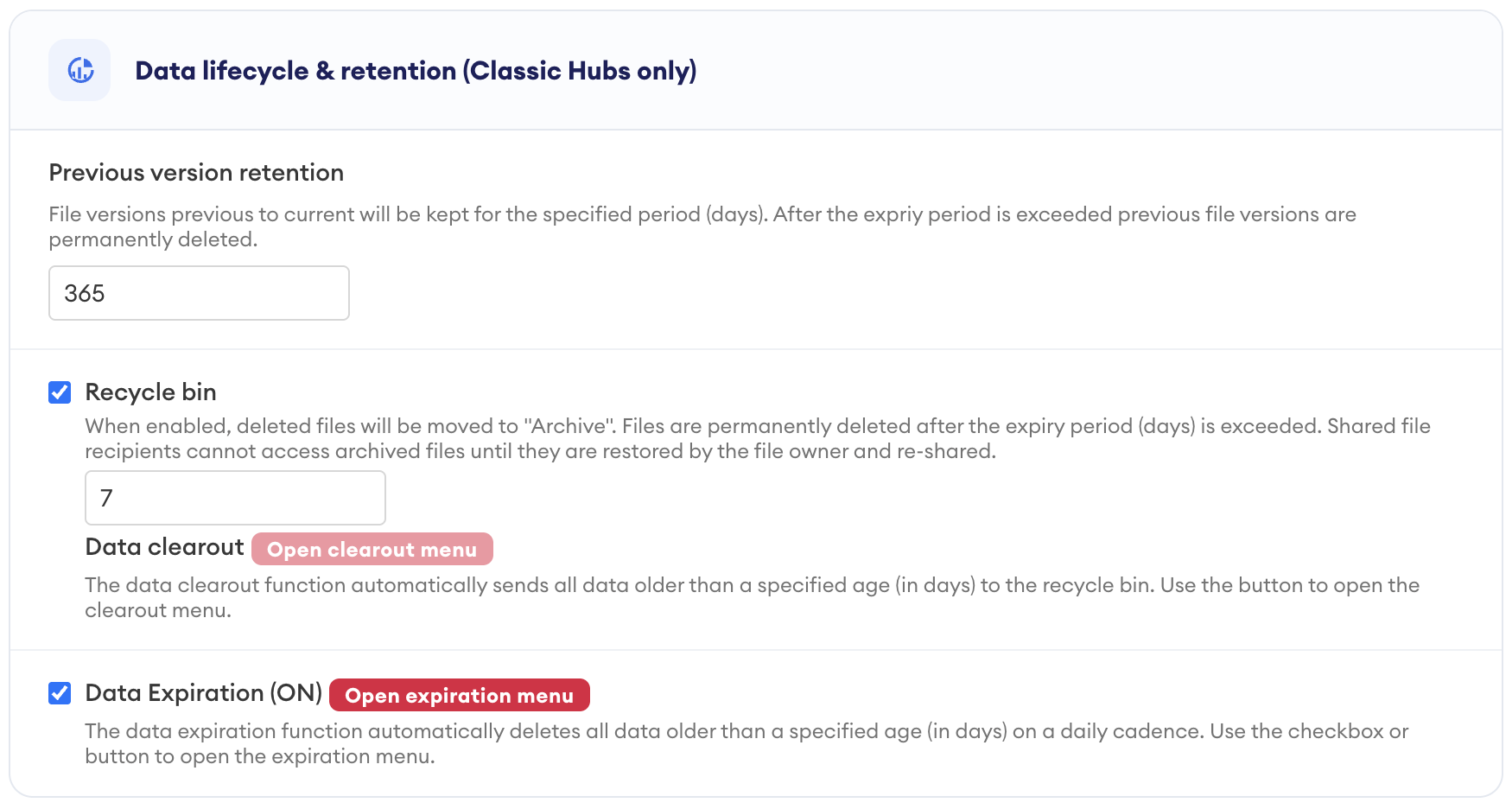
Previous version retention
Controls how long previous file versions are retained (in days). Once the expiry period is exceeded, previous versions are permanently deleted. The current version of each file is not affected.
Default: 365 days
Recycle bin
When enabled, deleted files are moved to "Archive" (listed in the left navigation panel) instead of being deleted immediately. Files are permanently deleted once the expiry period (in days) is exceeded. File owners can restore files from the Archive at any point before permanent deletion. Shared file recipients cannot access archived files until they are restored by the file owner and re-shared.
Default: ON (7 days)
Data clearout
The data clearout function automatically sends all data older than a specified age (in days) to the recycle bin. Use the Open clearout menu button to configure it. The clearout function can only be enabled when the recycle bin policy is enabled, and only data older than 30 days can be cleared. A confirmation window is displayed before deletion is actioned.
Data Expiration
Automatically deletes all data older than a specified age (in days) on a daily cadence. Use the checkbox or the Open expiration menu button to configure it.
Points to note:
- Clean up takes place once per day.
- The minimum age allowed in the policy is 30 days.
- Users can extend an expiration by using the overwrite function.
- The policy will clean up existing data as soon as it is enabled. For example, if a Tenancy contains files that are 120 days old and the policy is enabled with a 90-day expiration, those files will be deleted on the next daily cleanup.
Default: OFF
Classification & tagging
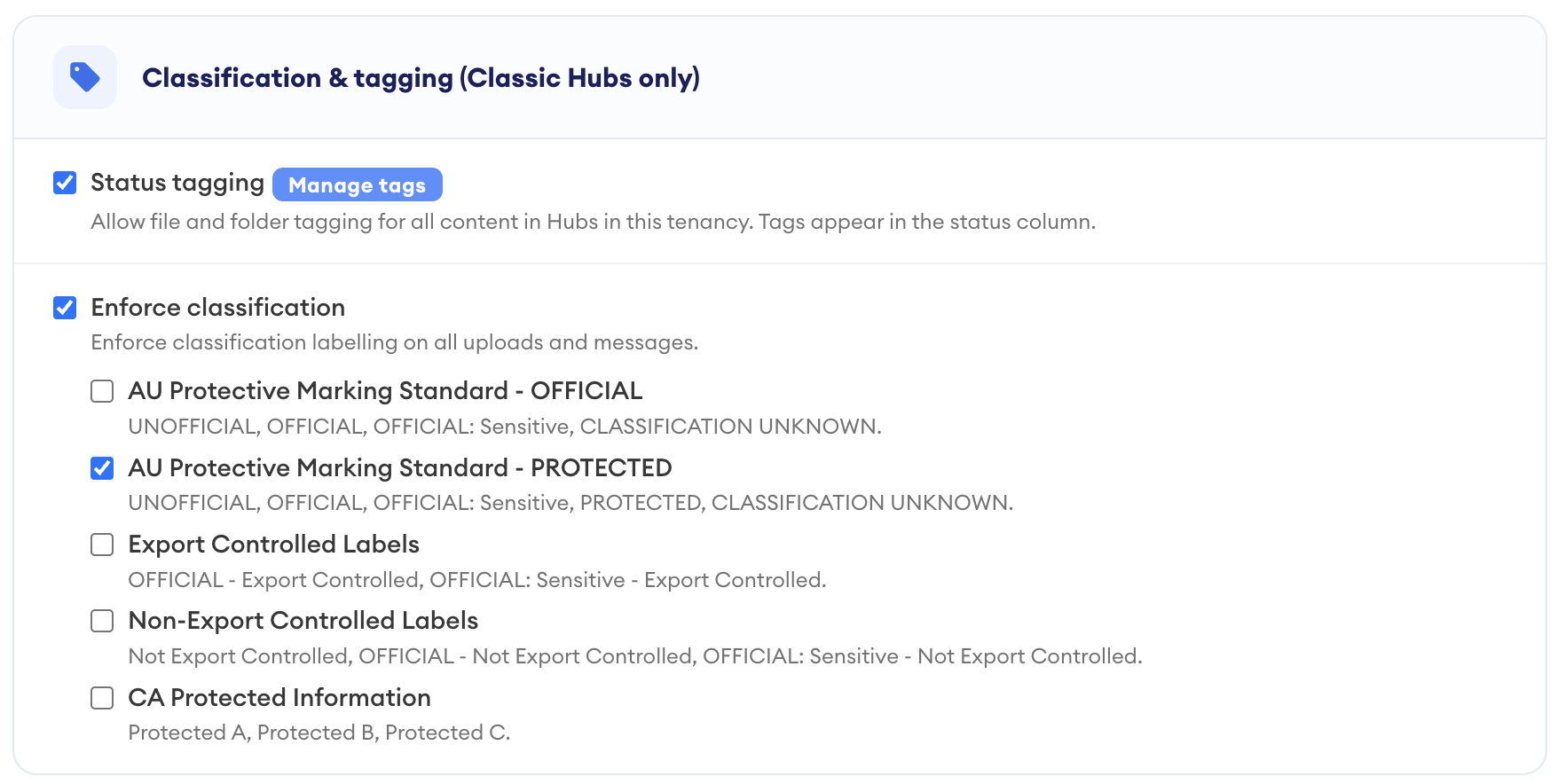
Status tagging
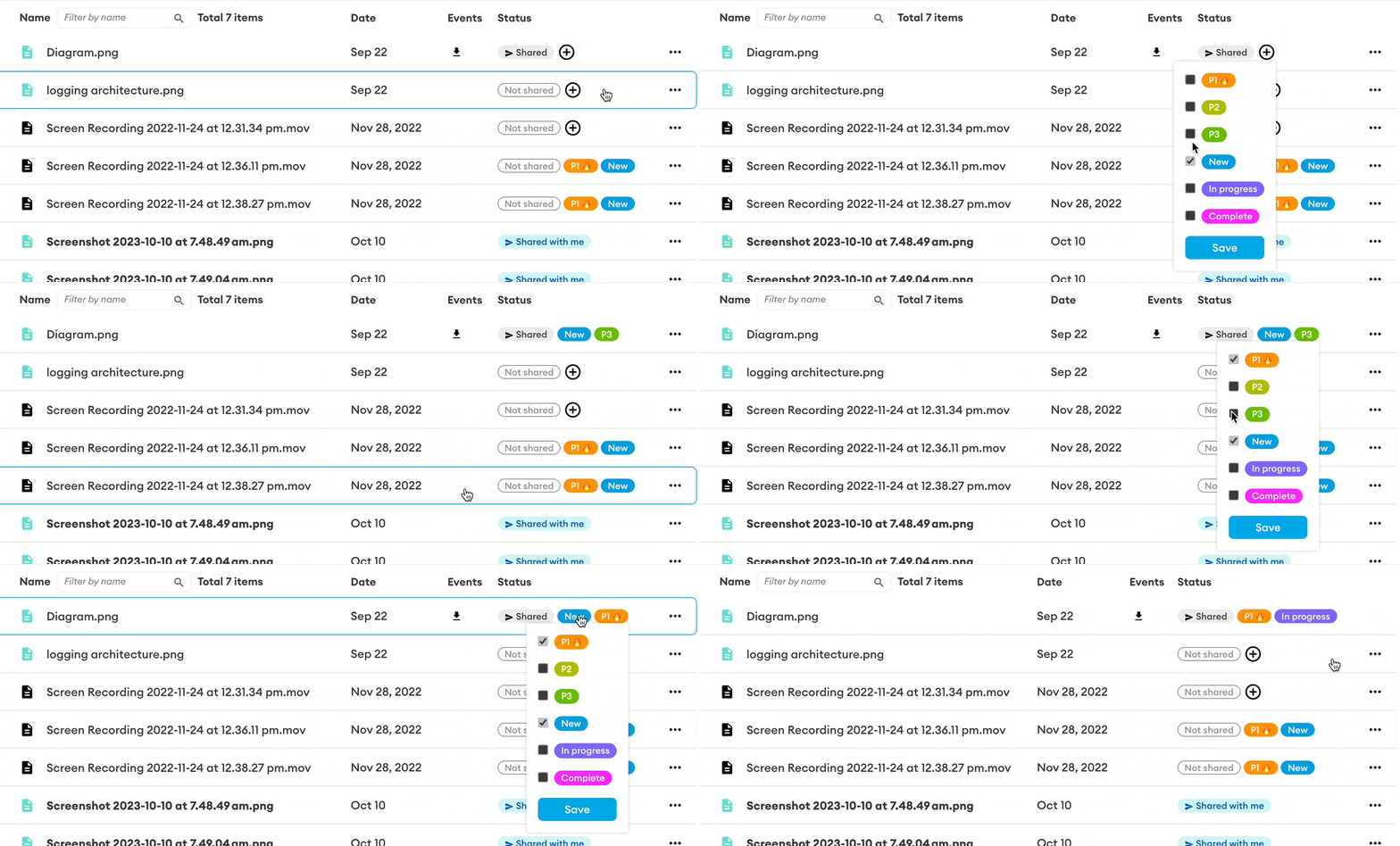
Allows file and folder tagging for all content in Hubs in this Tenancy. Tags appear in the status column and are visible to all users with access to the shared content. Use the Manage tags button to create, edit, and remove tags.
Tags can be added to files that you own (uploaded) or administer (shared with full permissions). Tag changes are captured in the audit log. Note that removing a tag from the tag manager while it is in use will remove it from all associated files.
Default: OFF
Enforce classification
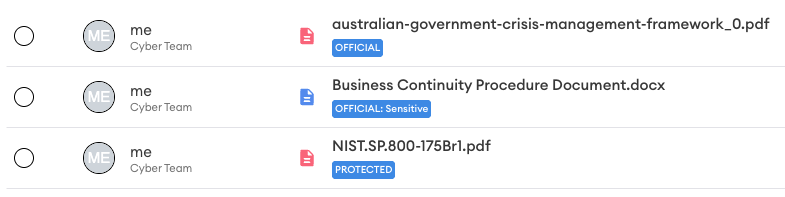
Requires classification labelling to be applied to all uploads and messages. When enabled, all users in the Tenancy must select a classification marking each time they upload files and folders. The chosen classification appears next to the file or folder name and is visible to all users with access to the shared content.
One classification scheme can be selected at a time:
| Scheme | Labels |
|---|---|
| AU Protective Marking Standard - OFFICIAL | UNOFFICIAL, OFFICIAL, OFFICIAL: Sensitive, CLASSIFICATION UNKNOWN |
| AU Protective Marking Standard - PROTECTED | UNOFFICIAL, OFFICIAL, OFFICIAL: Sensitive, PROTECTED, CLASSIFICATION UNKNOWN |
| Export Controlled Labels | OFFICIAL - Export Controlled, OFFICIAL: Sensitive - Export Controlled |
| Non-Export Controlled Labels | Not Export Controlled, OFFICIAL - Not Export Controlled, OFFICIAL: Sensitive - Not Export Controlled |
| CA Protected Information | Protected A, Protected B, Protected C |
Default: OFF
Project and record management (Fusion Hubs)
These settings apply to Fusion Hubs only. Tenancy Managers and Fusion Managers can change them, and only Tenancy Managers can nominate Fusion Managers. See Fusion Hubs: Create and Manage Hubs for setting up Fusion Hubs.
Fusion Hubs
Shows that the Tenancy can hold Fusion Hubs, where access is given to user groups instead of to people one document at a time. Fusion Hubs can only be enabled by DekkoSecure staff. Turning the setting off only stops new Fusion Hubs from being created. The ones that already exist keep working, and everybody who could read them still can.
Use Manage attributes to define the metadata fields used in every Fusion Hub in the Tenancy, and Manage profiles to create named views of those attributes.
Enable file index
Turns on the Index, a list of all files with their attributes that can be used as a reference for projects and records, for example patient information or a Contract Data Requirements List (CDRL). A Hub's documents are listed only when the Hub is included in the Index on the Fusion HUBs page, and people can open the Index only through a group with Index access on the User groups page.
Fusion administrators
Lists the Tenancy's Fusion Managers. A Fusion Manager manages the Tenancy's Fusion Hubs, user groups, attributes, profiles and Index, and nothing else. To add one, type the person's email address, select them, then type their login to confirm. Only Tenancy Managers can add or remove Fusion Managers.
Sharing & guest access
Allow public submissions on folders
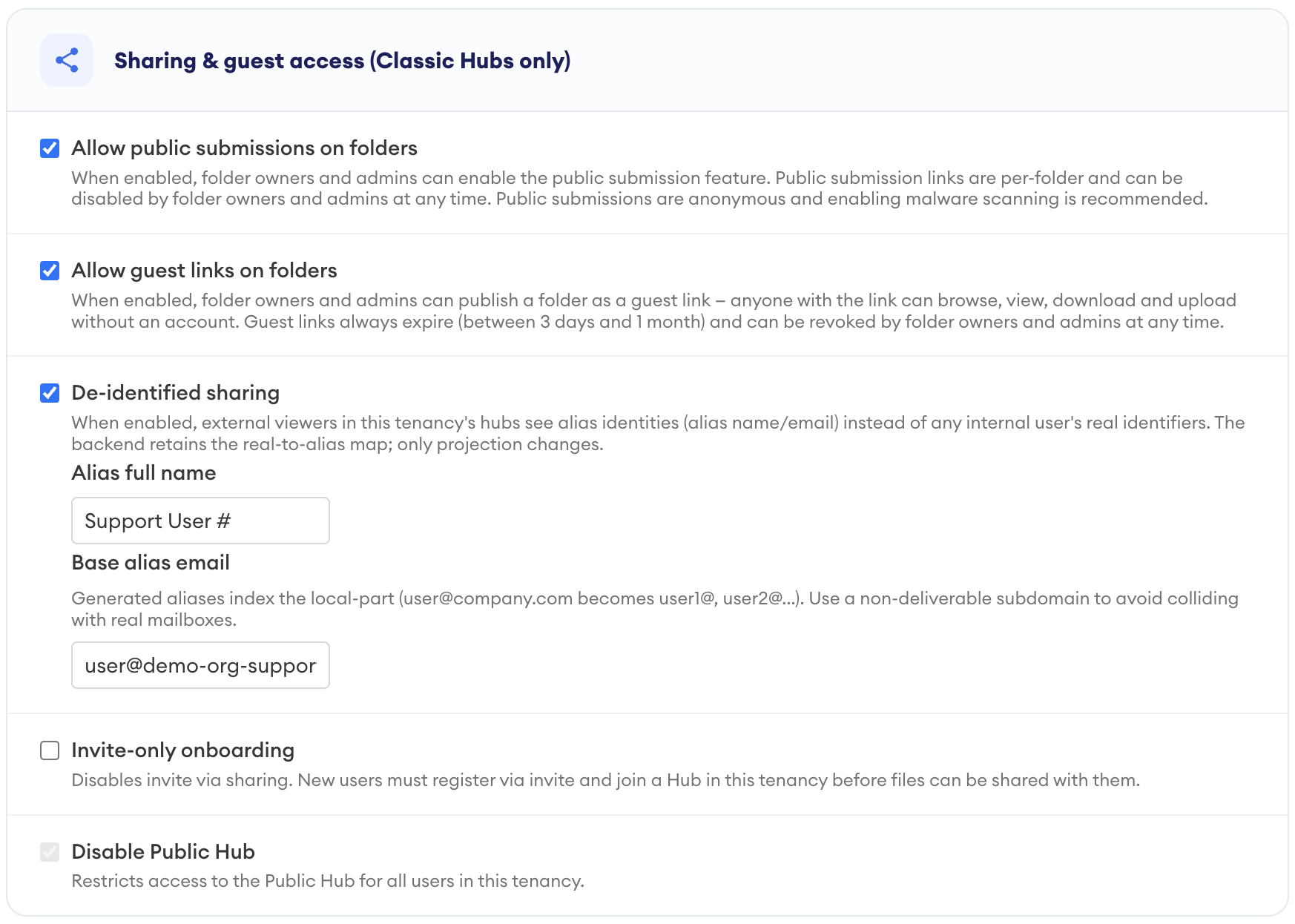
When enabled, folder owners and admins can enable the public submission feature. Public submission links are per-folder and can be disabled by folder owners and admins at any time. Public submissions are anonymous, so enabling malware scanning is recommended. If a file size upload limit is set, it applies to submissions.
Default: OFF
Allow guest links on folders
When enabled, folder owners and admins can publish a folder as a guest link. Anyone with the link can browse, view, and download the folder contents without an account, and upload to it if the folder owner allows that. Guest links always expire (between 3 days and 1 month) and can be revoked by folder owners and admins at any time.
Default: OFF
Switching off Allow guest links on folders deletes every guest link in the Tenancy at once. Check that no guest links are still needed before you turn this policy off.
De-identified sharing
When enabled, external viewers in this Tenancy's Hubs see alias identities (alias name and email) instead of any internal user's real identifiers. External users can still tell who is who, because each internal user keeps the same alias, but they do not see real profile names or real email addresses. The backend retains the real-to-alias map; only the projection changes.
Two settings control how aliases are generated:
- Alias full name: the display name pattern used for aliases, for example "Support Staff #".
- Base alias email: the address pattern used for alias emails. Generated aliases index the local part, so [email protected] becomes user1@, user2@, and so on. Use a non-deliverable subdomain to avoid colliding with real mailboxes.
Please see the De-identified sharing article for configuration notes.
Default: OFF
Invite-only onboarding
Disables invite via sharing (the "share-and-invite" feature). New users must register via invite and join a Hub in this Tenancy before files can be shared with them.
When this policy is OFF and files are shared with an unregistered address, the file and file key are stored securely by the system and passed to the recipient when they complete registration. When the policy is ON, files can only be shared with existing DekkoCORE users, meaning all content accessed by newly registered users is secured using end-to-end encryption by way of an asymmetric key exchange from the outset.
Default: OFF
Disable Public Hub
Restricts access to the Public Hub for all users in this Tenancy.
Default: ON
Hub governance & oversight
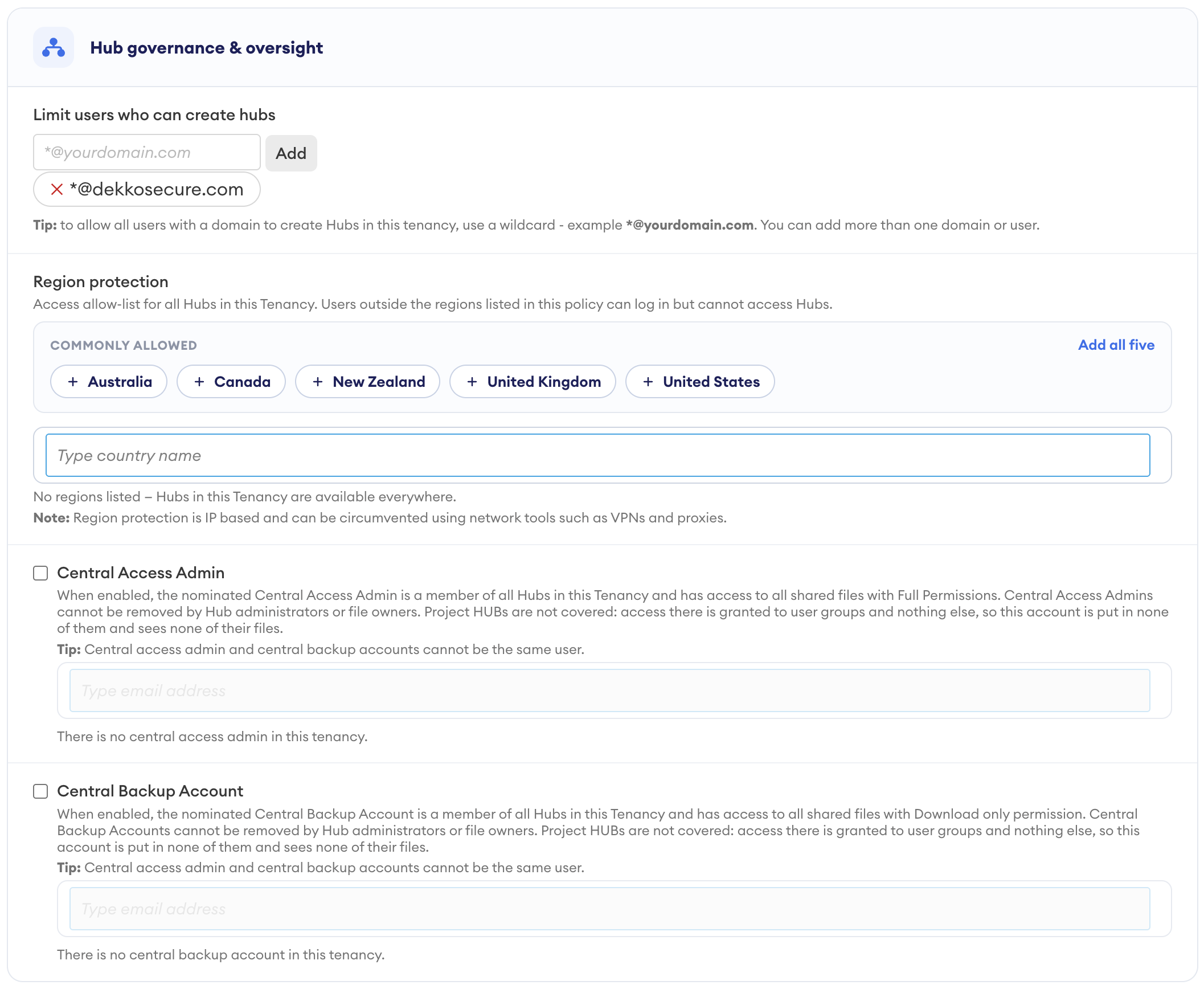
Limit users who can create Hubs
Restricts Hub creation to specified users or domains. Enter an email address or a wildcard and press Add. A wildcard such as *@yourdomain.com permits all users on that domain, and more than one domain or user can be added. Users not on the list will see the Create a new Core Hub button disabled, and can't create Fusion Hubs from the Fusion HUBs dropdown. Unlike a Core Hub, the creator of a Fusion Hub is not made its admin.
Default: ON
Region protection
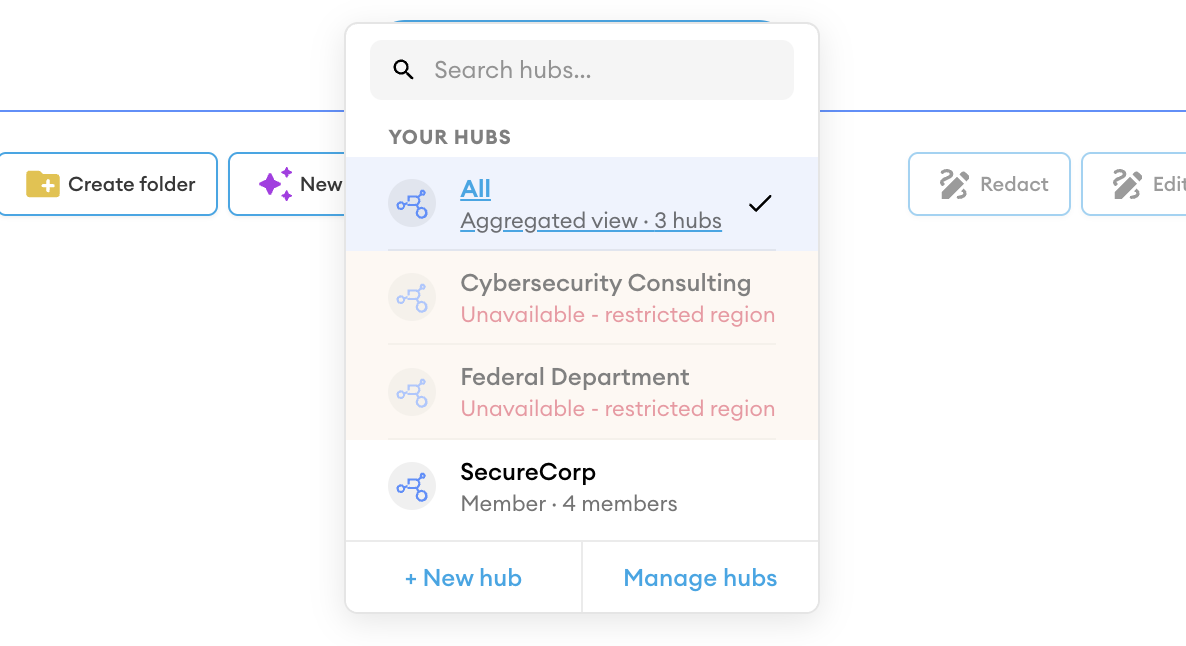
An access allow-list for all Hubs in this Tenancy. Users logging in from a location outside the regions listed in this policy are prevented from logging in if they belong to a single Tenancy. Users who belong to more than one Tenancy can still log in but cannot access the restricted Hubs within this Tenancy.
Points to note:
- Users who belong to a single Tenancy located outside the allowed region(s) will be prevented from logging in. Users who belong to more than one Tenancy will be allowed to log in but prevented from accessing restricted Hubs.
- Tenancy admins and DekkoSecure staff keep access to Hubs regardless of country, so use a regular (non-admin) account to test this policy.
- Region protection is IP based and should be considered a first line of defence. It can be circumvented using network tools such as VPNs and proxies.
Default: OFF
Central Access Admin
When enabled, the nominated Central Access Admin is set as a member of all Hubs in this Tenancy and has access to all shared files with full permissions. Central Access Admins cannot be removed by Hub administrators or file owners, only by Tenancy admins. Access is not retrospective; files uploaded prior to activation are not shared with the account.
The Central Access Admin is not a normal user account. It should be treated as a special access role that remains in place once assigned, and only removed under exceptional circumstances.
Credential management for the Central Access Admin should be done with extreme care. A generic ID (e.g., [email protected]), disciplined password management and 2FA is strongly recommended.
Things to note about Central Access Admins:
- One Central Access Admin can be set at a time.
- The Central Access Admin and Central Backup Account cannot be the same user.
- Users cannot nominate themselves; they must be nominated by another admin of the Tenancy. If your Tenancy has one Tenancy admin, please contact your DekkoSecure account manager for assistance with nomination.
- All activity performed by the account (for example, downloading and deleting) is captured in the audit log.
- A notice is displayed in the sharing menu ("... this content is also shared with an administrative account ...").
- The account is shown in all Hub contact lists.
- If the account is removed from the policy it will still have access to files shared with it prior to removal. If it should no longer have access to files, you can request that it be deleted by contacting your DekkoSecure account manager.
The Central Access Admin can be used with DekkoDrive to automatically synchronise files in a Tenancy to an external location for content management use cases.
Default: OFF
Central Backup Account
When enabled, the nominated Central Backup Account is set as a member of all Hubs in this Tenancy and has access to all shared files with download only permission. Central Backup Accounts cannot be removed by Hub administrators or file owners, only by Tenancy admins. Access is not retrospective; files uploaded prior to activation are not shared with the account.
The Central Backup Account is not a normal user account. It should be treated as a special access role that remains in place once assigned, and only removed under exceptional circumstances.
Credential management for the Central Backup Account should be done with extreme care. A generic ID (for example, [email protected]), disciplined password management, and 2FA are strongly recommended.
Things to note about Central Backup Accounts:
- One Central Backup Account can be set at a time.
- The Central Backup Account and Central Access Admin cannot be the same user.
- Users cannot nominate themselves; they must be nominated by another admin of the Tenancy. If your Tenancy has one Tenancy admin, please contact your DekkoSecure account manager for assistance with nomination.
- All activity performed by the account (for example, downloading) is captured in the audit log.
- A notice is displayed in the sharing menu ("... this content is also shared with an administrative account ...").
- The account is shown in all Hub contact lists.
- If the account is removed from the policy it will still have access to files shared with it prior to removal. If it should no longer have access to files, you can request that it be deleted by contacting your DekkoSecure account manager.
The Central Backup Account can be used with DekkoDrive to automatically synchronise files in a Tenancy to an external location for content backup use cases.
Default: OFF