

Enable Access and Create a Token
What is the Dekko S3 Gateway?
The Dekko S3 Gateway is a small Windows app that lets you open your DekkoCORE hubs in apps that work with Amazon S3 storage, such as rclone or S3 Browser.
You run the gateway on your own computer and connect it to your DekkoCORE account with a token. The gateway then shows each hub you can reach as an S3 bucket, at an address on your computer. Your S3 app connects to that address with keys the gateway gives you.
This article covers what you do yourself: install the gateway, create a token in DekkoCORE, and add the token to the gateway. To connect an app afterwards, see S3 Gateway: Connect an S3 App (S3 Browser, rclone).
Before you start
- Your tenancy must allow the gateway. A Tenancy Manager turns on Allow local S3 gateway in Tenancy Policies. If it is off, your S3 gateway page says that none of your hubs allows the gateway.
- The gateway app. Get DekkoS3Gateway-win-x64.zip from your DekkoCORE administrator.
- Your passkey or password, to confirm it is you when you create the token.
Step 1: Install and start the gateway
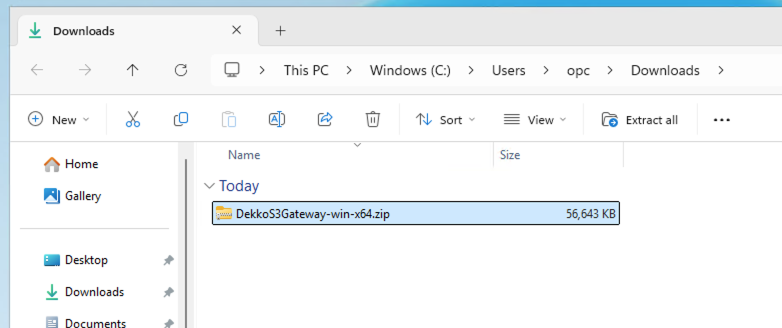
Find DekkoS3Gateway-win-x64.zip on your computer (for example in Downloads). Right-click it and choose Extract All:
Set the destination to
C:\ProgramData\DekkoS3Gateway, keep Show extracted files when complete ticked, and click Extract: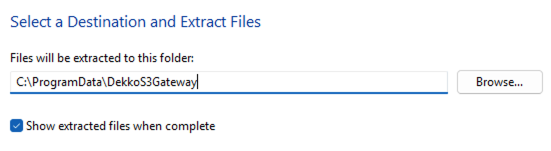
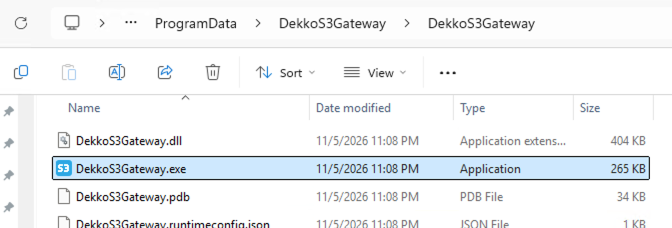
In the extracted folder, double-click DekkoS3Gateway.exe:
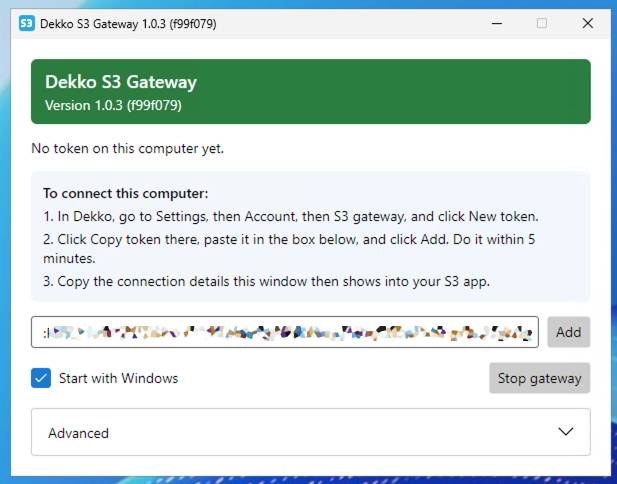
The gateway window opens and says No token on this computer yet. Leave it open for Step 3.
Step 2: Create a token in DekkoCORE
Sign in to DekkoCORE and go to Settings → Account → S3 gateway.
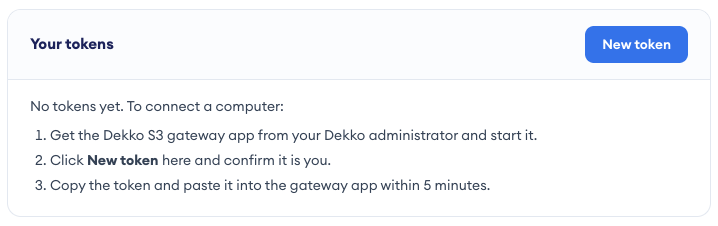
Click New token and fill in the form:
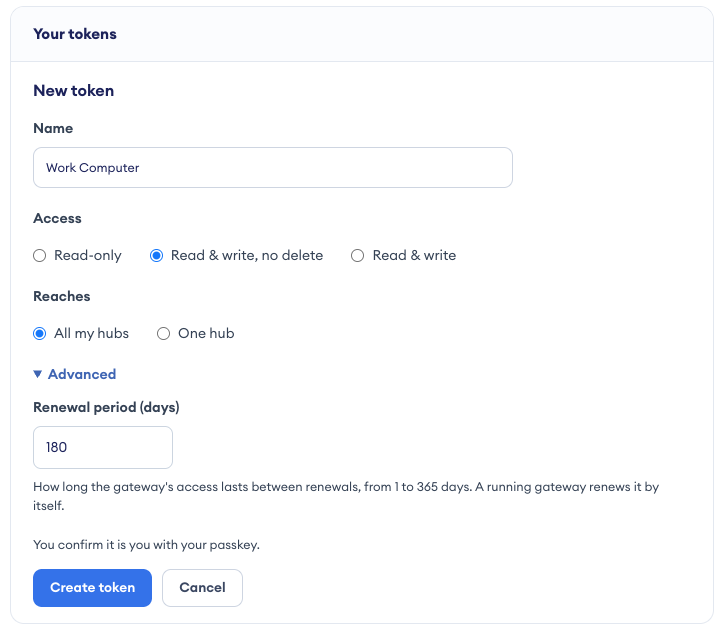
Setting What to choose Name A name for the computer or use, for example Work Computer. Access: Read-only Your app can list and download files, and change nothing. Access: Read & write, no delete Your app can also upload files, but cannot delete them. Access: Read & write Your app can also delete files. Reaches All my hubs, or One hub to limit the token to a single hub. Advanced → Renewal period (days) How long the gateway's access lasts between renewals, from 1 to 365 days. The default is 30. A running gateway renews it by itself. Click Create token and confirm it is you with your passkey or password.
Choose the least access your app needs. If you only want to copy files out of DekkoCORE, choose Read-only.
Step 3: Add the token to the gateway
Click Copy token. A timer shows how long you have to add it to the gateway (5 minutes):
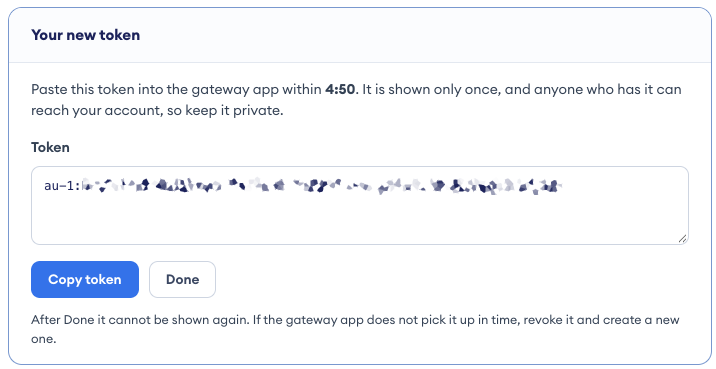
The token is shown only once, and anyone who has it can reach your account. Do not email it or save it in a file. If the gateway does not pick it up in time, revoke it and create a new one.
In the gateway window, paste the token into the box and click Add:
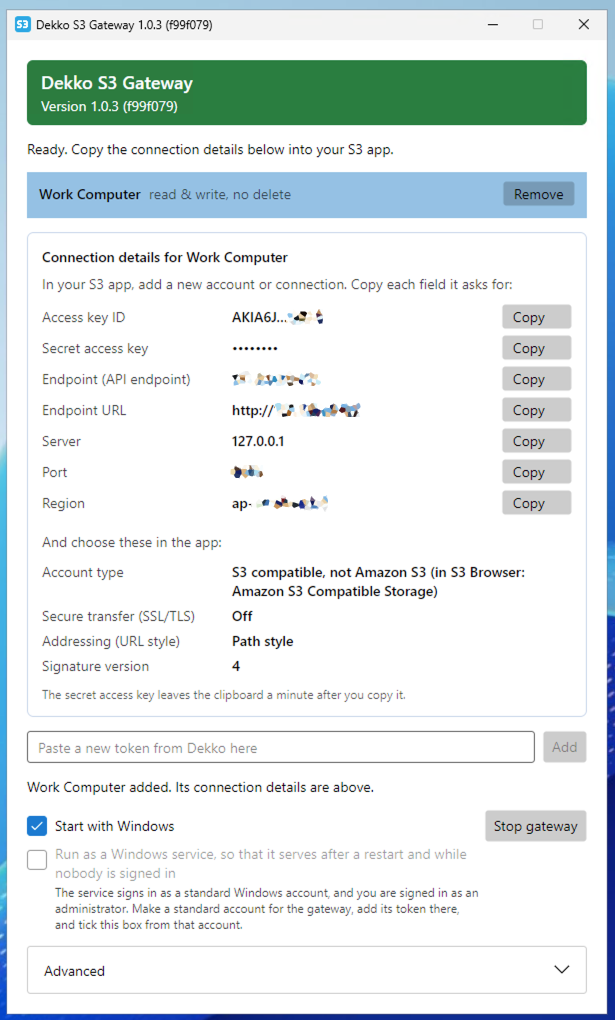
The gateway says Ready and shows the Connection details for the token: the access key ID, secret access key, endpoint, region and the settings to choose in your S3 app. Each has a Copy button.
Back in DekkoCORE, click Done.
You can now connect your S3 app. See S3 Gateway: Connect an S3 App (S3 Browser, rclone).
Keep the gateway running
- Your S3 app can only reach your hubs while the gateway is running. Stop gateway stops it.
- Tick Start with Windows to start the gateway each time you sign in to Windows.
- To serve after a restart while nobody is signed in, the gateway can run as a Windows service. This needs a standard (non-administrator) Windows account and is usually set up by your IT team. See S3 Gateway: Back Up a Tenancy Every Night.
Manage your tokens
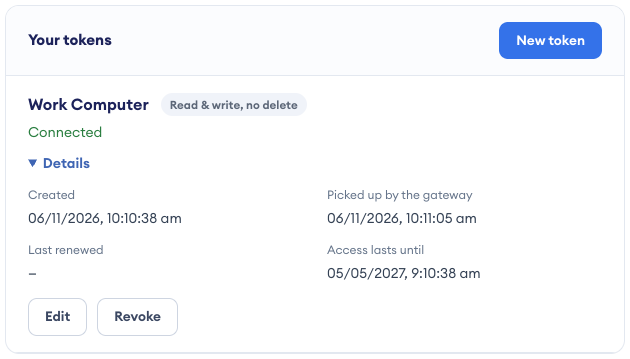
Your tokens are listed under Settings → Account → S3 gateway. Each shows its access level and whether a gateway is connected. Open Details to see when it was created, when the gateway picked it up, when it was last renewed, and how long its access lasts:
- Revoke a token when you no longer use it, or if you think someone else has it. Its gateway loses access.
- Remove in the gateway window only takes the token off that computer. It does not revoke it, so revoke it in DekkoCORE too.
- To replace a token, create a new one, add it to the gateway, and remove the old one. The keys change, so update your S3 app with the new connection details. Then revoke the old token.
Uninstall the gateway
The Dekko Uninstaller removes all Dekko desktop apps, including the Dekko S3 Gateway.
- If the gateway runs as a Windows service, clear Run as a Windows service in the gateway window first.
- Download and run the Dekko Uninstaller. The steps are the same as in DekkoDrive Sync App: Install and Uninstall. Choose option 2 first to see what it would remove, without changing anything.
- In DekkoCORE, revoke the computer's token under Settings → Account → S3 gateway.
Uninstalling the gateway does not delete any files in DekkoCORE, or files your S3 app has copied to your computer.
Troubleshooting
| What you see | What to do |
|---|---|
| Your S3 gateway page says none of your hubs allows the gateway | Ask your Tenancy Manager to turn on Allow local S3 gateway. |
| Your S3 gateway page says the gateway is a paid add-on | Contact your DekkoCORE administrator or DekkoSecure. |
| The gateway did not accept the token | It was probably added after 5 minutes. Revoke it, create a new one and add it straight away. |
| Your app stopped connecting after working before | Check the gateway is running. Then check the token in DekkoCORE: it may have been revoked, or the tenancy policy turned off. |
| Your app cannot upload or delete | Check the token's Access level. A Read-only token cannot change anything. |