

Enable 2FA from a Prompt
Setting up 2FA when prompted during login.
This guide is for users who see the screen below:
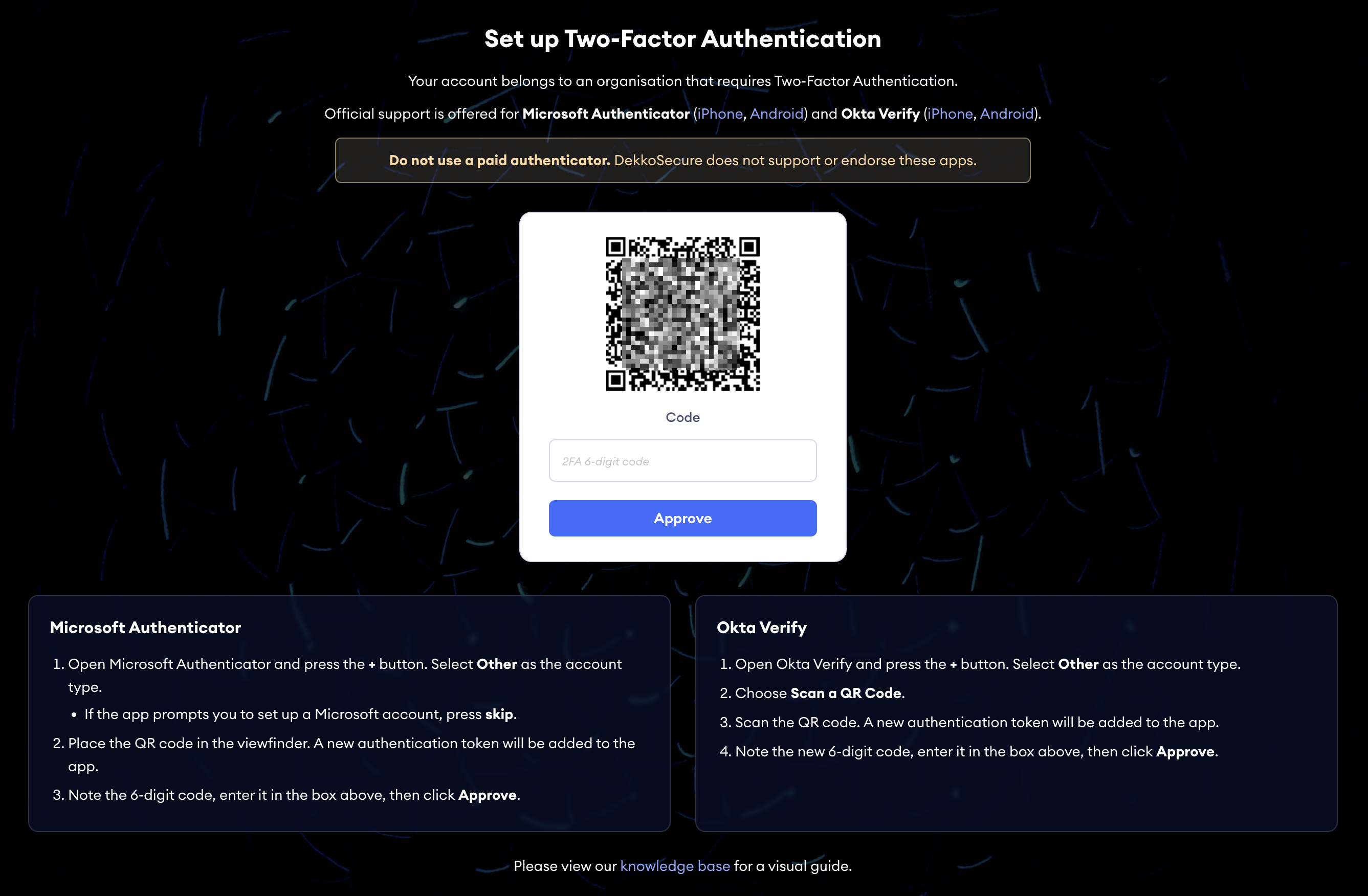
If you are prompted to set up 2FA after registration or log in this means that you are registered with an organisation on DekkoSecure that has 2FA enforced.
DekkoSecure uses Time-based One Time Passcodes (TOTP) for 2FA. SMS is not supported.
TOTP is a 6-digit code that is refreshed every 30 seconds. You can use any 2FA authenticator app that supports TOTP such as Microsoft Authenticator, Okta Verify, Google Authenticator, Authy, etc.
2FA Instructions for Microsoft Authenticator
Skip step 1 if you already have the Microsoft Authenticator application on your phone. Instructions for Okta Verify are below.
(Skip if you already have the app!) Download the Microsoft Authenticator app from the App Store (iOS) or Play Store (Android).
Note: be careful to avoid advertised alternatives to the options given above. Promoted alternatives are usually marked with [Ad]. DekkoSecure does not support or recommend the use of any 'paid' authenticator apps. If a 2FA app demands payment, do not use it.
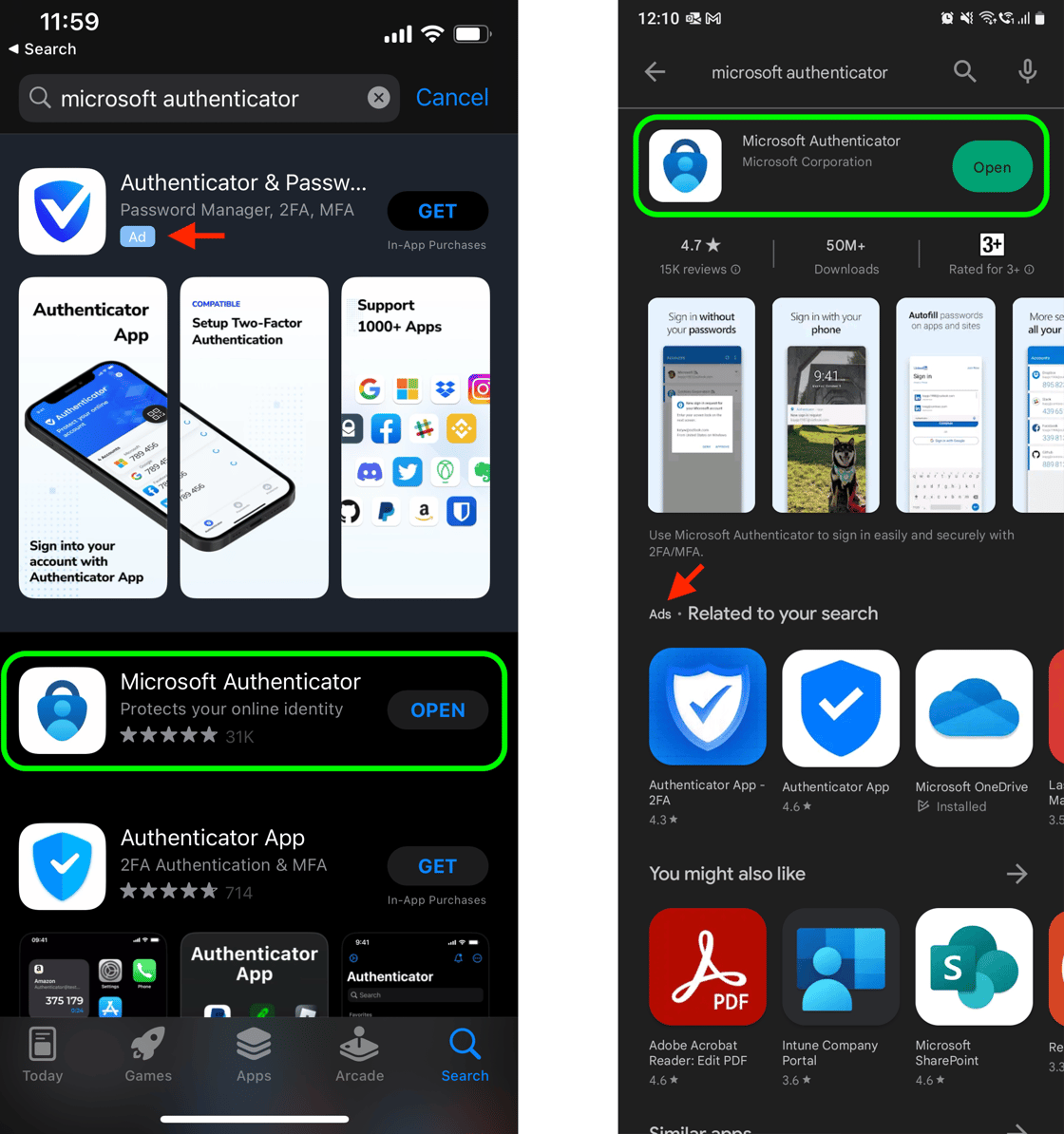
Open the Microsoft Authenticator app.
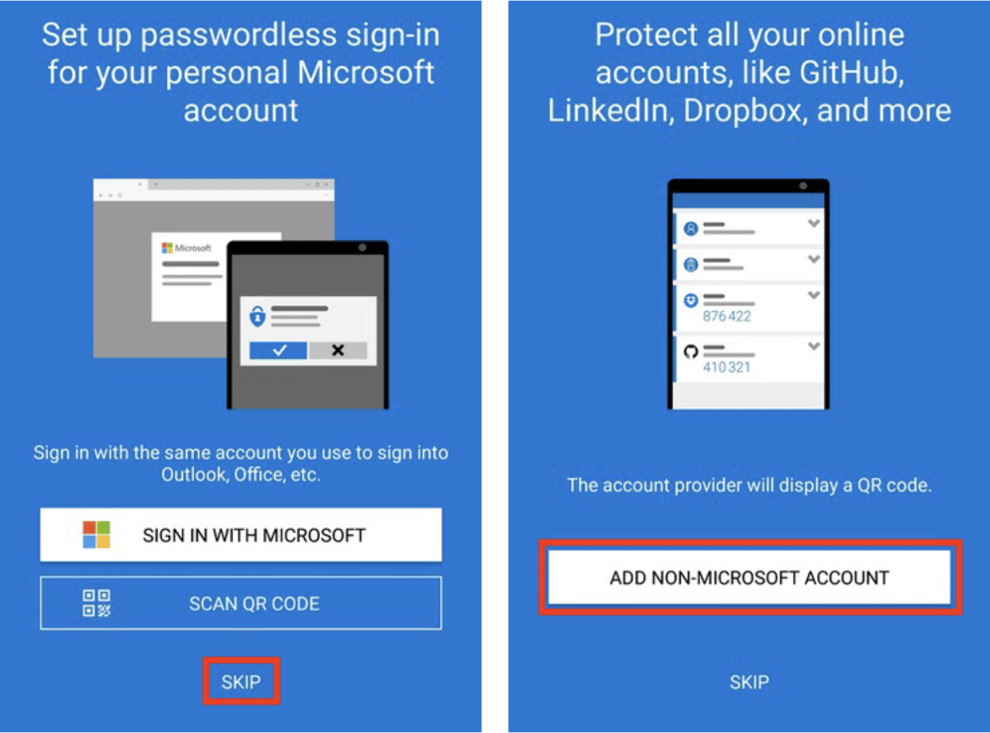
If you are using the Microsoft Authenticator app for the first time and see the screen below you can skip the first setup page and then select "Add non-Microsoft account”
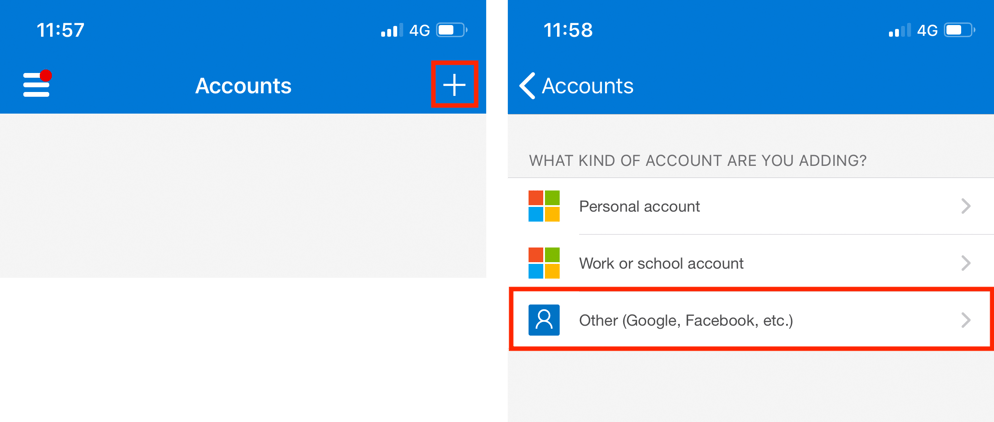
If you have used the app before and see the screen below press the + button and then select "Other”
Point the phone camera at the QR code on the DekkoSecure interface so that it sits within the viewer marked by the blue elements in the 2FA app; a code will be generated instantly. If you have more than one phone you can scan the QR code on that device at this time.
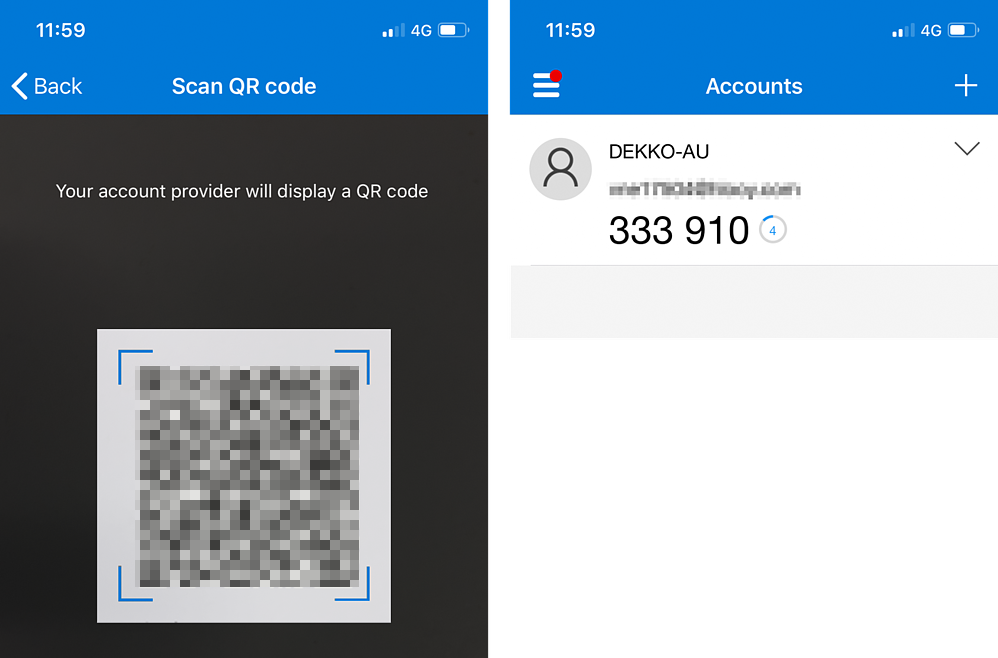
This code will be refreshed every 30 seconds. If the code changes before you enter it in to DekkoSecure, do not worry – you can enter the new one.
Note the 6-digit code displayed in the Authenticator app and enter it in to the 2FA page on the DekkoSecure app, then press ‘Approve’.
This code will be refreshed every 30 seconds. If the code changes before you enter it in to DekkoSecure, do not worry – you can enter the new one.
Your DekkoSecure account and a corresponding 6-digit code will be added to your accounts list. Enter the 6-digit code into the DekkoSecure prompt to finalise 2FA set up (noting the countdown!).
Remember to use the Microsoft Authenticator app to retrieve your 2FA code next time you log in!
Do not delete your authenticator app after setting up 2FA! Every time you log in you will be asked for the code displayed in your authenticator.
Instructions for Okta Verify
For users establishing 2FA using the Okta Verify app:
- Open the application and press the [+] button:
- Choose “Other” for the account type
![Okta Verify app home screen with a pink arrow pointing to the \[+\] button at the top right, used to add a new account.](/media/managing-your-account/enable-2fa-from-a-prompt/IMG_3994.jpg)
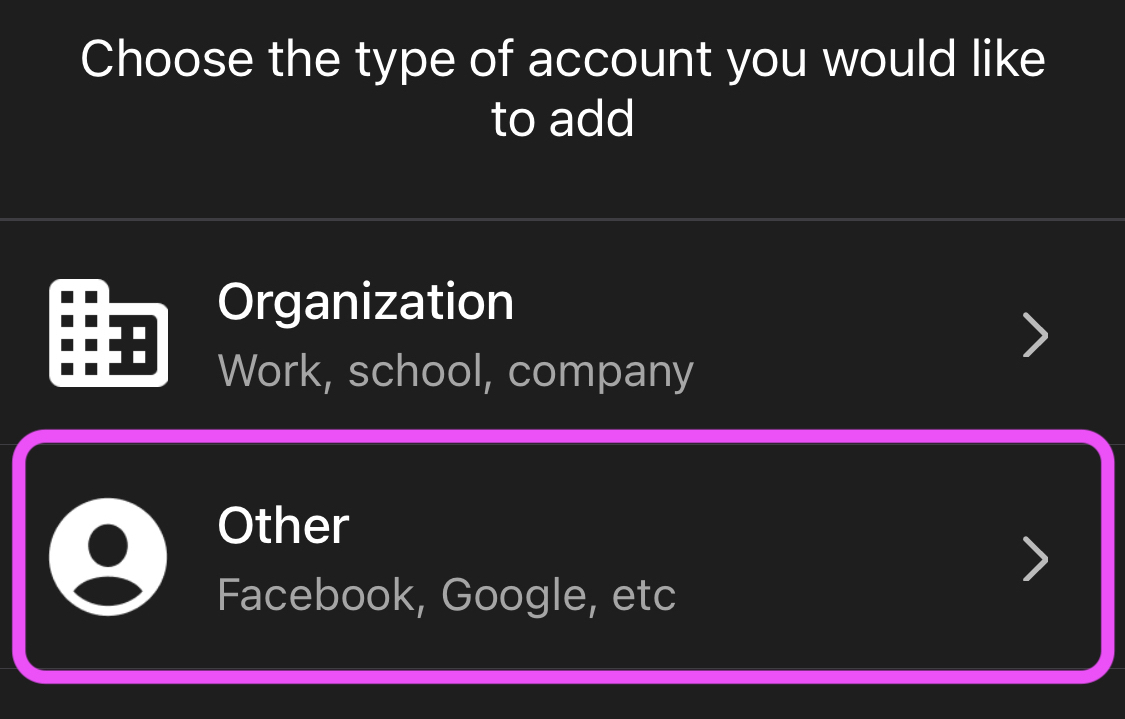
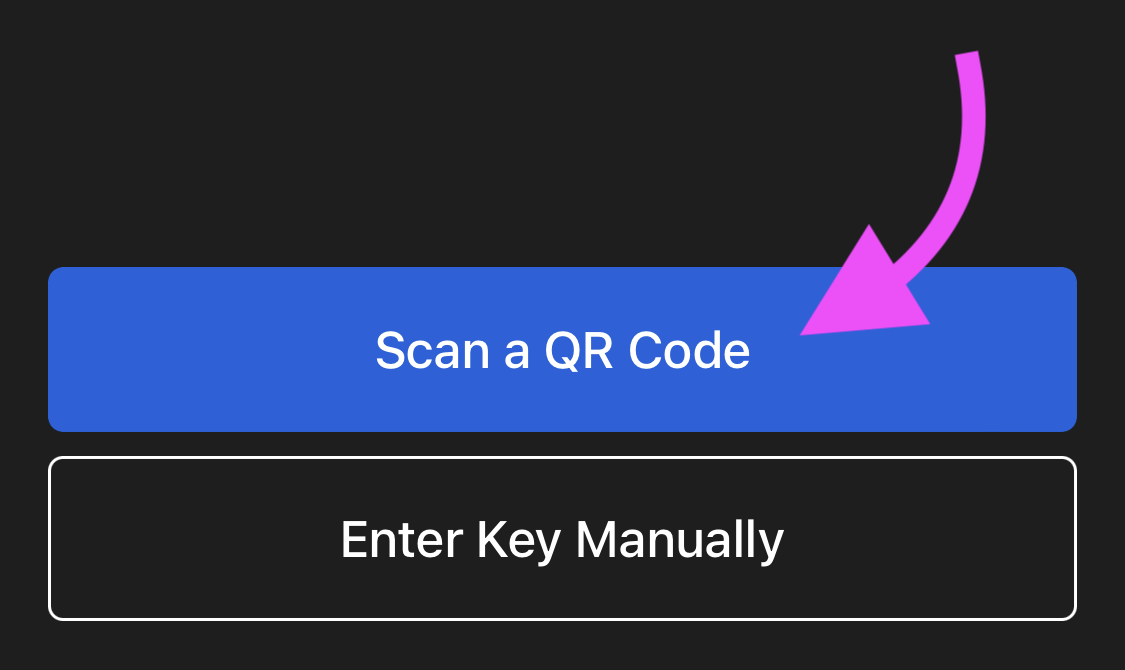
- Choose “Scan a QR Code”:
- Use the viewer to scan the QR code:
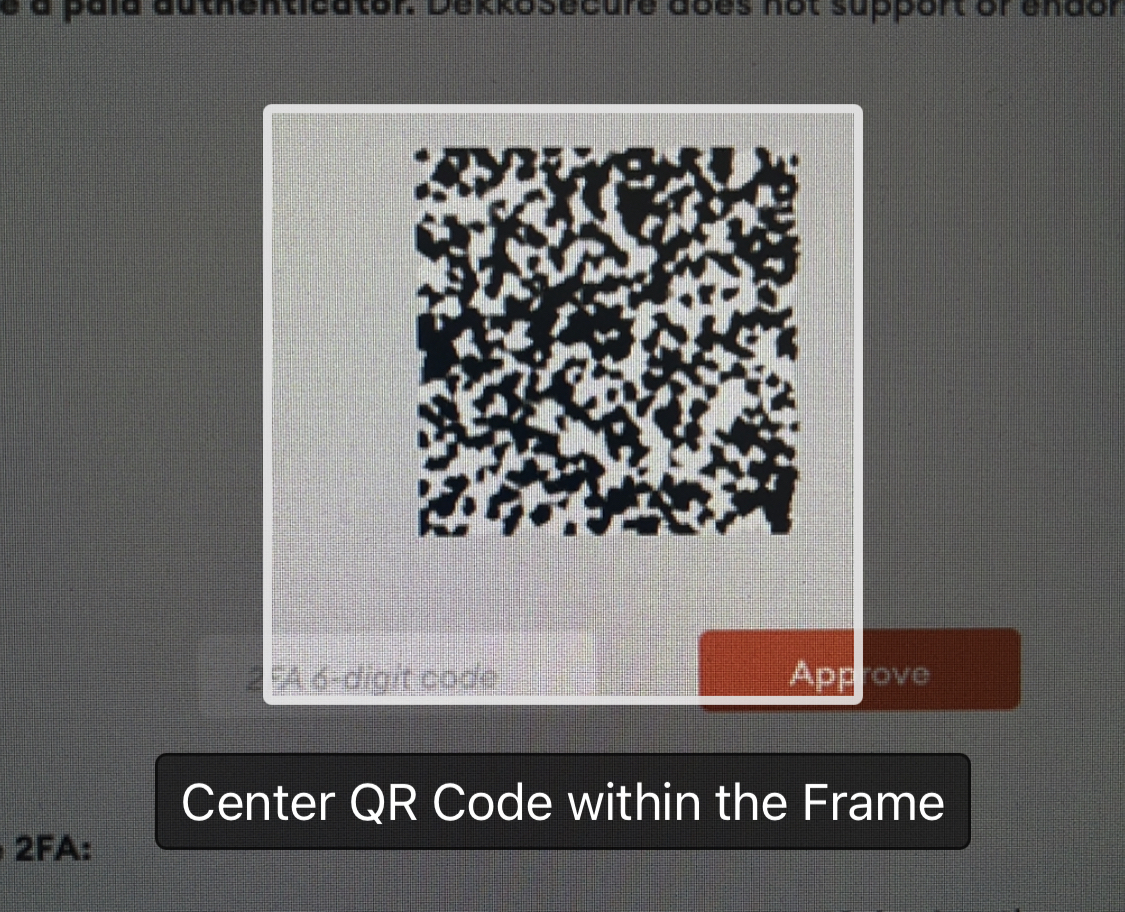
Your DekkoSecure account and a corresponding 6-digit code will be added to your Okta accounts list. Enter the 6-digit code into the DekkoSecure prompt to finalise 2FA set up (noting the countdown!).
Remember to use the Okta Verify app to retrieve your 2FA code next time you log in!
Do not delete your authenticator app after setting up 2FA! Every time you log in you will be asked for the code displayed in your authenticator.
Instructions for when you can’t use a phone
These steps are strictly recommended for users that work in environments where they cannot use a mobile phone only. If you have standard access to a second-factor device (your phone!), please follow the steps above for Microsoft Authenticator, Okta Verify, or your preferred TOTP authenticator app.
- Go to authenticator.cc and press Add to [your browser].
- Your browser-specific extension site will open. For Chrome: press Add to Chrome
For Edge: press Get
For Firefox: press Add to Firefox
The extension will then be added to your web browser after you confirm the prompt.
Note: if you are unable to add extensions to your browser, the only option for 2FA is with a mobile-based authenticator (steps above).
Pin the extension to your browser’s navigation bar:
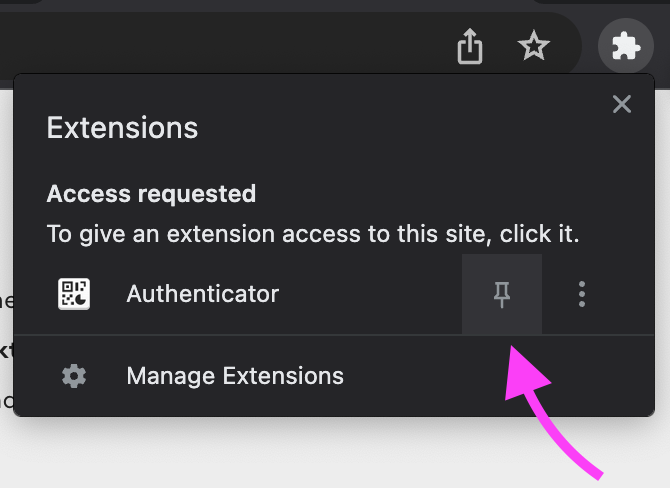
Switch back to the Dekko tab in your browser, open the Authenticator extension, and then press the scan button. Scan the QR code using the selector.
Open the Authenticator extension again and click your new code to copy it or note the numbers. Paste or enter the 6-digit code and then press Approve:
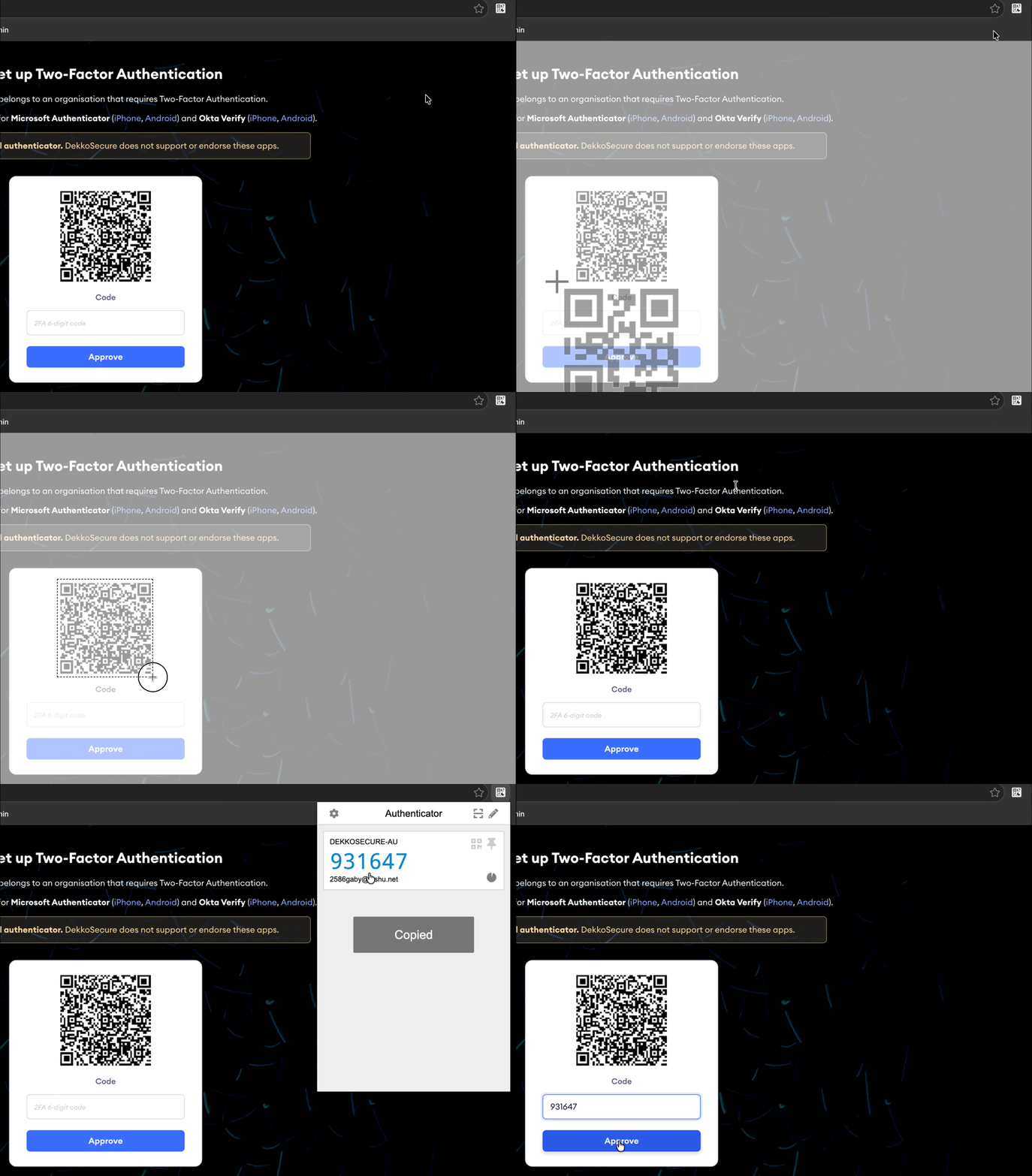
Your DekkoSecure account and a corresponding 6-digit code will be added to your Authenticator accounts list. Enter the 6-digit code into the DekkoSecure prompt to finalise 2FA set up (noting the countdown!).
Do not delete the Authenticator extension. Deleting the extension will wipe the DekkoSecure 2FA token and you will not be able to access your account without administrator assistance.
Follow these steps to backup and sync your Authenticator extension token(s).
2FA set up troubleshooting
If you still see a something went wrong message, refresh the DekkoSecure page showing the QR code and scan it again - refreshing the page will generate a new QR code.
If the error persists, check that your computer and phone are on the same time setting by visiting this site: https://time.is/
If a time mismatch between your devices is more than 20 seconds, 2FA will not work.
Instructions for setting your devices to automatic time:
Phone - iPhone | Android (Samsung) | Android (Google Pixel)
After checking that your device times match, restart your phone and re-scan the 2FA QR code by adding a new account to your authenticator.