

Enable 2FA on a New Phone
Transferring your 2FA configuration to a new device.
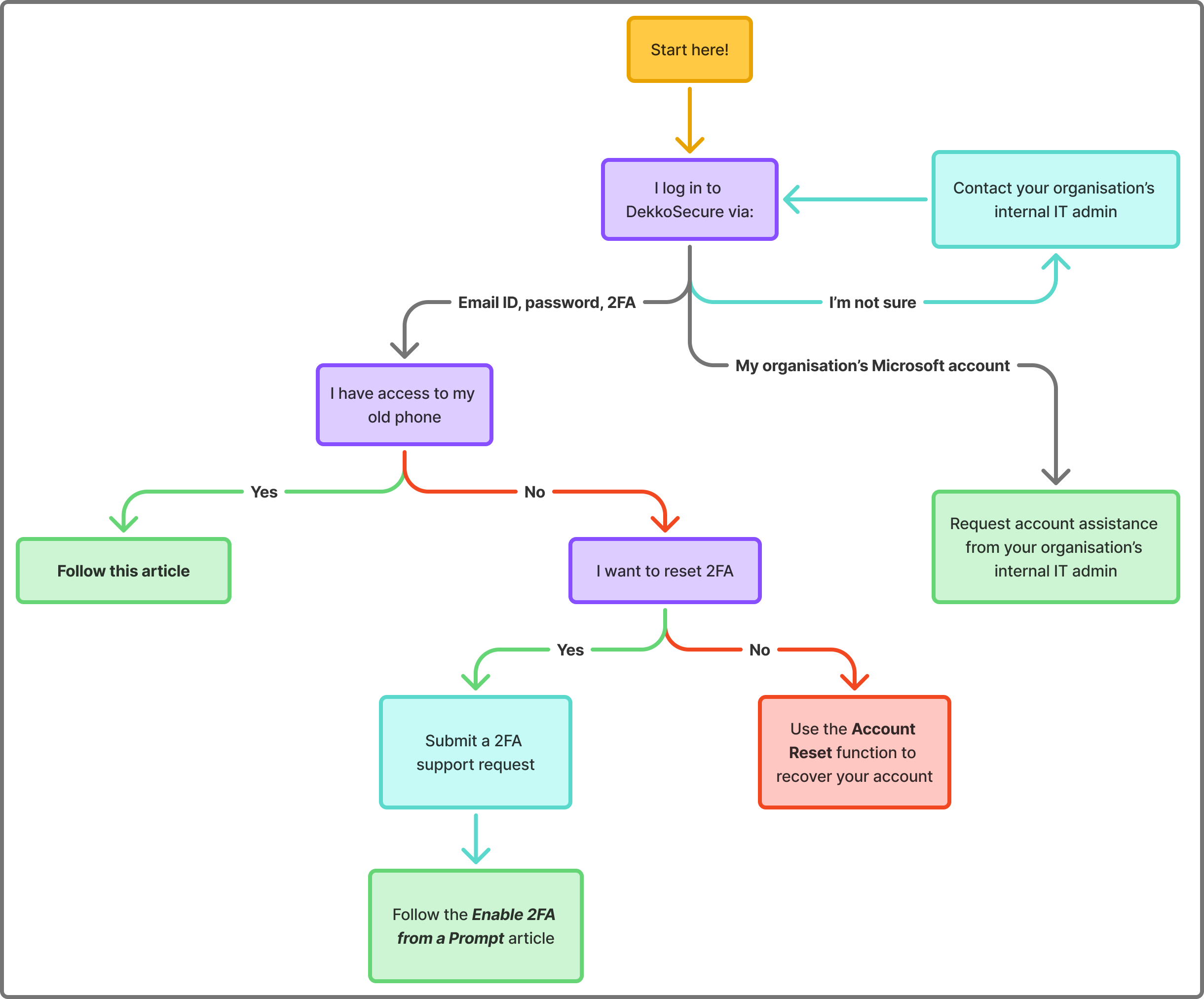
You must have access to your old phone to transfer 2FA to a new phone without administrator assistance.
If you use Single Sign-On (the log in to a corporate account log in button), this article does not apply to you. This article is for Standard users only.
If you have forgotten your corporate identity password or lost your 2FA device please contact your internal IT support resource. DekkoSecure cannot assist with SSO account recovery resets.
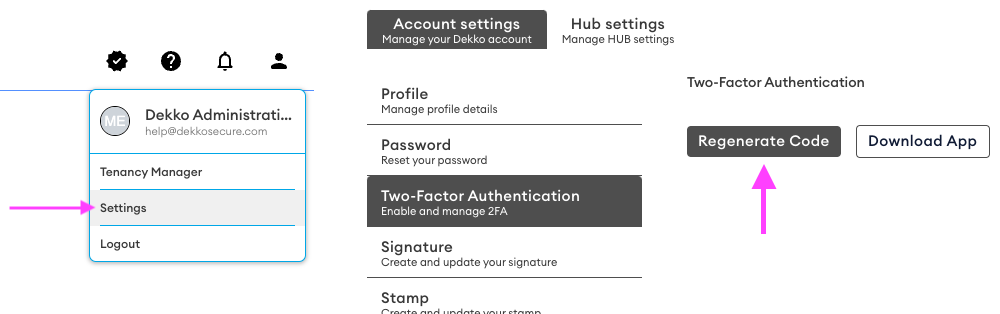
Log in to DekkoSecure and navigate to the 2FA section of your profile settings, then press Regenerate Code. A QR code will be displayed.
2FA instructions for Microsoft Authenticator
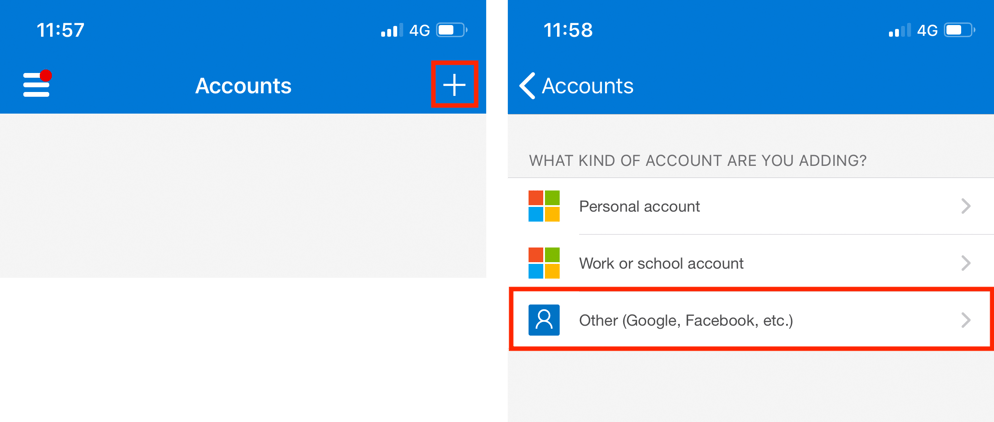
Open the Microsoft Authenticator app on your new phone and add a new account [+]. Ensure that Other is selected as the account type:
Point your phone camera at the QR code on the DekkoSecure interface so that it sits within the scanning frame in Microsoft Authenticator; a code will be generated instantly. If you have more than one phone you can scan the QR code on that device at this time.
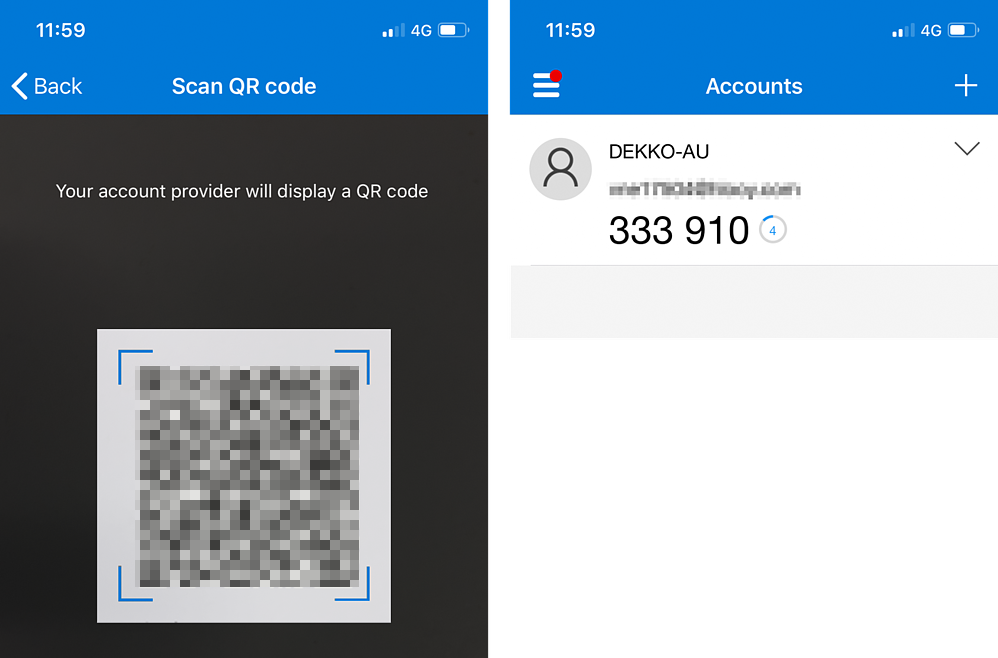
Note the 6-digit code displayed in the Authenticator app and enter it in to the 2FA page on the DekkoSecure app, then press Approve.
This code will be refreshed every 30 seconds. If the code changes before you enter it in to DekkoSecure, do not worry – you can enter the new one.
Your new 2FA token is now active on your new device!
The 2FA code on your previous device will no longer work as a token for logging in. DekkoSecure recommends removing 2FA accounts from old devices.
Do not delete your authenticator app after setting up 2FA! Every time you log in you will be asked for the code displayed in your authenticator.
2FA instructions for Okta Verify
For users establishing 2FA using the Okta Verify app:
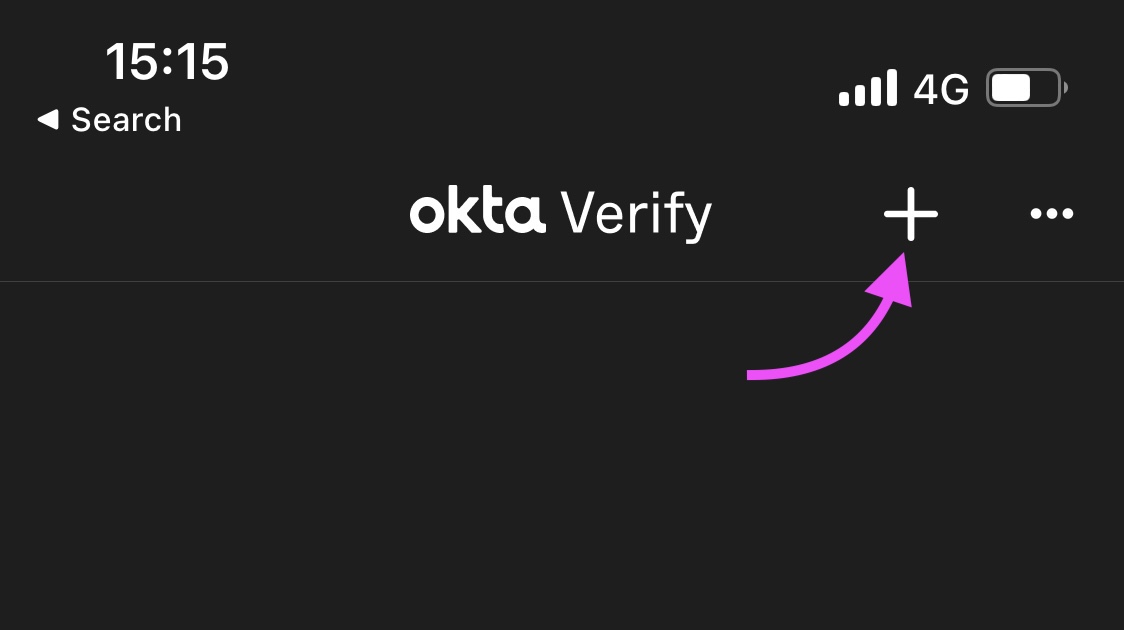
- Open the Okta Verify app on your new phone and press the [+] button:
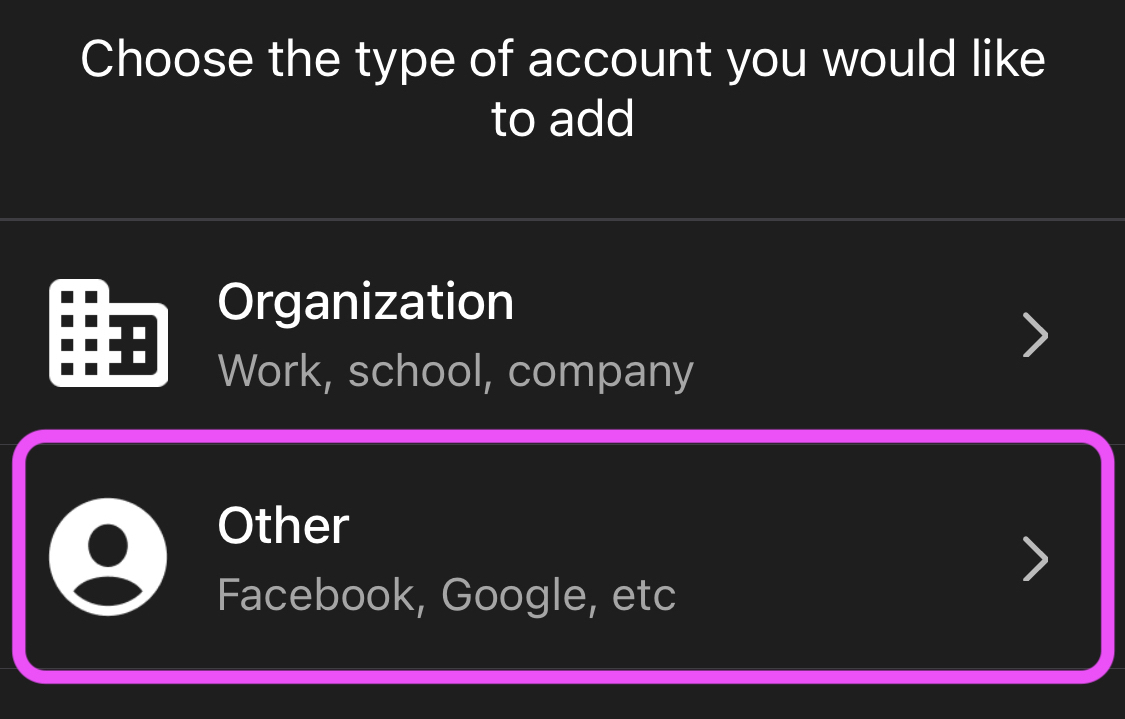
- Choose Other for the account type
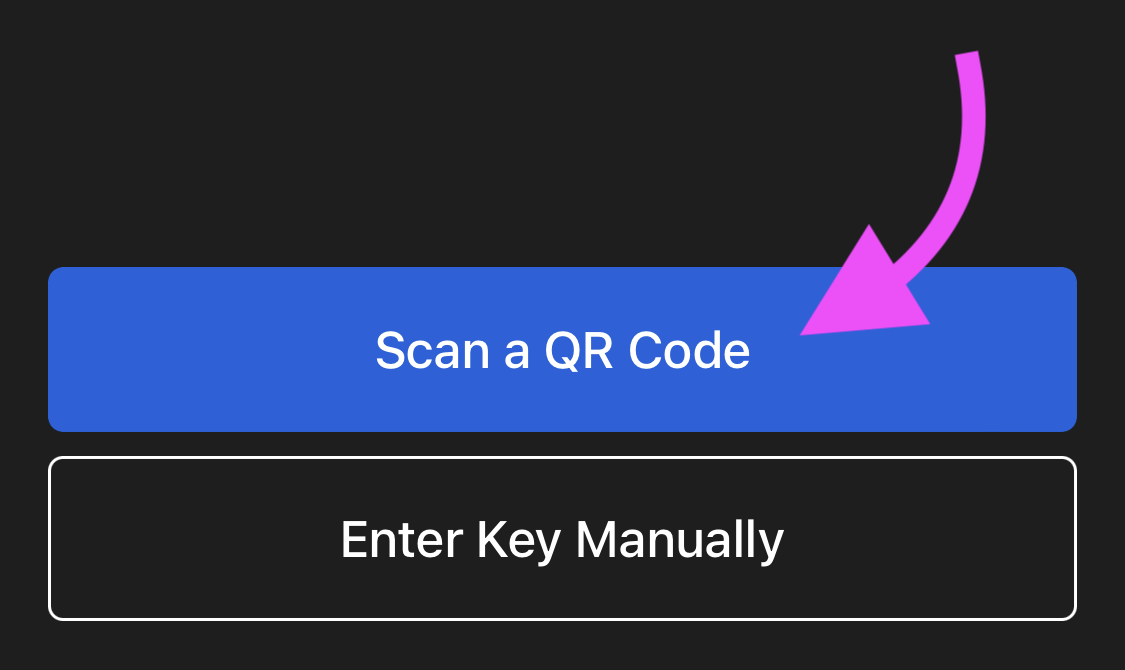
- Choose Scan a QR Code:
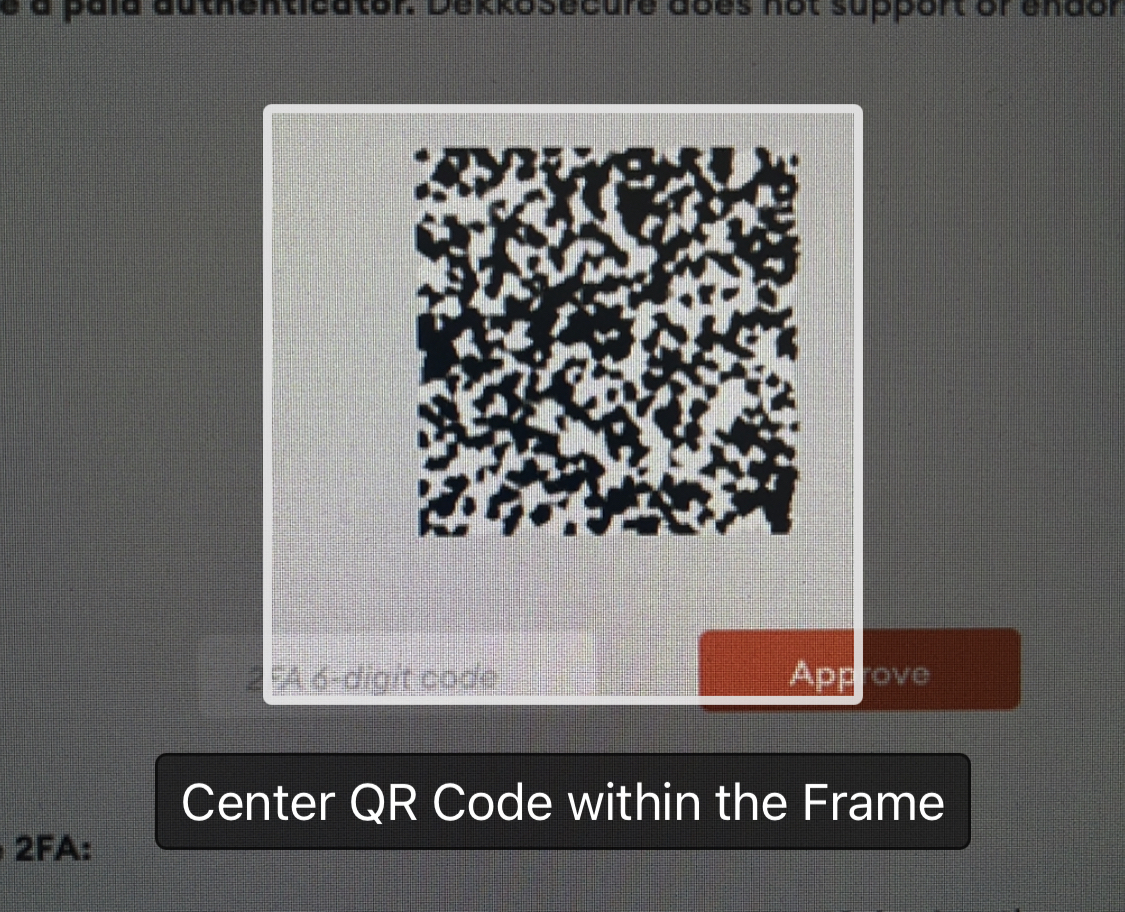
- Use the viewer to scan the QR code:
Note the 6-digit code displayed in the Authenticator app and enter it in to the 2FA page on the DekkoSecure app, then press Approve.
Your new 2FA token is now active on your new device!
The 2FA code on your previous device will no longer work as a token for logging in. DekkoSecure recommends removing 2FA accounts from old devices.
Do not delete your authenticator app after setting up 2FA! Every time you log in you will be asked for the code displayed in your authenticator.
2FA set up troubleshooting
If you still see a something went wrong message, refresh the DekkoSecure page showing the QR code and scan it again - refreshing the page will generate a new QR code.
If the error persists, check that your computer and phone are on the same time setting by visiting this site: https://time.is/
If a time mismatch between your devices is more than 20 seconds, 2FA will not work.
Instructions for setting your devices to automatic time:
Phone - iPhone | Android (Samsung) | Android (Google Pixel)
After checking that your device times match, restart your phone and re-scan the 2FA QR code by adding a new account to your authenticator.
Account reset
If you would prefer not to transfer 2FA or request assistance from an administrator, you can reset your account by following these steps. Be aware that an account reset deletes your files and messages (except files shared with Full permissions), removes your Hub memberships, and deletes your signatures and stamps.