

Password Reset, 2FA Reset and Account Recovery
Reset your password, recover a lost 2FA token, passkey or reset your account as a standard (non-SSO) user.
If you use Single Sign-On (the log in to a corporate account option), this article does not apply to you. This article is for Standard users only.
If you have forgotten your corporate identity password please contact your internal IT support resource. DekkoSecure cannot assist with SSO password resets.
Find Your Scenario
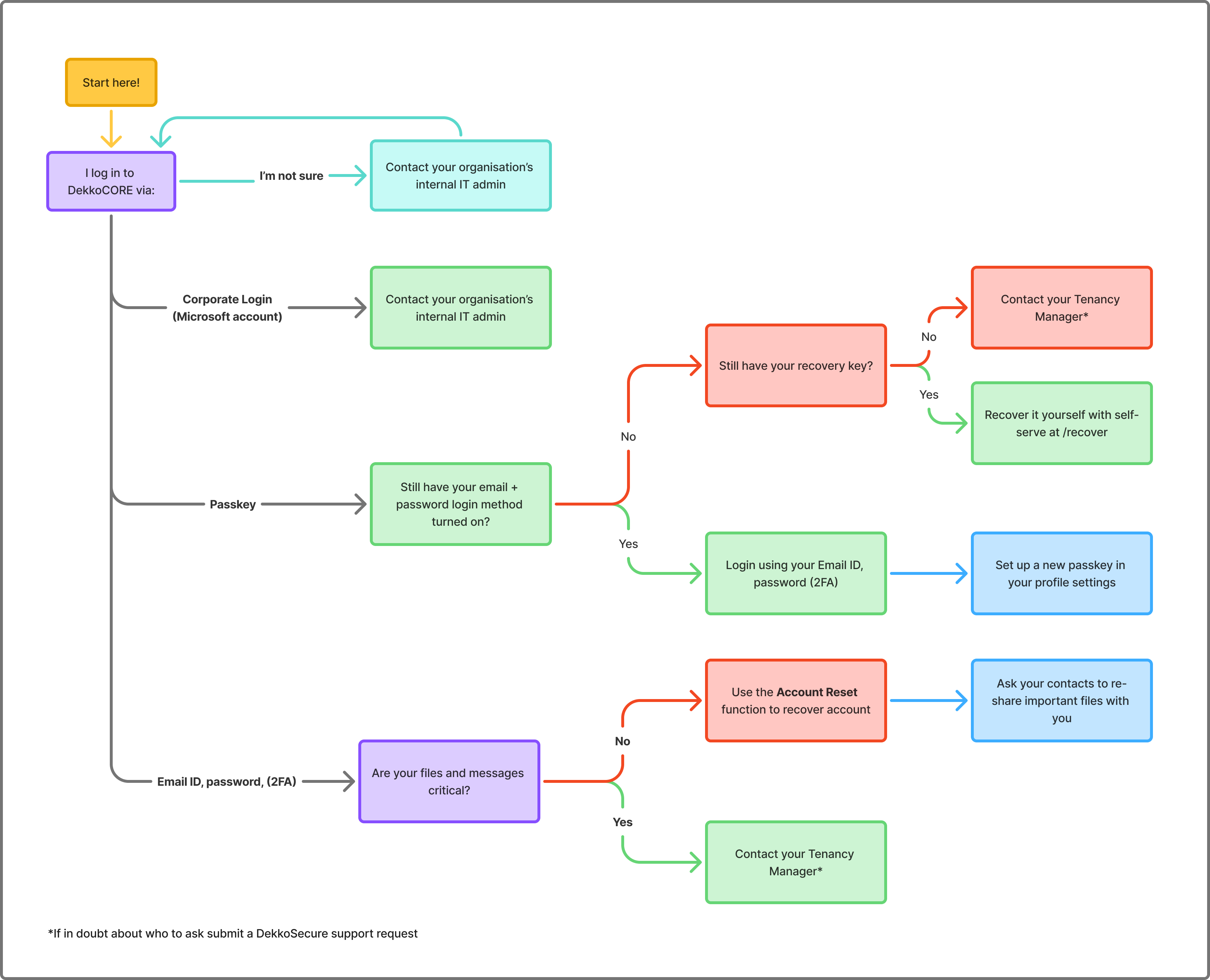
This article covers different situations and how to recover your DekkoSecure account. The below chart shows the different scenarios.
Before you start
Confirm you are logging in to the correct DekkoSecure instance which your organisation is registered with:
- Australian government and industry - au.dekko.io
- Canadian government and industry - ca.dekko.io
- US government and industry - us.dekko.io
DekkoSecure Account Password
Your DekkoSecure password is set by you during account creation. This password secures your account's private key, which is used to access the content (files, messages, etc.) within DekkoSecure.
Your password can only be changed in two ways:
- Temporarily reset by a Tenancy Manager if the Trusted Tenant policy is ON and the user has logged in at least once. If your password gets reset, you'll receive an email notification.
- Or reset it yourself using an account reset. See Account reset by you below.
To request assistance with resetting your password you can submit a support request here.
DekkoSecure Account 2FA
Your 2FA token is set up by you when you create your DekkoSecure account (via an invite).
Before trying to recover your account, look for an "Authenticator" app on your phone (Microsoft Authenticator, Okta Verify, Authy, Google Authenticator, etc.).
Your DekkoSecure account will be listed with a rotating 6-digit code, a token name (e.g., "DekkoSecure-AU") and your DekkoSecure ID (your email address)
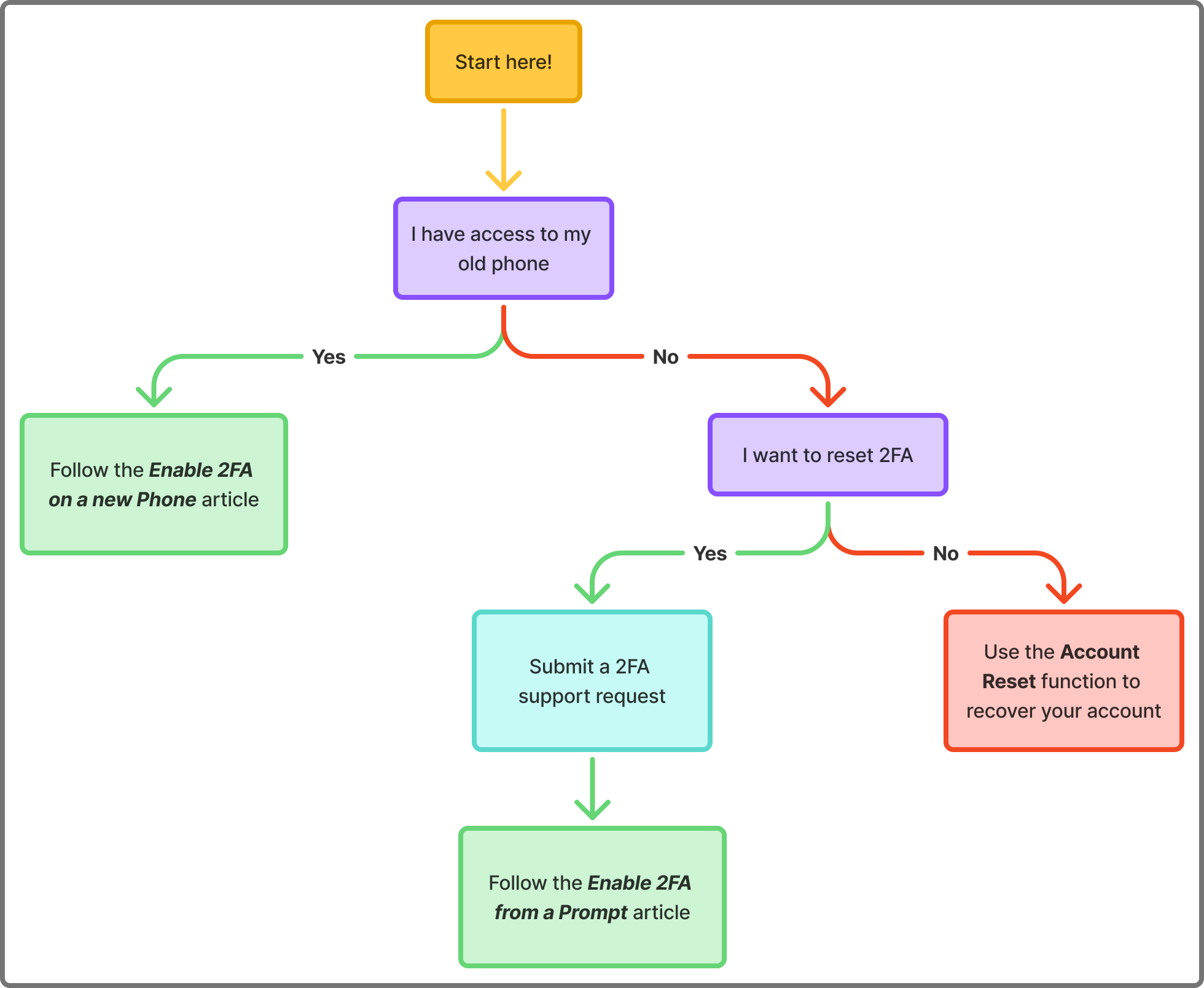
If you have lost your 2FA token, there are three ways to regain access to your account:
- 2FA reset by your DekkoSecure Tenancy Manager (contact them for assistance)
- Submit a support request to DekkoSecure here.
- Account reset
Account reset by you
The account reset process will recreate your account. This deletes all data associated with your profile:
- Your files and messages will be deleted (except for files shared with Full Permissions)
- Your Hub membership(s) will be removed
- You will not be able to access files that were shared with you before the reset (your contacts will need to re-share files with you)
- Signatures, stamps and account details such as title will be deleted
Steps to reset your account
- On the login page navigate to the Recover account service:
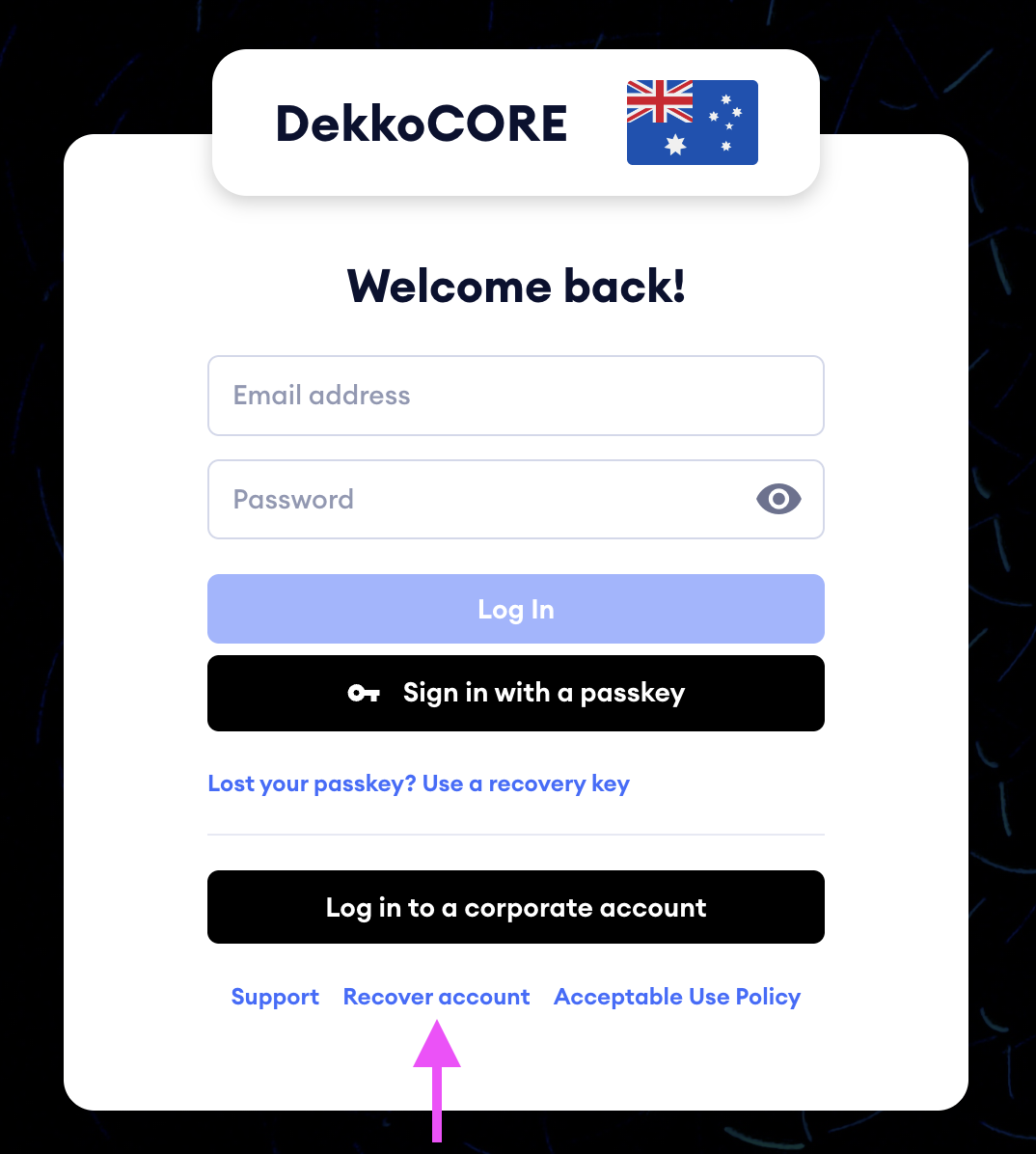
- Enter your DekkoSecure account ID and check the acknowledgement, then press proceed
- A recovery message will be delivered to your email inbox - open the link and confirm the account reset process.
After your account has been reset
- Request access to the Hub(s) that you were a member of
- Request sharing access to content that was previously shared with you*
- Re-add your signature, stamp, and any other account details
* Owners of the files that were previously shared with you will be marked with "Reshare required" in the file listing. Your contacts can use this marking to quickly identify what needs to be shared with you.
Passkey account access recovery
If you use Passkey to log in to DekkoCORE, there are several ways you can recover your access. Please follow the below steps.
- If you still have your password (and 2FA) turned on, you can still log in with your email, password and 2FA.
- If you have saved your recovery key you can use it to recover your access. Please check out Account access recovery for passkeys guide here.
- If you don’t have any of the above, request assistance from your DekkoSecure administrator (Tenancy Manager).