

S3 Gateway: Connect an S3 App (S3 Browser, rclone)
Overview
Once the Dekko S3 Gateway is running with your token, any app that works with S3-compatible storage can open your hubs. Each hub appears as a bucket, and the folders and files inside it appear as they do in DekkoCORE.
This article shows how to connect two common apps: S3 Browser (a Windows app for browsing and copying files) and rclone (a command-line tool for copying and syncing files). Other S3 apps use the same connection details.
If you have not set up the gateway yet, start with S3 Gateway: Enable Access and Create a Token.
S3 Browser and rclone are third-party products, not made by DekkoSecure. Check their licence terms before you use them at work. For example, the free edition of S3 Browser is for non-commercial use only.
Connection details
Copy every value from the gateway window, using its Copy buttons. The values are different for each computer and token.
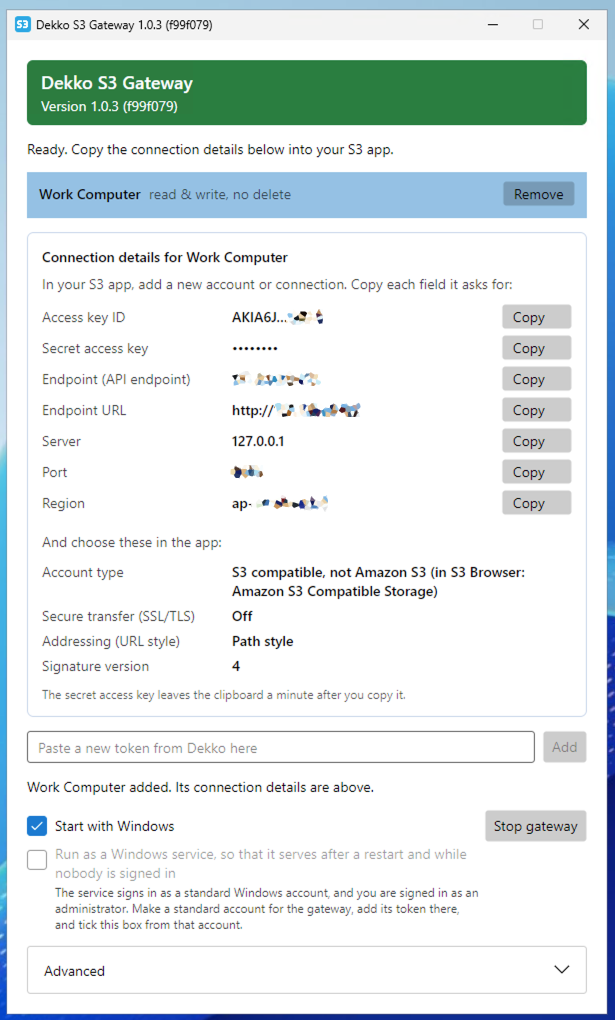
| Setting | Value |
|---|---|
| Access key ID | From the gateway window |
| Secret access key | From the gateway window |
| Endpoint (API endpoint) | From the gateway window: server and port, for example 127.0.0.1:9493 |
| Endpoint URL | From the gateway window, for example http://127.0.0.1:9493 (for apps that ask for a full URL) |
| Region | From the gateway window, for example ap-southeast-2 |
| Account type | S3 compatible, not Amazon S3 |
| Secure transfer (SSL/TLS) | Off |
| Addressing (URL style) | Path style |
| Signature version | 4 |
The secret access key leaves the clipboard a minute after you copy it, so paste it straight into your app.
Secure transfer is off because your app talks to the gateway on your own computer only. The gateway connects to DekkoCORE for you.
Set up S3 Browser
Make sure the gateway is running.
In S3 Browser, open Accounts → Add new account.
Fill in the account:
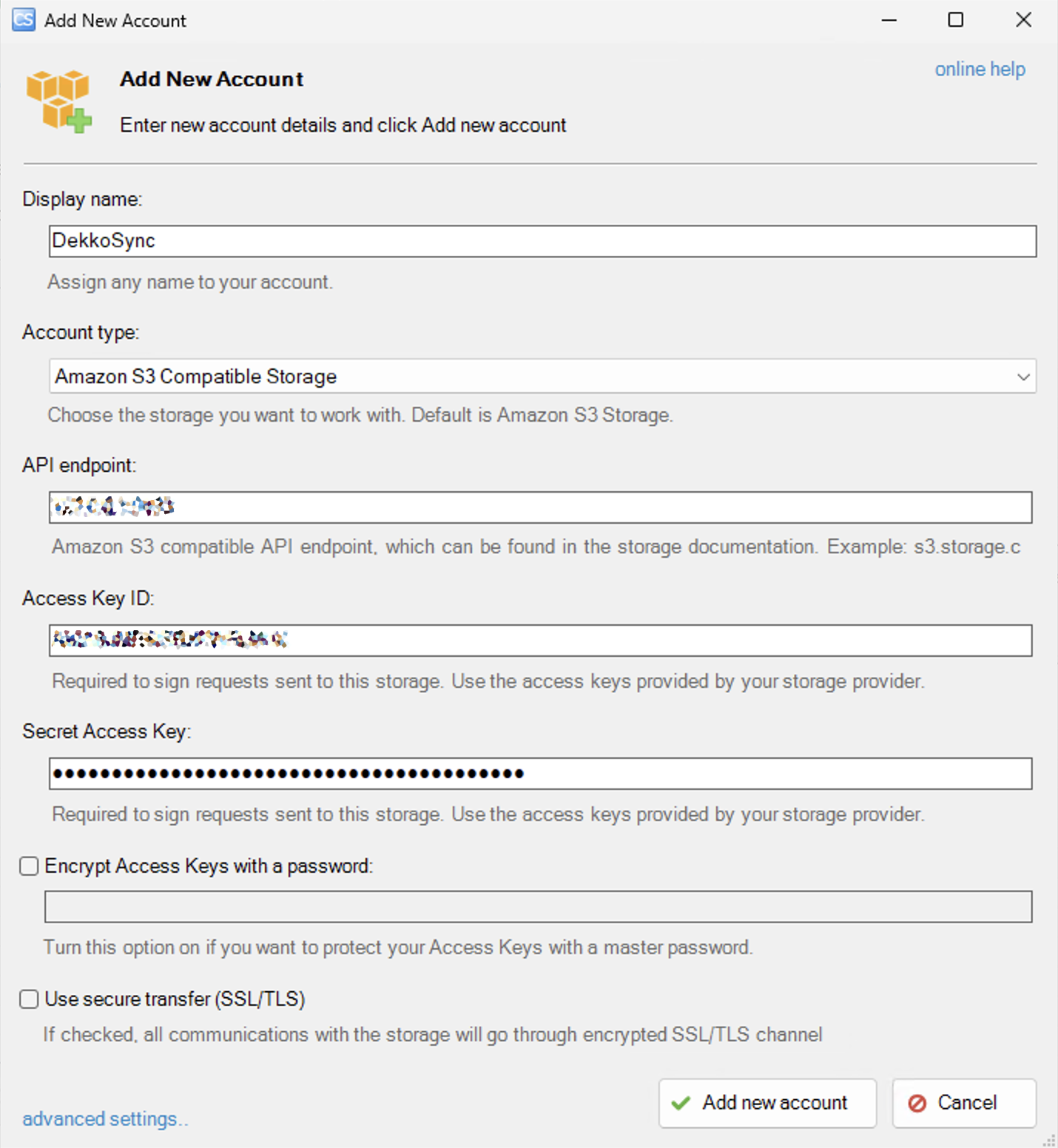
- Display name: any name, for example DekkoCORE.
- Account type: Amazon S3 Compatible Storage.
- API endpoint: the Endpoint (API endpoint) from the gateway window, for example
127.0.0.1:9493. - Access Key ID and Secret Access Key: from the gateway window.
- Clear Use secure transfer (SSL/TLS).
Click advanced settings, and check that Signature V4 and Path style are selected.
Click Add new account.
Your hubs are listed on the left as buckets. Select one to see its folders and files:
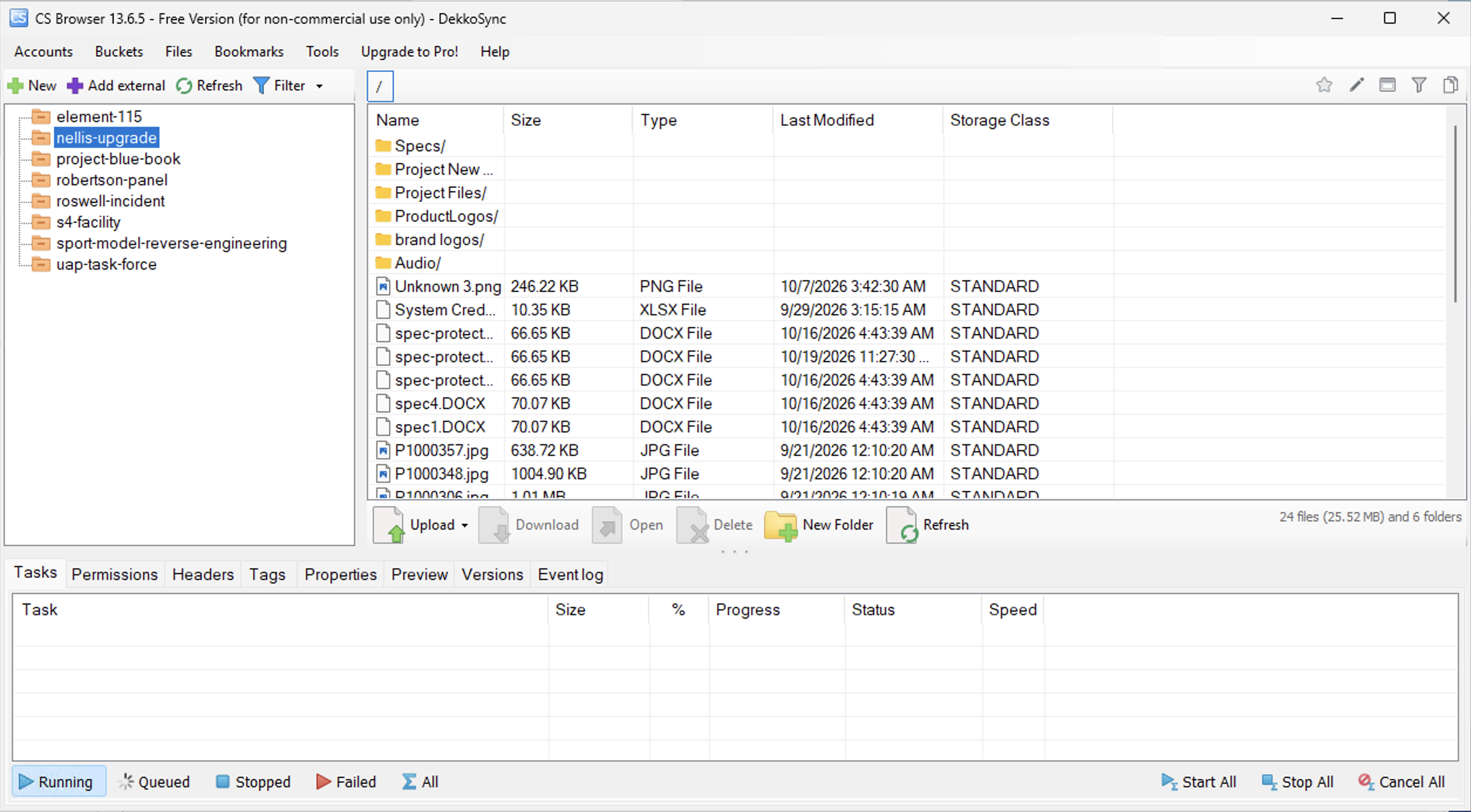
What you can do depends on the token's access level. With a Read & write, no delete token, for example, you can upload but not delete.
Set up rclone
Make sure the gateway is running, and install rclone.
Run
rclone config fileto see where rclone keeps its configuration. Add this to that file, with the values from your gateway window:[dekko] type = s3 provider = Other endpoint = http://127.0.0.1:9493 region = ap-southeast-2 force_path_style = true access_key_id = <Access key ID from the gateway window> secret_access_key = <Secret access key from the gateway window>You can also run
rclone configand answer its questions with the same values: storage type s3, provider Other, and path-style addressing.Check that rclone can see your hubs. Each hub is listed as a bucket:
rclone lsd dekko:
Common rclone commands
| To do this | Run |
|---|---|
| List the files in a hub | rclone ls dekko:<hub> |
| Copy a hub's files to a folder | rclone copy dekko:<hub> C:\DekkoCopy\<hub> |
| Upload a folder to a hub (needs a write token) | rclone copy C:\Reports dekko:<hub>/Reports |
| Check a local copy against a hub | rclone check dekko:<hub> C:\DekkoCopy\<hub> --one-way |
Replace <hub> with a bucket name from rclone lsd dekko:.
rclone sync makes the destination match the source, and deletes files that are not in the source. With a Read & write token, a sync to DekkoCORE can delete files there. Use copy unless you mean to delete, and try --dry-run first.
Keep your keys private
Anyone who has the access key ID and secret access key, and can reach the gateway on your computer, can open your hubs with the token's access. Do not share them or paste them into documents. If you think someone has them, revoke the token in DekkoCORE and create a new one.
Troubleshooting
| What you see | What to do |
|---|---|
| The app cannot connect | Check that the gateway is running and that the endpoint matches the gateway window. Check that SSL/TLS is off. |
| Access denied, or a signature error | Copy both keys again from the gateway window. Check the region, path-style addressing and Signature V4. |
| No buckets, or a hub is missing | The token may reach One hub only. Check the token in DekkoCORE under Settings → Account → S3 gateway. |
| An upload or delete fails | Check the token's access level. A Read-only token changes nothing, and Read & write, no delete cannot delete. |
| It worked, then stopped | The token may have been revoked or replaced (the keys change with each new token), or the tenancy policy turned off. |