

Create a Profile Stamp
Adding an organisational stamp to your profile.
A stamp is an image that can be saved on your profile for quick retrieval during document approvals:
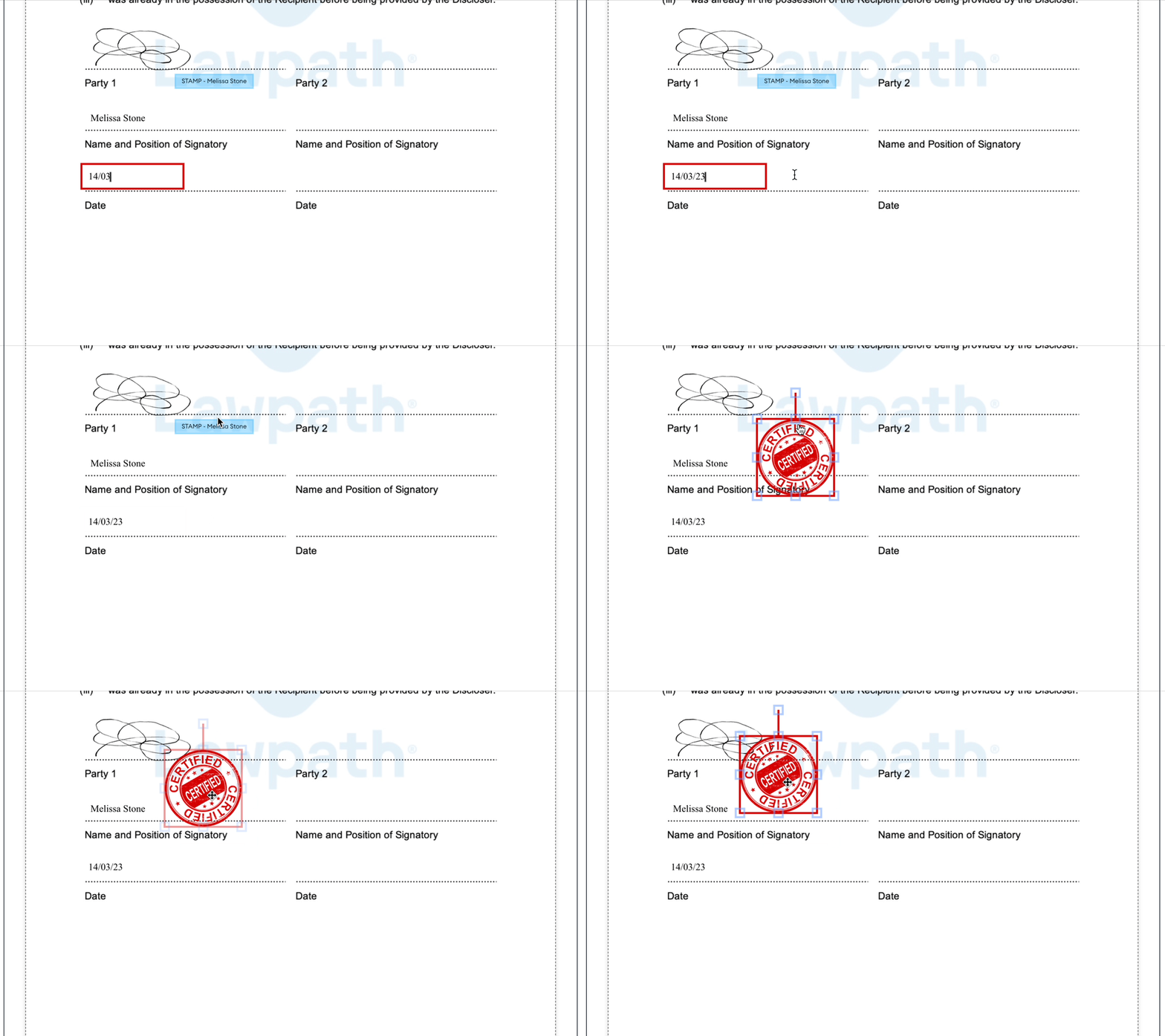
Stamps will look better when they have a transparent background. Follow our background transparency guide to learn more.
How to add a stamp to your profile
- Open your profile settings
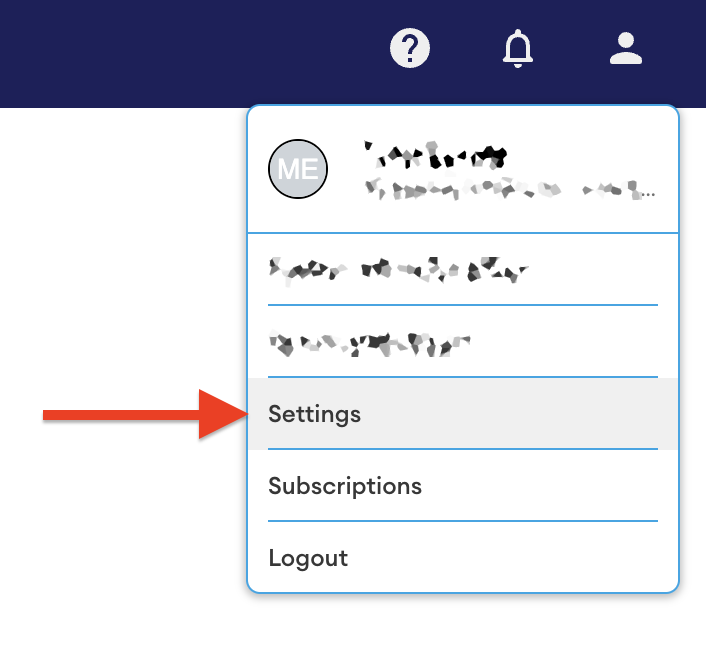
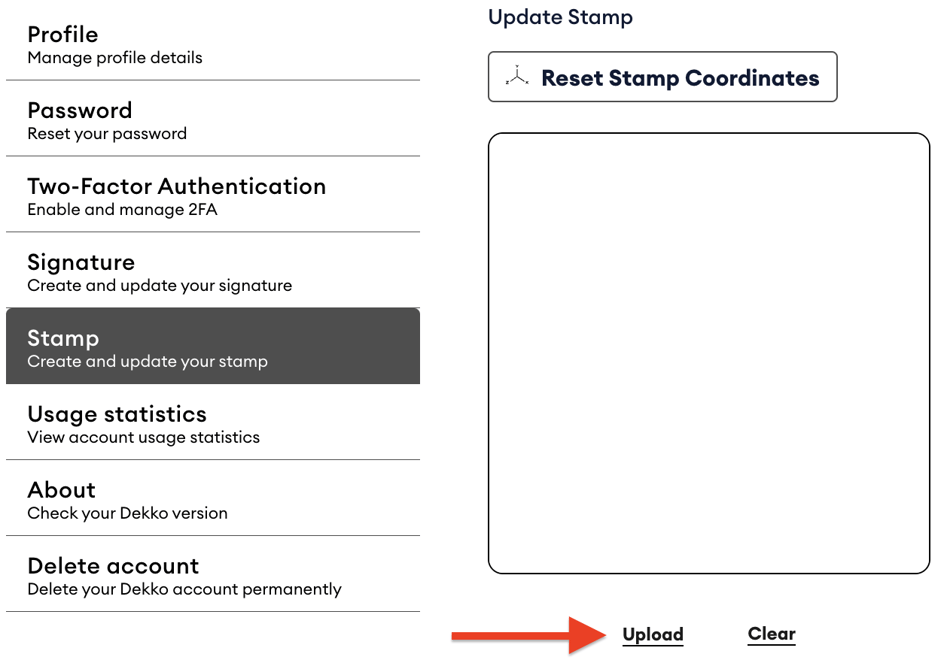
- Navigate to the 'Stamps' section, then press Upload
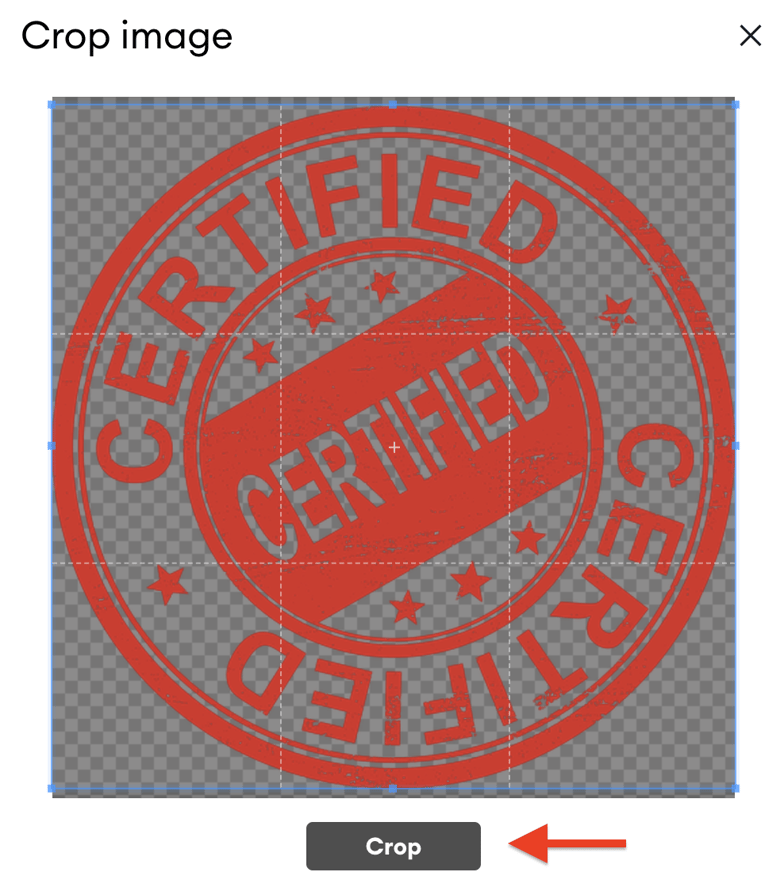
- Use the corners of the selector to crop the stamp appropriately
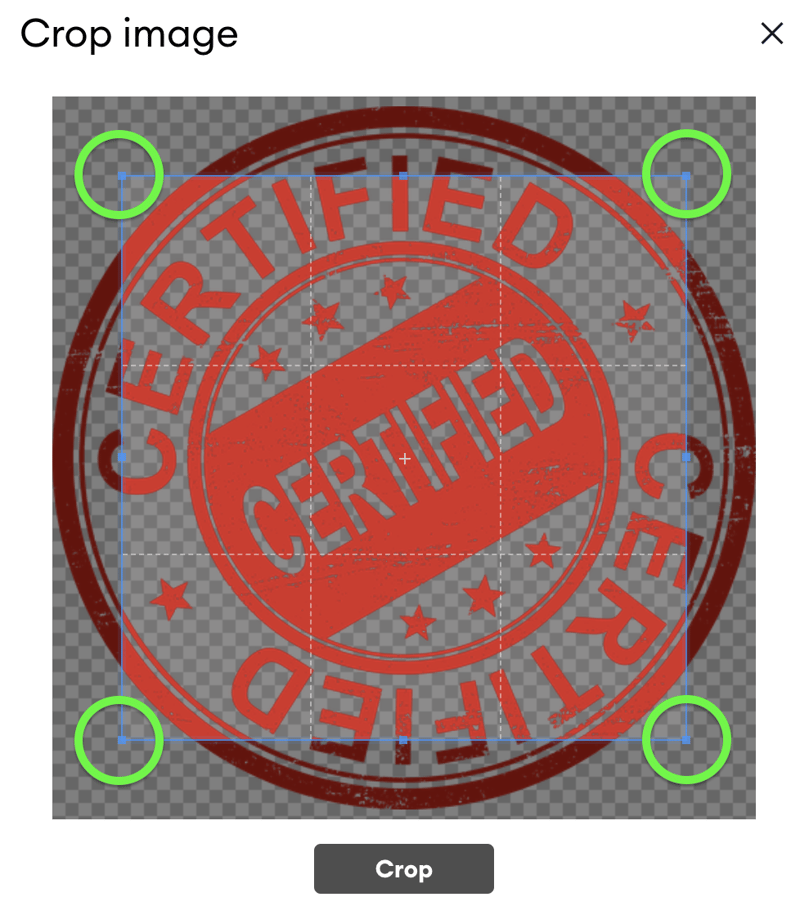
- When you are satisfied with the selection, press [Crop]
- Press [Save] to store your stamp
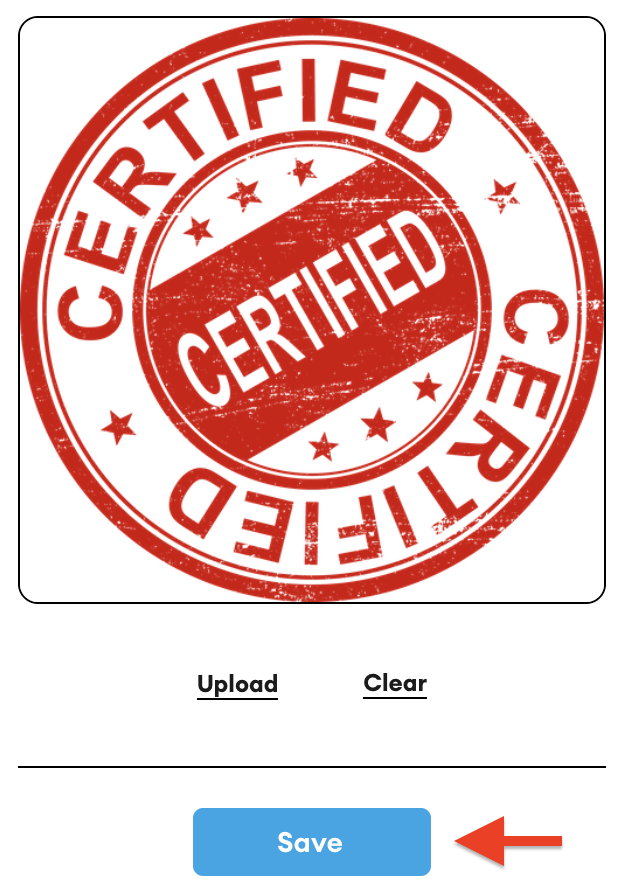
You are now ready to add stamps during document approvals.
Was this article helpful?
Didn't find what you need?Ask the AI assistant about this topic, or contact support.
Request support