

Tenancy and Hub Roles
Overview of role types and their permissions across Tenancies and Hubs.
A typical DekkoSecure deployment comprises a single Tenancy containing a number of Hubs, with each Hub corresponding to a project, team, engagement, or other business process. This article covers the Tenancy Manager role, the roles in Core Hubs and the roles in Fusion Hubs.
General permissions notes
All users can, unless restricted by Hub policy and/or Tenancy policy:
- Create Hubs
- Upload files to the root of a Hub
- Upload folders at the root of a Hub
- Create folders at the root of a Hub
See Hub roles further down in this article for Core Hub controls such as invite permissions and contact visibility, and Fusion Hub roles for the roles in Fusion Hubs. In Fusion Hubs, what a person can do with content depends on the permission level of their groups.
Tenancy Manager
Can:
- Access the Tenancy Manager
- Reset in-Tenancy users’ passwords if the Trusted Tenant policy is ON (non-SSO users only).
- Set Tenancy policies
- Manage Hubs and Users
- View traffic and storage activity
- View Tenancy audit logs (all Hubs in-Tenancy)
- Set SIEM integrations
- Delete Hubs
- Remove users from a Tenancy
- Manage every Fusion Hub, its settings, attributes, profiles, groups and Index
- Nominate Fusion Managers and Fusion Hub Admins
Cannot:
- Access other in-Hub users’ content (files and messages) unless they are a member of a Hub and content is shared with them explicitly
- Change Core Hub settings (manage users, etc.) unless they are a member of the Hub and set as a Hub Admin
Tenancy Managers can be identified by their marking in the Tenancy Manager (Users tab):
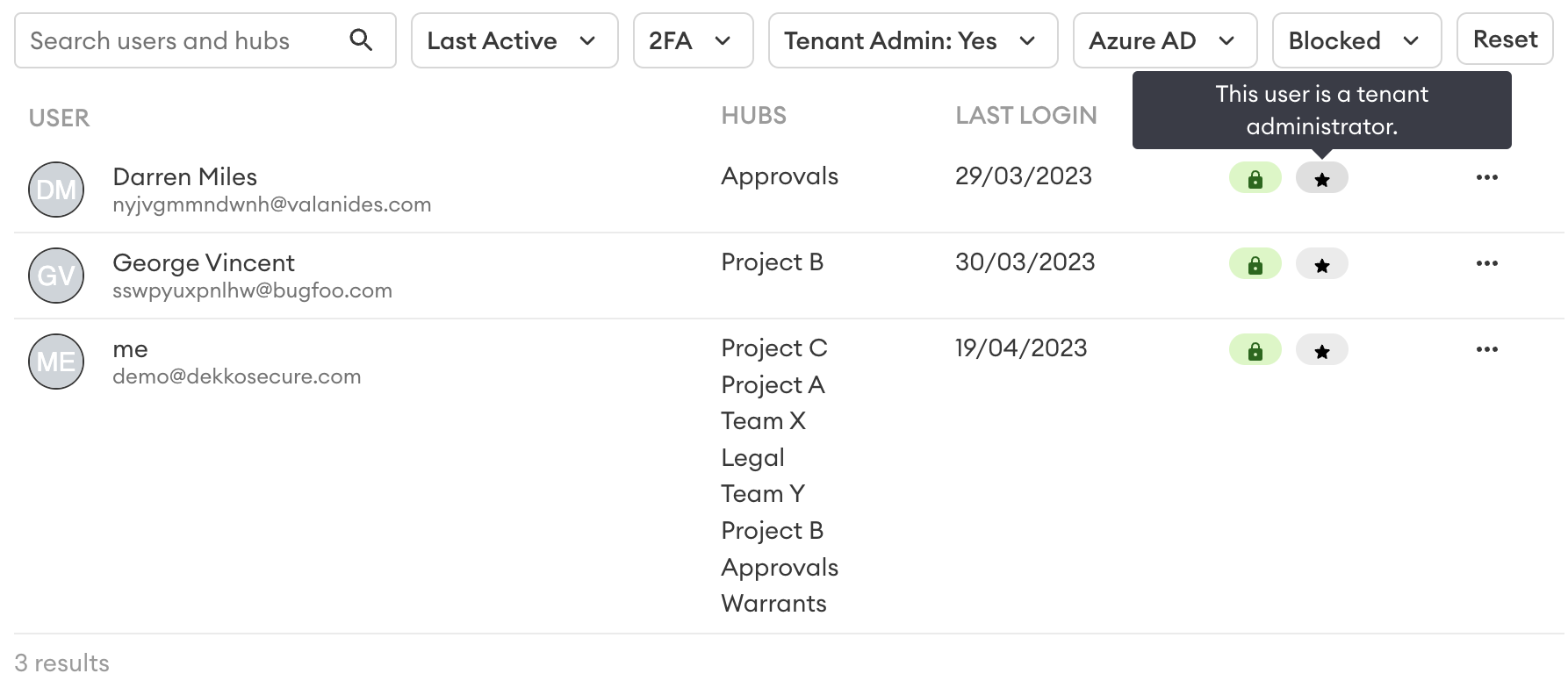
The Tenancy Manager role is assigned by DekkoSecure account management staff. Please contact your account manager to add or remove Tenant admins.
Core Hub roles
The roles in this section apply to Core Hubs. Fusion Hubs have different roles, described in Fusion Hub roles.
Hub Admin
Users are automatically set as the Hub Admin for each Hub they create. You can find your Hub Admin by going to the contact list in the left navigation panel on the dashboard. Hub Admins are marked in the contact list with a star and HUB admin title. Admins are also given the Hub Team Member membership type, with invite permission allowed (see below).
Can:
- View Hub contact list
- Manage Hub branding
- Invite users to the Hub (unless disabled by another Hub Admin)
- Manage Hub members
- Set user’s types, set additional Hub Admin, remove users
- Access Hub registration links
- View Hub audit logs
- Delete the Hub
- Share files with, request signatures from, and message Team Member users in the Hub
- Share files with, request signatures from, and message External Member users in the Hub
- Create additional Hubs (if allowed in Tenancy policies)
Cannot:
- Access other in-Hub user’s content (files and messages) unless content is shared with them explicitly
Hub Admin is specific to each Hub. There is no blanket Hub Admin role for all Hubs in a Tenancy.
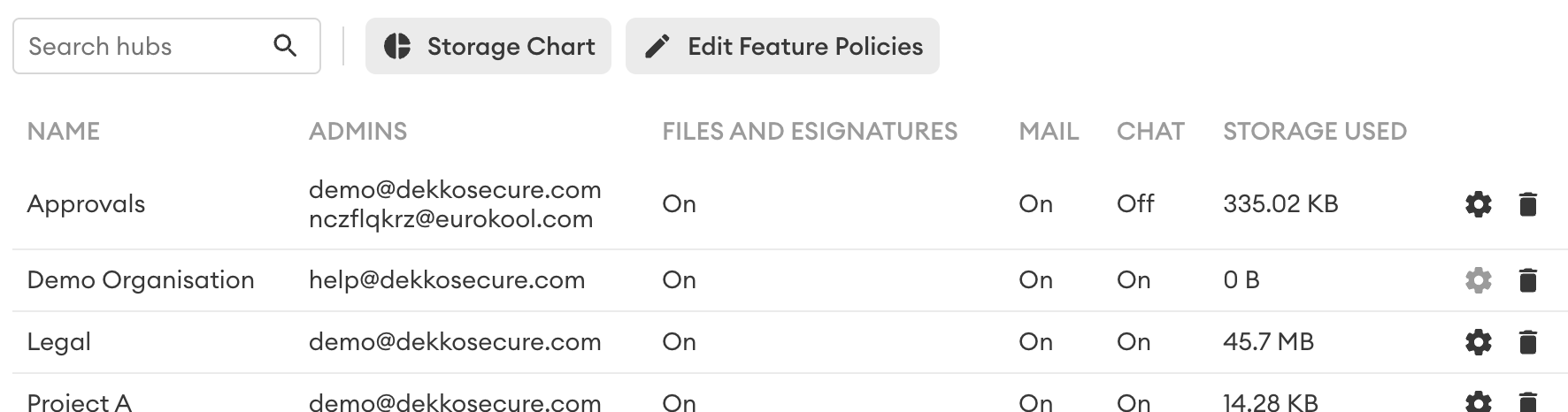
Hub Admin can be identified by their marking in the Tenancy Manager (Hubs tab):
Hub member (Team Member)
Can:
- See Team Member and External users in the Hub contact list
- Share files with, request signatures from, and message other Team Member users in the Hub
- Share files with, request signatures from, and message External Member users in the Hub
- Invite users to the Hub (if given permission by their inviter)
- Create additional Hubs (if allowed in Tenancy policies)
Cannot:
- Access other in-Hub user’s content (files and messages) unless content is shared with them explicitly
- Access Hub Admin controls
Hub member (External Member)
Can:
- See Team Member users in the Hub contact list
- Share files with, request signatures from, and message Team Member users in the Hub
- Create additional Hubs (if allowed in Tenancy policies)
Cannot:
- See External Member users in the Hub contact list
- Share files with, request signatures from, and message External Member users in the Hub
- Invite users to the Hub
- Access other in-Hub user’s content (files and messages) unless content is shared with them explicitly
- Access Hub Admin controls
Note: The ability to upload files to the root of a Hub can be disabled for users with the External member type. This means that when the policy is turned on, Externals will only be able to upload files into folders where they have been granted permission, and nowhere else. In addition, Externals will not be able to access the sharing menu for files that they upload.
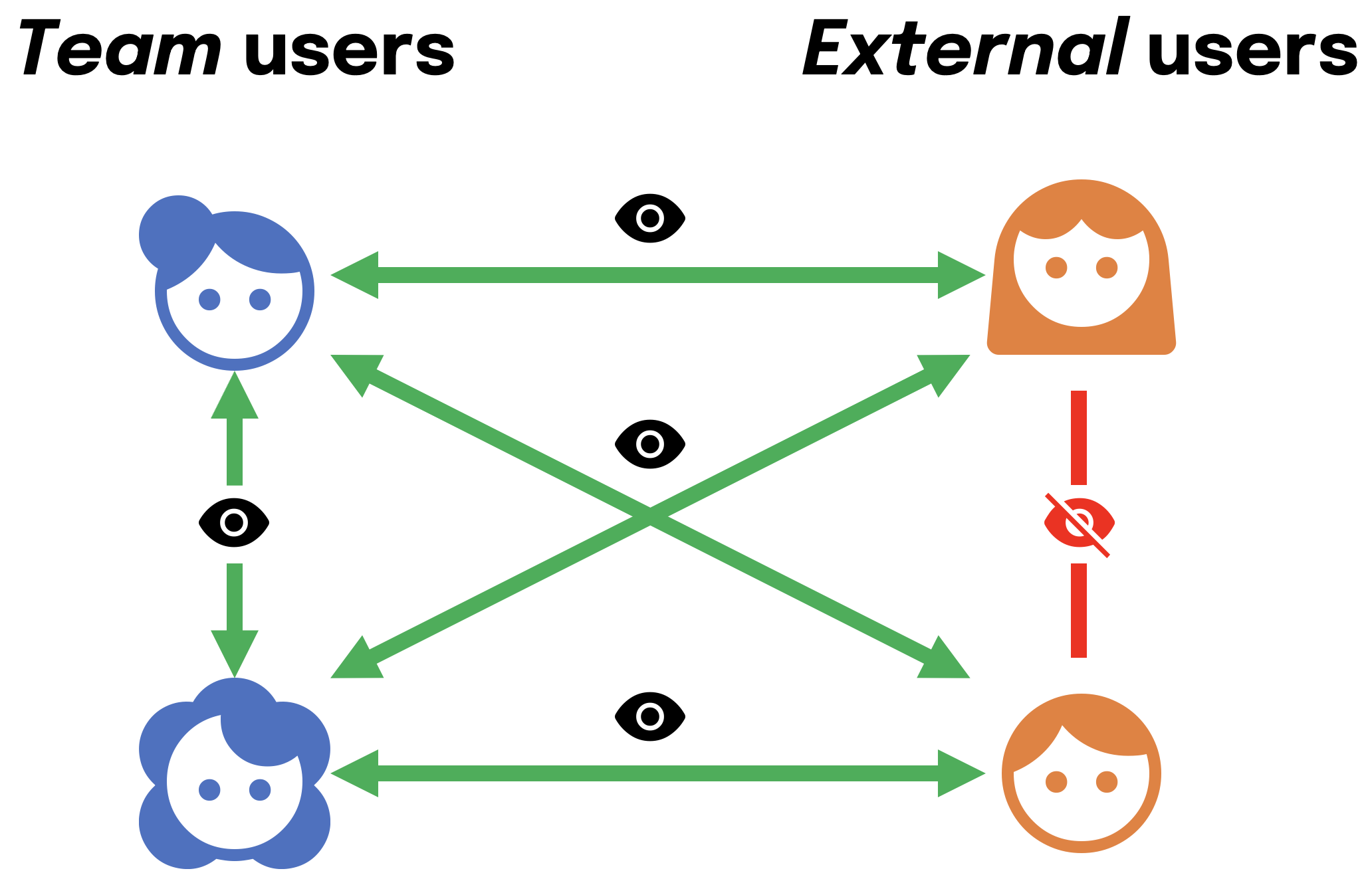
Member Visibility
This graphic is a simple representation of who can see who (and who can share with who) in a Hub, based on their membership type. If a Team member shares a file with two Externals, neither external will know that the other has received the file (similar to BCC on email).
Fusion Hub roles
A Tenancy can hold Core Hubs, Fusion Hubs, or both. The Tenancy Manager role covers the whole Tenancy, including all of its Core Hubs and Fusion Hubs, so it isn't a Fusion Hub role. Fusion Hubs add three roles of their own: Fusion Manager, Fusion Hub Admin and Collaborator. The Core Hub roles (Hub Admin, Team Member and External Member) don't apply in Fusion Hubs.
The Fusion Hub roles
Fusion Manager. Nominated by a Tenancy Manager. Manages the organisation's Fusion Hubs, user groups, attributes, profiles and Index, and nothing else. This suits a senior person responsible for governance across several projects or work areas. A Fusion Manager can't see or change other tenancy policies, users, audit logs or Core Hubs.
Fusion Hub Admin. Manages one Fusion Hub. This suits the person responsible for governance of a single project or work area. A Fusion Hub Admin manages the Hub's own groups, its default sharing, its name and branding, and invites people to it. A person can be Fusion Hub Admin for one Hub and have no admin controls in another.
Collaborator. Anyone who works in a Fusion Hub through a group or a share. Collaborators upload, open and share files, and update attributes, within the permission level they have been given.
Anyone can collaborate in a Fusion Hub, whatever their role. A Tenancy Manager, Fusion Manager or Fusion Hub Admin who belongs to a group that a Hub shares with can upload and share files there like any other Collaborator.
Access comes from groups, not roles
No role gives access to the files in a Fusion Hub on its own. Tenancy Managers, Fusion Managers and Fusion Hub Admins need to belong to a group in the Hub's default sharing, or have a file or folder shared with them, the same as everyone else. An admin role controls how a Hub is set up, not what its admin can open.
The Index works the same way. A person can open the Index only if they belong to a group that has Index access, whatever their role.
How the roles fit together
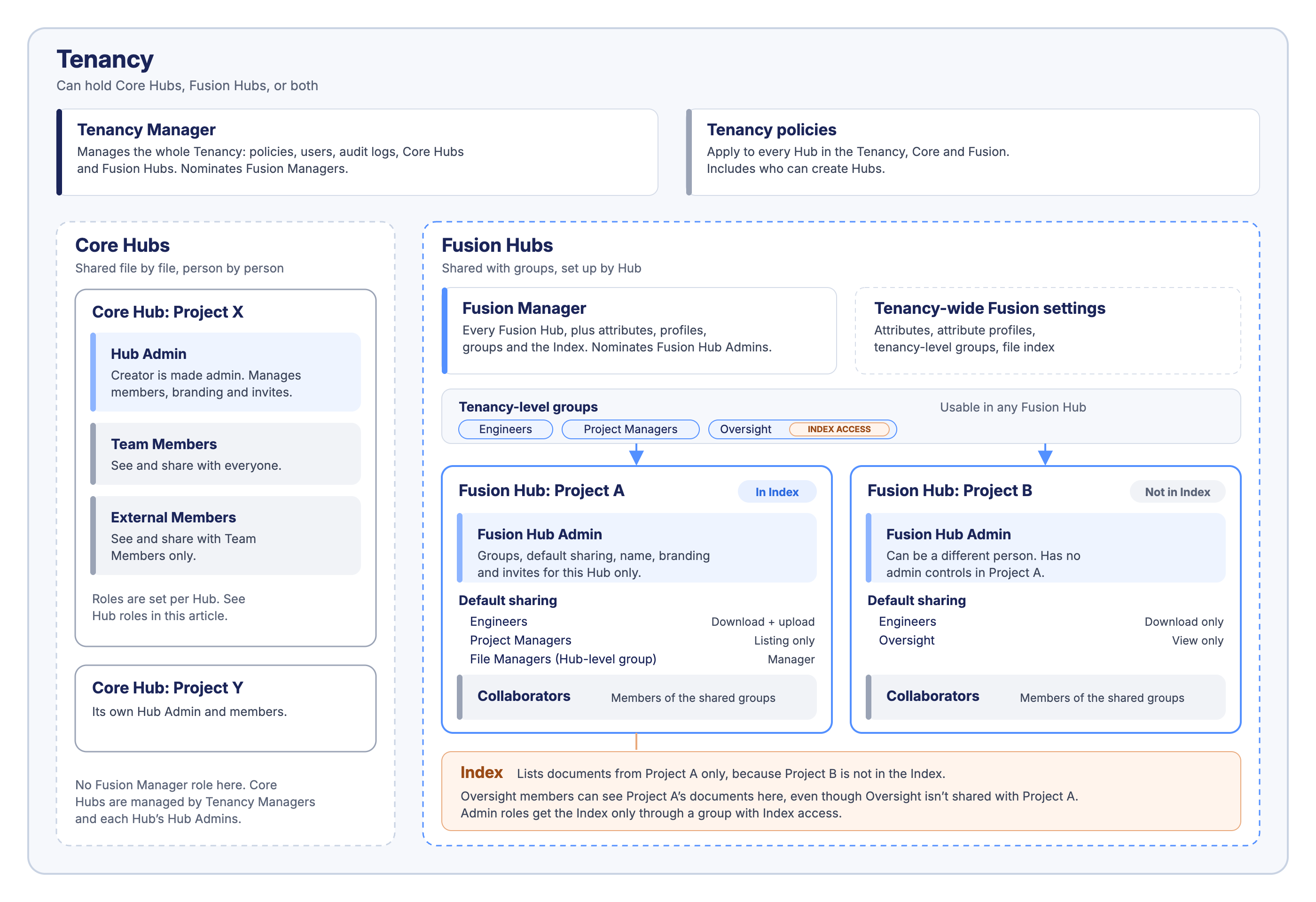
In this example, the Tenancy holds two Core Hubs and two Fusion Hubs. The Tenancy Manager covers all four. The Fusion Manager covers only the Fusion Hubs, and the Core Hubs keep their own Hub Admins and members. In the Fusion Hubs, the Engineers group is shared with both Hubs at different permission levels, and File Managers is a Hub-level group that exists only in Project A. Project A is included in the Index and Project B is not. The Oversight group has Index access, so its members can see Project A's documents in the Index even though Oversight isn't shared with Project A.
What each role can do
The tables include the Tenancy Manager for comparison. A Fusion Hub Admin's controls apply only to the Hubs they are admin of.
Tenancy settings
| Activity | Tenancy Manager | Fusion Manager | Fusion Hub Admin | Collaborator |
|---|---|---|---|---|
| Manage tenancy policies such as MFA, passkeys and classification | ✅ | ❌ | ❌ | ❌ |
| Manage users and view audit logs | ✅ | ❌ | ❌ | ❌ |
| Turn the file index on or off | ✅ | ✅ | ❌ | ❌ |
| Nominate Fusion Managers | ✅ | ❌ | ❌ | ❌ |
| Create and manage attributes | ✅ | ✅ | ❌ | ❌ |
| Create and manage attribute profiles | ✅ | ✅ | ❌ | ❌ |
Fusion Hubs
| Activity | Tenancy Manager | Fusion Manager | Fusion Hub Admin | Collaborator |
|---|---|---|---|---|
| Create a Fusion Hub ¹ | ✅ | ✅ | ✅ | ✅ |
| Delete a Fusion Hub | ✅ | ✅ | ❌ | ❌ |
| Rename a Hub and set its branding | ✅ | ✅ | ✅ | ❌ |
| Nominate Fusion Hub Admins | ✅ | ✅ | ❌ | ❌ |
| Include a Hub in the Index | ✅ | ✅ | ❌ | ❌ |
| Use Storage Chart and Export Hubs | ✅ | ✅ | ❌ | ❌ |
¹ Tenancy Managers and Fusion Managers can create Fusion Hubs from the Tenancy Manager. Anyone else can create one from the Fusion HUBs dropdown only if the Limit users who can create Hubs tenancy policy allows them to. Unlike a Core Hub, creating a Fusion Hub doesn't make the creator its Fusion Hub Admin.
Groups and sharing
| Activity | Tenancy Manager | Fusion Manager | Fusion Hub Admin | Collaborator |
|---|---|---|---|---|
| Create tenancy-level groups and manage their members | ✅ | ✅ | ❌ | ❌ |
| Create Hub-level groups and manage their members | ✅ | ✅ | ✅ | ❌ |
| Set a Hub's default sharing, including adding tenancy-level groups | ✅ | ✅ | ✅ | ❌ |
| Give a group Index access | ✅ | ✅ | ❌ | ❌ |
| Invite users to a Hub | ✅ | ✅ | ✅ | ❌ |
Working in a Hub
| Activity | Tenancy Manager | Fusion Manager | Fusion Hub Admin | Collaborator |
|---|---|---|---|---|
| Upload, open and share files ² | ✅ | ✅ | ✅ | ✅ |
| Update attributes on files ² | ✅ | ✅ | ✅ | ✅ |
| Open, search and export the Index ³ | ✅ | ✅ | ✅ | ✅ |
² Only through a group or share, within the permission level given. See the permission levels below.
³ Only for members of a group with Index access.
Permission levels for working in a Hub
These levels apply to everyone working in a Hub, whatever their role.
| Activity | Listing only | View only | Download only | Download + upload | Editor | Manager | Full permissions |
|---|---|---|---|---|---|---|---|
| See that files are there | ✅ | ✅ | ✅ | ✅ | ✅ | ✅ | ✅ |
| Open files in the viewer | ❌ | ✅ | ✅ | ✅ | ✅ | ✅ | ✅ |
| Download files | ❌ | ❌ | ✅ | ✅ | ❌ | ✅ | ✅ |
| Add files and folders | ❌ | ❌ | ❌ | ✅ | ✅ | ✅ | ✅ |
| Edit Office files | ❌ | ❌ | ❌ | ❌ | ✅ | ❌ | ✅ |
| Set attribute values | ❌ | ❌ | ❌ | ❌ | ❌ | ✅ | ✅ |
| Rename and move | ❌ | ❌ | ❌ | ❌ | ❌ | ✅ | ✅ |
| Reshare | ❌ | ❌ | ❌ | ❌ | ❌ | ✅ | ✅ |
| Delete | ❌ | ❌ | ❌ | ❌ | ❌ | ❌ | ✅ |
People can always change the attributes on items they own. Changing attributes on many files at once in the Index also needs Index access.
Assigning roles
Tenancy Managers nominate Fusion Managers on the Policies page. Tenancy Managers and Fusion Managers nominate Fusion Hub Admins in each Hub's settings, and choose which Hubs are in the Index and which groups have Index access. For the steps, see Fusion Hubs: Create and Manage Hubs.
Troubleshooting
An admin can't open files in a Hub they manage. Admin roles don't include access to files. Add the person to a group in the Hub's default sharing, or share the files with them.
Someone can't open the Index. Check that Enable file index is on in the tenancy policies, and that the person belongs to a group with Index access.
A Hub's documents are missing from the Index. Check that In Index is ticked for the Hub on the Fusion HUBs page. The Index also shows only documents with all required attributes filled in, unless Incomplete entries is selected.
A Fusion Hub Admin can't change who is in a tenancy-level group. Membership of tenancy-level groups is managed by Tenancy Managers and Fusion Managers. A Fusion Hub Admin can add a tenancy-level group to their Hub's default sharing, or create a Hub-level group instead.