In-App Audit Logging
Viewing and exporting audit logs for compliance and oversight.
Default audit events
DekkoSecure automatically records Audit logs for key activities across your Tenancy, including file uploads, downloads, sharing events, eSignature actions, and messaging. Audit logs are available at three levels: individual content owners can view logs for their own files, Hub Admins can view logs for all activity within a Hub, and Tenancy Managers can view logs across all Hubs in the Tenancy.
Audit logs cannot be modified or deleted by any end users, including Tenancy admins. Logs for deleted content are persistent and are stored for the duration of your organisation’s agreement with DekkoSecure.
The following events are captured by default in audit logs:
| Activity | Events Logged |
|---|---|
| File sharing | File uploaded (incl. file size) File downloaded (incl. file size) File viewed File removed File shared (with per-user permissions set) Status tag change (added/changed/removed) |
| File collaboration | File updated (versioned or edited) |
| eSignature workflow | Markup placeholder added Text added Image added Stamp added Signature added Document approved |
| Messaging (mail, chat) | Message sent Message received Message read |
| Administration | Hub invite sent Hub invite accepted User removed from Hub Password reset |
All audit events have an associated ID which corresponds with a file, message or Hub. For example, logged events associated with a file that has been uploaded, shared and downloaded will have a common ID, e.g. 08abba18-9c1c-4f22-9bc80-e46309bff268.
Example log:
| User | Event | Event ID | Date + time |
|---|---|---|---|
| [email protected] | Upload complete (1.2GB) | 08abba18-9c1c-4f22-9bc80-e46309bff268 | 10:25 3 Apr 2023 |
In the above example, the log relates to a file with ID 08abba18-9c1c-4f22-9bc80-e46309bff268. See the search guide below to filter logs by ID.
Please note that audit logs viewed in the DekkoSecure application do not contain:
- File names
- File content
- Message subjects
- Message content
Extended audit logging and logging integrations
To facilitate automated audit log reporting (including encrypted event data such as file names), the DekkoSecure web application must be integrated with a Security Information and Event Management system such as Microsoft Sentinel or Splunk.
DekkoSecure offers consultative services to enable log capture that can meet any compliance requirement, including managed service infrastructure that will prepare any logging information in a way that follows your own unique definition(s).
Please contact your DekkoSecure account manager to discuss extended logging and integration options. Note: custom audit logging features and functions are not included in the standard DekkoSecure service.
Accessing audit logs
You can access audit logs at three levels, depending on your role:
- Content level: View logs for files you own as a user or co-administer. This includes sharing permissions, read and download receipts, and signature events for individual files.
- Hub level: Hub Admins can view logs for all activity within a specific Hub.
- Tenancy level: Tenancy Managers can view logs across all Hubs in a Tenancy, and can search logs by event type or content ID.
Content owner/co-admin
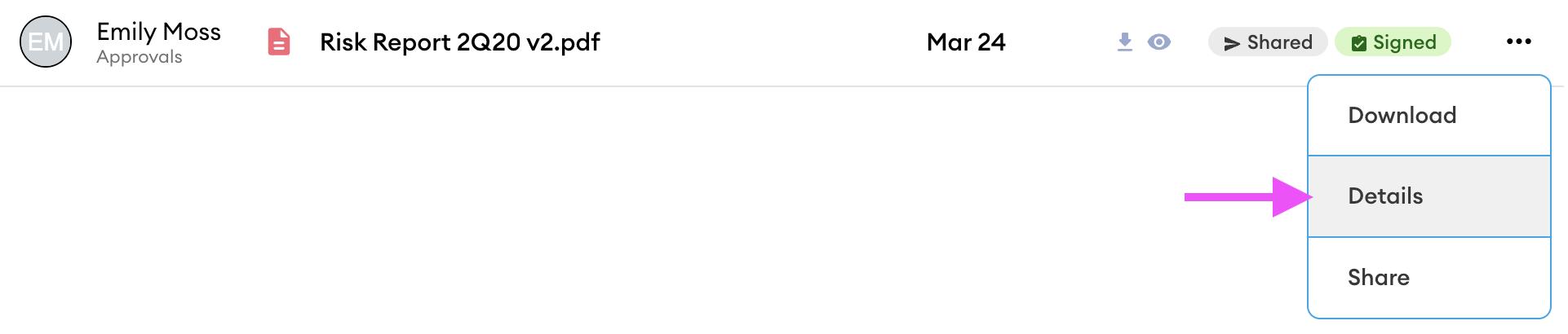
Open the dropdown menu for the file and then select Details:
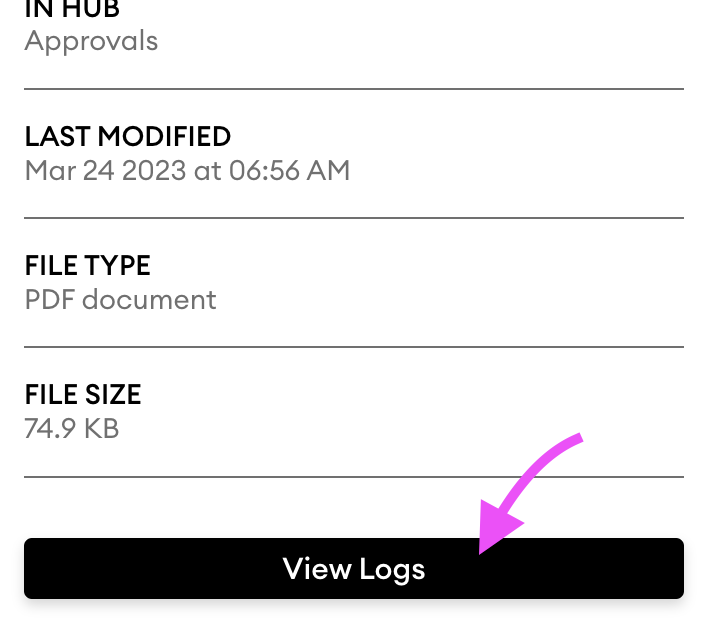
In the information panel press [View Logs]
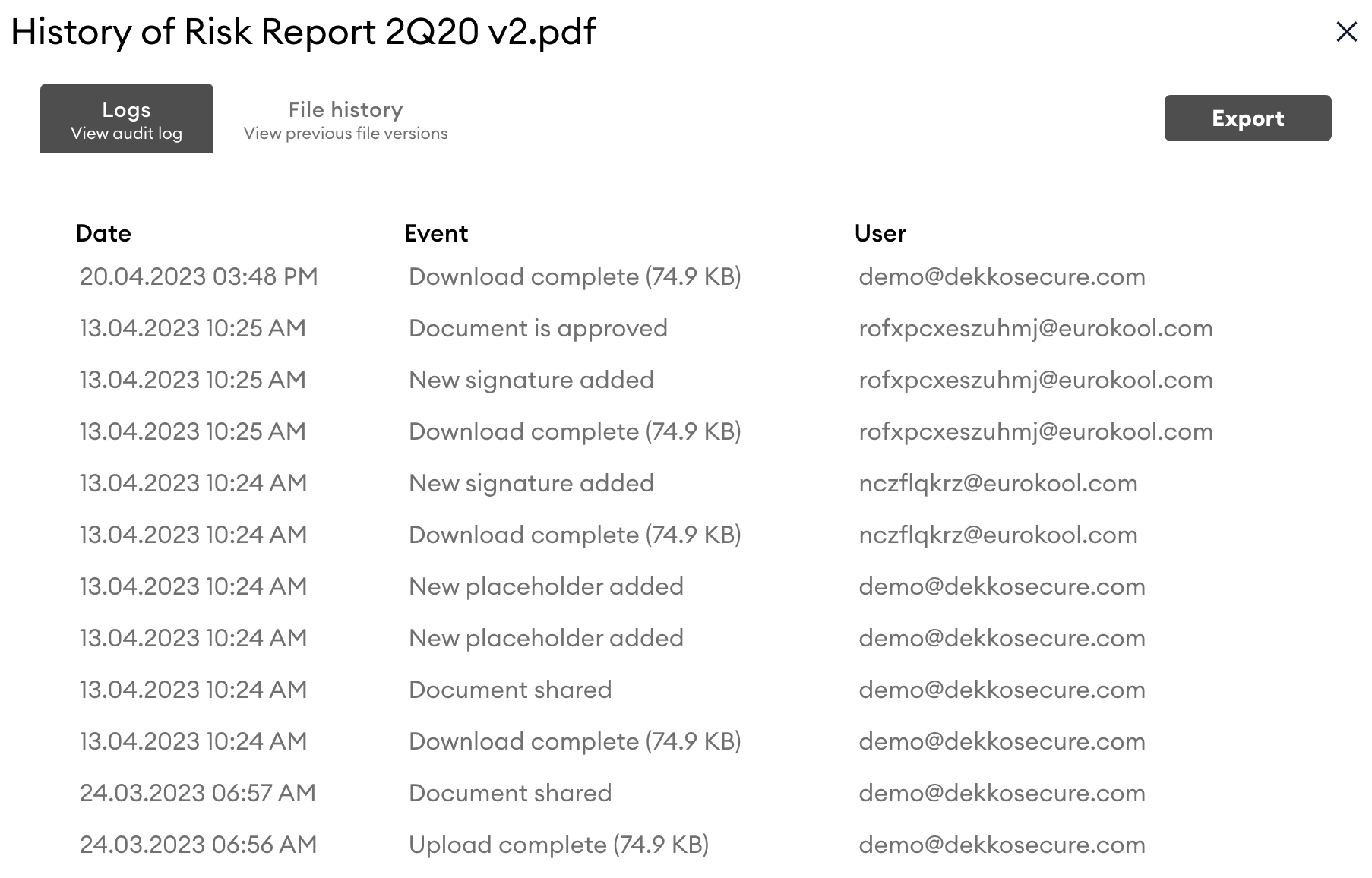
The audit log will open. Press [Export] to download a CSV version of the log. To see previous versions of the file, select the File History tab.
Sharing Permission logs
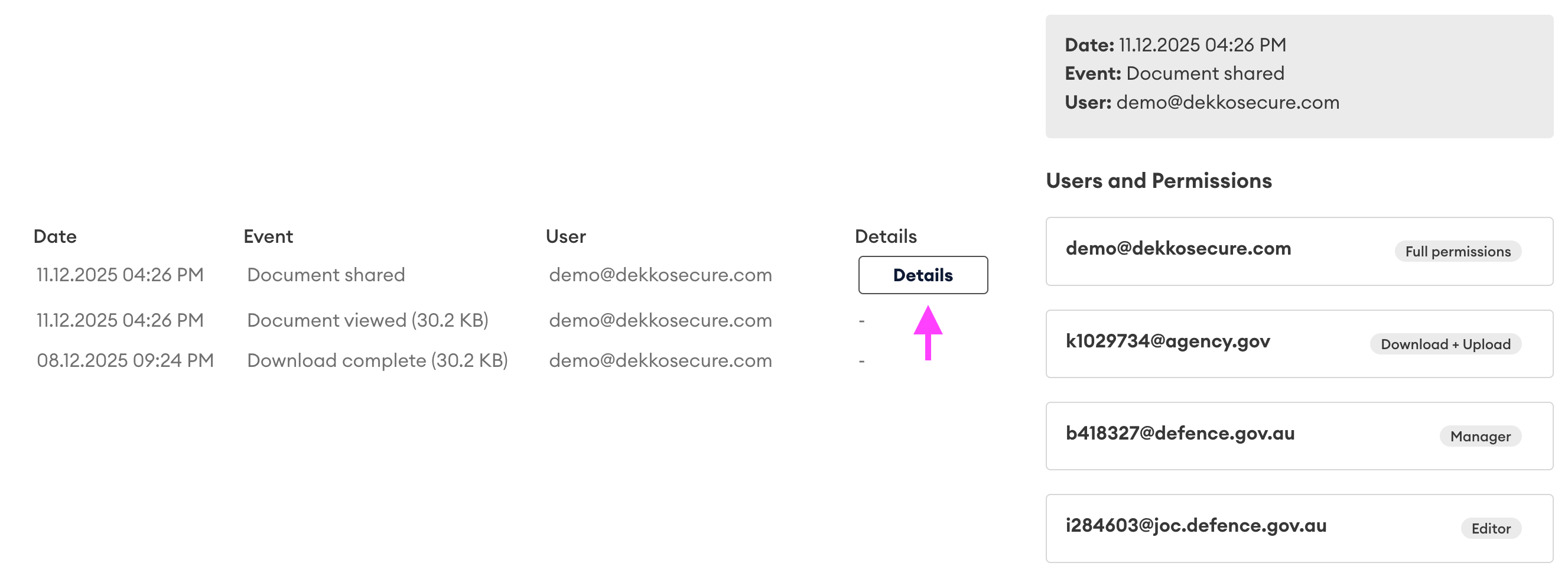
When a file is shared, the audit log records the specific permission granted to each recipient. To view these details, press Details on the sharing log entry.
Read, download and signature receipts
Actions in the Events and Status columns correspond with audit log entries.
Document downloaded:

Document viewed:

Document signed:

Hub Admin
If you want to view audit logs as a Hub Admin, press Contacts in the navigation panel (1), choose the Hub from the dropdown (2), select the Audit Logs tab (3), set the activity period (4) and then press [Load]:
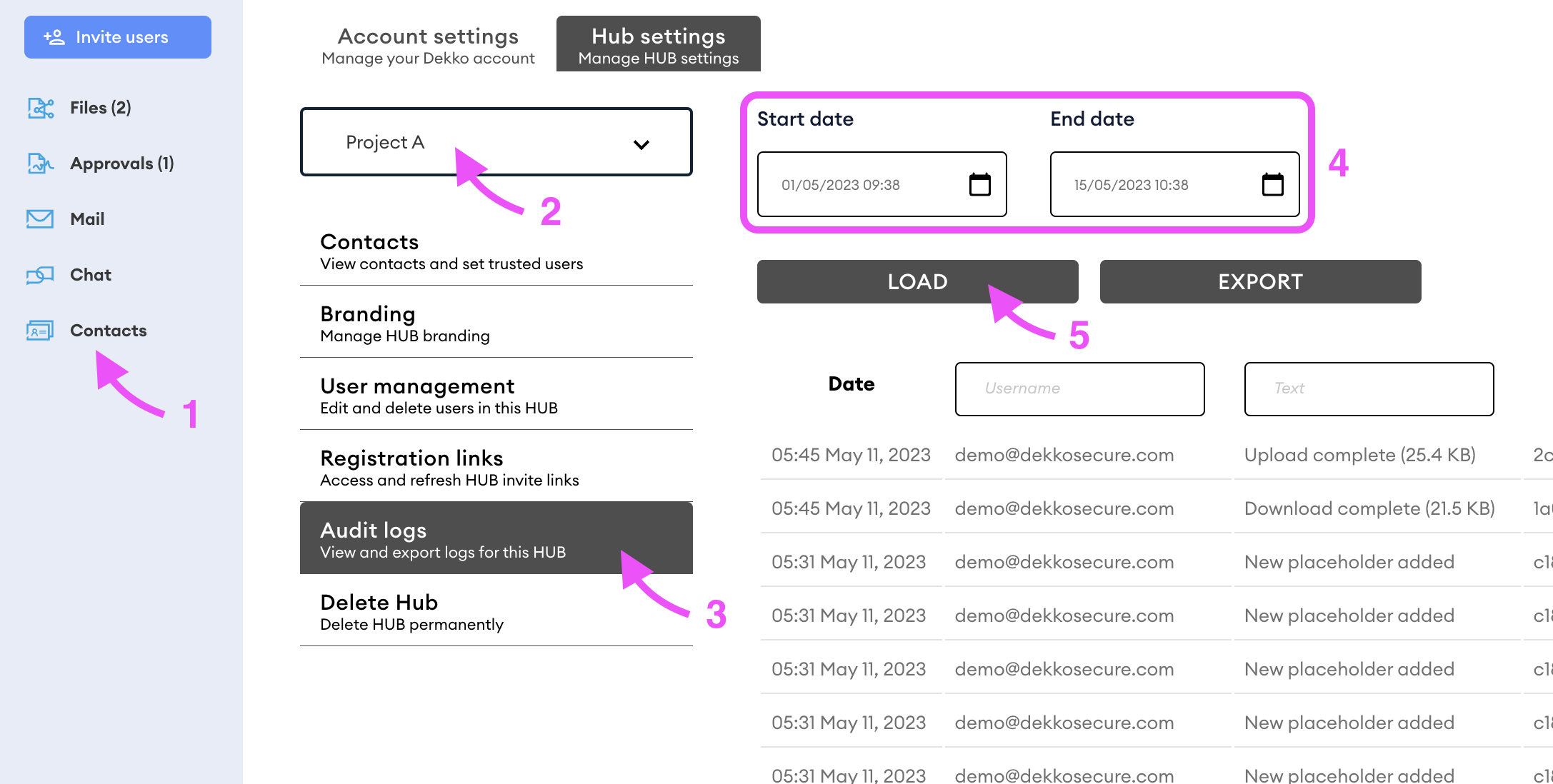
The audit log will be loaded. Press [Export] to download a CSV version of the log.
Tenancy admin
If you want to view audit logs as a Tenancy admin, open the Tenancy Manager and press Audit logs in the navigation panel (1), choose the Hub from the dropdown (2), set the activity period (3) and then press [Refresh]:
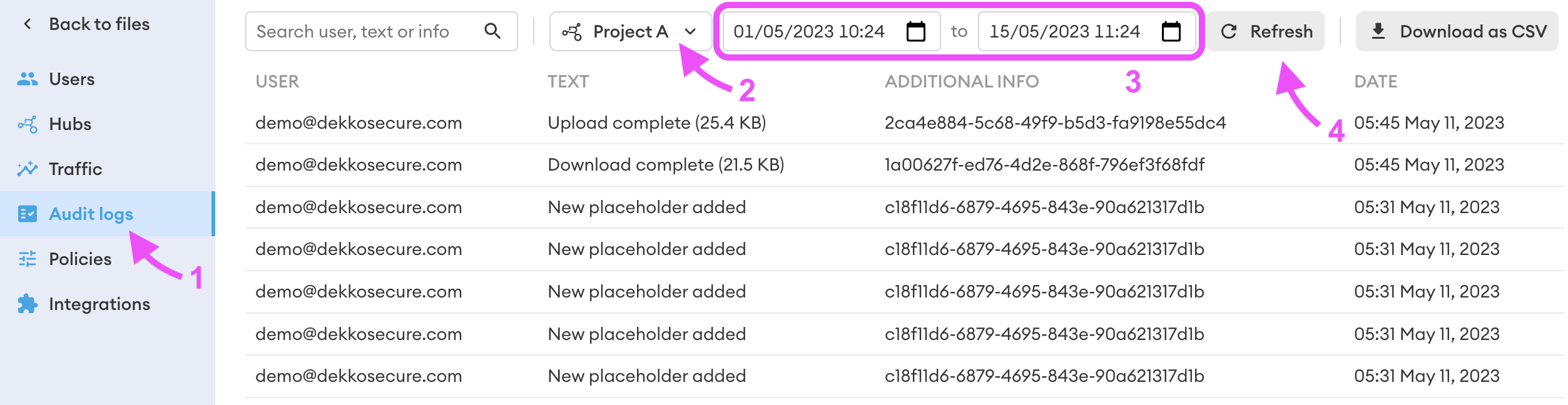
The audit log will be loaded. Press [Download as CSV] to download a CSV version of the log.
Tenancy Search
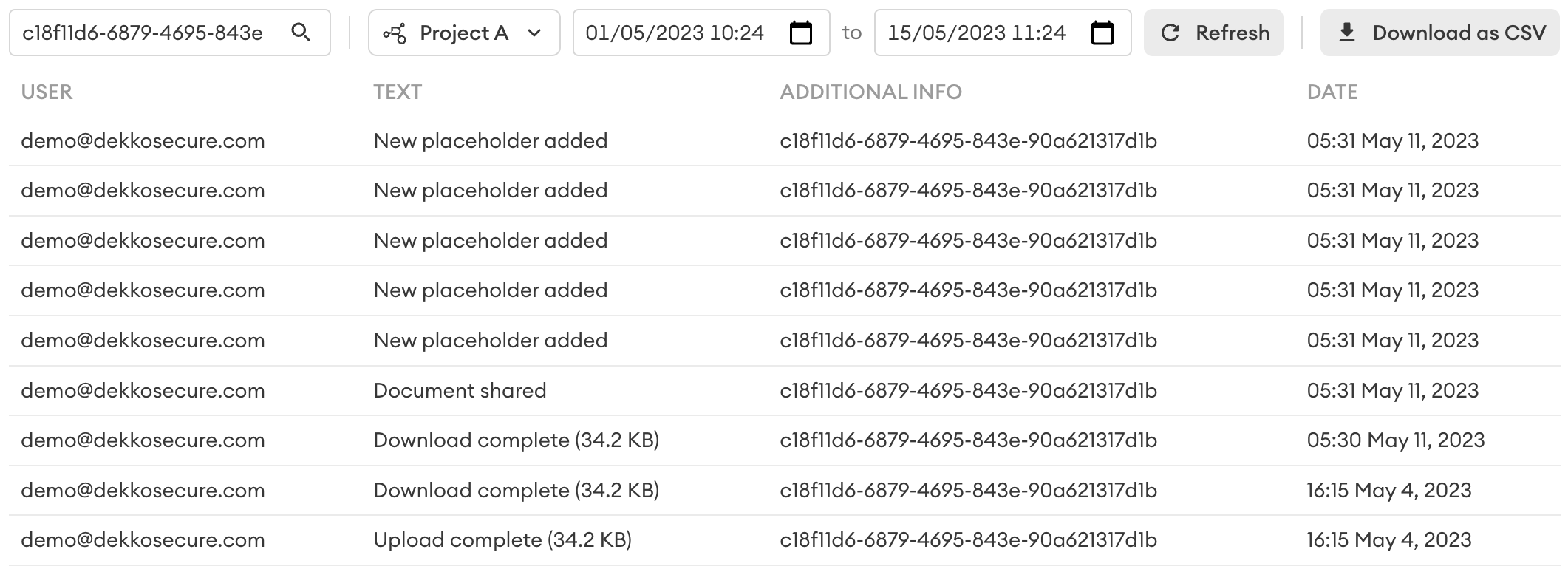
Example - ‘upload’:
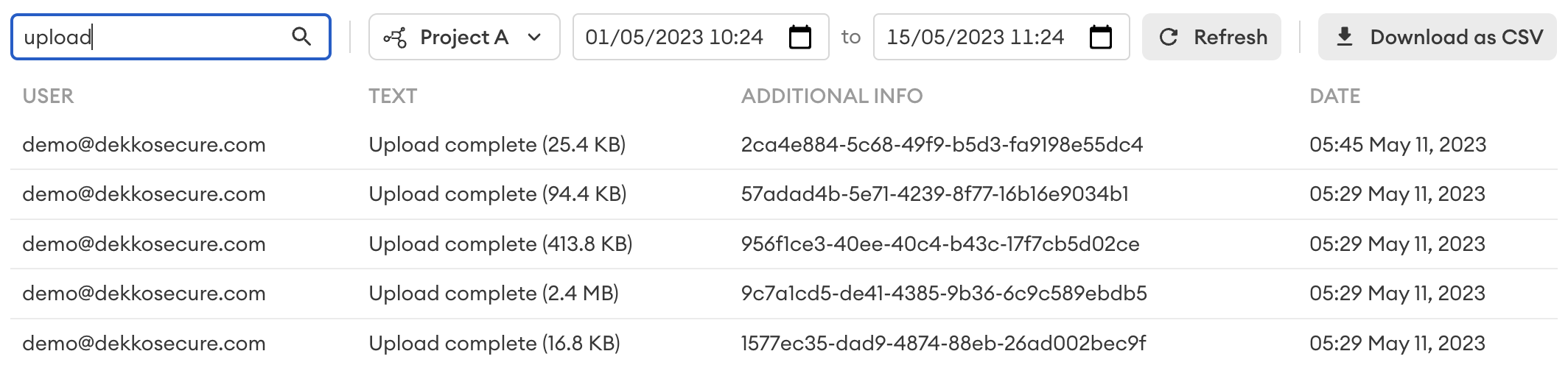
Example - content ID:
Searching by ID is the most effective way to view logs per-file.