

Fusion Hubs: Create and Manage Hubs
How to create, configure and manage Fusion Hubs, including metadata and Hub index.
This article is for Tenancy Managers, Fusion Managers and Fusion Hub Admins whose Tenancy includes Fusion Hubs. It covers the tenancy settings that Fusion Hubs depend on, and how to set up attributes, profiles, groups, Hubs and the Index. For what each role can do, see Fusion Hub roles. For how people work inside a Fusion Hub, see Fusion Hubs: Sharing Content.
Fusion Hubs can only be enabled by DekkoSecure staff. Contact your DekkoSecure account manager to discuss using Fusion Hubs in your Tenancy.
How Fusion Hubs fit into a Tenancy
Every Hub belongs to a Tenancy. A Tenancy can hold Core Hubs only, Fusion Hubs only, or both, and there is no limit to the number of Hubs in a Tenancy.
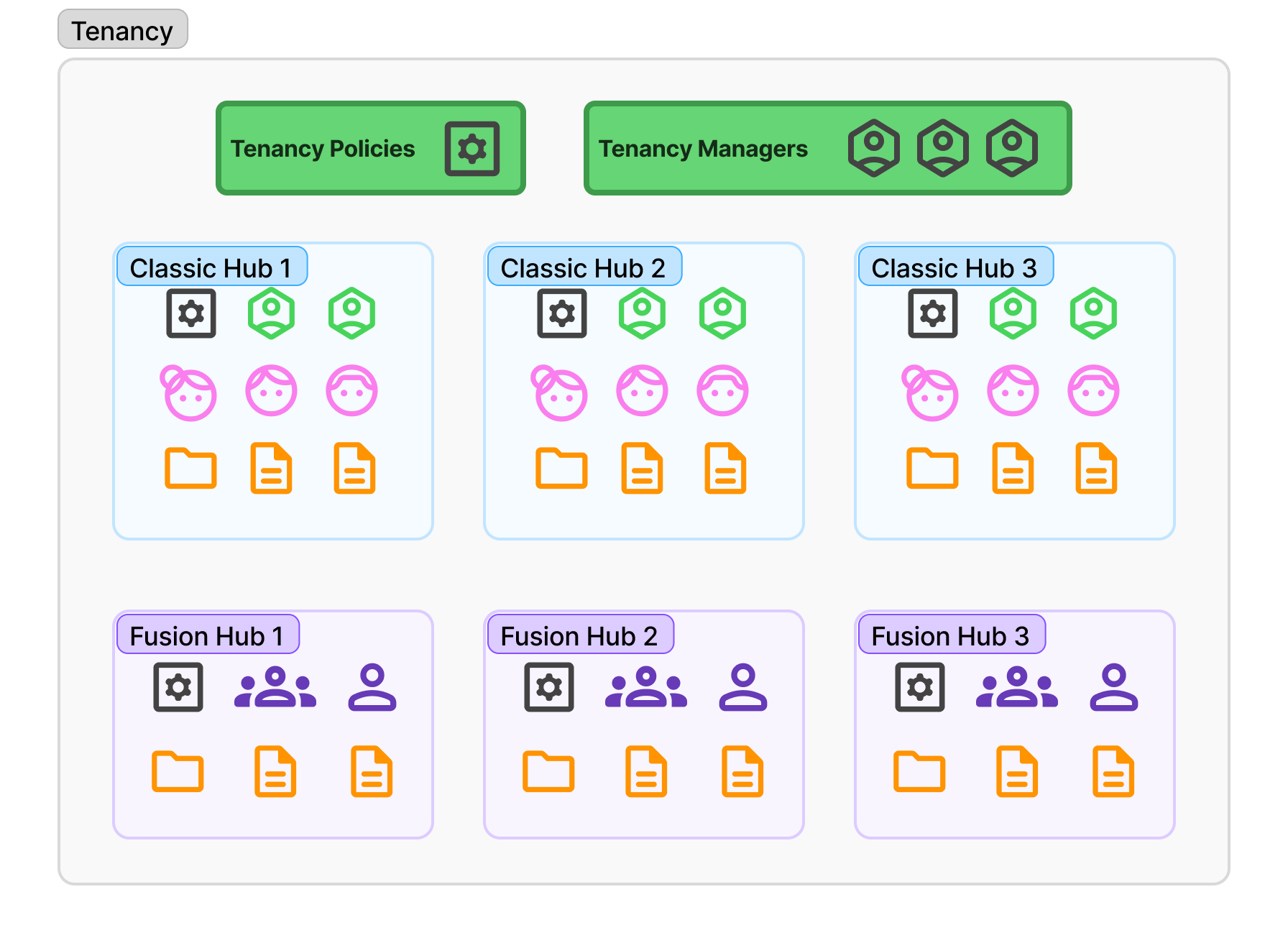
Files can't be shared across Hubs.
Fusion Hubs rely on settings that are managed for the whole Tenancy by Tenancy Managers and Fusion Managers.
- Attributes are defined per Tenancy and are the same in every Fusion Hub in the Tenancy.
- Attribute profiles are saved views of those attributes, also defined per Tenancy.
- Tenancy-level user groups are created and managed in the Tenancy Manager and can be used by any Fusion Hub in the Tenancy. Index access is given to these groups.
- Tenancy policies enable Fusion Hubs and the file index, and list the Tenancy's Fusion Managers.
Each Fusion Hub then has its own settings, managed by Tenancy Managers, Fusion Managers and the Hub's Fusion Hub Admins. These are its default sharing, which decides which groups can see its content and what they can do with it, its own Hub-level groups, and its name and branding. Each Hub can also be included in the Index or left out of it.
Classification in a Fusion Hub is an attribute with its own list of values. It is unrelated to the Enforce classification tenancy policy, which applies to uploads and messages.
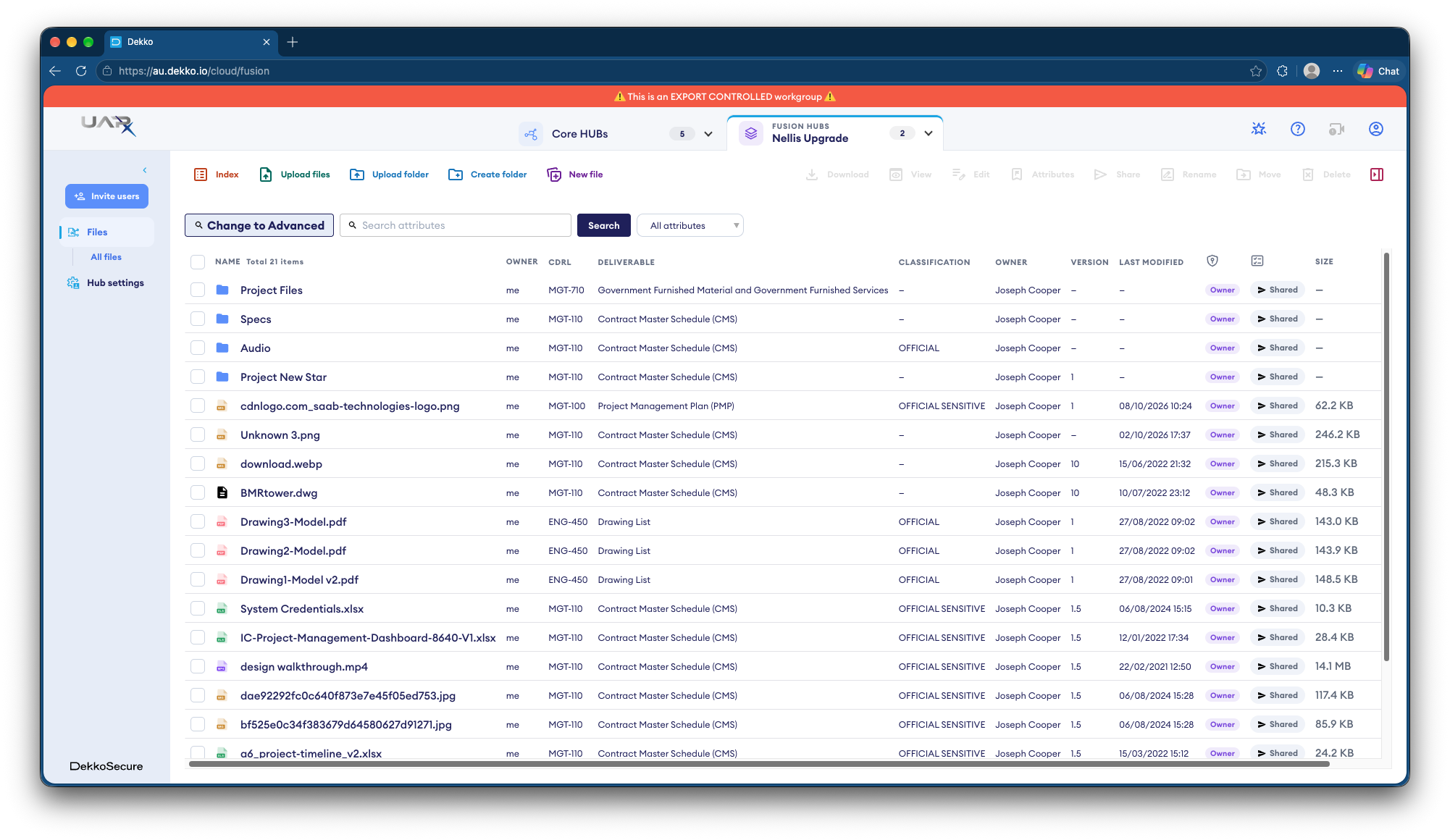
Recommended order of setup
- Enable Fusion Hubs (ask your DekkoSecure account manager).
- Turn on Enable file index if you want to use the Index.
- Nominate Fusion Managers, if other people will help administer Fusion Hubs.
- Define the attributes.
- Create attribute profiles, if you want users to be able to choose narrower views.
- Create the tenancy-level user groups, and give Index access to the groups that should use the Index.
- Create the Fusion Hub.
- Nominate the Hub's Fusion Hub Admins, if someone will look after that Hub.
- Set the Hub's default sharing, and include the Hub in the Index if its documents should be listed there.
Check the Fusion Hub policies
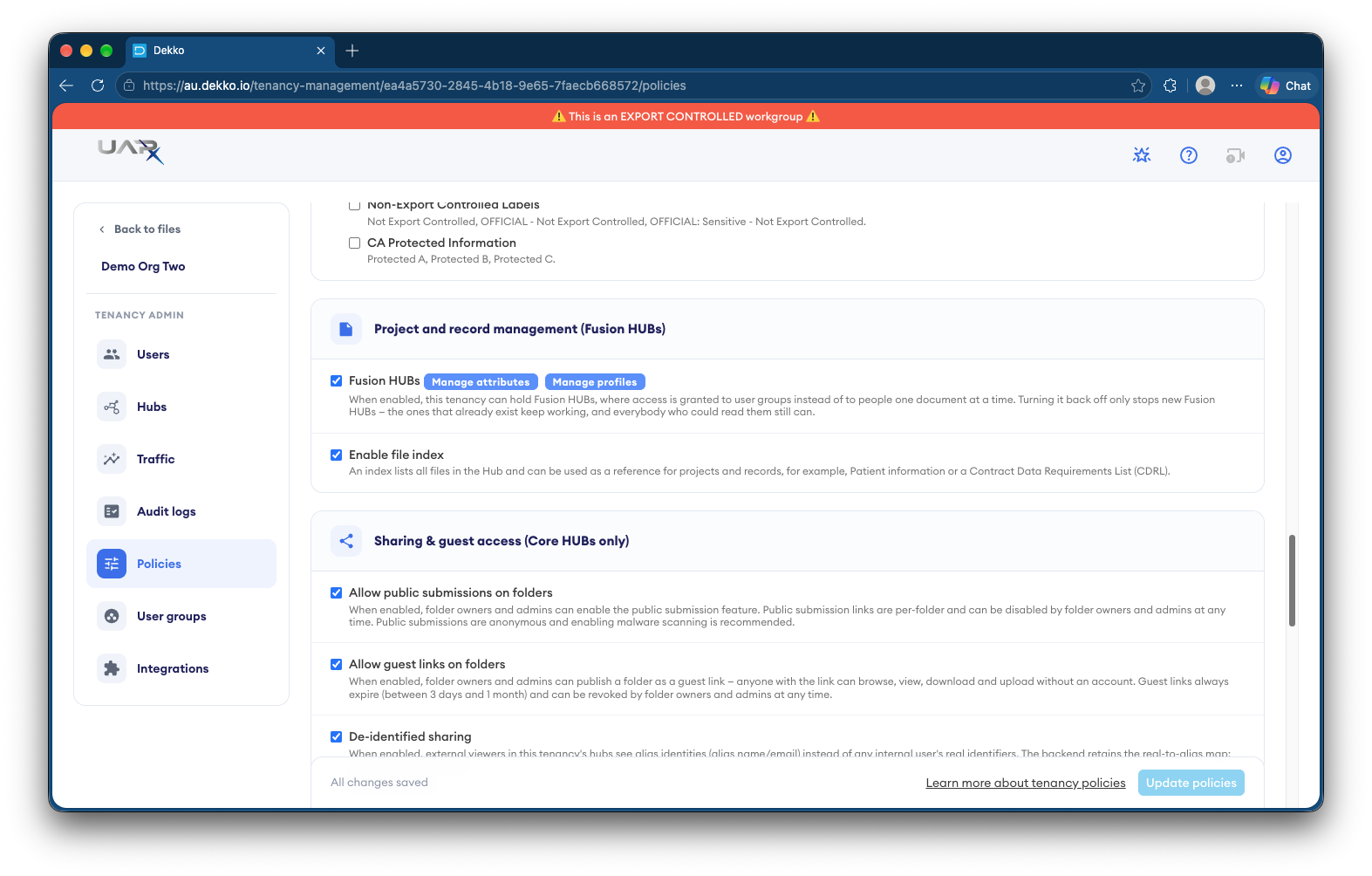
Open the Tenancy Manager and select Policies. The Project and record management (Fusion HUBs) card holds the settings for Fusion Hubs. Tenancy Managers and Fusion Managers can change these settings. Select Update policies at the bottom of the page after you make a change.
Fusion Hubs shows that the Tenancy can hold Fusion Hubs, where access is given to user groups instead of to people one document at a time. Turning it off only stops new Fusion Hubs from being created. The ones that already exist keep working, and everybody who could read them still can. The card also has the Manage attributes and Manage profiles buttons, which are described below.
Enable file index turns on the Index, a list of all files with their attributes that can be used as a reference for projects and records, for example patient information or a Contract Data Requirements List (CDRL). A Hub's documents appear in the Index only when the Hub is included in it, and people can open the Index only through a group with Index access. See Set up the Index.
Fusion administrators lists the Tenancy's Fusion Managers. See Nominate Fusion Managers.
The settings under Sharing & guest access are labelled as applying to Core Hubs only. They include public submissions, guest links and de-identified sharing, and they don't apply to Fusion Hubs.
Define attributes
Attributes are the metadata fields that appear as columns in every Fusion Hub and that users fill in when they upload. To manage them, select Manage attributes on the Policies page. The window lists every attribute with its type. A star beside an attribute means it is required, which means nobody can upload a file without giving it a value.
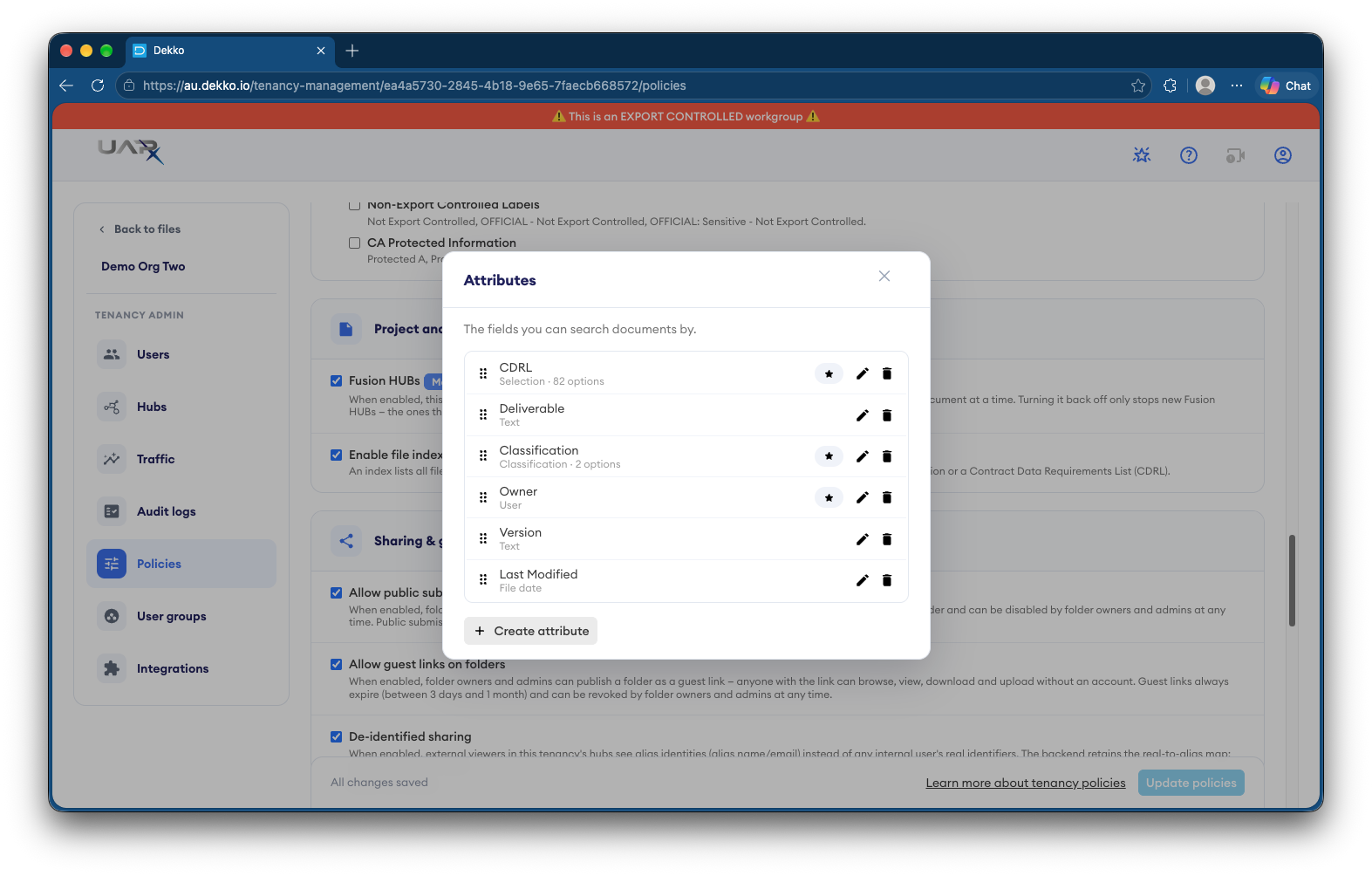
Attribute types
| Type | What it holds |
|---|---|
| Text | Free text, for example a version number. |
| Number | A number. |
| Date | A date. |
| File date | The modification date taken from the file's own metadata, filled in automatically at upload. |
| User | A person tagged on the file, for example the “Owner”. |
| Selection | One value chosen from a list that you define. |
| Classification | A selection used for classification values. |
| File format | The format detected from the file itself, grouped into categories, for example a PDF is a document. |
The type is fixed once the attribute has been created, so choose it carefully.
Create or edit an attribute
- Select Create attribute, or select the pencil icon beside an existing attribute.
- Enter a Name (displayed at the top of the column in the file browser) and choose the Type.
- For a Selection attribute, add the options (see below).
- Under Rules, tick Required if every file must have a value. A Required attribute is marked with a star in the list and with a red asterisk when users upload.
- Select Save.
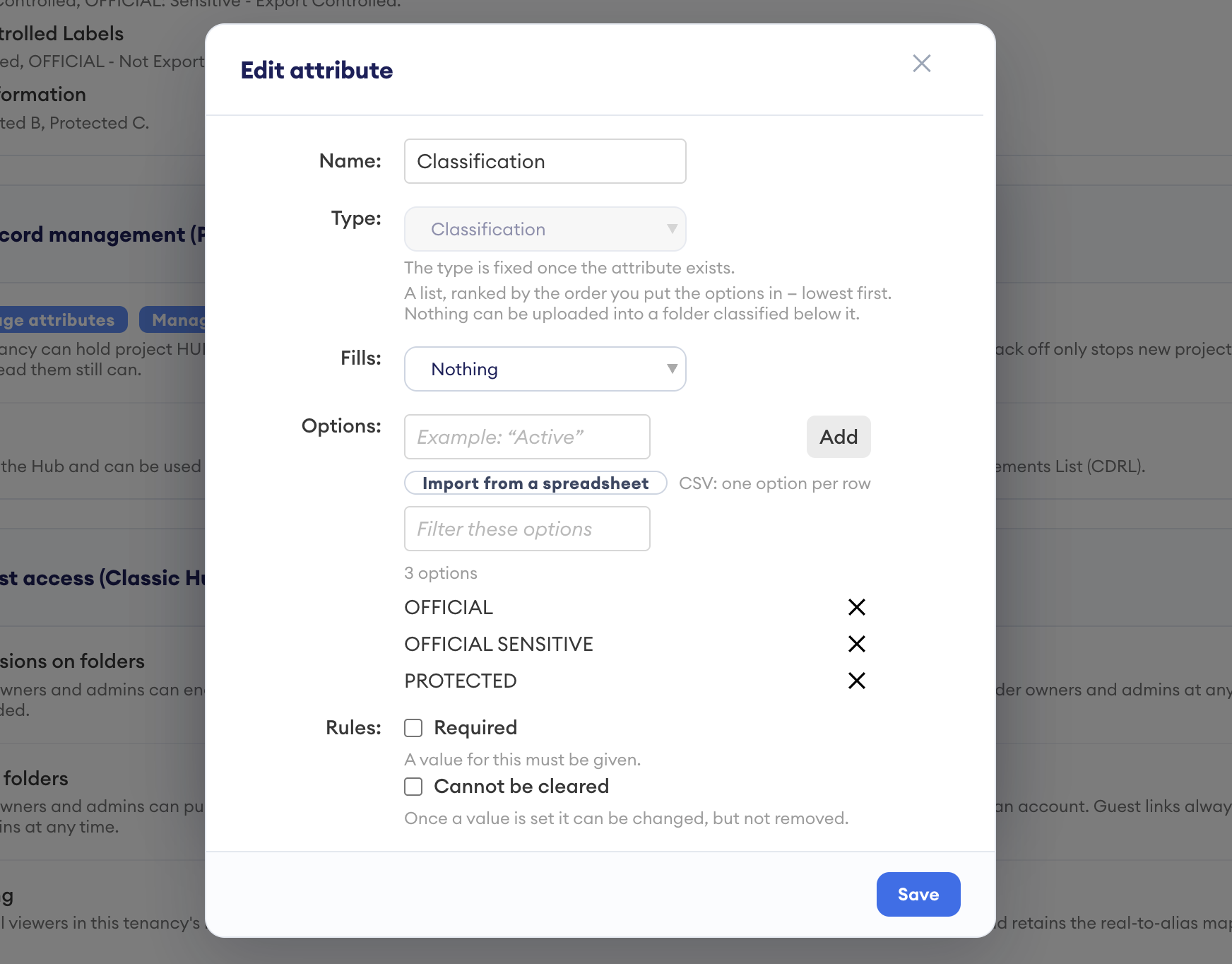
Because attributes are shared by every Fusion Hub in the tenancy, a change to an attribute affects all of them.
Mark an attribute as Required only if you are sure users will always be able to supply a value, because it stops uploads when the value is missing.
Selection options
Add an option by typing it in the Options field and selecting Add.
To load many options at once, select Import from a spreadsheet and choose a CSV file with the option in the first column and the linked value in the second. Use Filter these options to find an option in a long list, and select the cross beside an option to remove it. The window shows how many options the attribute has.
Fill one attribute from another
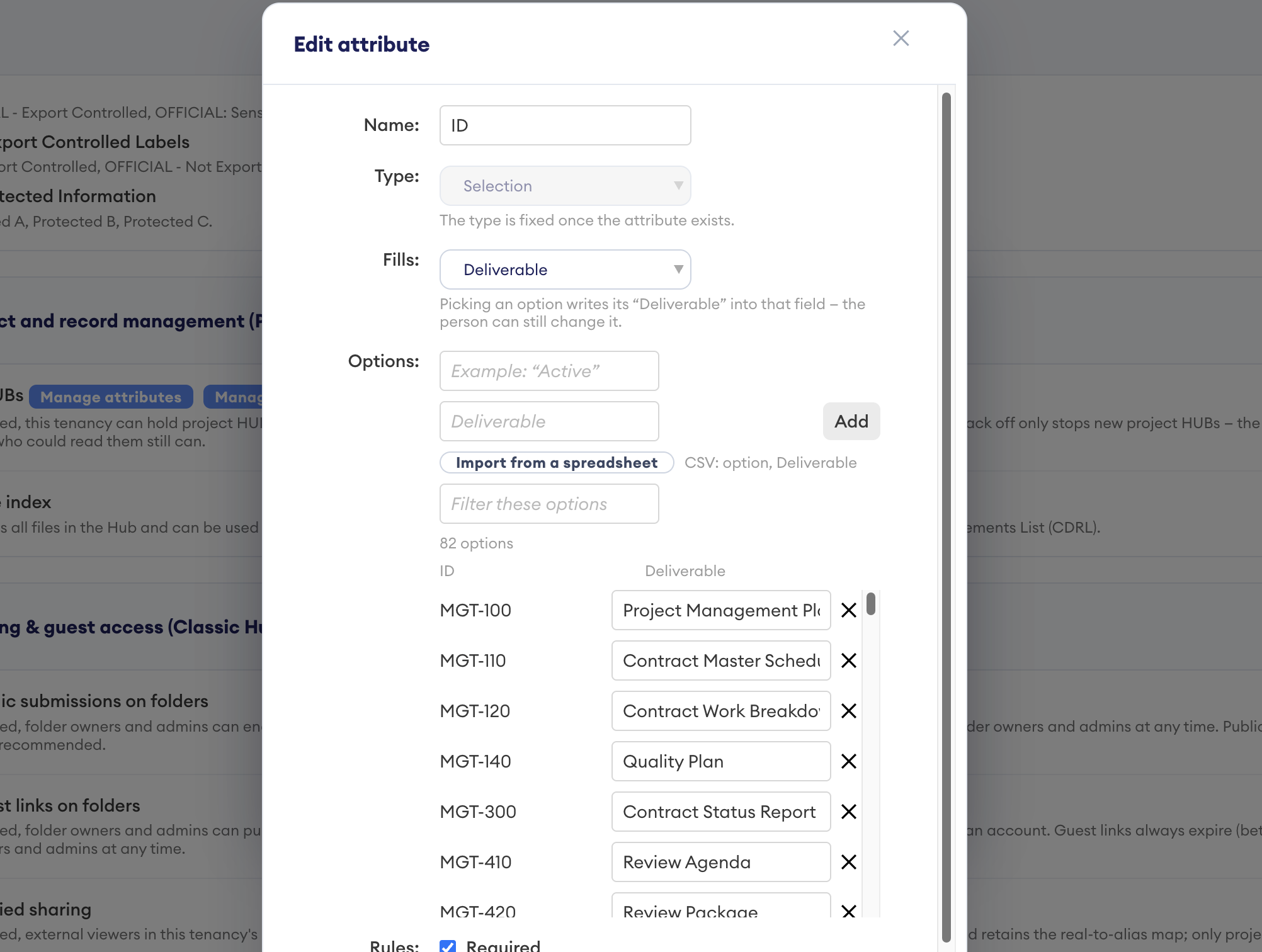
A Selection attribute can fill in another attribute when a user picks one of its options. In the example below, the ID attribute is set to fill Deliverable. Each ID option has a deliverable name beside it, so when a user chooses MGT-100, the Deliverable becomes Project Management Plan (PMP). The user can still change the Deliverable afterwards. Choose the attribute to fill in the Fills field. Entering the deliverable for each option is optional.
Re-order selection options
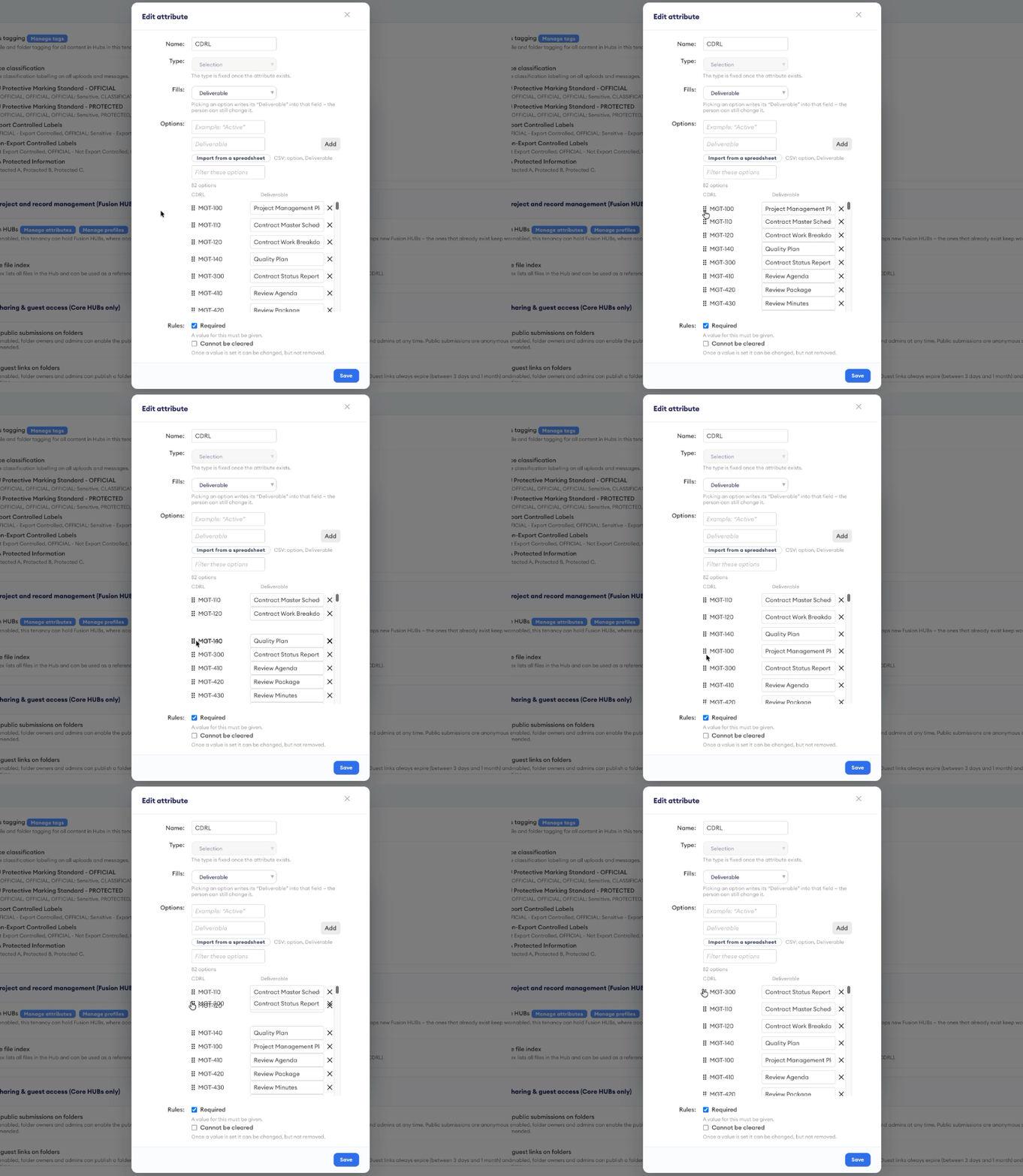
Click and drag the ⋮⋮ element on the left-side of the list to re-order items as they are presented in the selection list:
Classification and Microsoft Purview labels
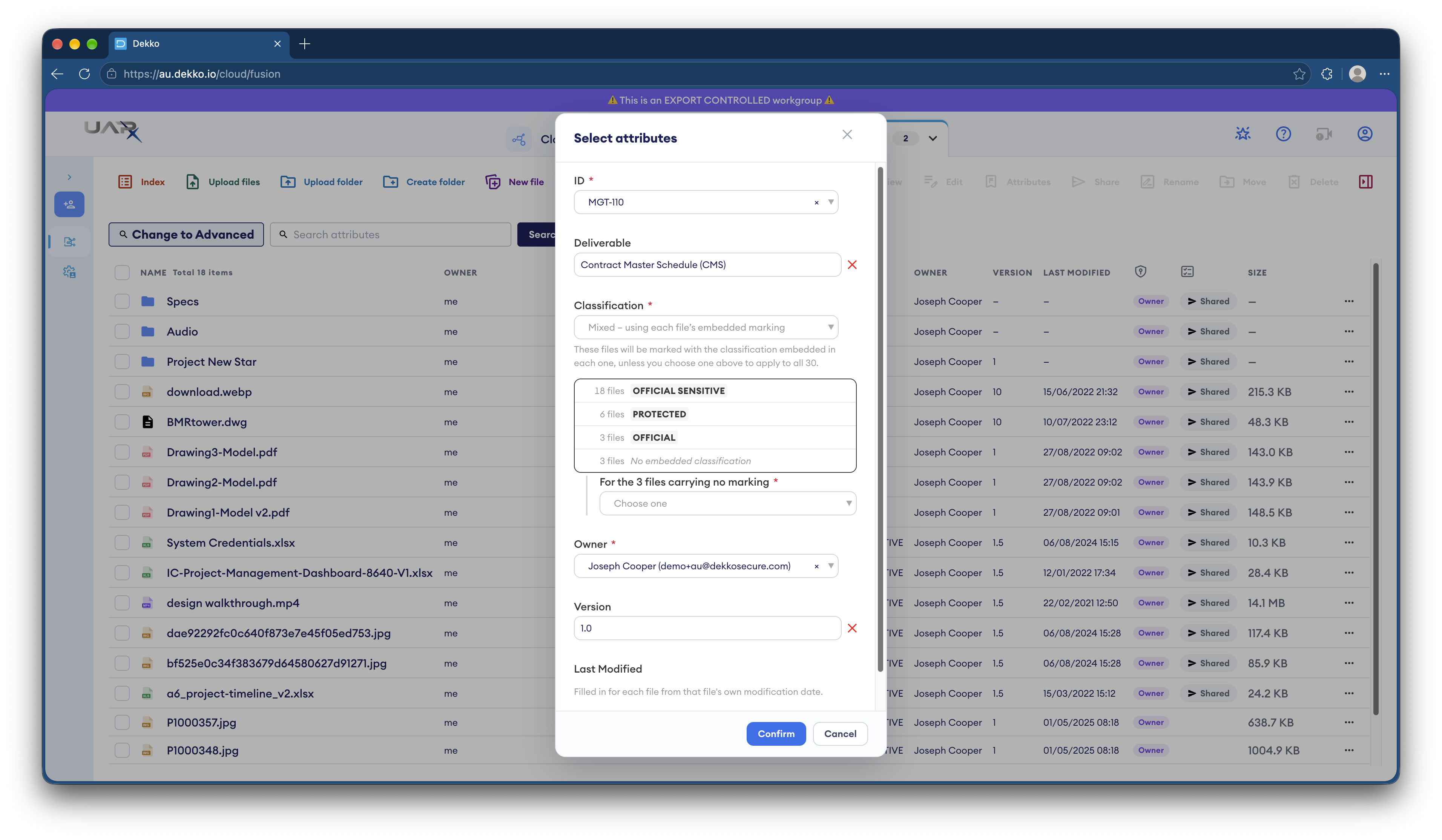
When users upload Office and PDF files, DekkoCORE reads the Microsoft Purview sensitivity label on each file and uses it to fill in the Classification attribute. Other kinds of marking are not read. If Classification is a Required attribute, users must supply a value for any file that has no label.
Create attribute profiles
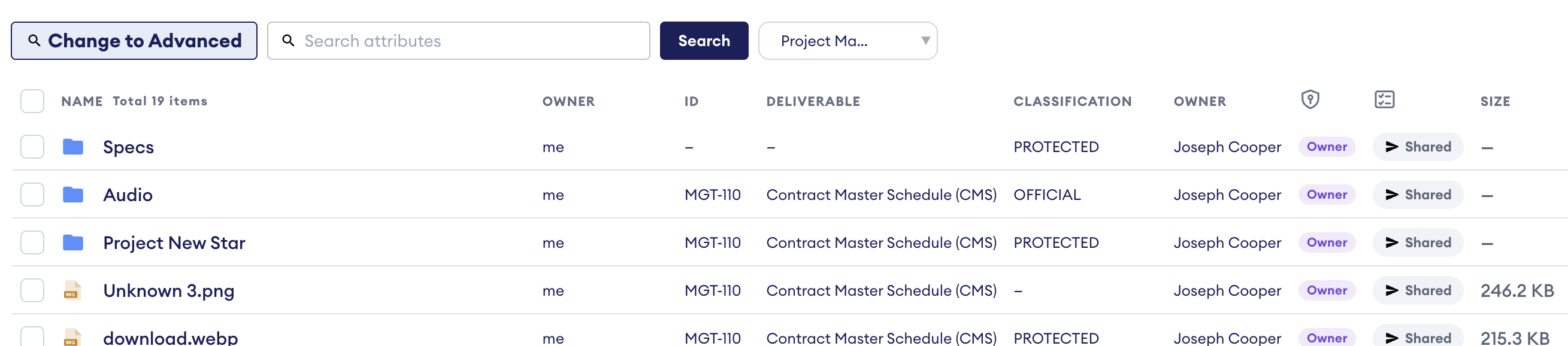
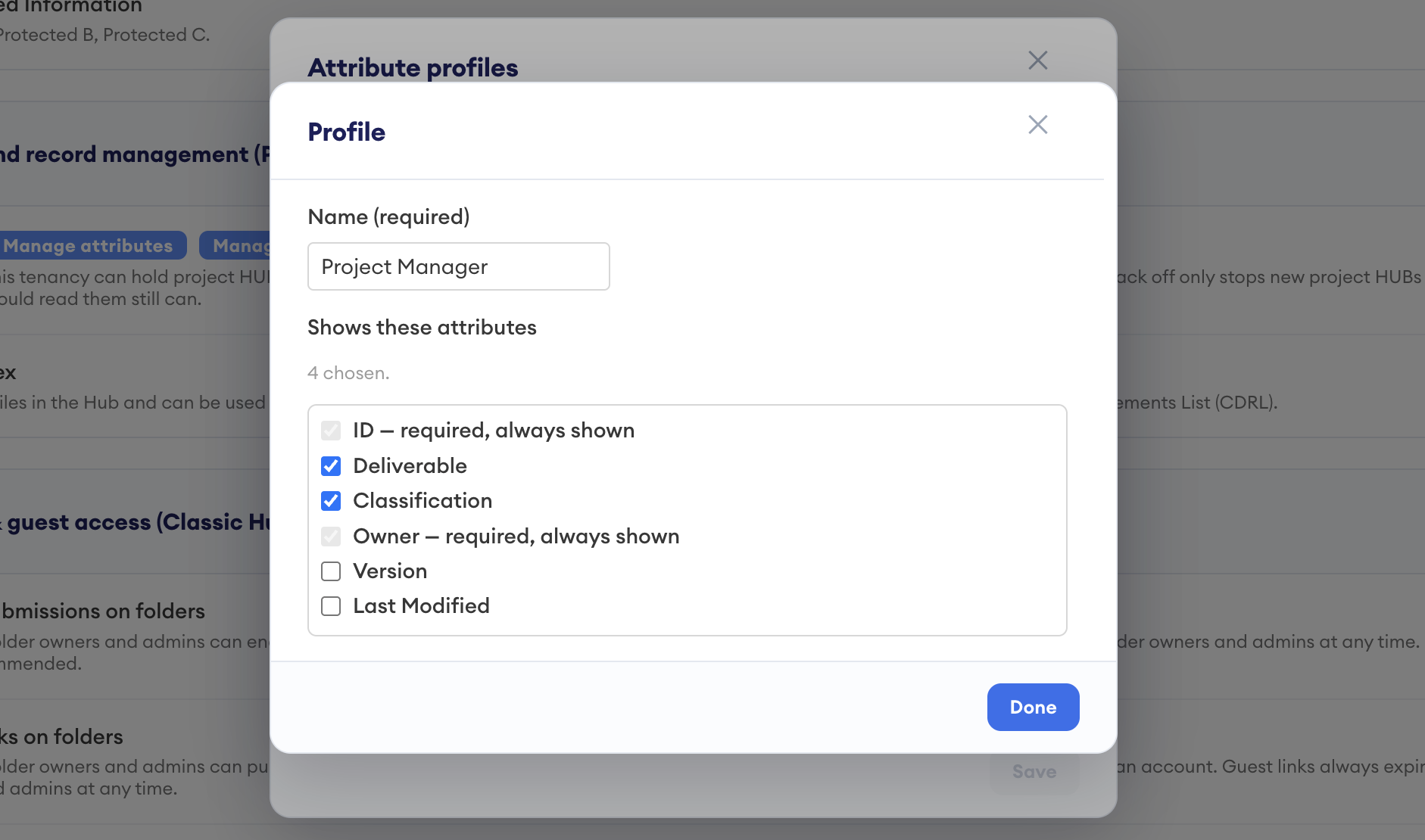
A profile is a named subset of the tenancy's attributes. Users choose a profile from the dropdown next to the search box to see only the few attributes that matter to them, instead of all of them. Everyone sees the same profiles, and which one a person looks through is their own choice. All attributes is always available and is not listed in the profiles window.
- On the Policies page, select Manage profiles.
- Select Create profile.
- Enter a Name.
- Tick the attributes the profile should show. Required attributes are always shown and can't be unticked.
- Select Done, then select Save in the Attribute profiles window.
To change a profile later, select the sliders icon beside it. Select the bin icon to delete it, and use the drag handle to change its position in the list.
Create user groups
Access in a Fusion Hub is given to groups and individuals, never to one person directly. There are two kinds of group.
- Tenancy-level groups are created and managed in the Tenancy Manager by Tenancy Managers and Fusion Managers. The same group can be used in any Fusion Hub in the Tenancy.
- Hub-level groups belong to one Hub and can only be given access to that Hub. They are managed in the Hub's settings by Tenancy Managers, Fusion Managers and the Hub's Fusion Hub Admins. See Hub-level groups.
To manage tenancy-level groups, select User groups in the Tenancy Manager. The list shows each group with the Hubs and permission levels it has, whether it has Index access, and its number of members. Entries marked Individual are groups of one person, which DekkoCORE creates when someone is invited from the file management interface.
Create or edit a group
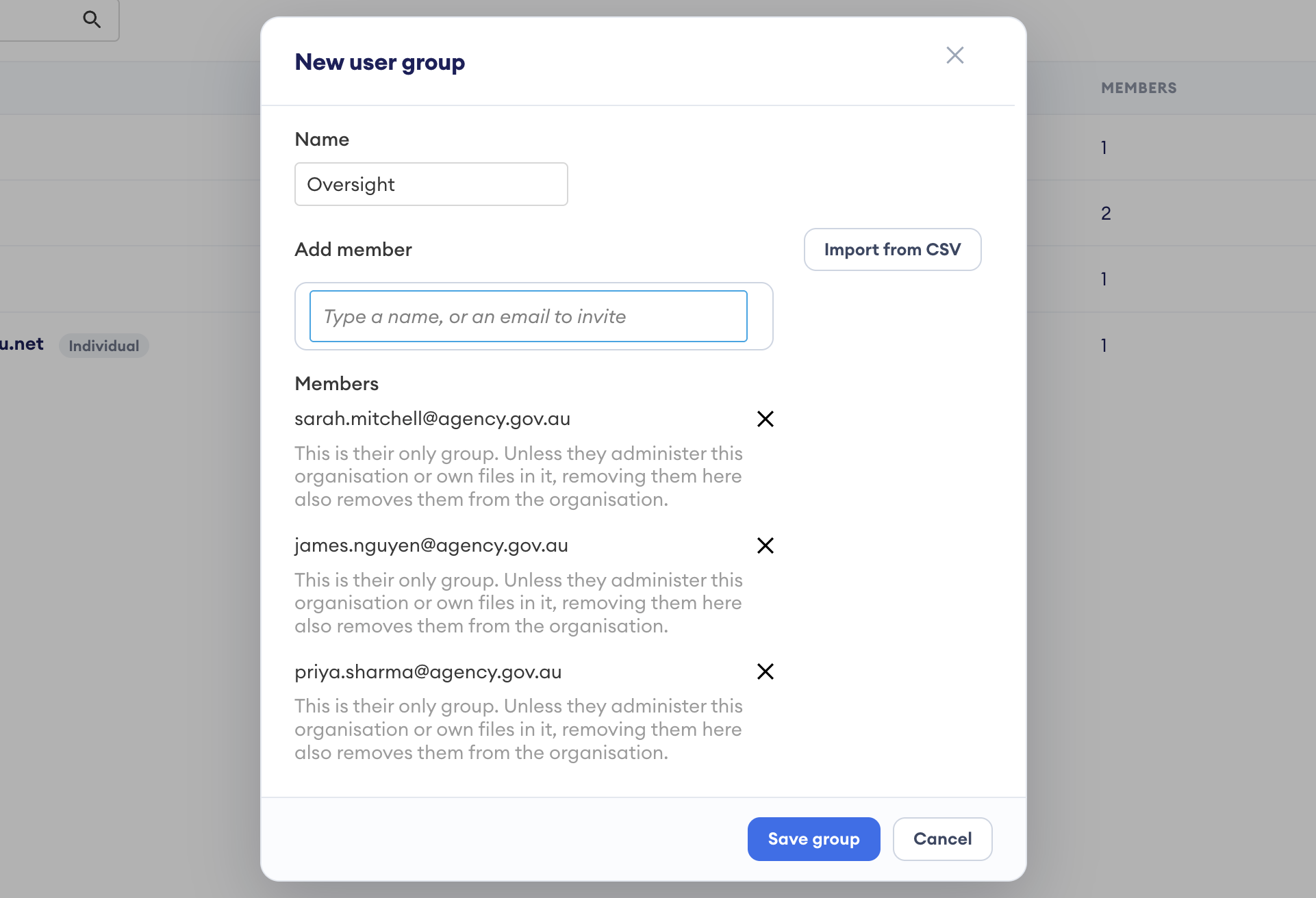
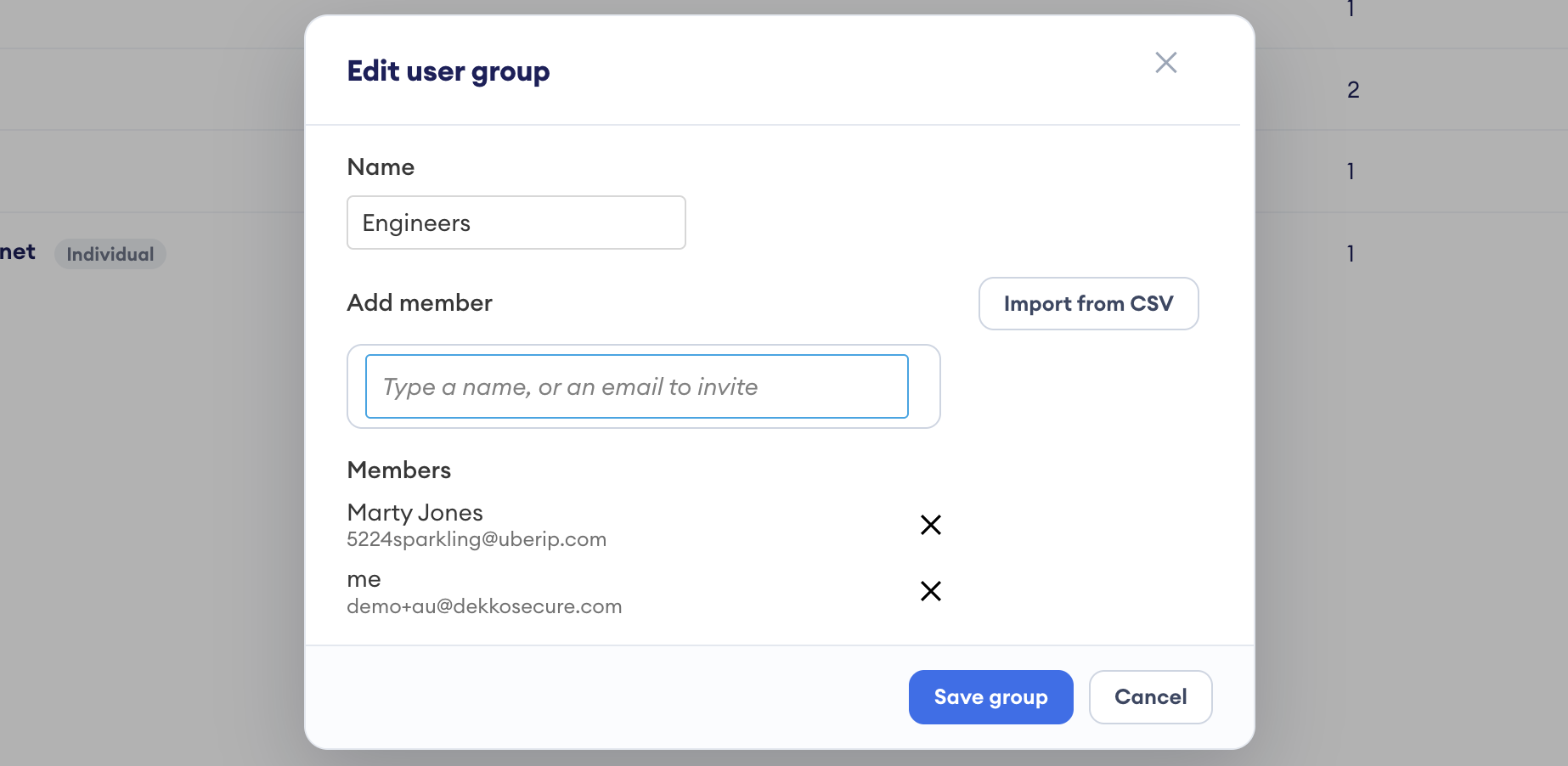
- Select Create group, or select the ... menu on an existing group and choose to edit it.
- Enter a Name.
- In Add member, type a name or an email address. An email address invites the person, and they can be outside your tenancy.
- To add many people at once, select Import from CSV.
- To remove someone, select the cross beside their name in the Members list.
- Select Save group.
What happens when membership changes
When you add someone to a group, they get access to everything that group can access in every Hub where the group is active. This includes files uploaded before they were added, and the access takes effect almost immediately.
When you remove someone from a group, their access ends straight away, unless they belong to another group that is active in the same Hub.
Create a Fusion Hub
Fusion Hubs are enabled by DekkoSecure staff. If you want a Fusion Hub in your Tenancy, contact your DekkoSecure account manager. Once they are enabled, Tenancy Managers and Fusion Managers can create Fusion Hubs from the Tenancy Manager. Other users can create them from the Fusion HUBs dropdown if the Limit users who can create Hubs tenancy policy allows them to.
Unlike a Core Hub, creating a Fusion Hub doesn't make you its admin. A new Fusion Hub has no Fusion Hub Admin until one is nominated. See Nominate a Fusion Hub Admin.
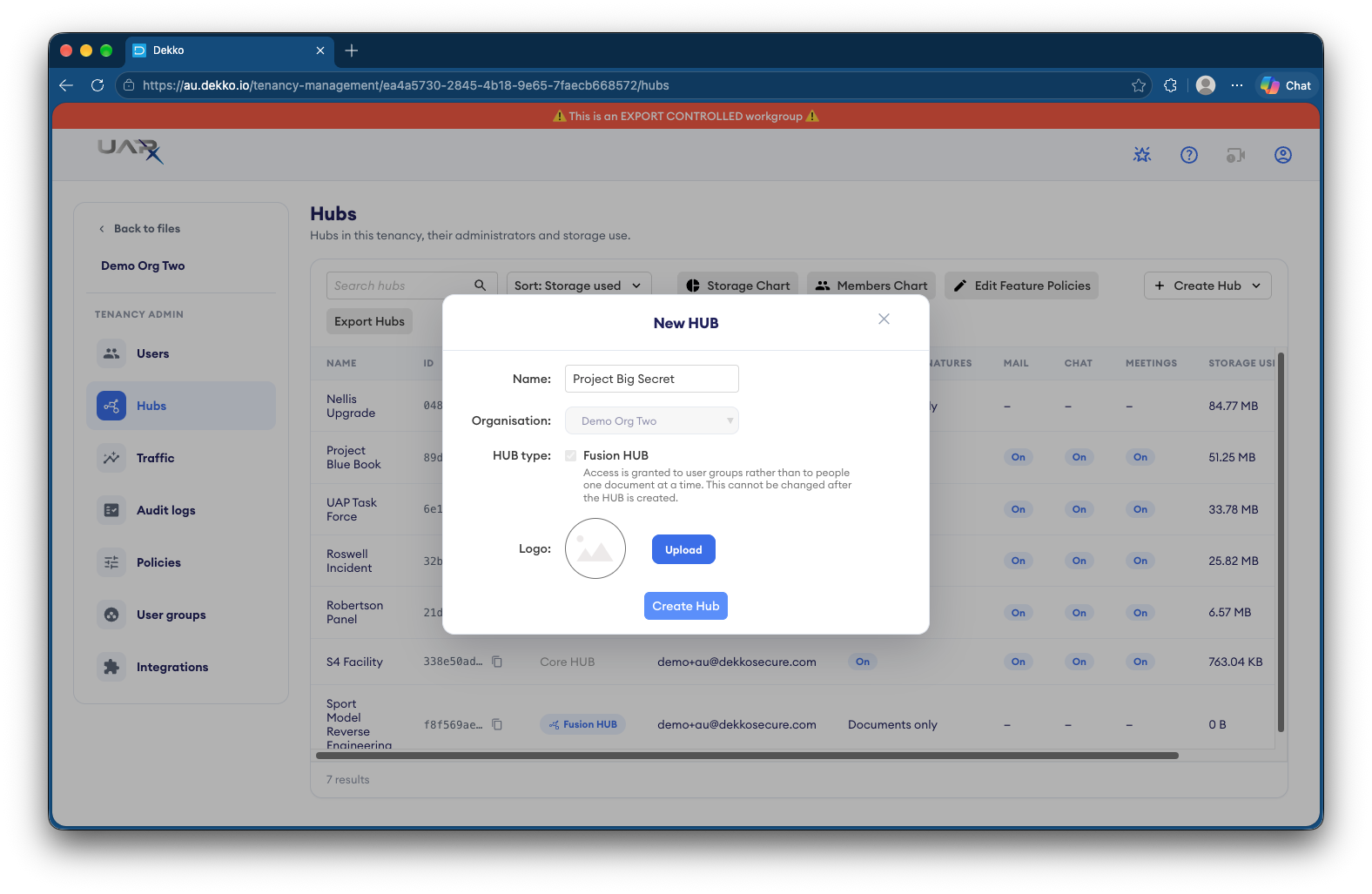
From the Tenancy Manager:
- Select Fusion HUBs and then select + Create Fusion HUB.
- Enter a Name.
- Check that Organisation shows the right tenancy.
- If you want to, select Upload to add a logo.
- Select Create Hub.
From the file manager:
- Open the Fusion HUBs dropdown at the top of the screen and select + New hub.
- Enter a Name.
- Check that Organisation shows the right tenancy.
- If you want to, select Upload to add a logo.
- Select Create Hub.
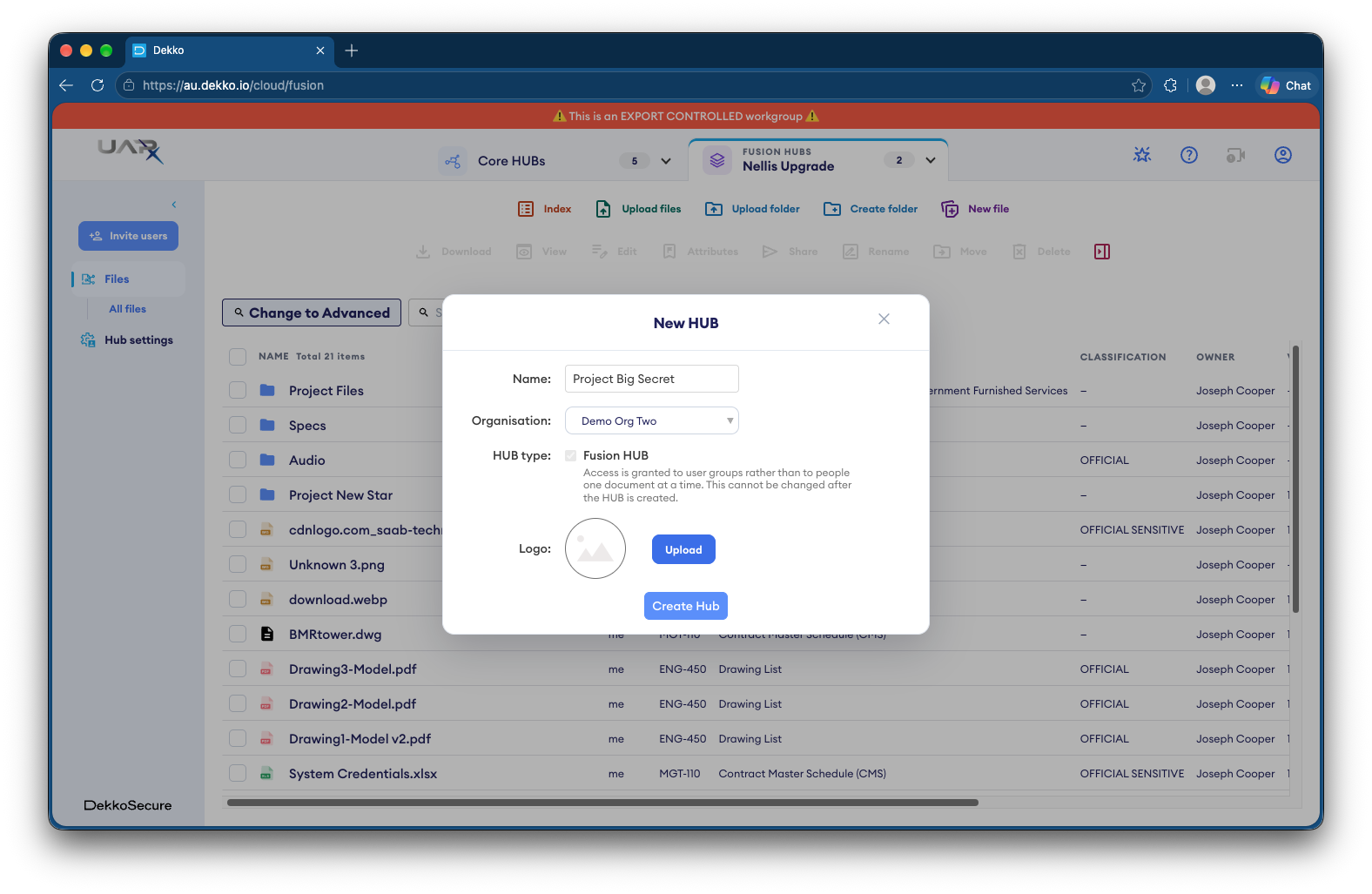
The Fusion dropdown also has Manage hubs, and it lists each Fusion Hub with your role in it.
Admin roles control how a Fusion Hub is set up, not what its admins can open. To work with the files in a Hub, an admin needs to belong to a group in the Hub's default sharing, or have files or folders shared with them, like everyone else.
Manage Fusion Hubs
Select Fusion HUBs in the Tenancy Manager to see every Fusion Hub in the Tenancy. Each row shows the Hub's name and ID, its Fusion Hub Admins, its default groups and their permission levels, whether it is included in the Index, and the storage it uses. Tenancy Managers and Fusion Managers can use this page.
- Select the gear icon beside a Hub to open its settings.
- Select Storage Chart to see how storage is spread across the Hubs.
- Select Export Hubs to download the list.
Hub settings
A Fusion Hub's settings have three pages. Branding sets how the Hub looks. HUB administrators lists the Hub's Fusion Hub Admins. Groups and sharing holds the Hub's own groups and its default sharing.
Tenancy Managers, Fusion Managers and the Hub's Fusion Hub Admins can change a Hub's name, branding, groups and default sharing. Tenancy Managers and Fusion Managers can nominate Fusion Hub Admins and delete a Fusion Hub.
Nominate Fusion Managers and Fusion Hub Admins
Only Tenancy Managers can nominate Fusion Managers. Tenancy Managers and Fusion Managers can nominate Fusion Hub Admins. For what each role can do, see Fusion Hub roles.
Nominate Fusion Managers
A Fusion Manager looks after every Fusion Hub in the Tenancy, along with its attributes, profiles, groups and Index, and nothing else.
- In the Tenancy Manager, select Policies.
- In the Project and record management (Fusion HUBs) card, find Fusion administrators.
- Type the person's email address and select them.
- Type their login to confirm, then select Add Fusion administrator.
To remove a Fusion Manager, select the cross beside their email address.
Nominate a Fusion Hub Admin
A Fusion Hub Admin looks after one Fusion Hub. Tenancy Managers and Fusion Managers can nominate them.
- In the Tenancy Manager, select Fusion HUBs, then select the gear icon beside the Hub.
- Select HUB administrators.
- Type the person's email address and select them.
- Type their login to confirm, then select Add HUB administrator.
To remove a Fusion Hub Admin, select the cross beside their email address.
Set a Hub's default sharing
Default sharing decides which groups can see the content of a Fusion Hub and what they can do with it. It applies to everything in the Hub, including subfolders, both what is there now and what is added later. Everything uploaded is shared with these groups immediately, regardless of who uploaded it.
Tenancy Managers, Fusion Managers and the Hub's Fusion Hub Admins can set default sharing.
- Open the Hub's settings. In the Tenancy Manager, select Fusion HUBs and then the gear icon beside the Hub. In the file management interface, select Hub settings in the navigation panel on the left. Use the Hub dropdown at the top of the left panel to switch to a different Hub.
- Select Groups and sharing.
- Under Default sharing, open Add a group and choose a tenancy-level group or one of the Hub's own groups.
- Choose a permission level for the group.
- Select Save.
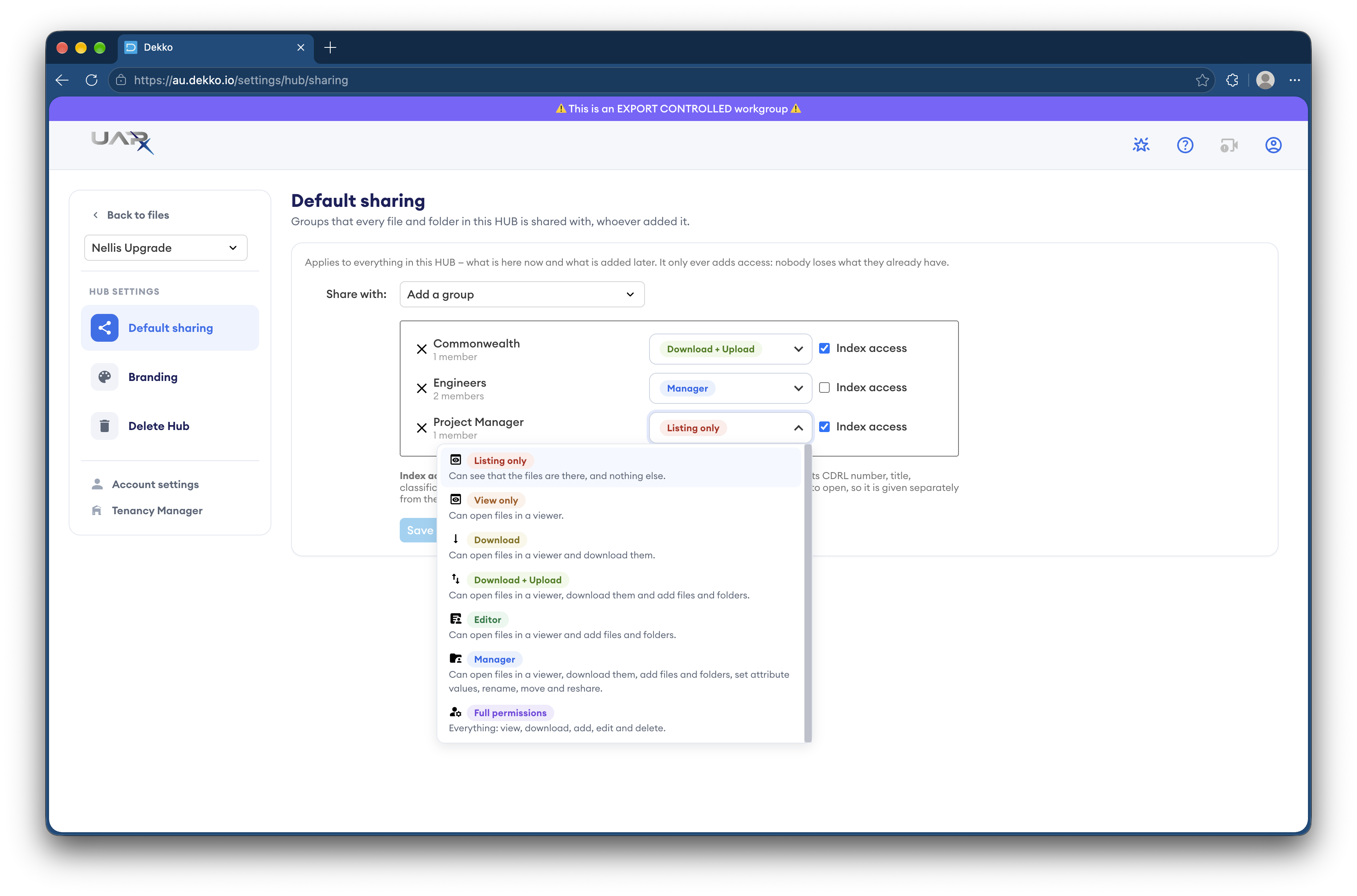
Saving default sharing only ever adds access. Nobody loses access they already have. Users with the Manager or Full permissions level can still add extra groups or individuals to a particular file or folder, on top of the Hub's defaults.
Hub-level groups
The Groups list on the Groups and sharing page holds the Hub's own groups. They can be given access to what is in that Hub and nowhere else, which suits teams that only work on one project.
- Select Create group, or select the pencil icon beside an existing group.
- Enter a name and add members.
- Save the group, then add it under Default sharing with a permission level.
Select the bin icon to delete a Hub-level group. A Fusion Hub Admin can add tenancy-level groups to their Hub's default sharing, but can't change who is in them.
Permission levels
| Permission | What it allows |
|---|---|
| Listing only | See that the files are there, and nothing else. |
| View only | Open files in a viewer. |
| Download only | Open files in a viewer and download them. |
| Download + upload | Open files in a viewer, download them, and add files and folders. |
| Editor | Open files in a viewer and add files and folders. |
| Manager | Open files in a viewer, download them, add files and folders, set attribute values, rename, move and reshare. |
| Full permissions | Everything: view, download, add, edit and delete. |
Index access
Index access isn't set in a Hub's default sharing. It is given to tenancy-level groups on the User groups page, and it covers every Hub that is included in the Index. See Set up the Index.
Set up the Index
The Index lists every document, with its attributes and location, from each Fusion Hub that is included in it. Three settings decide what appears and who can see it. Tenancy Managers and Fusion Managers can change all three.
- Enable file index must be on in the tenancy policies. See Check the Fusion Hub policies.
- Each Hub whose documents should be listed must be included in the Index.
- Each group that should be able to open the Index must have Index access.
Include a Hub in the Index
- In the Tenancy Manager, select Fusion HUBs.
- Tick the In Index box beside each Hub that should appear in the Index. Untick it to remove the Hub's documents from the Index.
Give a group Index access
- In the Tenancy Manager, select User groups.
- Tick the Index access box beside the group.
Members of a group with Index access can see every document from every Hub included in the Index. This applies whether or not the documents are shared with them, and whether or not their group is shared with those Hubs. Give Index access only to groups that should see that information.
Index access is given only through groups. Tenancy Managers, Fusion Managers and Fusion Hub Admins also need to belong to a group with Index access to open the Index.
Review activity with audit logs
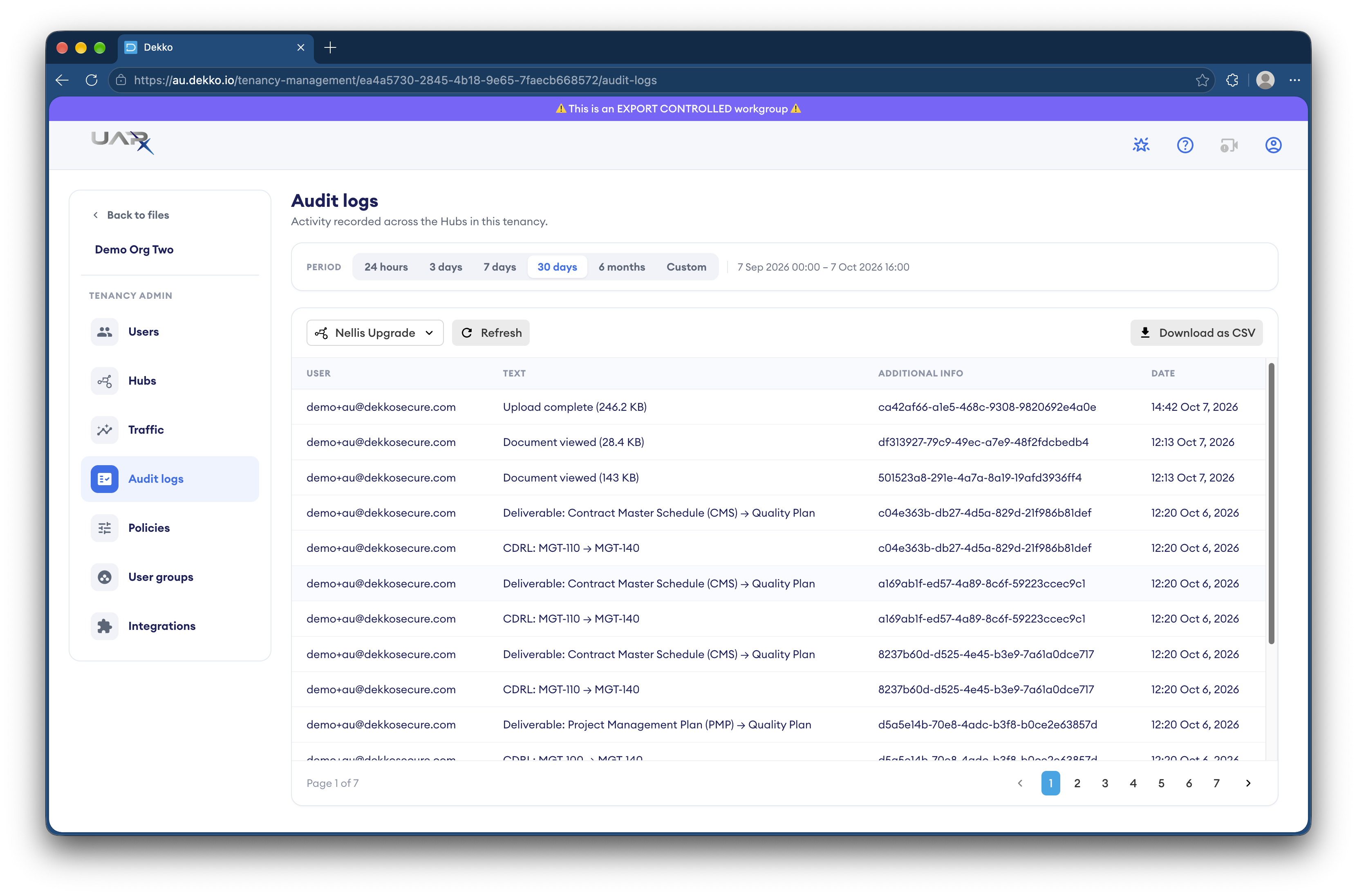
Fusion Hub activity is recorded in the tenancy's audit logs. Tenancy Managers can select Audit logs in the Tenancy Manager to see activity across the Hubs in the tenancy.
- Choose a period: 24 hours, 3 days, 7 days, 30 days, 6 months or a custom range.
- Choose the Hub from the dropdown.
- Select Refresh to update the list.
- Select Download as CSV to export it.
Each entry shows the user, a description of what happened, additional information and the date. Entries include uploads, documents being viewed, and changes to attribute values, which show the old and the new value.
What Fusion Hubs don't include
The following functional collaboration features are not available in Fusion Hubs.
- Public submissions
- Guest access links
- Document signing
- Messaging
- Redaction
- Forms
The user interface also differs, and does not include the events column, or a contact list. The Upload Accelerator is not yet supported for Fusion Hubs; but will be made available in a future update.
Troubleshooting
A user can't see a Fusion Hub. Check that the user belongs to a group that is in the Hub's default sharing, or that they have been shared individual files or folders. Fusion Hubs appear in the Fusion dropdown, not the Core Hubs dropdown.
A user can see a Hub but can't open the files. Check the permission level the user's group has in the Hub's default sharing. Listing only shows that files exist and nothing else.
A user can't open the Index. Check that Enable file index is on in the tenancy policies, and that the user belongs to a group with Index access on the User groups page. This applies to admins too.
A Hub's documents are missing from the Index. Check that In Index is ticked for the Hub on the Fusion HUBs page. The Index also shows only documents with all required attributes filled in, unless Incomplete entries is selected.
An admin can't open files in a Hub they manage. Admin roles don't include access to files. Add the person to a group in the Hub's default sharing, or share the files with them.
A Fusion Hub Admin can't change who is in a group. Fusion Hub Admins can manage their Hub's own groups only. Members of tenancy-level groups are managed by Tenancy Managers and Fusion Managers.
Users can't finish an upload. A Required attribute is probably empty for some files. Check which attributes are marked Required, and whether files that have no Microsoft Purview label need a classification value to be chosen.