

DekkoDrive Sync App: Install and Uninstall
Download, install and set up DekkoDrive.
The DekkoDrive Sync App is no longer supported. It has been replaced by the Dekko S3 Gateway, which lets you upload, download and copy your DekkoCORE files with S3 apps such as Brows3 and rclone. Uninstall DekkoDrive using the steps below, then set up the gateway.
What replaces DekkoDrive
| If you used DekkoDrive to | Use this instead |
|---|---|
| Upload or download many files, or large files | The Dekko S3 Gateway with Brows3. See S3 Gateway: Enable Access and Create a Token, then S3 Gateway: Connect an S3 App. |
| Keep a copy of your hubs on your computer or a network drive | The Dekko S3 Gateway with rclone. See S3 Gateway: Connect an S3 App. |
| Back up a tenancy with the Central Backup Account | S3 Gateway: Back Up a Tenancy Every Night. |
Your tenancy must allow the gateway first. A Tenancy Manager turns on Allow local S3 gateway in Tenancy Policies.
Before you uninstall
- Check that DekkoDrive has finished synchronising. Click its icon in the system tray: the Recent sync activity window should show Pending: 0. Files still waiting to upload when you uninstall do not reach DekkoCORE.
- Exit DekkoDrive: right-click its icon in the system tray and choose Exit.
Uninstall DekkoDrive
Download and run the Dekko Uninstaller. It opens a window titled Dekko Apps Uninstaller.
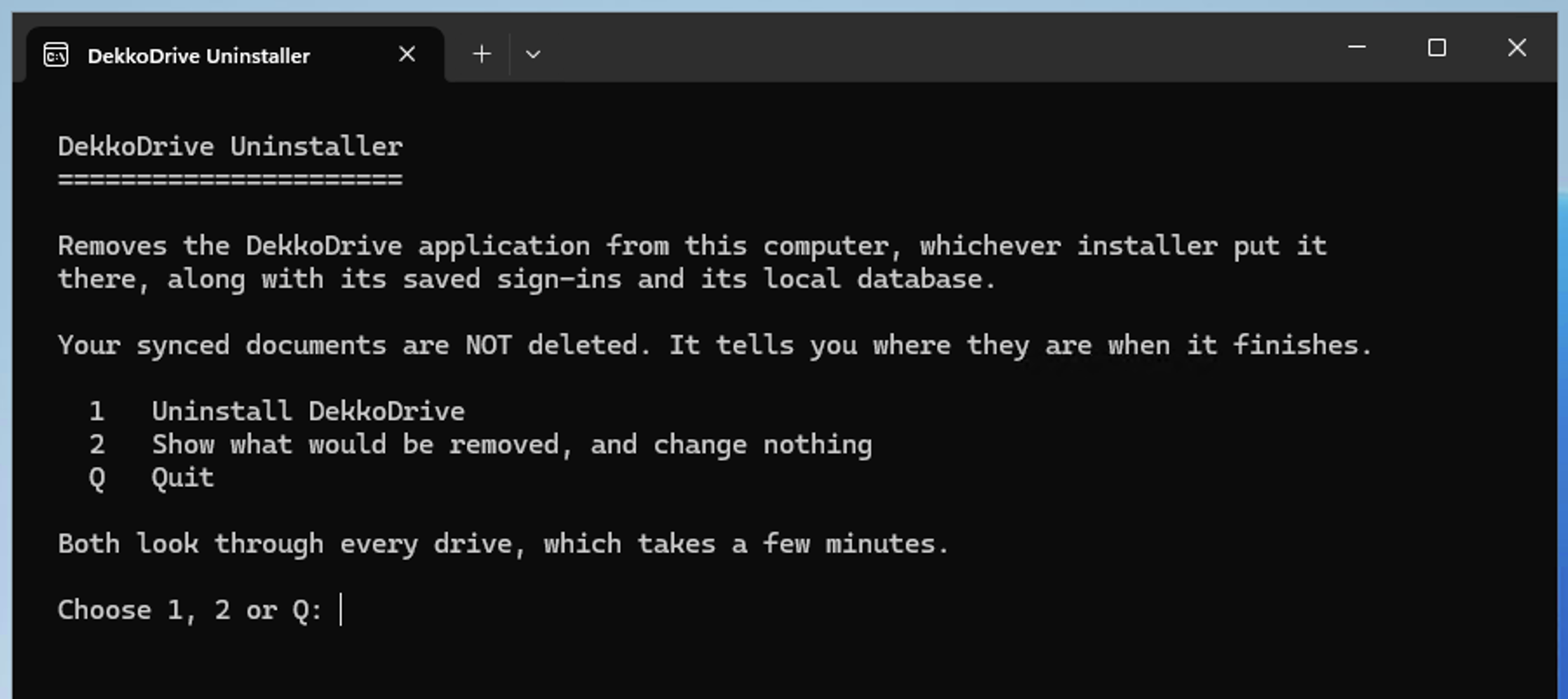
To check first what it would remove, type 2 and press Enter. Nothing is changed. Options 1 and 2 search every drive, so they can take a few minutes.
Type 1 and press Enter to uninstall. If more than one Dekko app is installed, the uninstaller lists them. Type the number of DekkoDrive (CORE) and press Enter. To remove several, type their numbers, such as 1,3, or A for all of them.
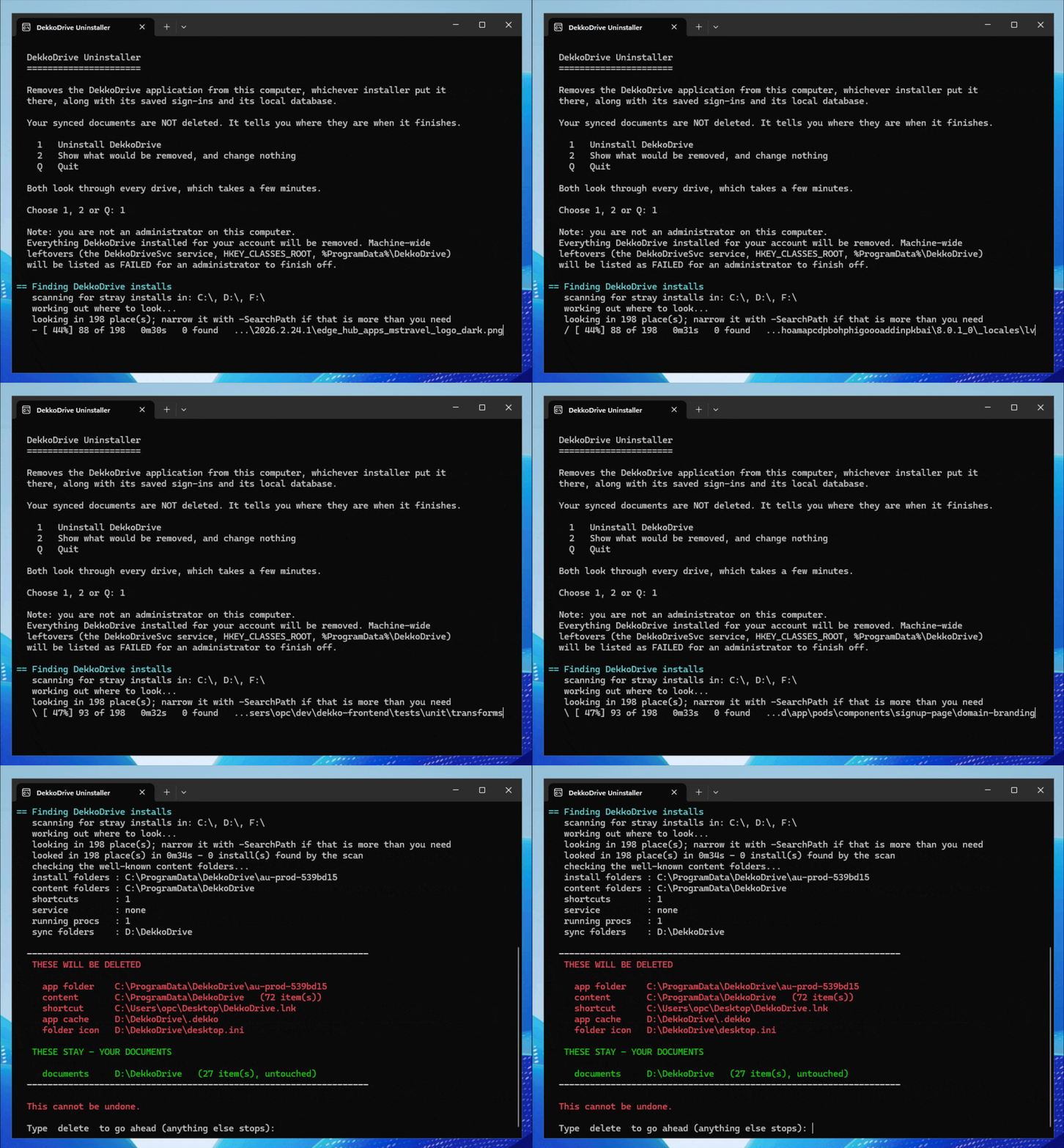
Type delete and press Enter to go ahead. Anything else stops without removing anything.
The uninstaller lists what it removed and shows where your synchronised files are. It does not delete them. Type y to open that folder, or n to skip.
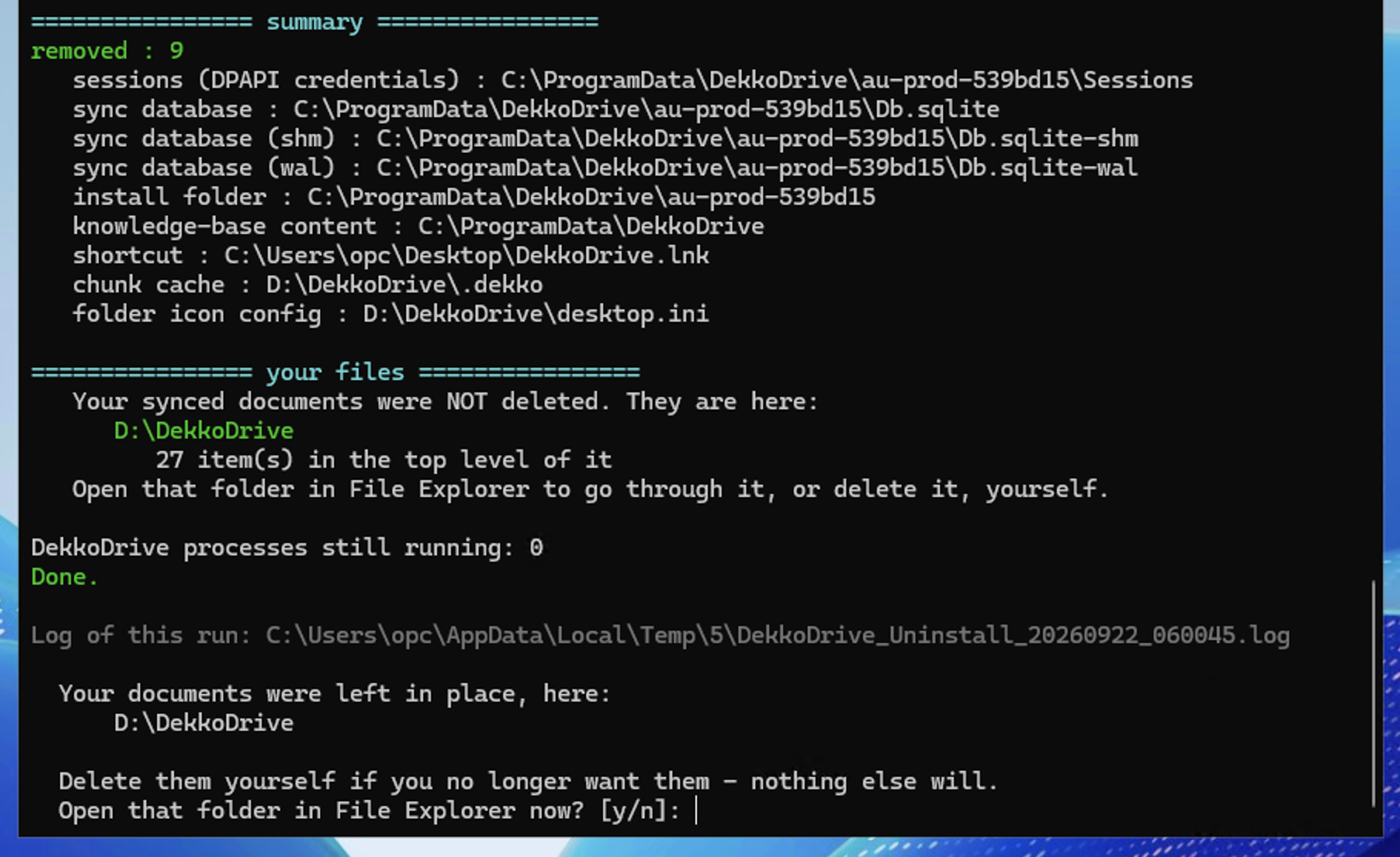
Type Q and press Enter to close the uninstaller.
The uninstaller removes the app, its shortcuts and its saved sign-in.
After you uninstall
- Your files in DekkoCORE are not affected. Nothing is deleted from your hubs.
- The synchronised copy stays on your computer. It no longer updates. Delete the folder yourself if you no longer need it, or keep it as a copy.
- Remove the pinned shortcut, if you pinned the DekkoDrive folder to Quick access: right-click it in File Explorer and choose Unpin from Quick access.