

Upload Accelerator App
Faster uploads for large files and bulk transfers.
What is the Upload Accelerator App?
The Upload Accelerator App (Windows only for now!) is a lightweight companion tool to the primary web application that maximises your device’s hardware performance and network connectivity, meaning it introduces dramatic increases to file upload speeds.
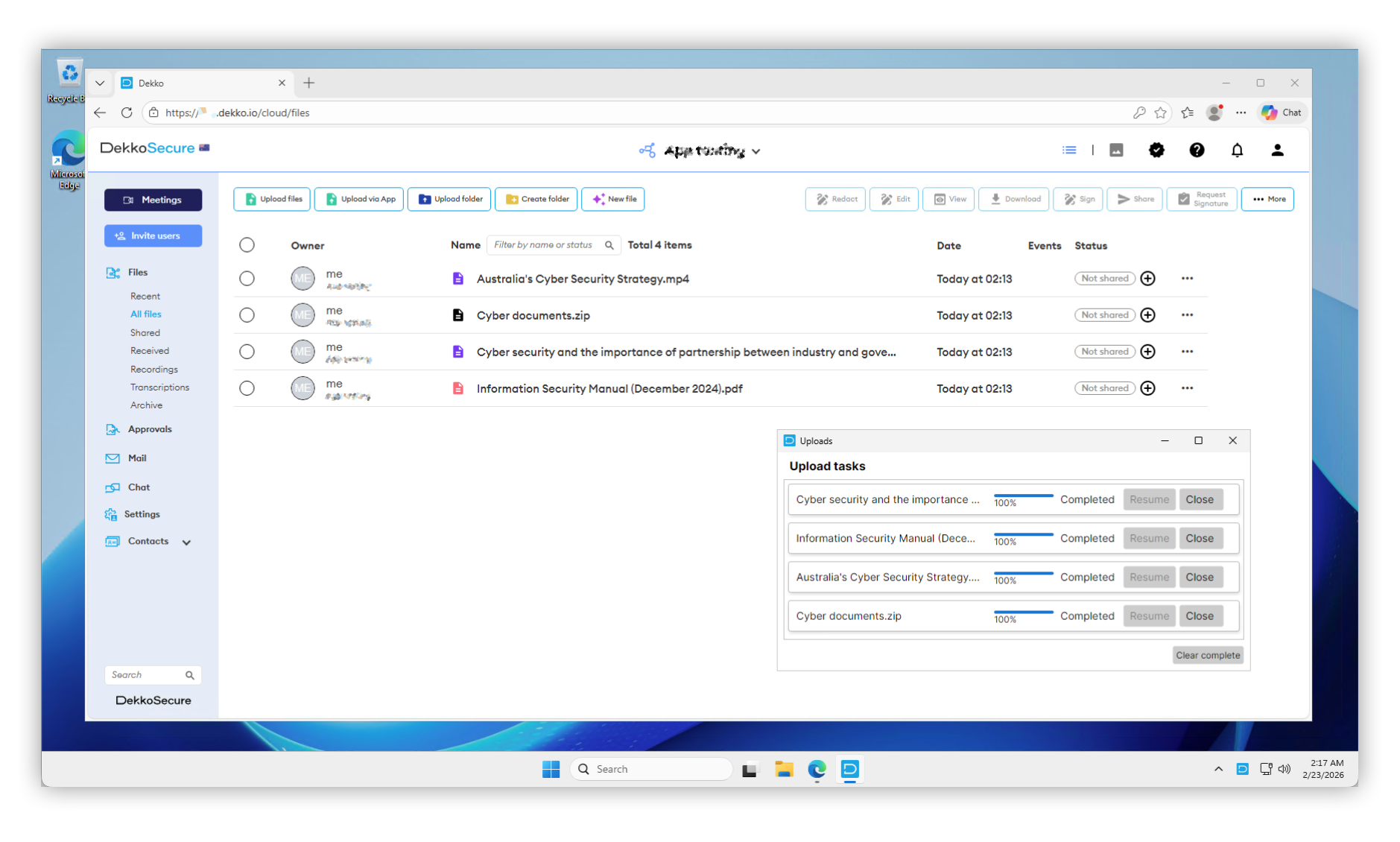
Looking for full data synchronisation functionality? Please check out the DekkoDrive App as an alternative to the Upload Accelerator App!
Preparation for the Accelerator App
The application is installed by running an executable file. If you work in a highly secure environment you may need to request permission from your employer’s IT department to install the app and allow network traffic on the URL *.dekko.io.
Installing the Accelerator App
Download the Accelerator App, locate the ZIP file on your computer (e.g. your Downloads folder), right-click it, and choose Extract All:
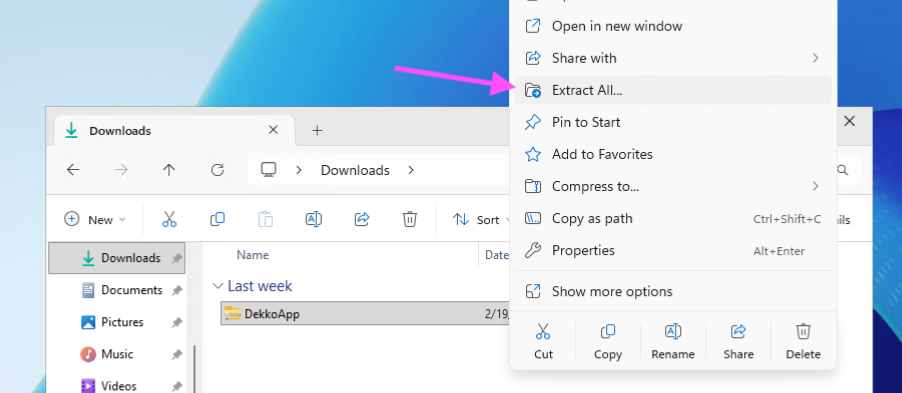
Ensure the Show extracted files option is ticked and set the extraction destination to
C:\ProgramData\DekkoApp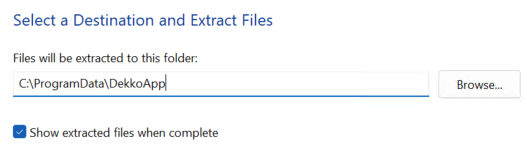
Click Extract at the bottom of the extraction window - the destination folder will open.
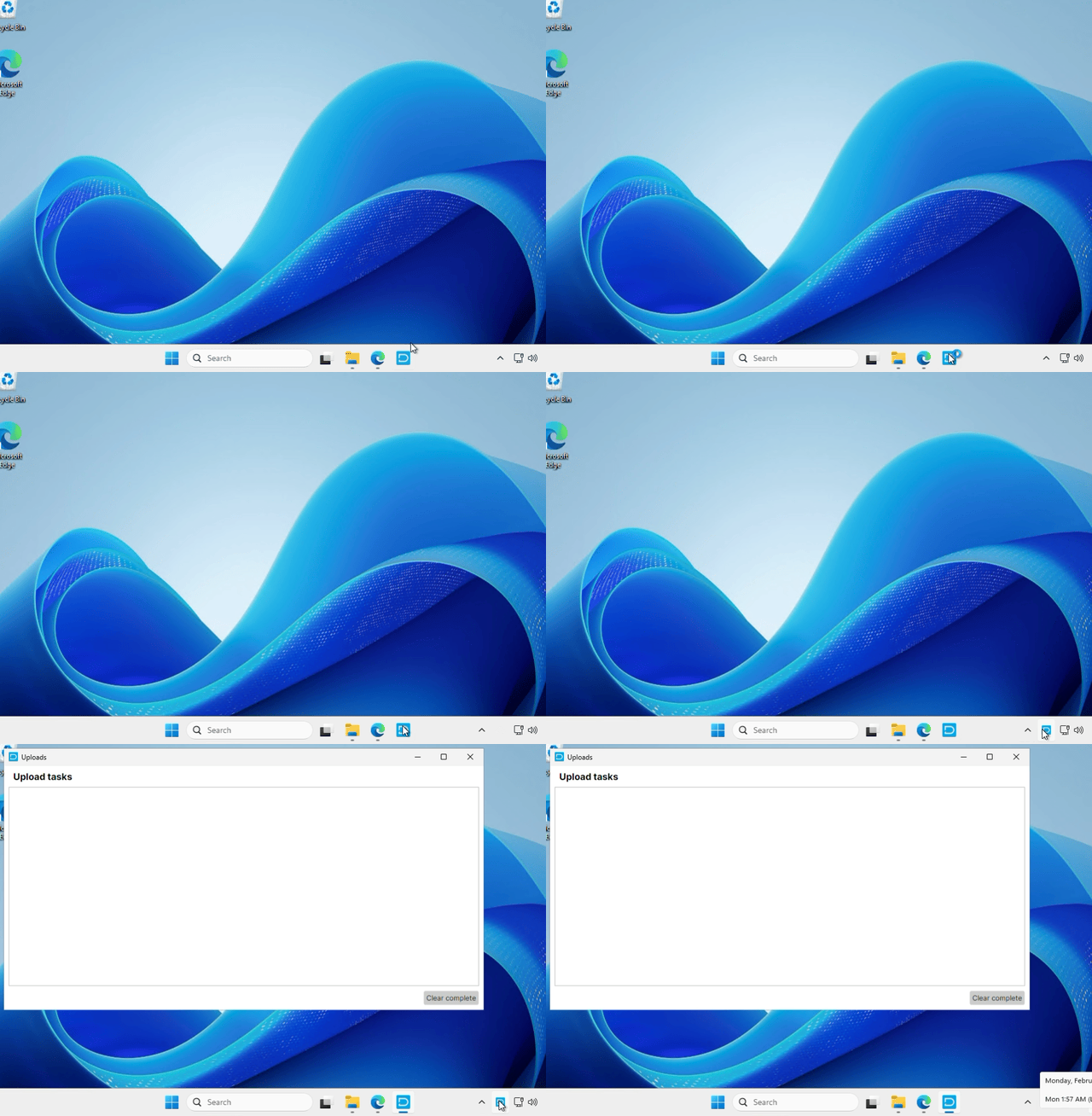
Pin the app to your taskbar and then run it (left click the icon):
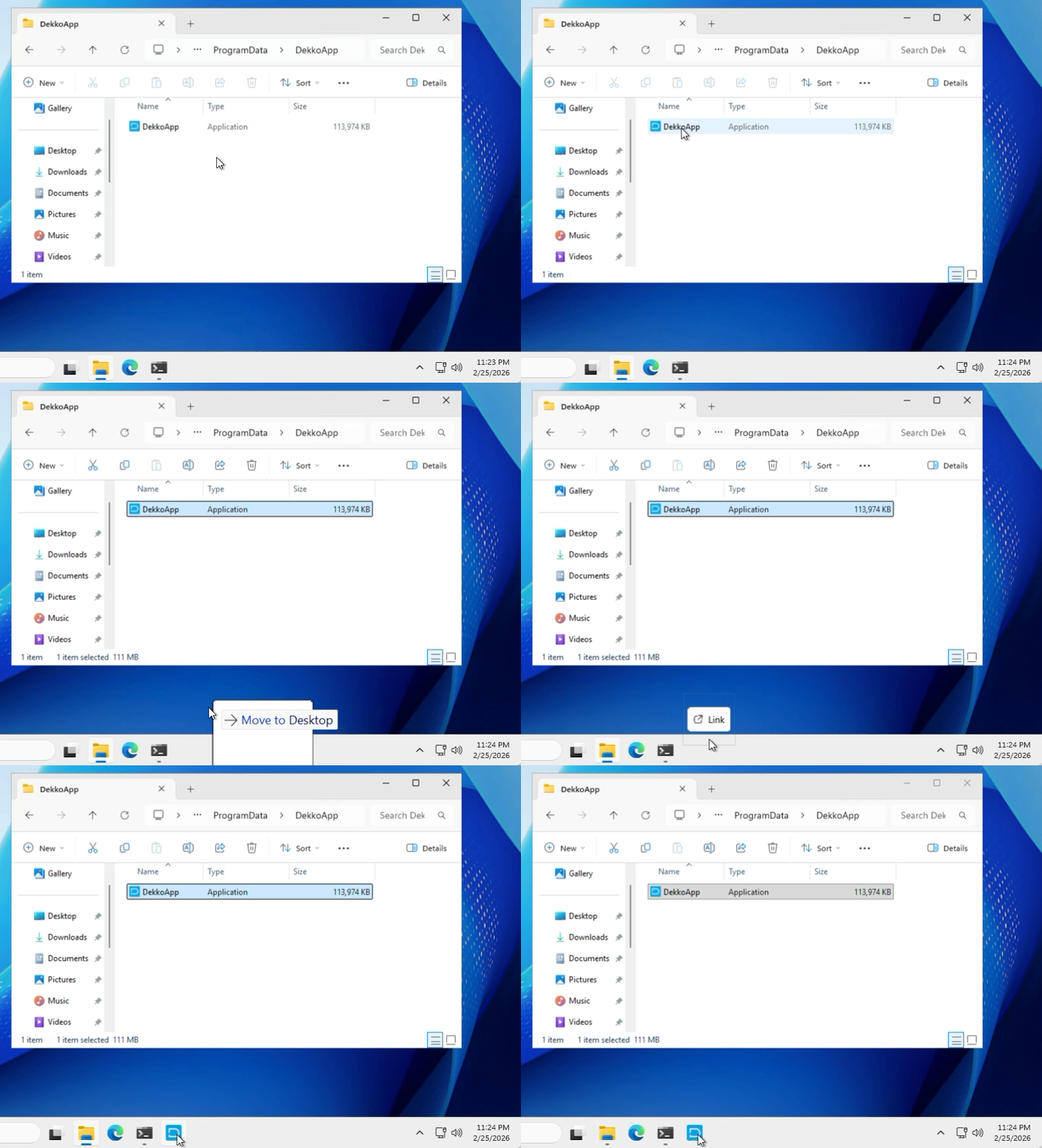
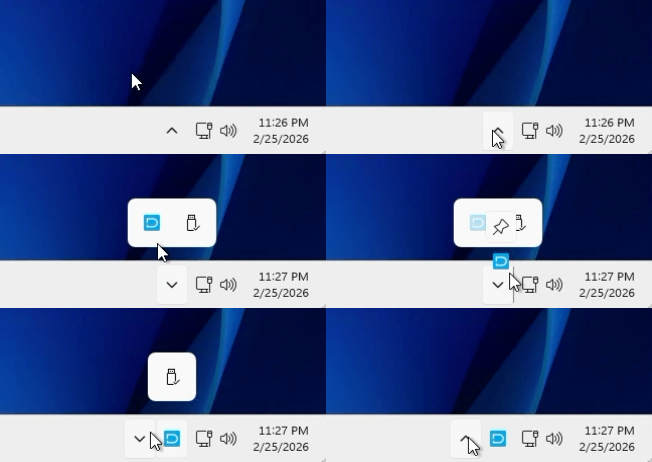
You can also pin the app to your menu tray for easy access:
Using the Accelerator App for the first time (and permissions)
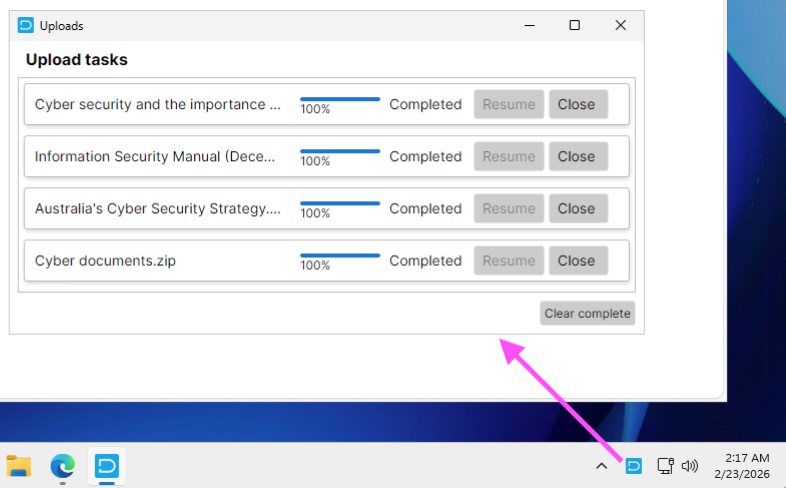
Left-click the app icon in your taskbar to run it, then left-click its icon in your menu tray to open the uploader progress window:
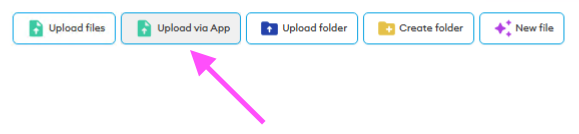
Click the Upload via App button in the web interface:
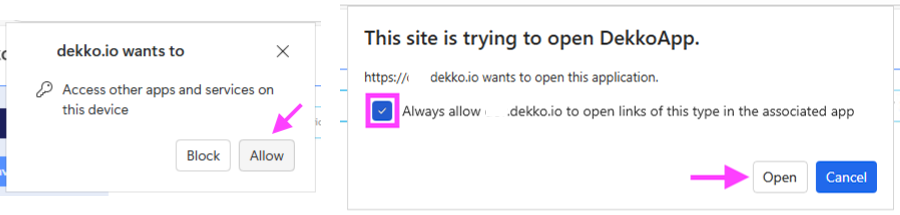
The first time you do this, your browser will prompt for permission - this permission allows the DekkoSecure web app to communicate with the Upload Accelerator App.
Click Allow on the apps and services prompt. On the Trying to open prompt, tick Always allow, then click Open.
Uploading files with the Accelerator App
First, make sure the app is running! See the steps in the previous section.
Go to the Hub and location (for example, a folder) that you need to upload files to, then click Upload via App:
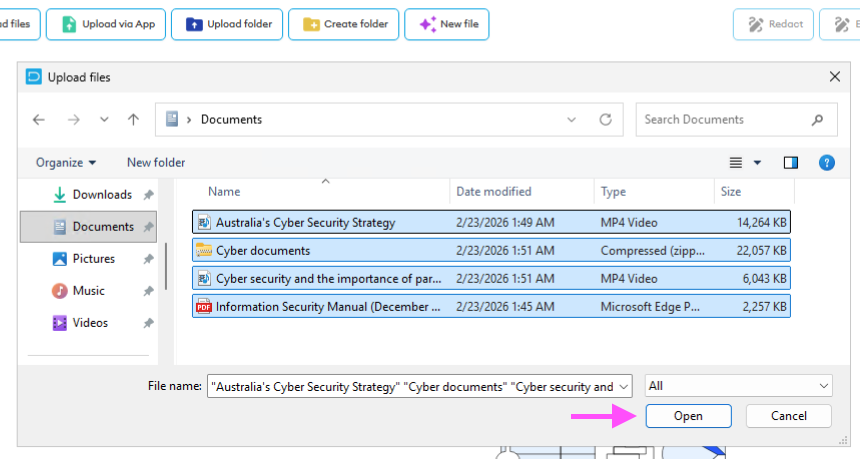
Using your file explorer, navigate to the files for upload, select them, and then click Open:
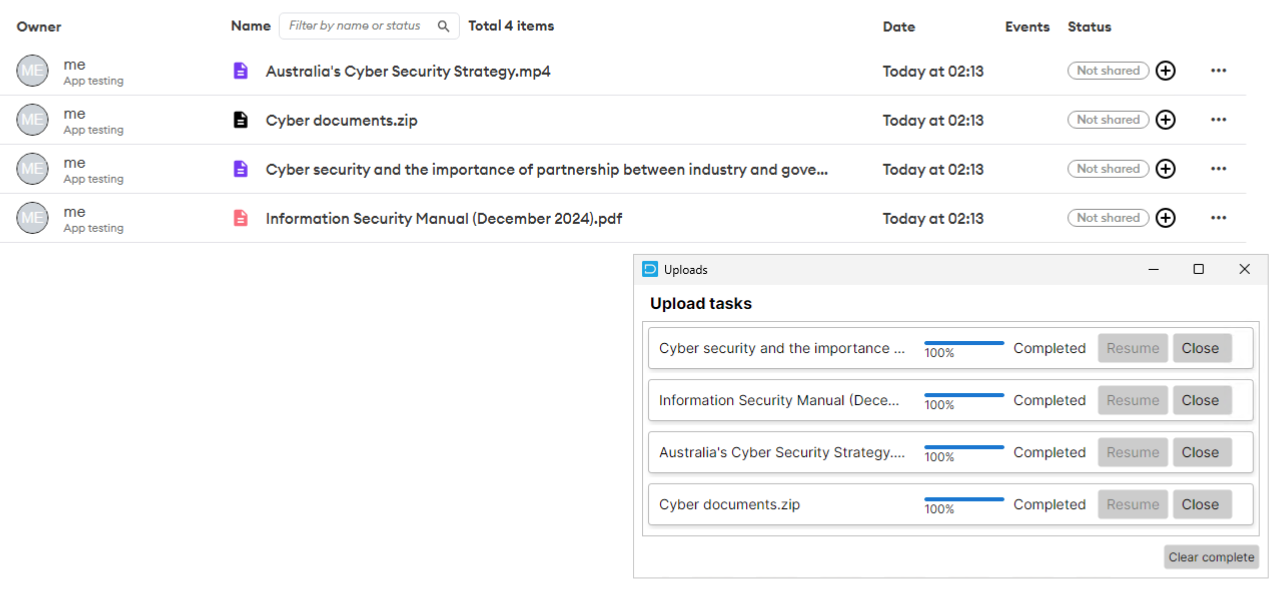
Check the Accelerator App window for upload progress. Completed files will appear in the web interface when uploading finishes:
If you can’t see the progress window, click the app icon in your menu tray to reveal it:
Note: files uploaded to shared folders will be shared automatically!
Uninstalling the Accelerator App
Locate and delete the app executable file in C:\ProgramData\DekkoApp. Optionally, you can also delete that folder (check there isn’t anything else in there!)
Closing the Accelerator App
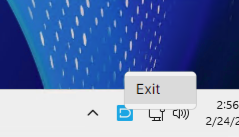
Right-click the app icon in your menu tray and then Exit:
Synchronisation time and performance
While the Accelerator App is capable of higher upload speeds than the web application, it is still reliant on your computer’s hardware and network performance. If you need to upload high volumes of files we recommend doing this on a powerful computer with the best network available to you.
“Uploader App Not Detected”
This message will be shown if the DekkoSecure web app can’t detect the Uploader App, which will happen if the app isn’t running or your browser doesn’t have permission to communicate with the app.
Check the Using the Accelerator App for the first time section to ensure you’ve set everything up correctly.
If you accidentally blocked communication between the web app and the Uploader App, click the domain icon in your browser’s URL bar and update Apps on device permission to Allow:
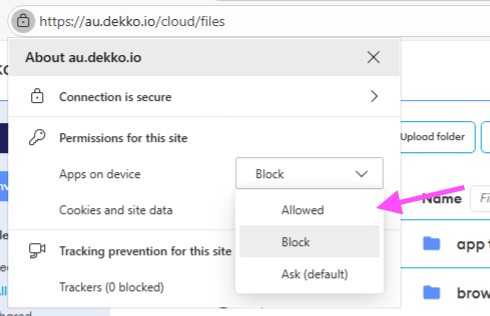
Refresh the page when prompted, then click the Upload via App button again.