

Sharing Folders with Authentication
How to share folders and manage folder-level permissions.
Folders can be shared with multiple users.
Tip: Place your mouse pointer over the (Shared) tag to review who a folder is shared with.
Sharing for folders containing large numbers of files (more than approx. 50) with multiple users can take some time. Complexity of automated sharing encryption increases as these two factors go up. For example, processing the share of 50 files with one user will take a quarter the time of sharing 50 files with four users. Please allow approximately 1 second per contained file, per user, for sharing time.
Standard sharing
Select the folder(s) and press [Share]
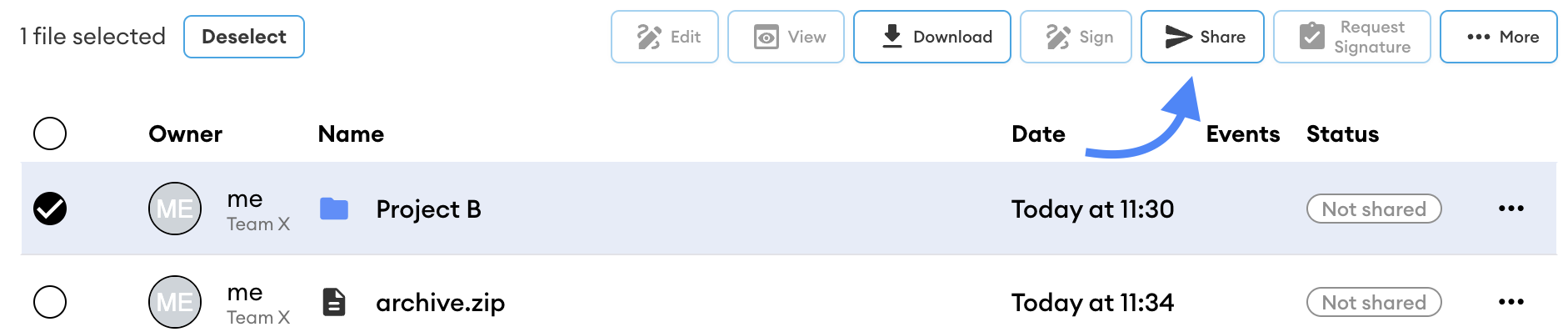
Type or paste the first email address or name of the user you are sharing with
Users who are already a member of the Hub will auto-complete. Press [Enter] on your keyboard to add the user to the shared list.
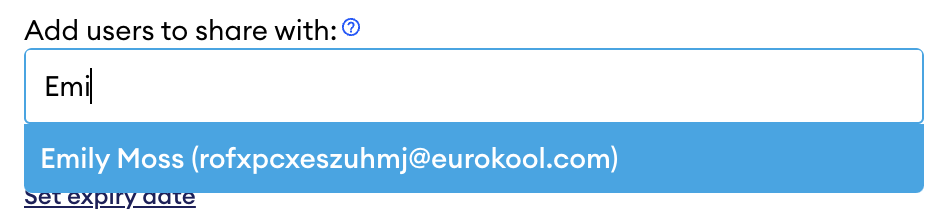
(Optional) If you are adding more than one user to the shared list, continue entering names or email addresses
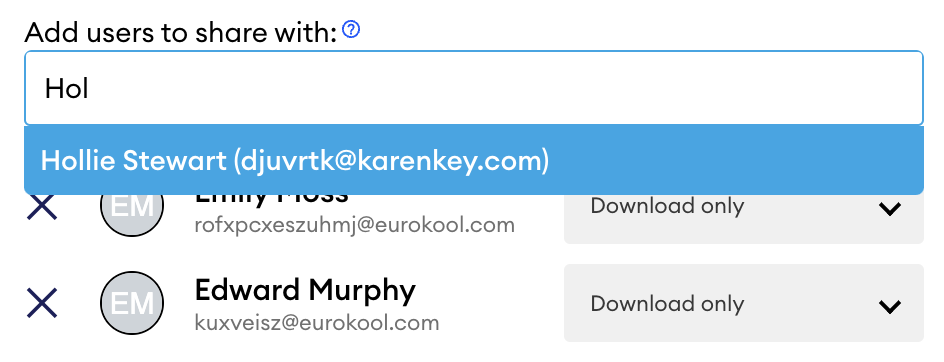
(Optional) If you add a user who is not a current member of the Hub, they will be marked with New to this Hub. If the user is already registered, they will be added to the Hub automatically. If they are not registered, they will be sent a registration invite automatically.
A user type must be set for new Hub members:
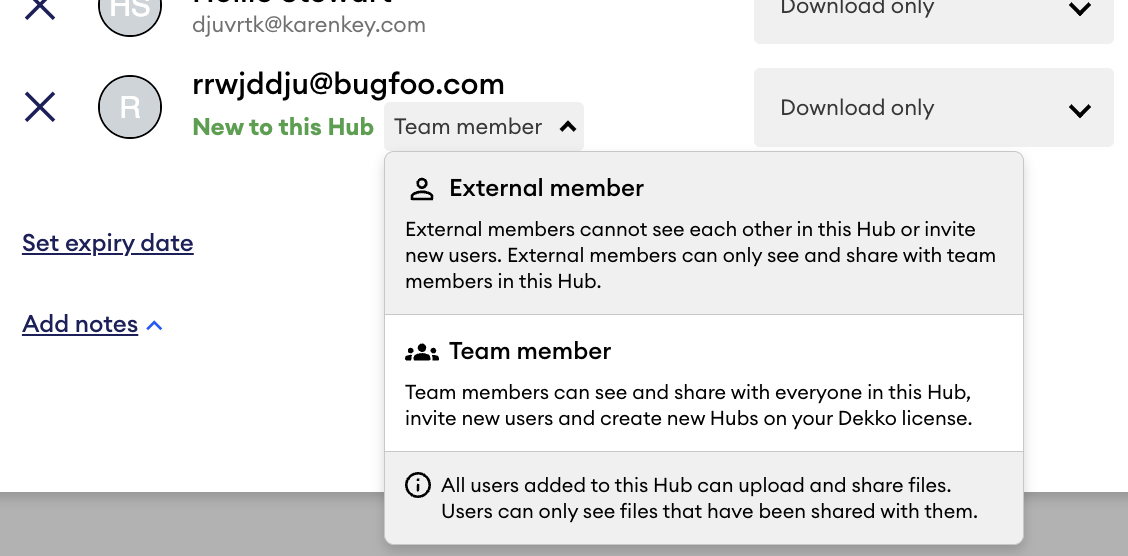
If the share window does not allow you to add users who aren’t already in the Hub, this means your DekkoSecure administrator has disabled the feature. You must send the user an invite and wait for them to register before sharing content with them.
- Set access permissions for each user by using the permissions dropdown(s)
Carefully note the descriptions for each permission type.
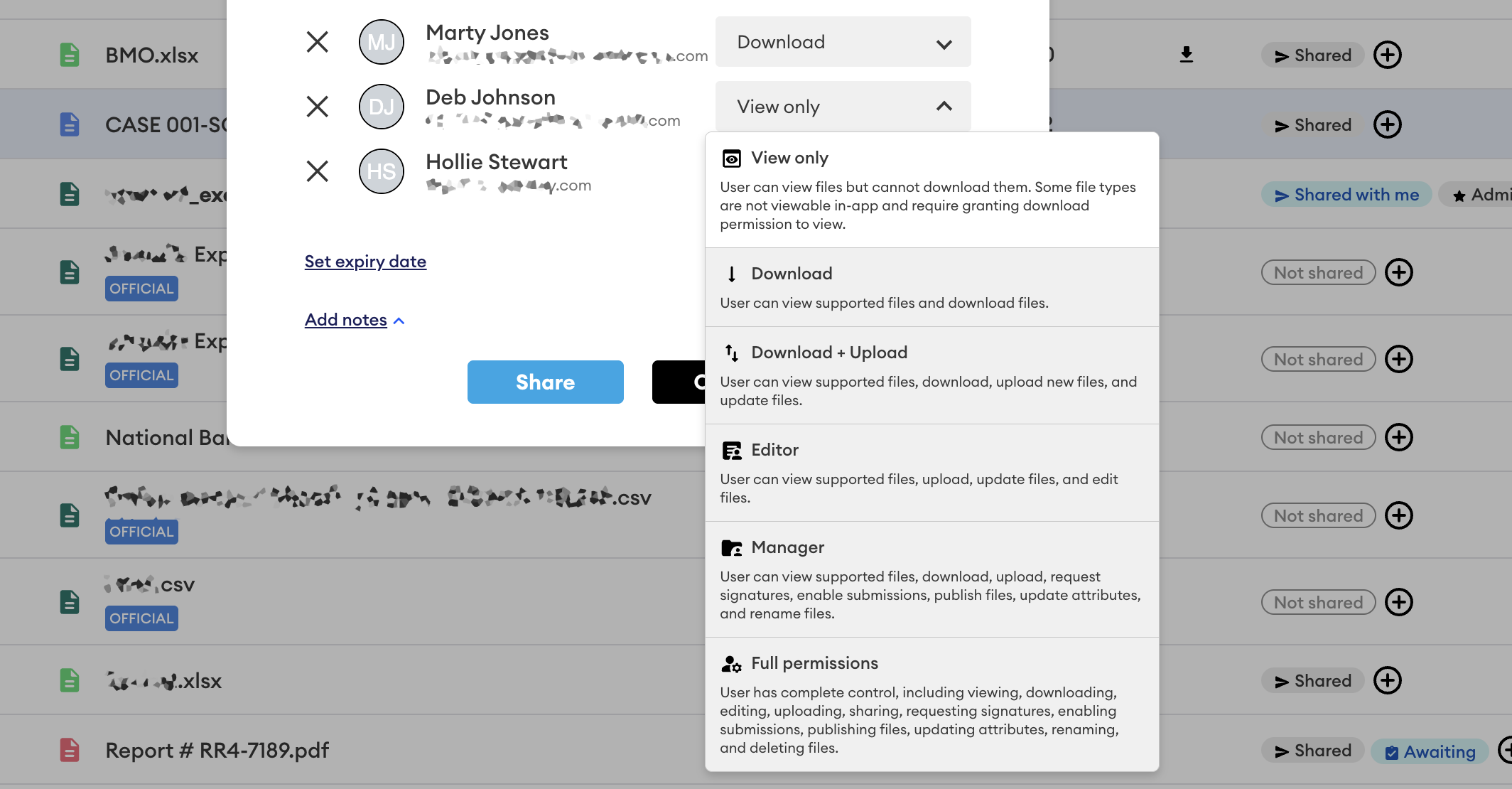
(Optional) Set an expiry on the share. The folder and its contents will become unavailable for recipients when the expiry is met (they will not be deleted).
(Optional) Set a note on the share. Notes are displayed in the details panel for each shared file. They are not attached to the file(s) or file metadata when they are downloaded from the platform.
Press [Share]. All shared folders and files are marked with the (Shared) tag.
Folder sharing permissions
Sharing folders (see the file sharing page for file sharing permissions) can be controlled per shared user with the following permission options:
Listing only
Sharing folders with listing only permission means the user can see the folder's contents (file names, sizes, and dates) but not read any of those files, so they cannot open, view, or download them.
View only
Sharing folders with view only permission means the user can only view contained file(s) in-app (if supported). Downloading, sharing management, versioning, renaming and deletion are disabled. Note: if the folder contains files that are not viewable, you may need to grant Download only permission for those files.
Download only
Sharing folders with download only permission means the user can view the contained file(s) in-app (if supported) and download. Sharing management, versioning, renaming and deletion are disabled.
Download + upload
Sharing folders with download + upload permission means the user can view contained file(s) in-app (if supported), download, version files and upload to the folder. Sharing management, renaming and deletion are disabled.
Editor
Granting folders with Editor means the user can view contained file(s) in-app (if supported), edit (if supported), upload new versions of files and upload files to the folder.
Manager
Granting folders with Manager means the user can view contained file(s) in-app (if supported), download, access sharing management, request signatures, and rename for all contained files.
Full permissions
Granting folders with full permissions means the user can view the contained file(s) in-app (if supported), edit contained file(s) (if supported), download, version files and upload to the folder, access sharing management, rename and delete. This permission should be considered ‘co-ownership’.
Folder-level permissions are separate to Hub roles. For example, an External user in a Hub can be granted Full permissions, a Team Member user can be limited to View only, etc.
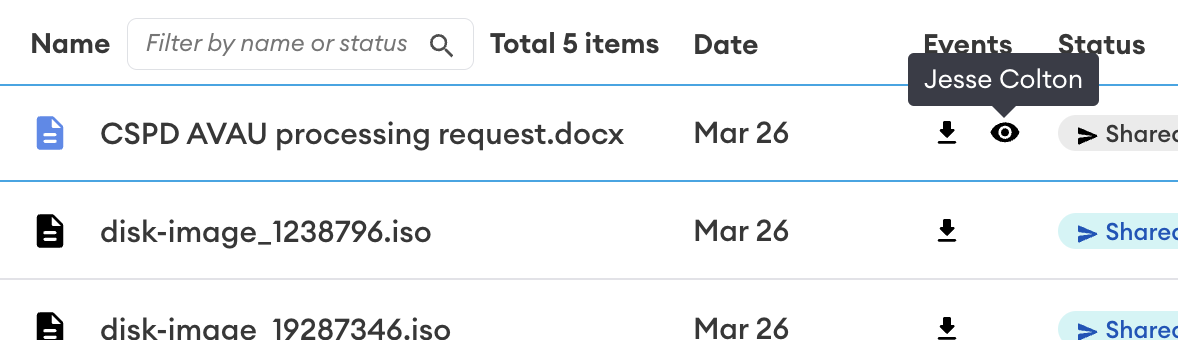
The Events column will show when recipients have downloaded or viewed your shared files:
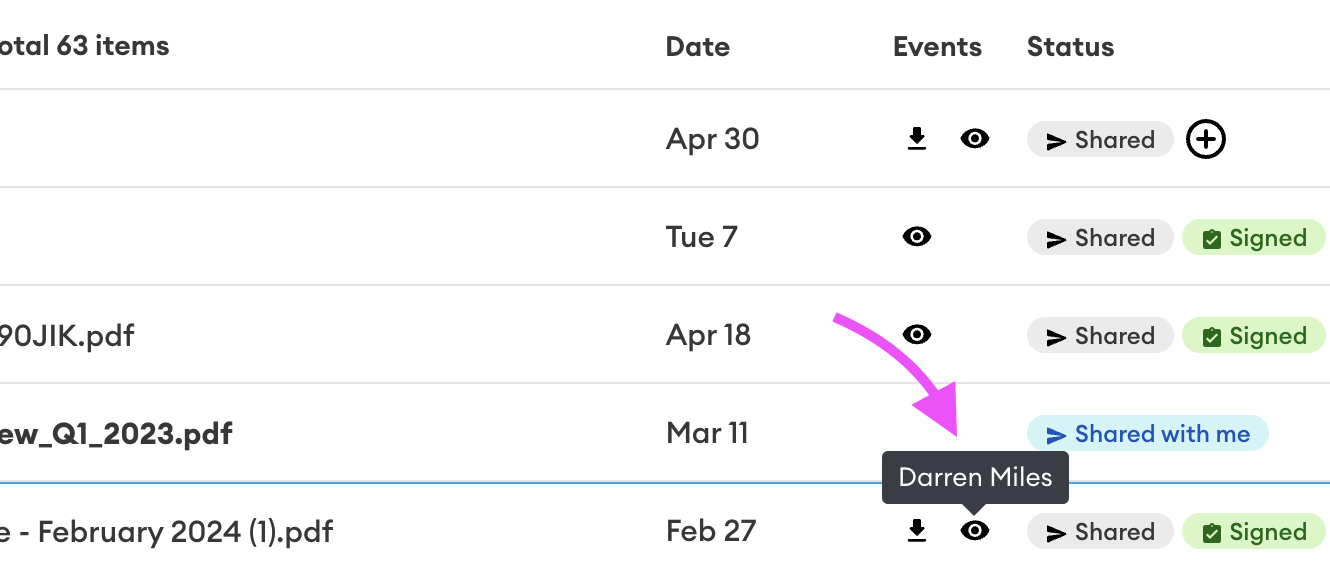
Place your cursor over the download/view icon to see which shared users have accessed them. If the events column is empty, your folder has not been viewed or downloaded.
Mass sharing
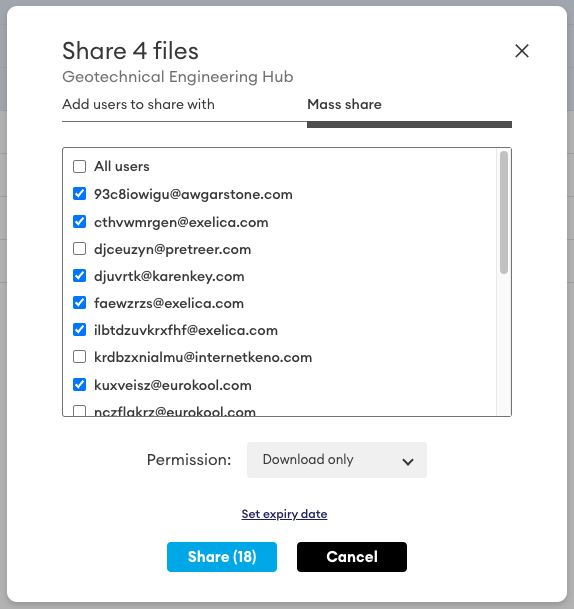
The sharing menu also allows the selection of sharing recipients from the contact list in the selected Hub. You can select users individually, select all using the All users check box, or do an All users selection and then uncheck individuals.
All recipients in a mass share have the same permission. To individualise permissions, share the content and then switch to the regular share tab - permissions can be updated on a per-user basis.
Access alerts
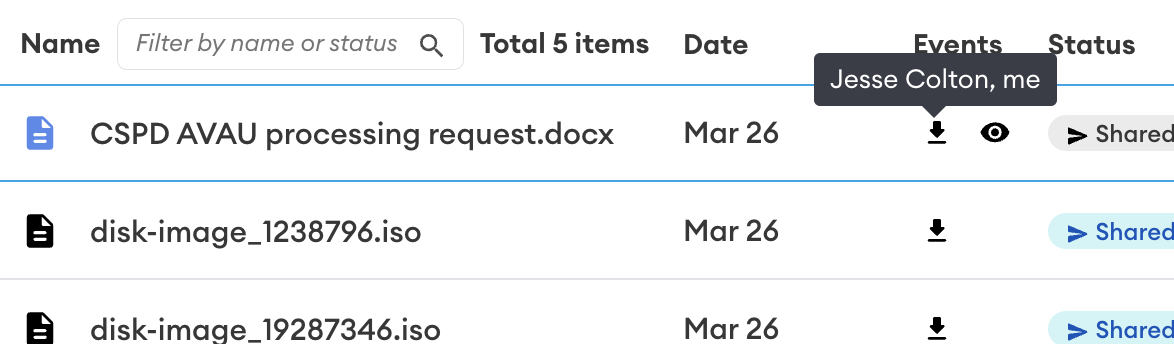
View and download events will be displayed in the Events column for each sharing recipient that access your shared content:
Take ownership of uploads in a folder within Core Hubs
Take ownership of uploads is a folder setting. It is off by default. When it is turned on, the folder shows the OWNER CONTROLLED tag, and files uploaded to the folder after that point belong to the folder owner.
A user can take folder ownership by clicking the …More button to the right of a folder. In the dropdown select Take ownership of uploads and confirm by clicking Yes to "Anything uploaded here is owned by the folder owner, not by whoever uploads it. This setting takes effect on files that are uploaded after it is enabled."
To learn how files are uploaded to a Hub, see Uploading Files.
Copy and send a link to folders
In the DekkoCORE web app, you can copy the URL from the browser address bar while viewing a file or folder, then send that URL to another user. Note that the recipient can only access the link if the file or folder has already been shared with them (see above). If the content has not been explicitly shared with the recipient, they will receive an "Access Denied" message.