

Sign a Document (old method)
How to sign a document using the old signing workflow.
Make sure you’ve set up a signature before approving documents.
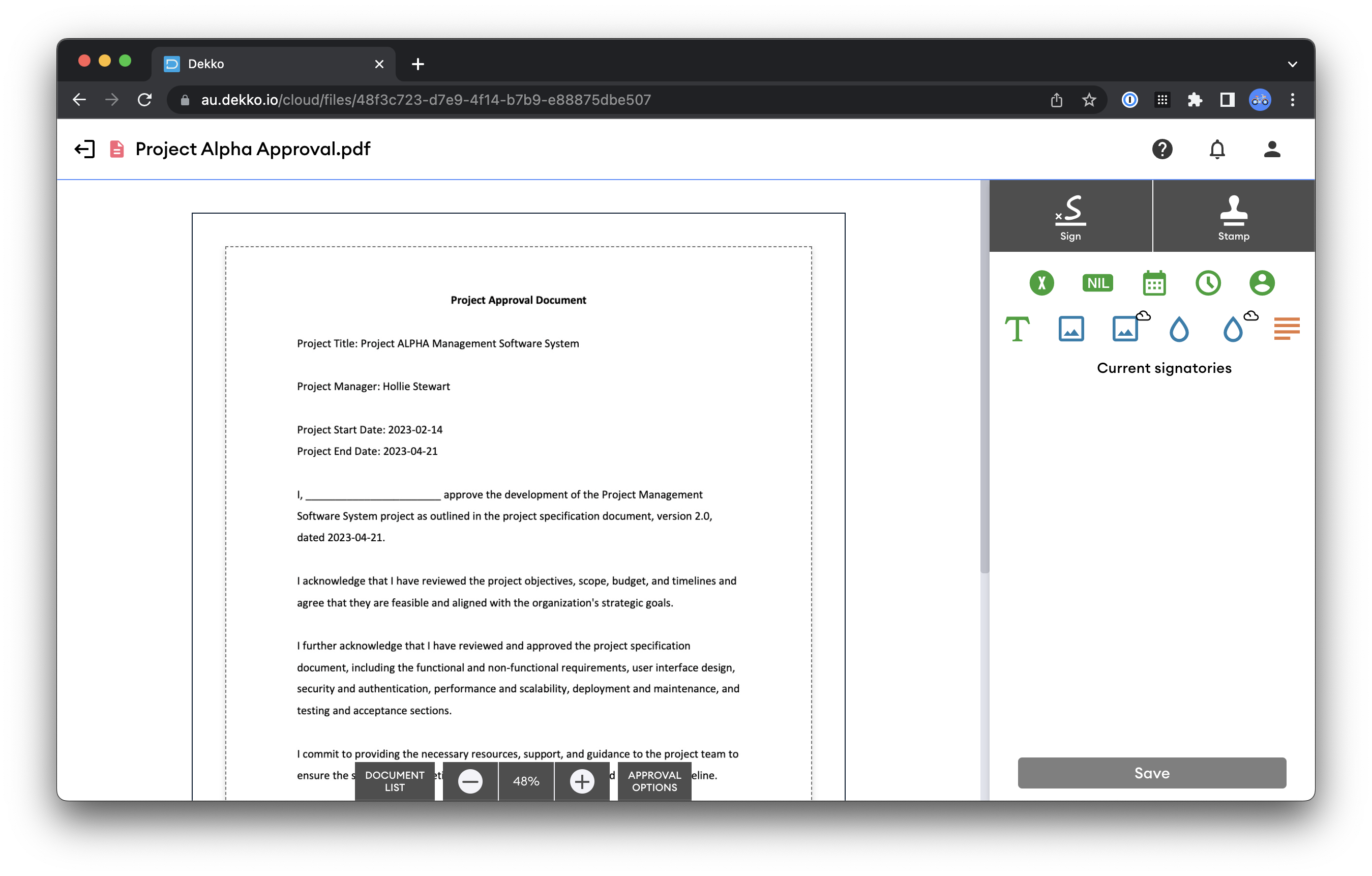
Select the file and press [Sign]

The approval interface will open. Note that the document may have more than one page - use the page selection buttons at the bottom of the screen to select pages:
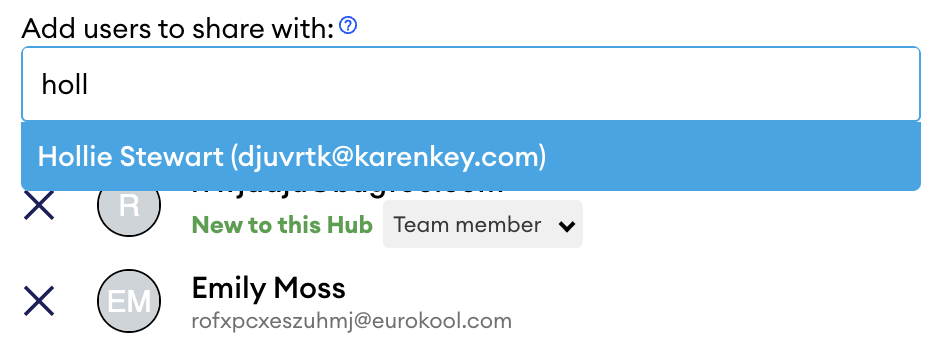
(Optional) If you are adding more than one user to the request, continue entering names or email addresses.
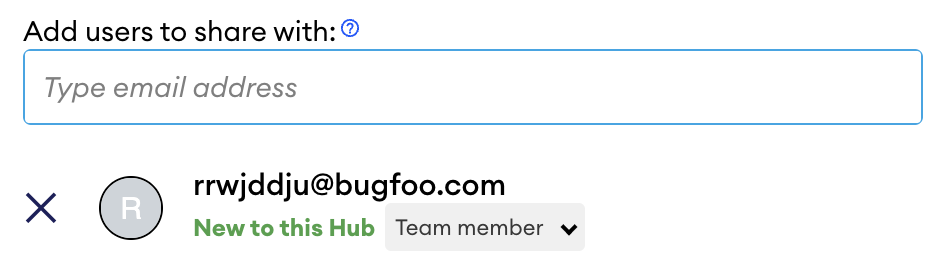
(Optional) If you add a user who is not a current member of the Hub, they will be marked with New to this Hub. If the user is already registered, they will be added to the Hub automatically. If they are not registered, they will be sent a registration invite automatically.
A user type must be set for new Hub members:
If the request window does not allow you to add users who aren’t already in the Hub, this means your DekkoSecure administrator has disabled the feature. You must send the user an invite and wait for them to register before requesting a signature from them.
(Optional) Set an expiry on the request. The request will become unavailable for recipient(s) when the expiry is met (the file will not be deleted).
(Optional) Set a note on the request. Notes are displayed in the details panel for the file. It is not attached to the file or file metadata when it is downloaded from the platform.
Press [Next]. The request builder will open
Press [Send] to finalise the request:
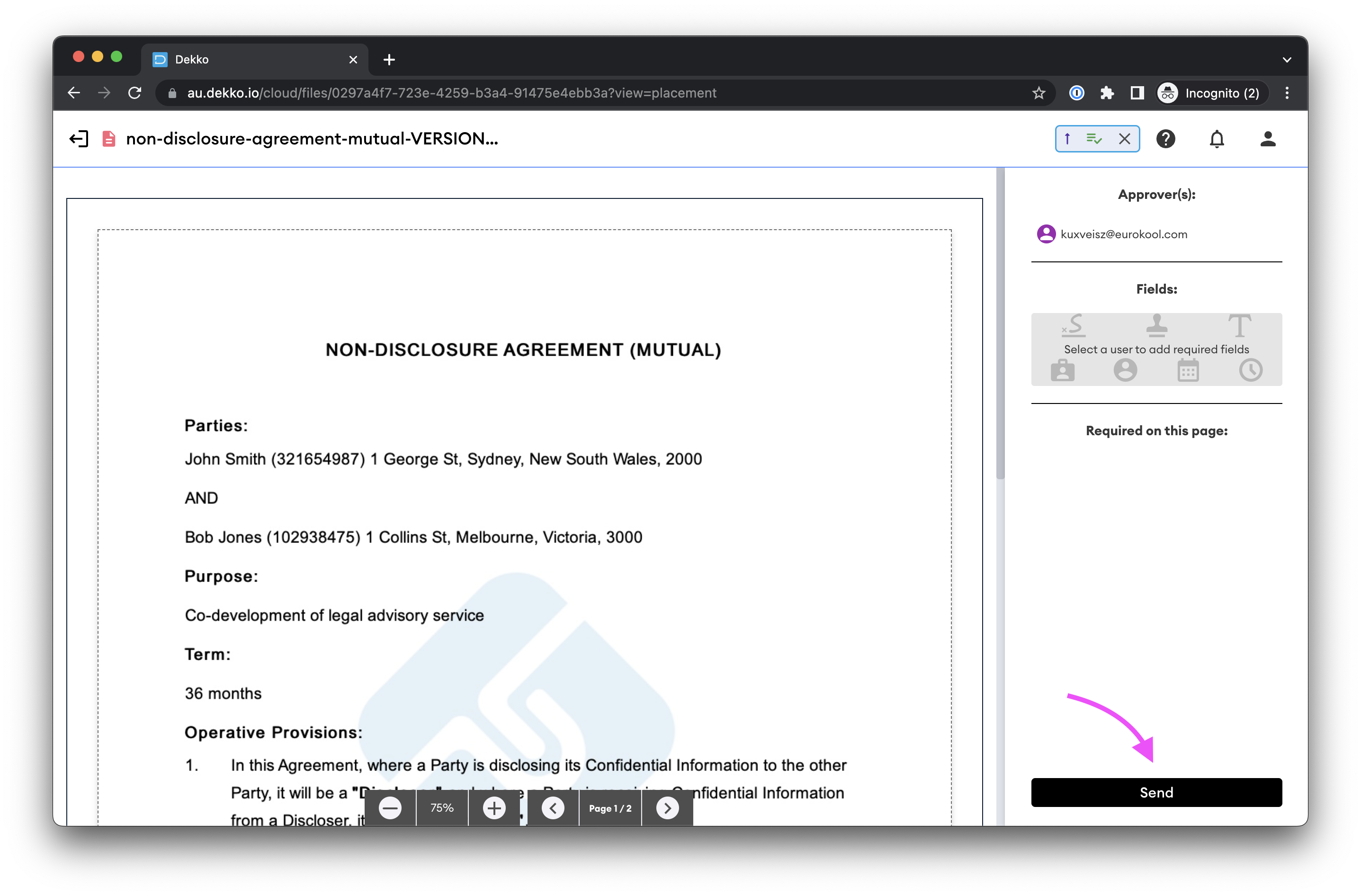
Note: unlike the ‘new’ signature method, the ‘old’ signature request method has no pre-defined approval conditions. Signatories are required to add at least one signature anywhere on the document to satisfy the approval request.
The file will also be marked as (Awaiting) in the status column of the requester's Hub until the required signatures are added.
The approval requestor will be notified by email when your document has been signed.
Tip: After the required signatures for your file have been added, you can place your mouse pointer over the (Signed) tag to see the time it was signed by each signatory.