

Video Conferencing
Starting and joining video calls within DekkoCORE.
The DekkoSecure Meetings feature is a fully-featured video conferencing capability secured by end-to-end encryption.
Only invited users can participate in a Meetings video conference session! Make sure all intended invitees are on the participant list when you schedule your conference.
Note: meeting links will not work for users who are not on the participant list!
Are you having trouble hosting or joining a conference on a corporate device/network? Please make sure your IT administration department is aware of the whitelisting requirements for the DekkoSecure Meetings.
Device permissions
The first time you access the Meetings schedule, you will be prompted for device access to your computer’s camera and microphone:
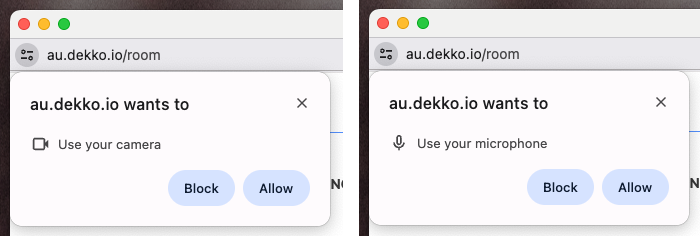
These prompts must both be Allowed in order for you to successfully participate in a conference.
If you accidentally block a prompt, you can update your preference by opening the permissions settings for the DekkoSecure application:
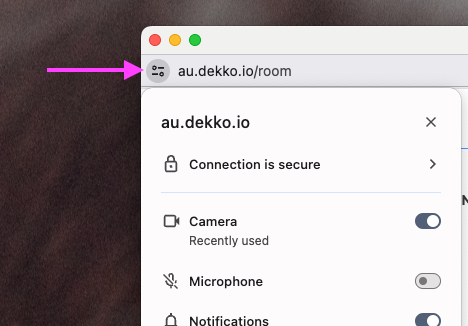
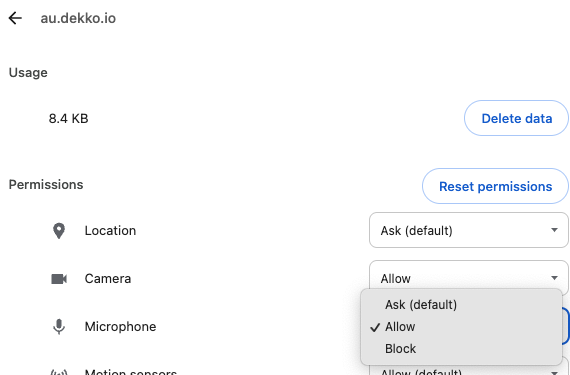
You can also go to your browser’s site settings page to update permissions:
Chrome: chrome://settings/content/all?searchSubpage=dekko.io
Edge: edge://settings/content/all (search for “dekko.io”)
Firefox: about:preferences#privacy
Safari: Privacy and Security section in System Settings (Microphone and Camera tabs)
Example:
Schedule a conference
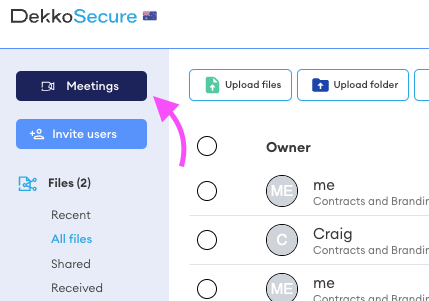
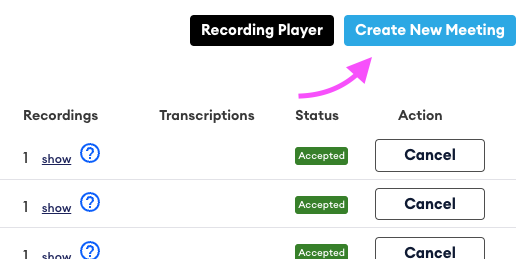
Open the Meetings scheduler and then press Create New Meeting
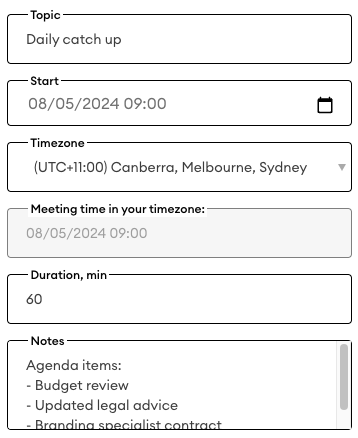
Start by entering the meeting details, timing and (if applicable) notes
Next, enter the participant(s). Users you’re already associated with in a Hub or previous conference will show up when you start entering their name or email address. If you haven’t connected to a user before, enter their full email address.
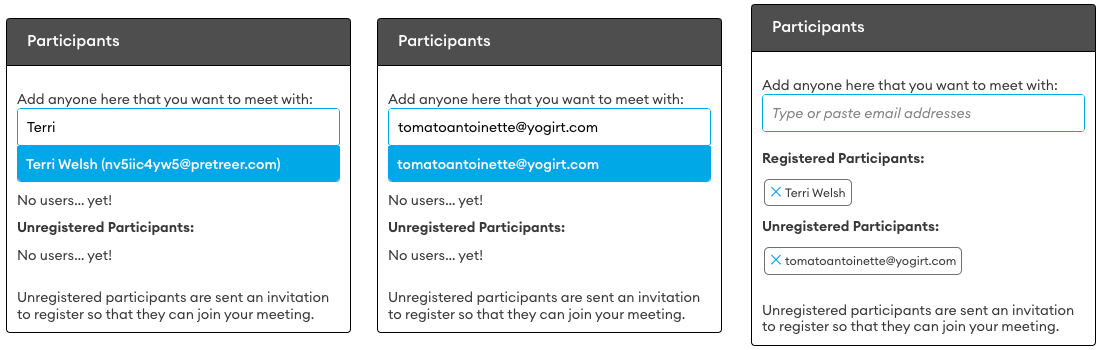
All invitees will be sent an email notification. If an invitee doesn’t already have a DekkoSecure account, the notification will prompt them to create an account which they can use to join the meeting.
Confirm the conference schedule by choosing either option - Send via 365 will automatically create a calendar invite from your Outlook account (you’ll be prompted to sign in), or Send will send a calendar item in the email notification.
Tip: if you use 365 calendar, updating the calendar invite in Outlook will automatically update your DekkoSecure meeting schedule.
If you need to add more participants after you schedule your conference, press the edit button and update the list. New invitees will also be notified.
Done! Your meeting will be listed in your schedule, as well as those who were invited.
Host your Meeting
When you’re ready, log in to DekkoSecure and open your meeting schedule. Locate your meeting in the schedule and press Join (or Start if the conference begins in more than 5 minutes from your current time).
The host view has several options for controlling and presenting during the Meeting:
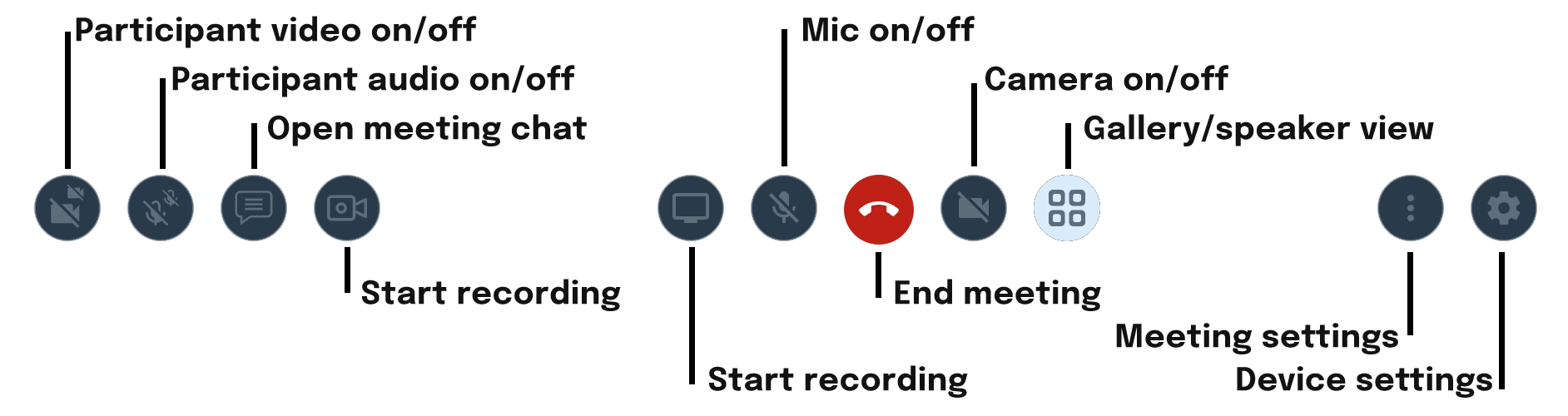
Add/remove a participant during a Meeting
To add or remove a participant while a Meeting is ongoing, open the settings and add/remove users as-needed. Users that are removed will not be able to re-enter the conference.
Recording
Your Meeting recording is automatically stored in the Recordings section of the File manager (WEBM format):
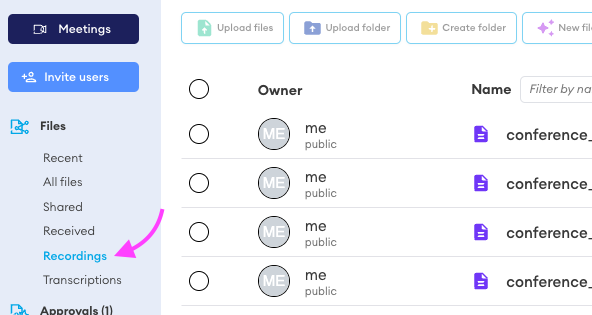
To play your recording, download it and open using your web browser or a video player that supports the WEBM file format.
Transcripts
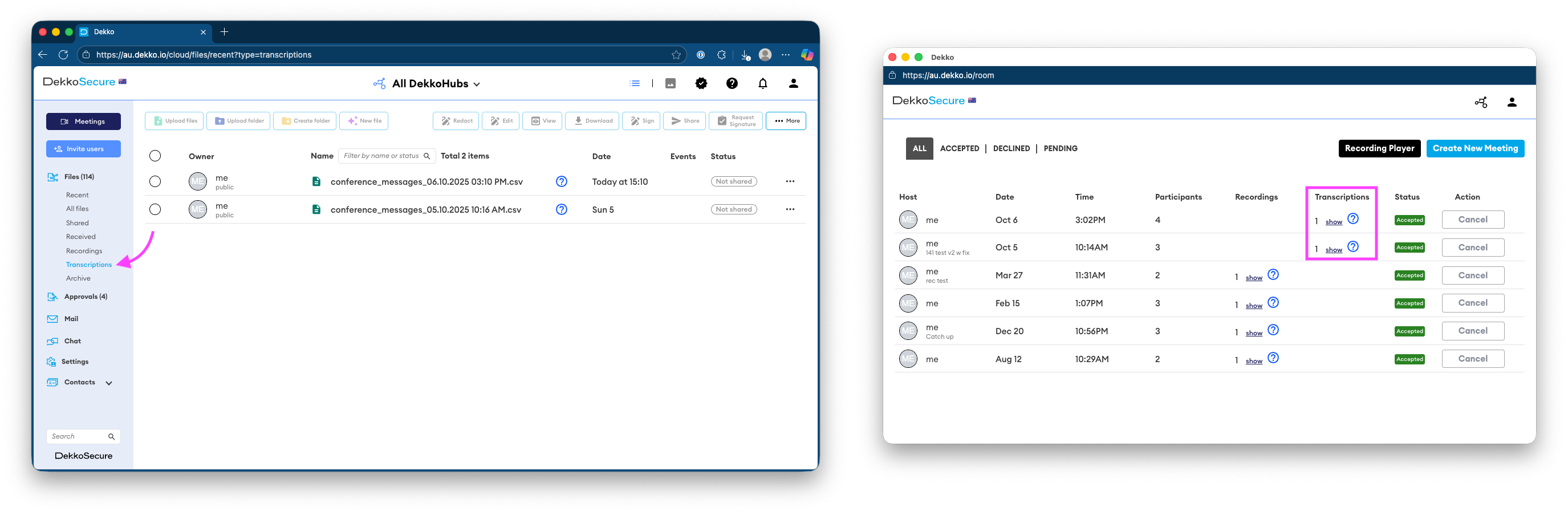
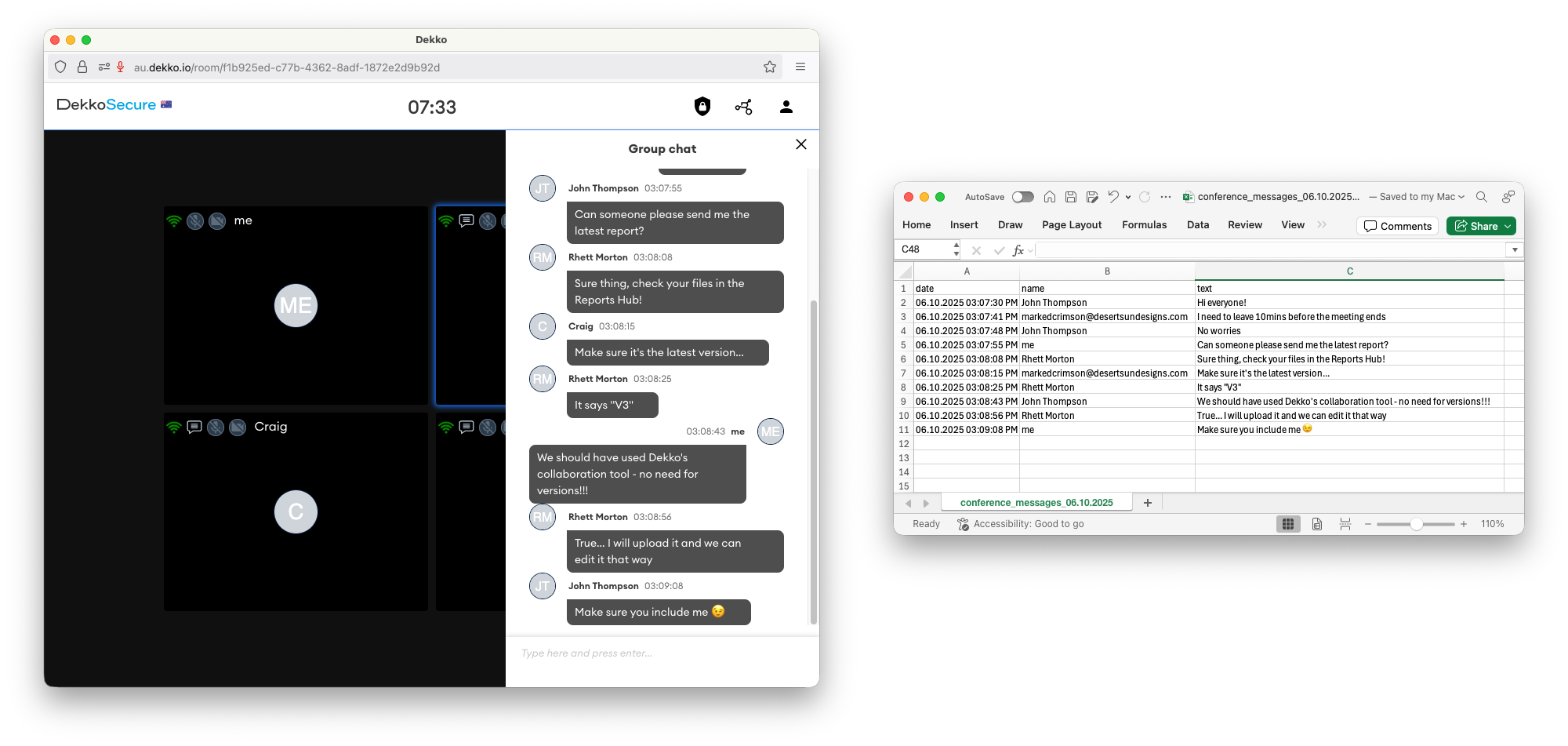
Automated transcription and chat transcripts are automatically stored in the Transcriptions section of the File manager (CSV format).
Join Meeting
To join a meeting, make sure you have a DekkoSecure account before attempting to access it.
If you already have an account
Make sure you use the same account to log in to DekkoSecure as the email ID that you receive the notification from. For example, if you receive an invite to your email inbox/calendar, [email protected], only the DekkoSecure account associated with [email protected] will be able to join the meeting.
If you don’t have an account
Before you attempt to join a meeting, follow the registration link in the invite notification that you receive via email. Registration is easy! Simply fill out your name and set a password for your account; after this you will be able to join the meeting.