

Uploading Files
How to upload files to a Hub.
The DekkoSecure web application typically uploads at a rate that is 80-90% of your network speed. You can test your network speed using tools like Google Speed Test or Ookla Speedtest.
How to upload files
- Select a Hub and (optionally) the folder you need to upload files to, then press [Upload files]
If you are trying to upload files to a folder and the [Upload files] button is unavailable, you will need to request upload permission from the folder owner.
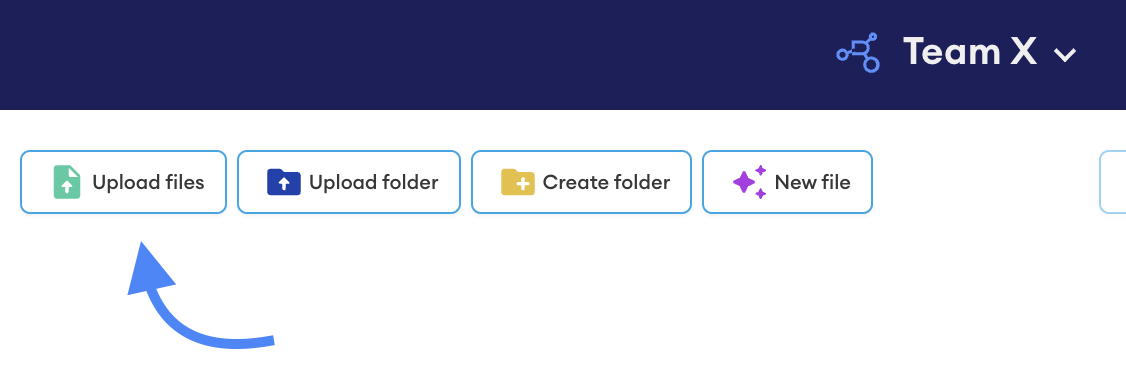
Select the file or files on your computer using the file explorer and then press [Open]
Your file(s) will be encrypted by the application automatically and then uploaded to the DekkoSecure system, ready for sharing
Check upload progress and completion by opening the progress window
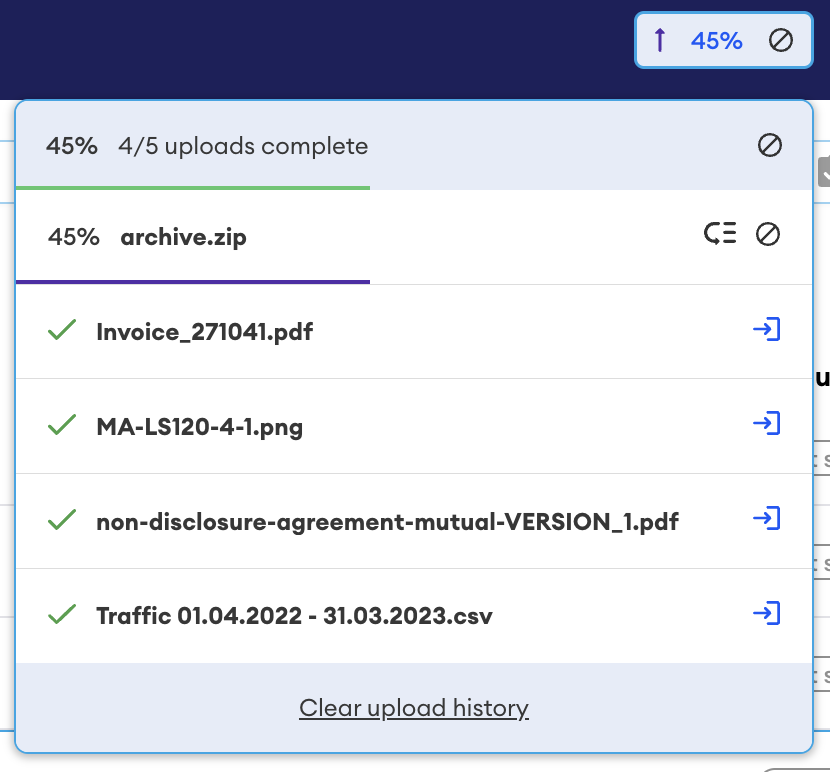
Optionally, use the de-prioritisation button to schedule large uploads for later so that smaller files upload first.
If you have uploaded your files to the root of the Hub, your files will be marked as (Not shared) in the status column. Select the file(s) and press [Share] to grant access to other users.
If you have uploaded your files to a shared folder, they will inherit the sharing configuration of the folder and be automatically accessible to users on the shared list. You can hover your mouse pointer over the (Shared) tag of the root folder to see who it is shared with.
File upload time increases proportionally with the number of files being uploaded, because a unique encryption key is automatically generated for each file. Encryption and upload of small files takes approximately one file per second on a reliable broadband internet connection.
The DekkoSecure app can automatically compress your upload into a ZIP file. This means upload size will be reduced, and the encryption scheme will be simplified to just one key. This introduces greatly reduced upload time, especially when uploading large volumes to folders that are already shared. Auto-ZIP works a little differently depending on how many files you’re uploading:
- For uploads of 30-1000 files, you’ll have the option to upload the folder as-is, or ZIP
- For uploads of 1000+ files, the app will automatically ZIP the folder
Note: ZIP files cannot be unzipped in the DekkoSecure app.
Supported file types
The DekkoSecure application does not have file type limits. File size limits apply only if your Tenancy sets a file size upload limit, so the application will not prevent users from uploading files with obscure file types, but may block files above your Tenancy's limit.
Please refer to the viewable file formats list for file types that can be viewed in the application.
Viewable file formats can be shared view-only, and views and plays will be shown in the Events column.