

Sign a Document (new method)
How to sign a document using the new signing workflow.
Make sure you’ve set up a signature before approving documents.
Select the appropriate Hub, navigate to the Awaiting section in the Approvals view, then select the file and press [Sign]
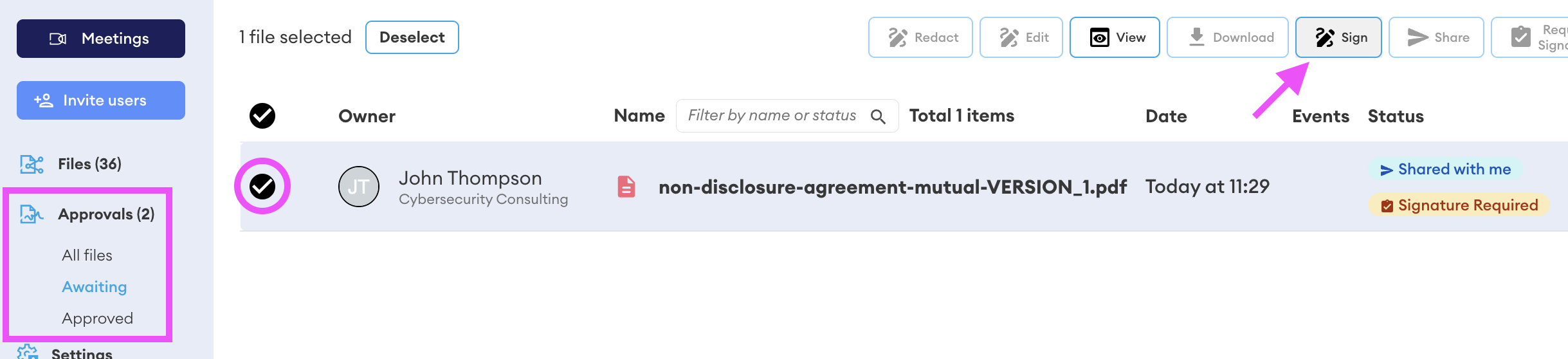
The approval interface will open. Note the page count and required approval conditions:
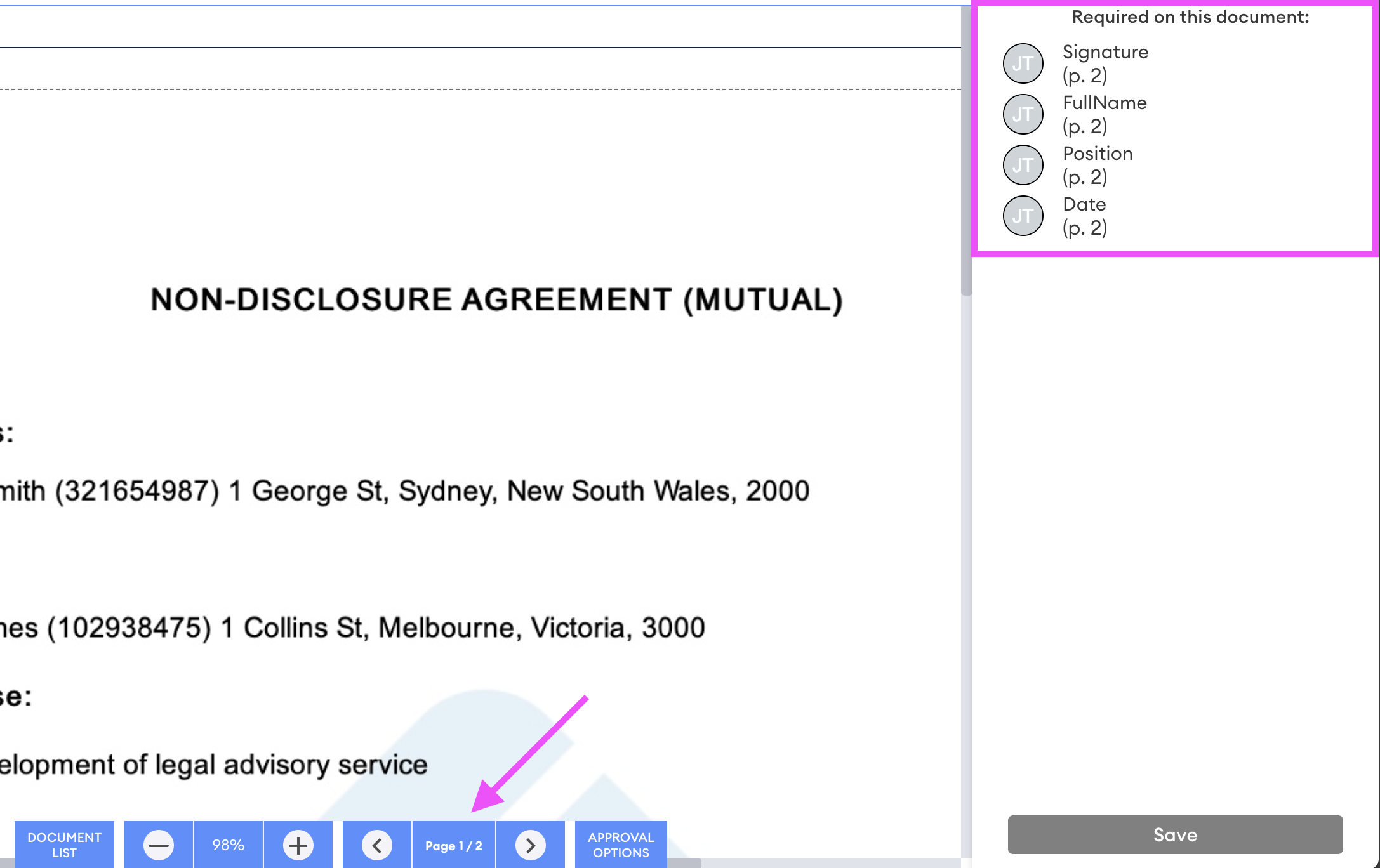
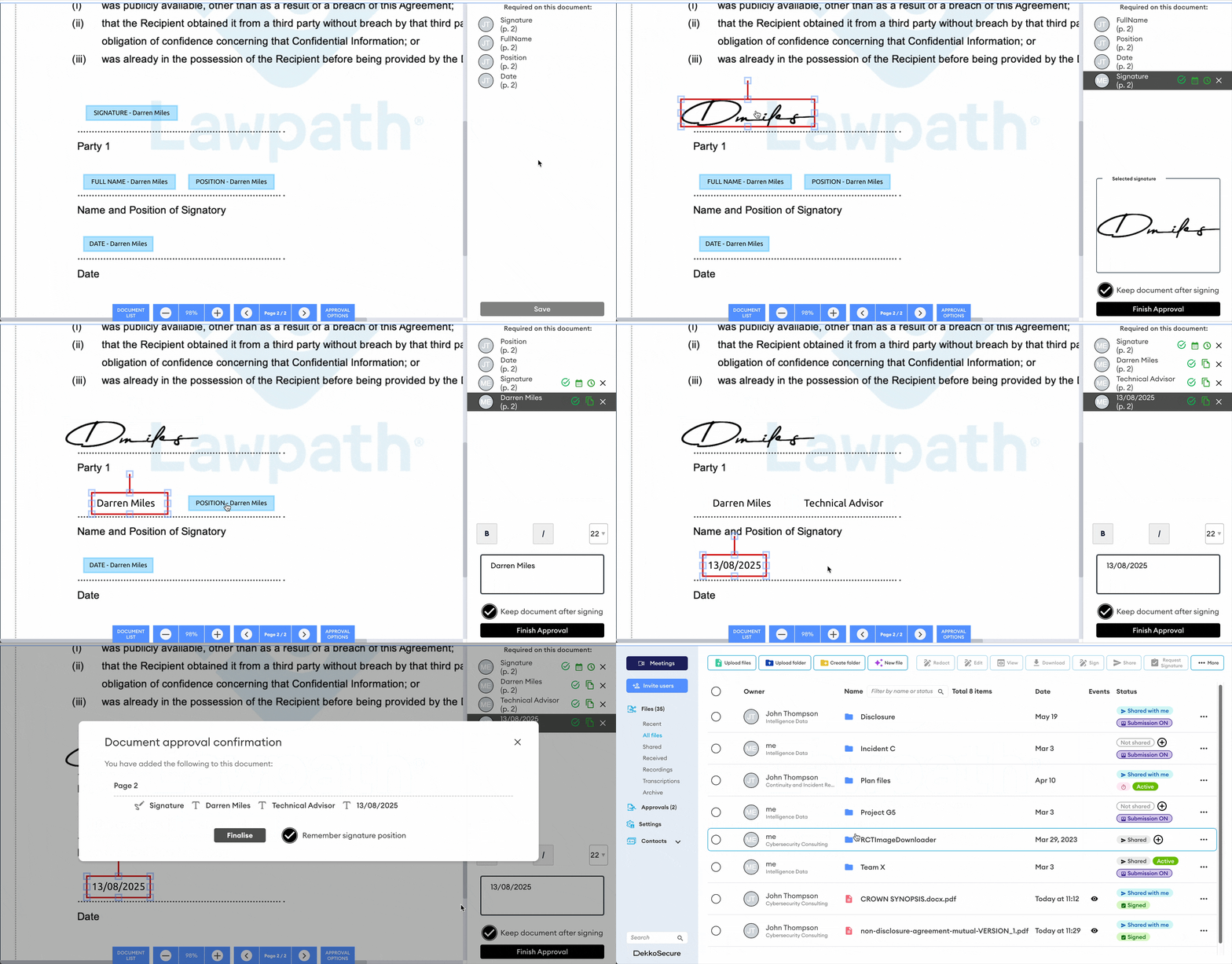
Go to the page(s) noted in step 2 using the navigation buttons, or click on each required element to jump to it.
Click on the markup elements to fill them. If you don’t already have a signature, the signature creation window will be displayed (follow these steps to create one!):
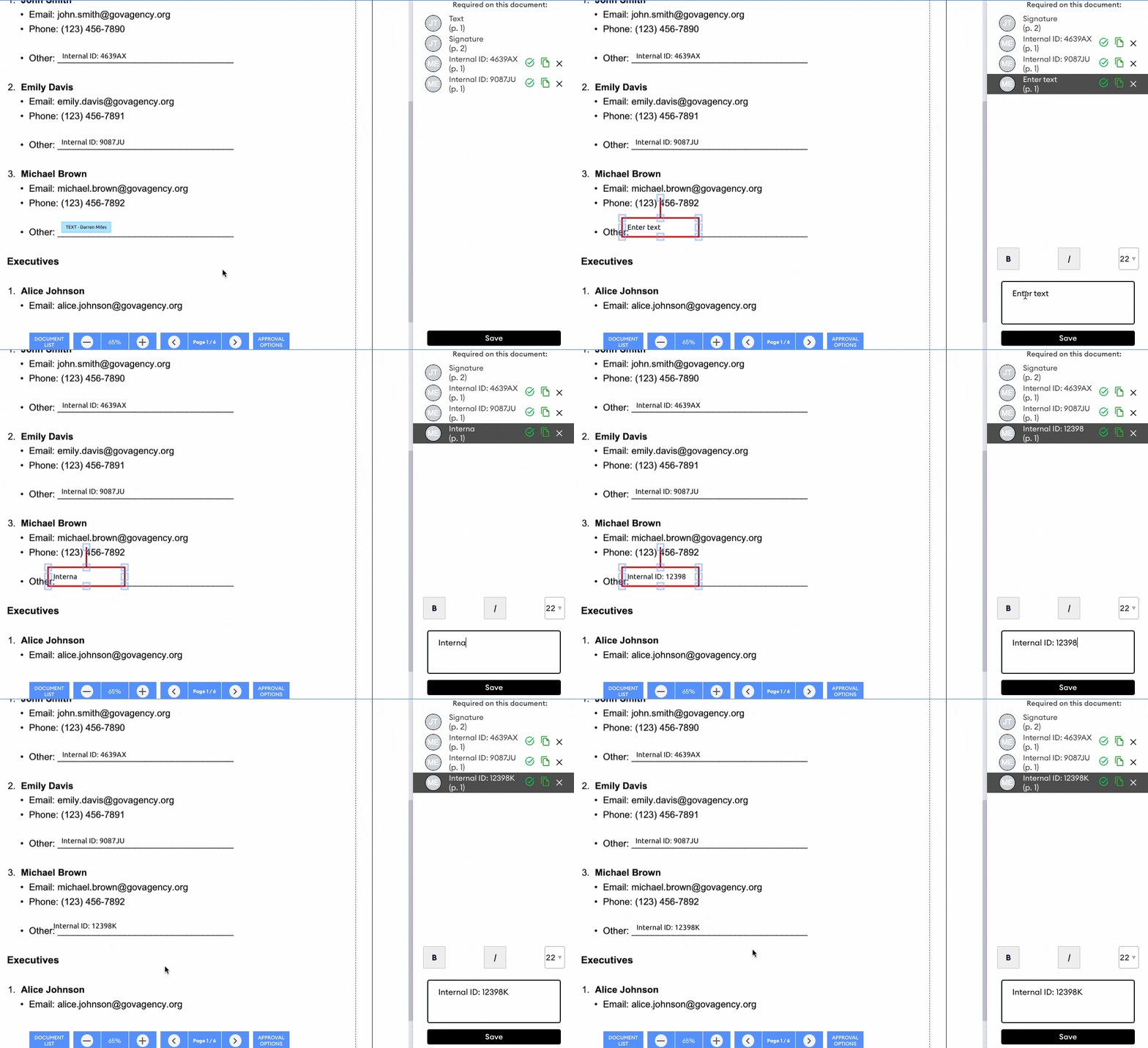
If the approval requestor has added a text element, click on it to add the placeholder text:
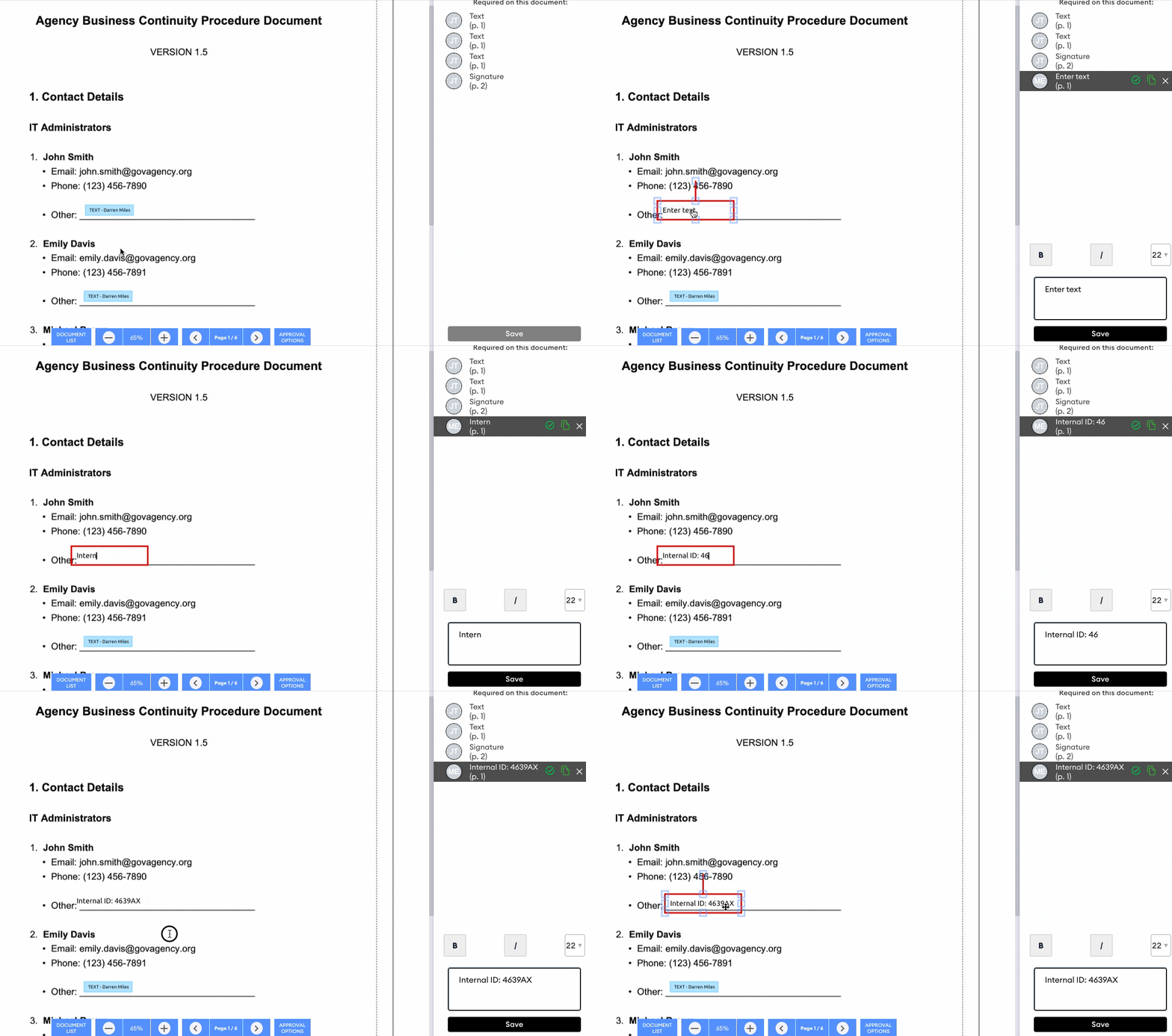
Text boxes can also be resized to fit long strings of text:
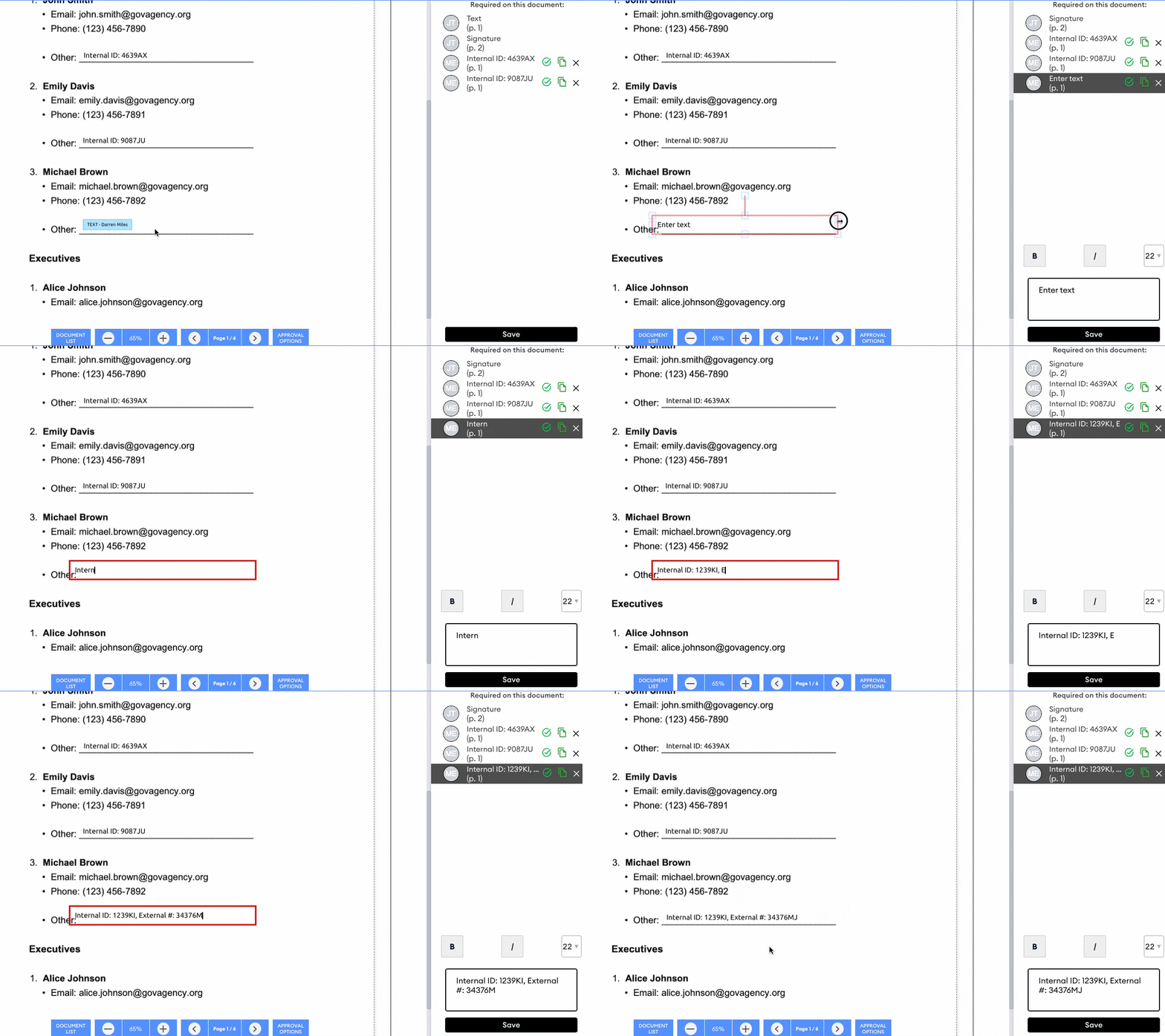
You can also use the text editor box to adjust the content of text boxes:
Finalise the approval by clicking the Finalise button. You will be prompted for confirmation before the document is locked with your approvals.
Done! The approval requestor will be notified of your approval by email and can access the file in their DekkoSecure account. You don’t need to share the file with them.