

Respond to a form
How to respond to a form that has been shared with you.
If a form has been shared with you it will appear on your dashboard within the Hub the form has been saved within. If you’re unsure where the form has been saved, see the tip below.
If you’re unsure which Hub the form is located in, select All Hubs at the top of your DekkoCORE dashboard and go to Recent in the left-side menu. Any recent files and forms that have been shared with you will appear here.
1. Fill out the shared form
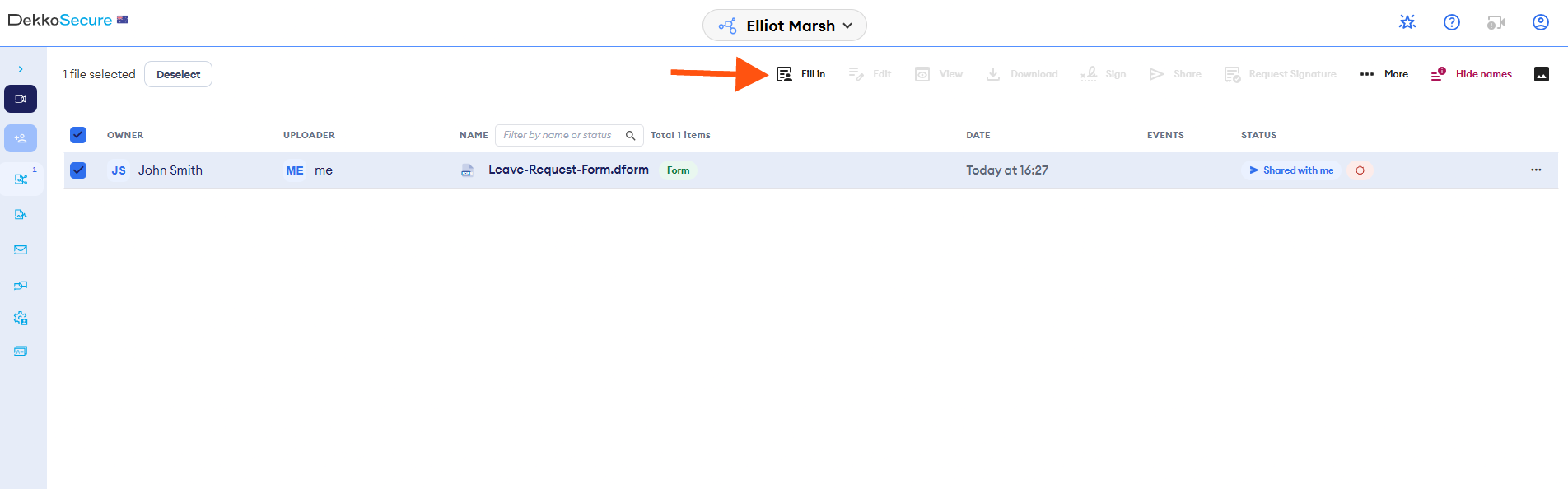
Select the form that has been shared with you. It will appear with a Shared with me status tag.
Click Fill in in the top menu.
Fill out all of the boxes throughout the form. For text and number fields, type the answer. For drop-downs, tick boxes and select options, select the relevant option(s).
For a form with more than one page, use the buttons in the bottom left corner to navigate between pages and see the total page count.
When the form has been filled in click Submit response in the top right corner.
DekkoCORE will confirm that your response has been submitted, as shown below.
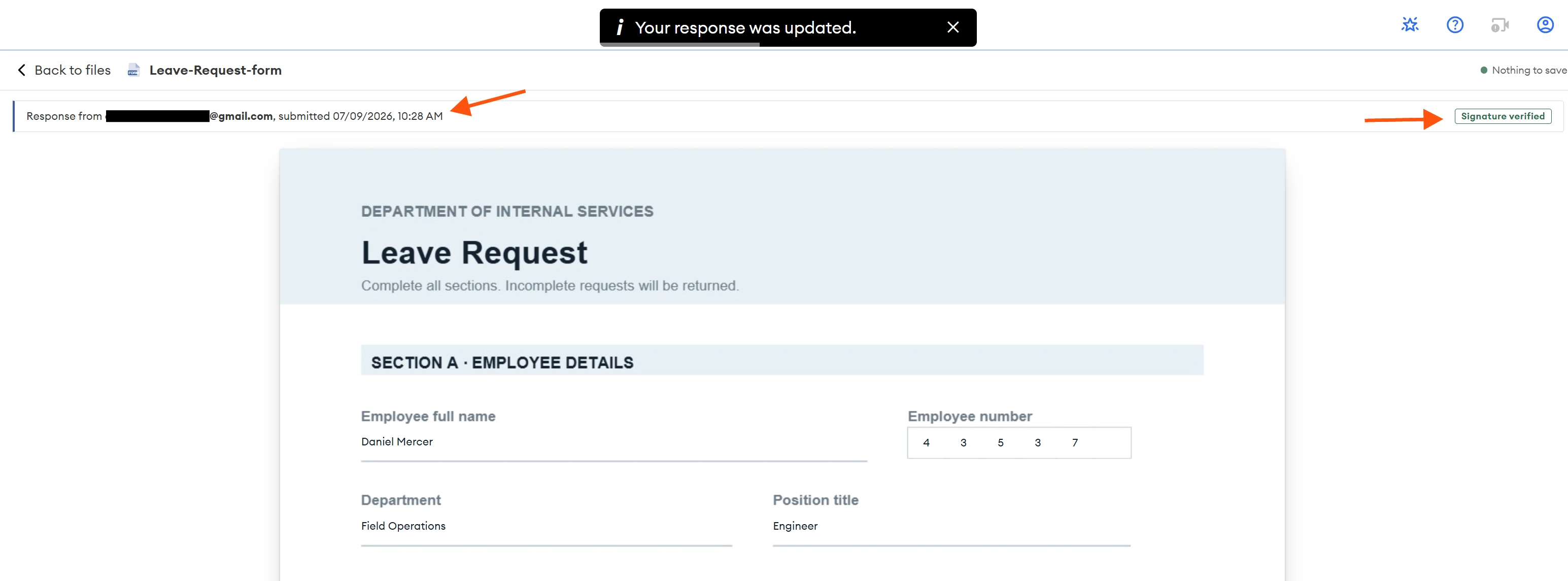
Note: When you have submitted a response you will be able to see the original form and your own response. You won’t be able to access other user’s responses.
2. Signing a submission
A signature field offers the three methods DekkoCORE already uses - type your name in a signature-style font, draw it, or upload an image. That picture is the answer to the field, and it is what appears on the page and in any PDF.
When you submit a response, DekkoCORE digitally signs the whole submission with your account's key.
3. Change your form response
After submitting your response you can see the form that was shared with you and your response as two separate items. If you wish to change your response:
- Locate the original form that was shared with you in the form folder.
- Click Fill in in the top menu, as you did the first time.
- DekkoCORE will display: You have already answered this form. Your previous answers are shown — submitting will replace them.
- Change your response.
- Click Update my response.
- DekkoCORE will display: Your response was updated.
4. Delete your response
After submitting your response you can delete your response; depending on the organisation’s recycle bin policy, it may first be kept as an archived file before being permanently deleted. To delete a response:
- Select the form response
- Click … More
- Click Delete
- DekkoCORE will give you a warning when you delete the response. The warning states that it will be permanently deleted or archived, depending on the organisation’s recycle bin policy.
- Confirm you wish to delete the response by clicking Delete.
If the archive was turned on, the response owner can go to the Archive and restore it until the archive expiry set by the Tenancy policies. Restoring a form response does not automatically restore access for everyone it was shared with; the owner must share it again.