Tenancy Activities
Monitoring user and system activity across your Tenancy.
Tenancy Activities
As a Tenancy Manager, you can monitor several categories of activity, including User, Hubs, Traffic, and Auditing.
Audit Users
| Activity | Step(s) |
|---|---|
| Count users in a tenancy | Reference the "results" count at the bottom of the page. |
| Count users in a Hub | Enter the Hub name in the search bar, then reference the "results" count at the bottom of the page. |
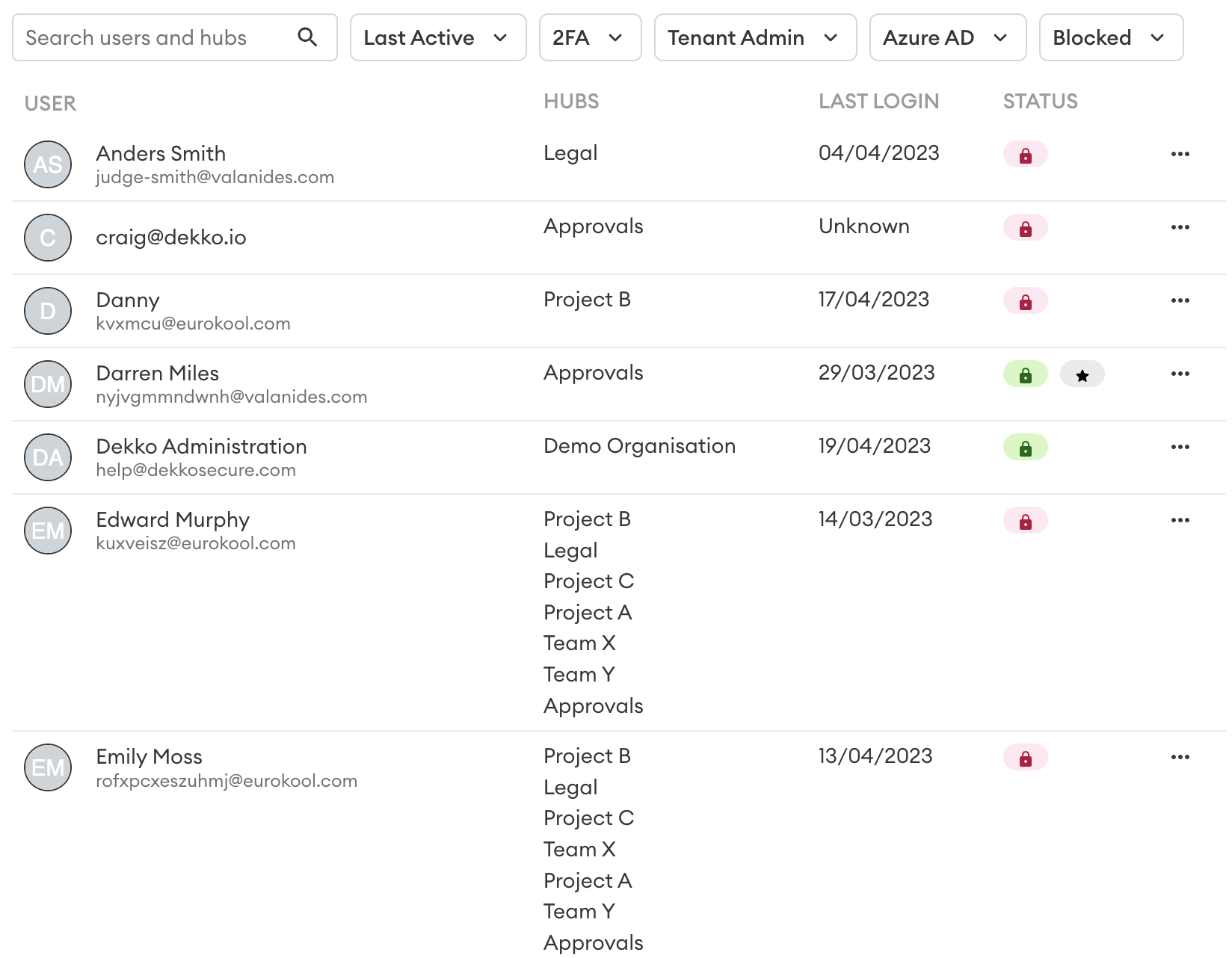
| Check which Hubs a user belongs to | Enter the user's name or email in the search bar, then reference the Hubs displayed in the "Hubs" column. |
| Check the last time a user logged in | Enter the user's name or email in the search bar, then reference the date displayed in the "Last login" column. Note: login activity for SSO users can be found using your SSO administration tool(s). |
| Reset 2FA for a user | Enter the user's name or email in the search bar, then press [•••] and select "Reset 2FA". A new 2FA code will be presented to the user the next time they log in. |
| Check a user's Tenant admin status | Enter the user's name or email in the search bar, then check for the ★ symbol in the "Status" column. Alternate: use the "Tenancy admin" dropdown at the top of the page. Note: to add a new Tenant admin please contact DekkoSecure support. |
| Check which users have 2FA enabled/disabled | Set a preference in the "2FA" dropdown at the top of the page. |
| Remove a user from all tenancy Hubs | Enter the user's name or email in the search bar, then press [•••] and select "Remove User", type the user's email to confirm, then select Ok. The user will still be able to log in to DekkoSecure, but will no longer have access to any in-tenancy Hubs or files. Contact DekkoSecure support for full account deletion. |
| Reset a user's password | Enter the user's name or email in the search bar, then press [•••] and select "Reset password". Note: the Trusted Tenant policy must be ON and the user must have logged in at least once. Password reset is not available for SSO users. |
| Check which users authenticate using SSO | Confirm the UI label; if it reads "Entra ID", set a preference in the "Entra ID" dropdown at the top of the page. |
| Add a user to a Hub / update a user’s Hub membership role | Press [•••] and select "Manage memberships", then update the Hub membership role(s) as required. |
Typical user listing view:
Export the user list
The user list can be exported as a CSV file by pressing the Export Users button:
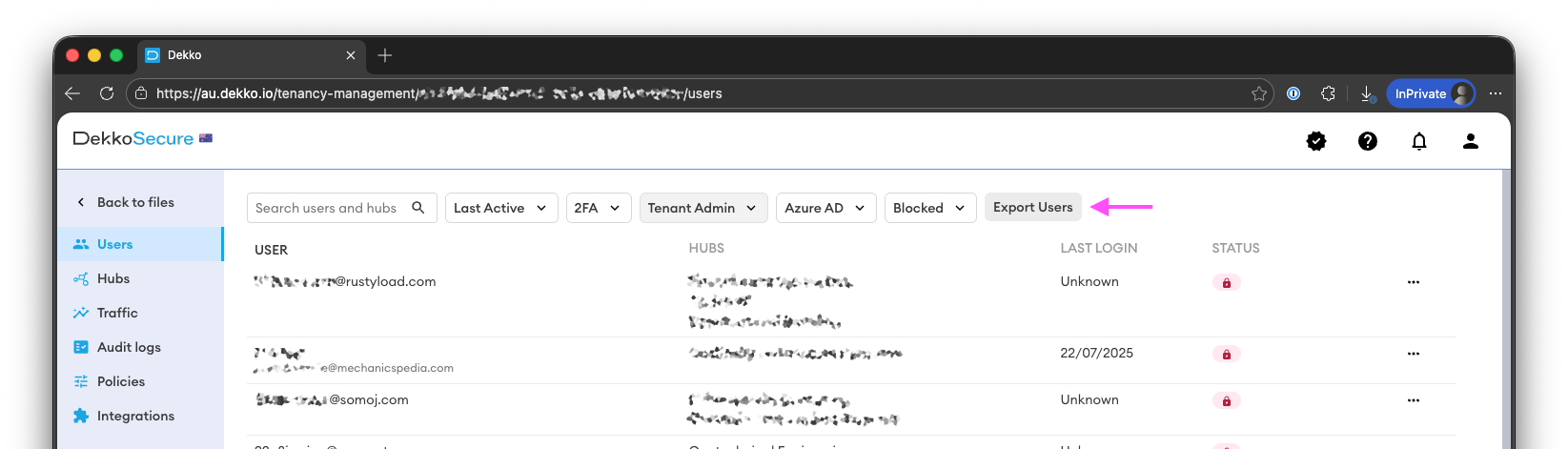
Note: the export will reflect your current filters. To export the full list, clear all filters.
Audit Hubs
| Activity | Step(s) |
|---|---|
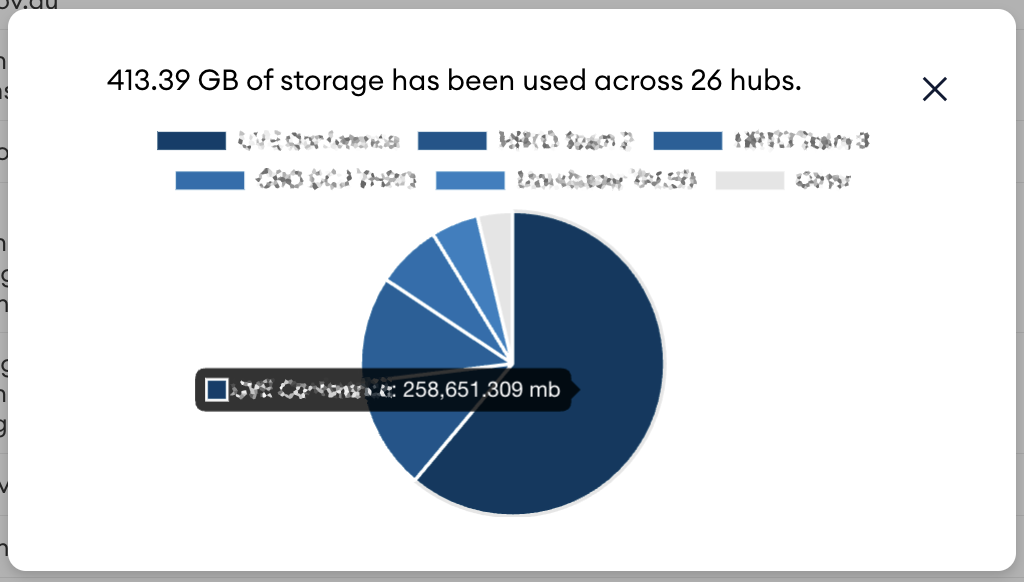
| Check storage used by a Hub | Check the amount listed in the "Storage used" column. Tip: use the search bar to narrow down your results Tip: press the "Storage chart" button at the top of the page to see a visual representation of storage used per-Hub. |
| Count Hubs in a tenancy | Reference the "results" count at the bottom of the page. Tip: use the search bar to narrow down your results. |
| Check Hub Admin | Enter the Hub's name into the search bar and reference the user(s) listed in the "Admins" column. |
| Disable mail or chat | Press the "Edit feature policies" button at the top of the page. |
| Check feature availability | Reference the "Files and eSignatures", "Mail" and "Chat" columns. |
| Change a Hub branding or user roles/visibility | Enter the Hub's name into the search bar and then press the ✱ button to access Hub-specific settings. Note: you must be a member of the Hub and set as an admin to use this feature. |
| Delete a Hub | Enter the Hub's name into the search bar and then press the delete button. Warning: Hub deletion is permanent. All files contained within the Hub will be removed and cannot be recovered. |
Typical Hub listing:
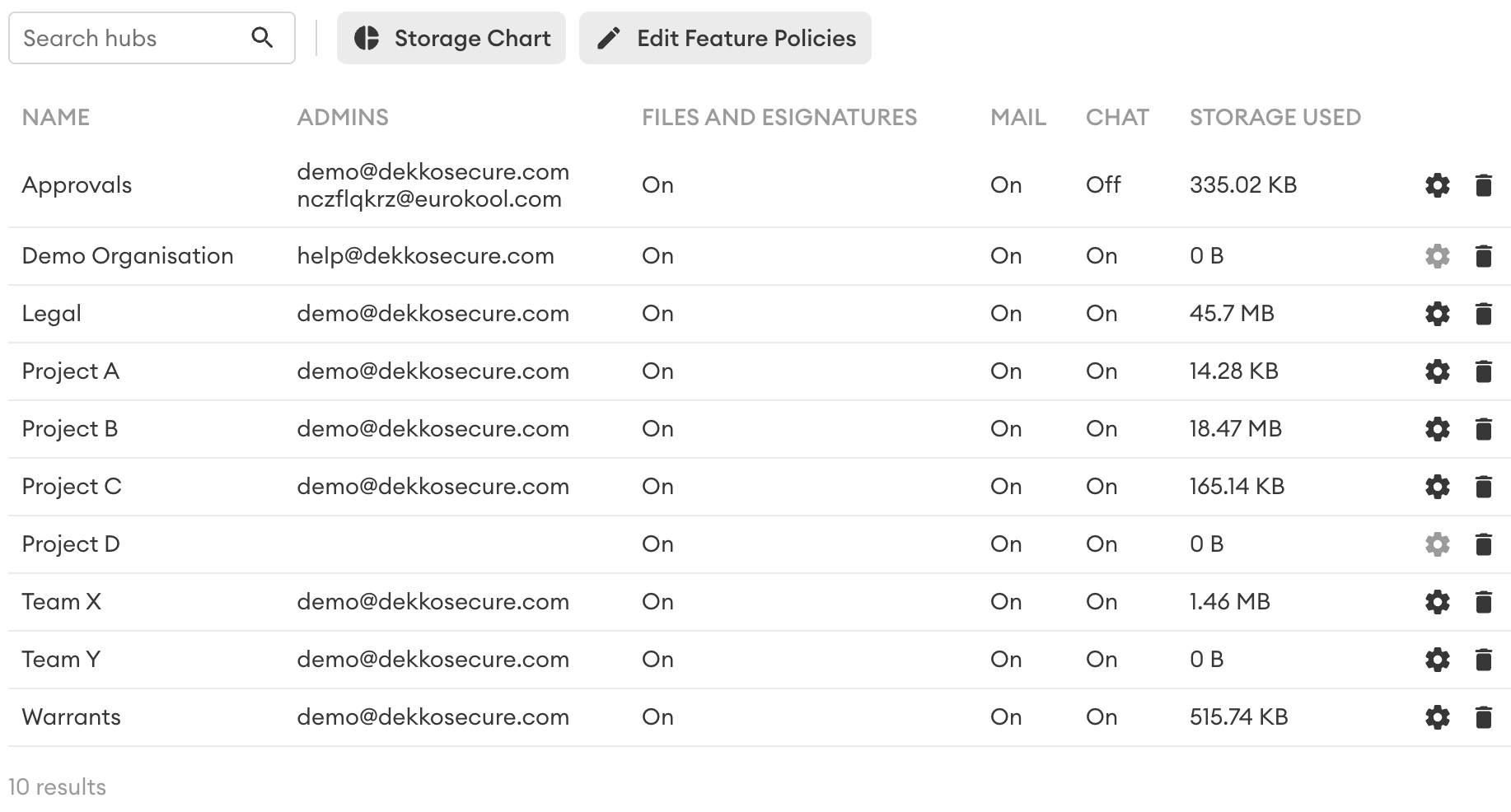
Typical Hub storage view:
Export the Hub list
The Hub list can be exported as a CSV file by pressing the Export Hubs button:
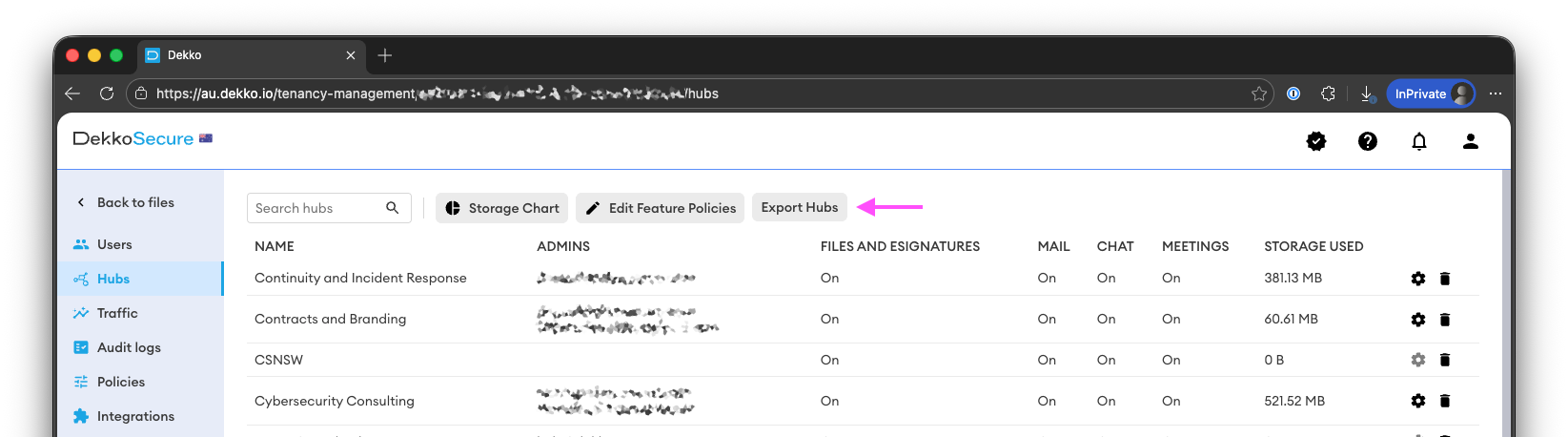
Note: the export will reflect your current filters. To export the full list, clear all filters.
Audit Traffic
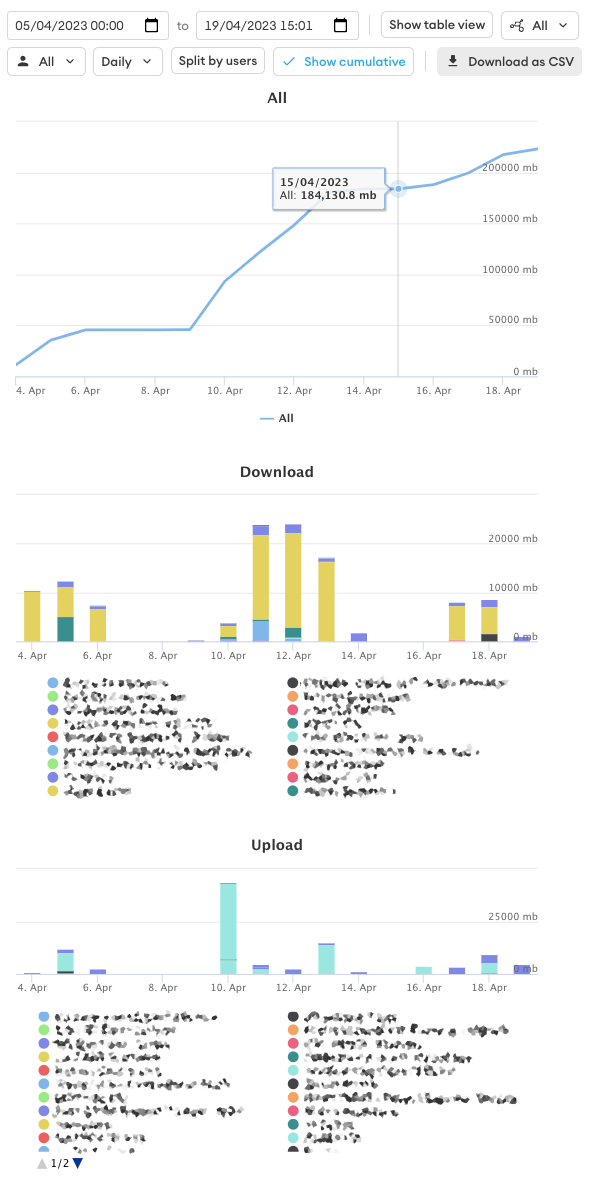
The Traffic page shows upload and download activity across your tenancy. Use the period presets to choose the time range, then select the view you need.
| Activity | Step(s) |
|---|---|
| See upload/download traffic for a specified period | Select a period preset at the top of the page, then reference the displayed data. |
| See traffic split by user | Select a period preset at the top of the page, then select Split by users. |
| See traffic for a specific Hub | Select one in the Hub dropdown |
| See cumulative data for a specified period | Select a period preset at the top of the page, then select Running total. |
| Export traffic data | Select a period preset at the top of the page, then press the "Download as CSV" button. |
You can also view the traffic in a table format by selecting Show table view
Typical (2-week) traffic view:
Audit Logs
| Activity | Step(s) |
|---|---|
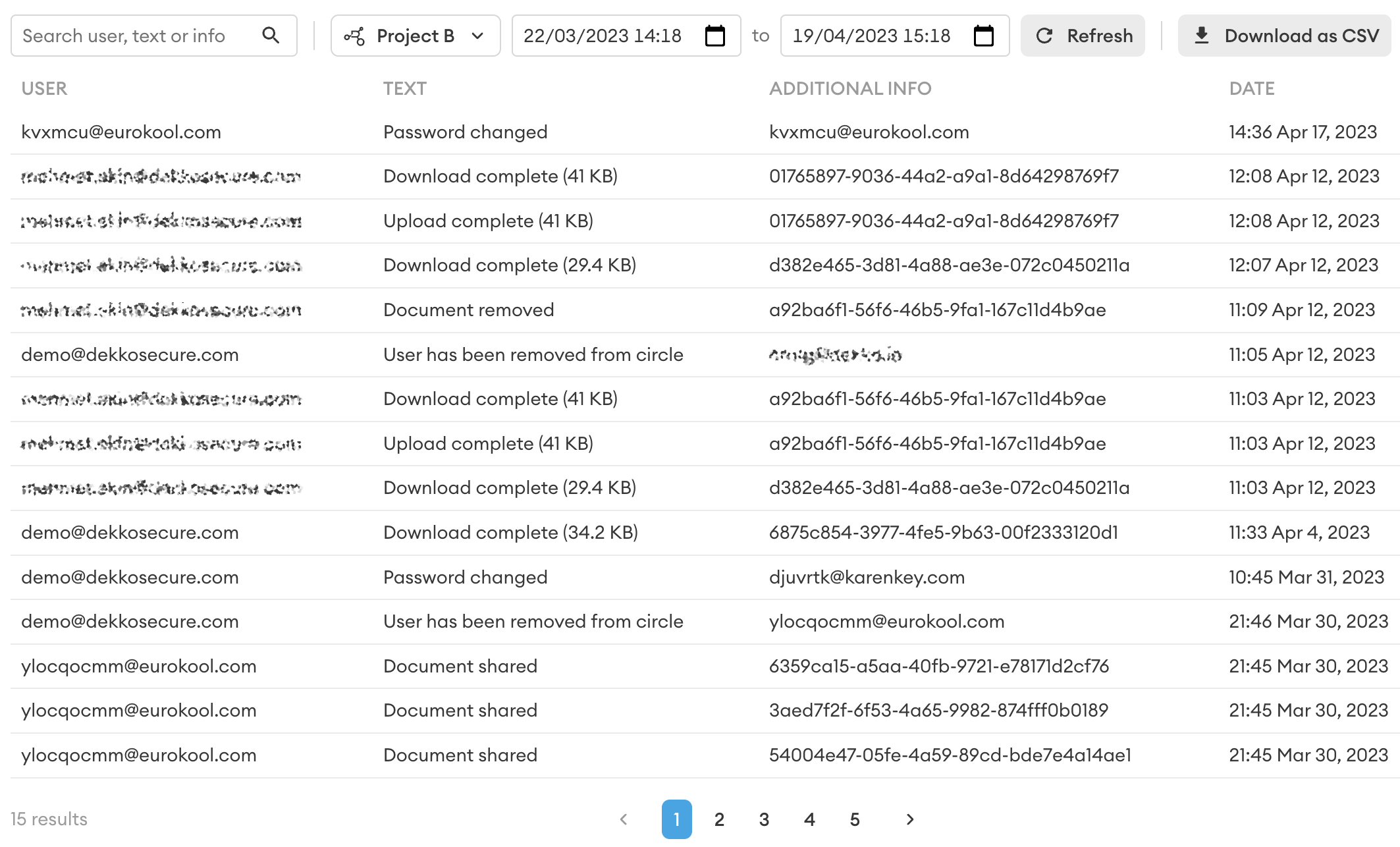
| Search for a user, event or entry | Set a start and end date at the top of the page, then use the search bar to narrow results. |
| View Hub-specific audit logs | Set a start and end date at the top of the page, set the Hub in the Hub dropdown (all Hubs is default), then reference the displayed data. |
| Export audit logs | Set a start and end date at the top of the page, then press the "Download as CSV" button. |
Typical audit view (Hub-specific, one-month filter):