

Core Hubs: Invite Users
How to invite users to a Core Hub individually or in bulk.
Users who are either a Team Member with invite permission, a Hub Admin in a Hub, or a Tenancy Manager can send invites:
Individual invites to Core Hubs
- Login to DekkoCORE
- In the top of the dashboard select the Hub you want to invite user(s) to.
- In the left navigation panel select Invite users.
- Fill out the form based on the membership they should be granted and if sending a Team member invite whether they should have Can invite new users permissions.
- Click Send invite.
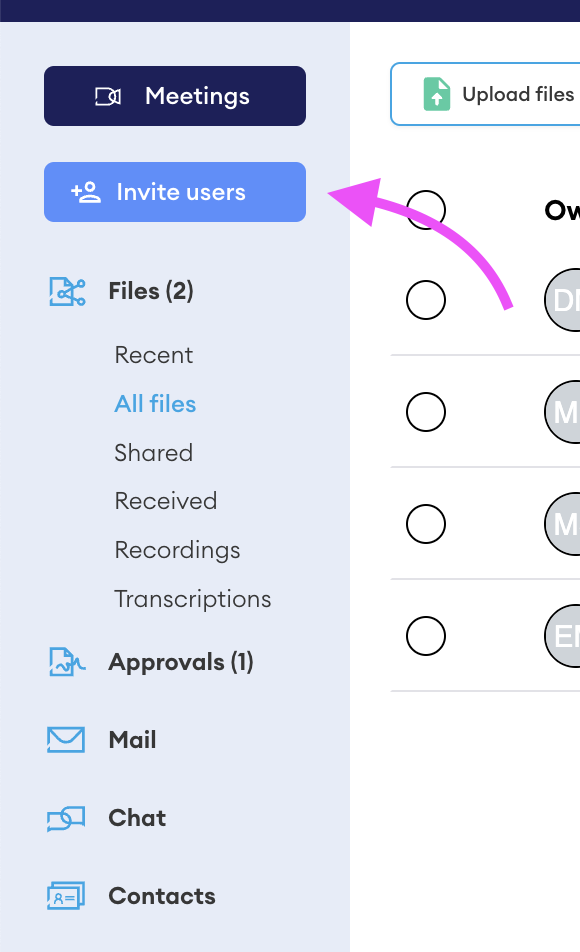
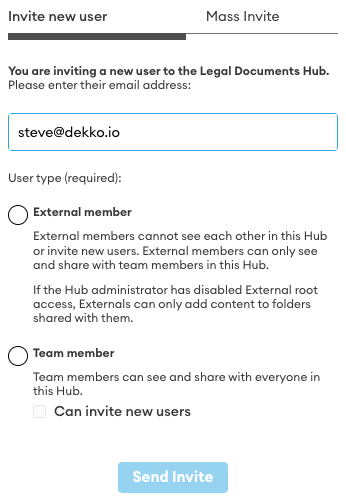
Refer to the guidance below on user types for more information on Core Hub roles. Core Hub invites cannot be sent without choosing a user type of either External Member or Team Member.
If the "Can invite new users" checkbox is disabled, this means you do not have invite or admin permission for the Hub - request permission from the Hub Admin or request a user to be invited. Remember, you can always ask the person who invited you!
Mass invites for Core Hubs
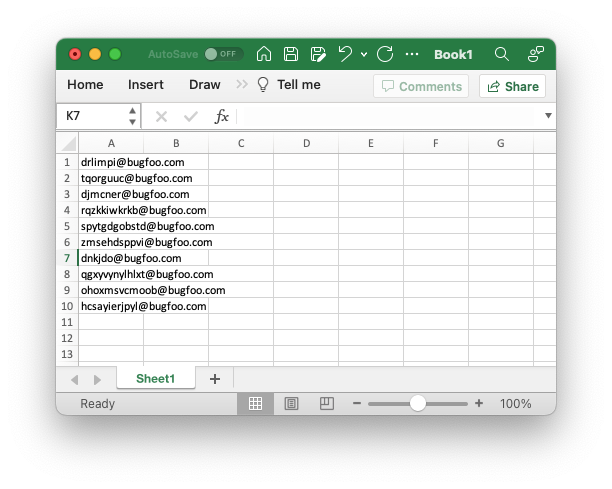
Mass invites are useful for inviting batches of users to a Core Hub. This is done by adding the invitee list to a spreadsheet file (saved in CSV format) and uploading the file to the invite panel.
Add invitee’s email addresses to a blank spreadsheet file in the first column:
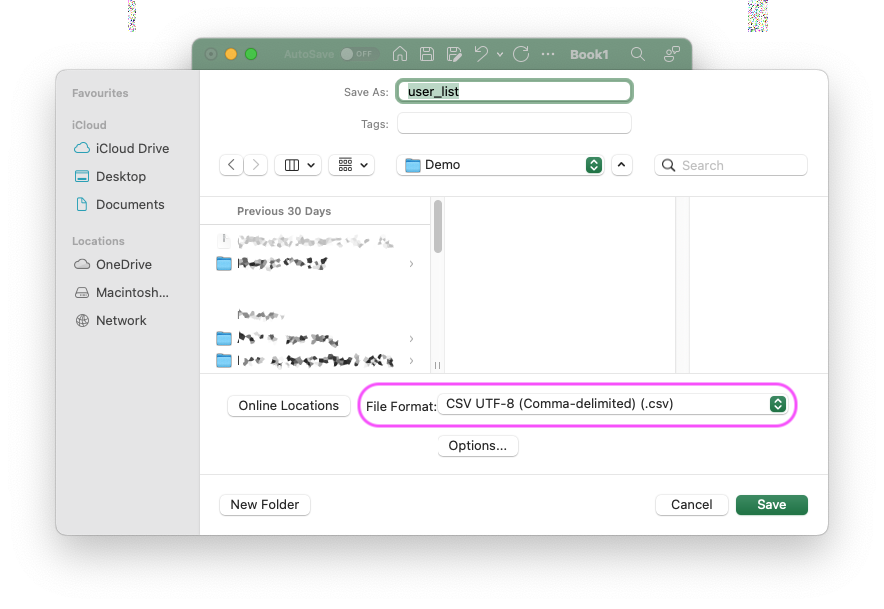
Save the file using the CSV format option:
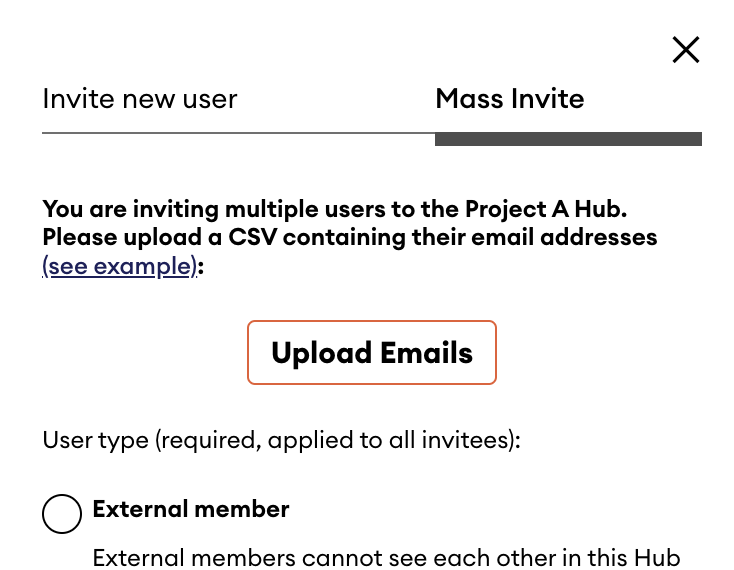
Open the invite panel and select the ‘Mass Invite’ tab, then upload the new CSV file:
 ](/media/tenancy-management/core-hubs-invite-users/Screenshot_2023-05-05_at_12.40.27_pm.png){width=432}
Choose the user type for the invitee list, then press Send Invites
For circumstances where a group of invitees should be Team member and another group should be External member, create two separate CSV list files.
Invitees who are not registered will automatically be sent an invite via email when you add them to a Hub. Invites sent to an email ID that is associated with a current DekkoSecure account will be added to the Hub immediately.
Create a user account (without sending an invite)
Tenancy Managers can create a DekkoCORE account directly, instead of inviting someone by email. This requires the Admins create accounts Tenancy policy to be turned on. This is useful when a person needs access but should not be identified by an email address, or when you want to set up their access yourself before handing it over.
A created account works as soon as you save it. DekkoCORE does not send the person any email, so you are responsible for passing on their sign-in details.
How created users differ from invited users
When you invite someone, or when a user with invite permission invites them, the person registers with their email address and receives email notifications about activity on their account. A created user is different in two ways.
Their User ID cannot be an email address. It is a name you choose, such as john or john.v, and they sign in with exactly that ID.
If you need to create an account that uses an email address as its User ID, contact your DekkoSecure account manager to request an exception.
Created users do not receive email notifications about activity associated with their DekkoCORE account, such as files shared with them or Hub updates. Let the person know they will need to sign in to DekkoCORE to see new activity.
Create the user
- In the Tenancy Manager, select Users under Tenancy Admin in the left menu.
- Select Create user. The Create user window opens, showing the name of your tenancy.
- Enter a User ID. This is the name the person will sign in with. It cannot be an email address.
- Enter the person's Full name. This is how they appear to other users.
- Enter a Password, then enter it again in Confirm password. Select the eye icon if you want to check what you have typed.
- Under Hubs, choose which Hubs the person should belong to. Use Filter hubs to find a Hub by name, and use the All Hubs, Member and Not a member tabs to switch between views. For each Hub you add, select the person's role from the dropdown next to the Hub name (for example, External).
- Select Create.
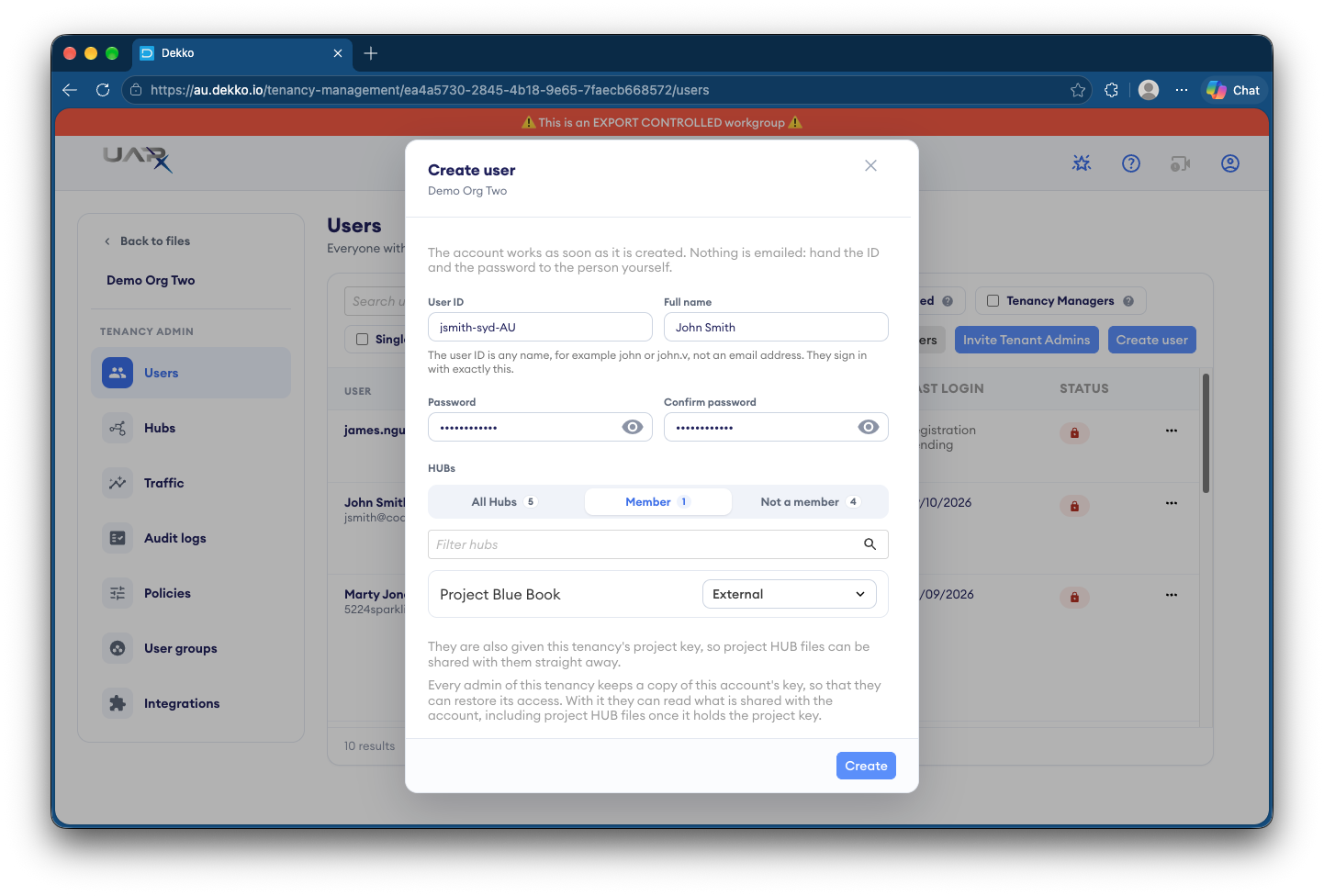
The new user appears in the Users list straight away, with access to the Hubs you selected. They will also be added as an individual in the Fusion users section if your Tenancy has Fusion Hubs enabled (they won’t be added to any sharing configurations).
Fusion Hub access
A created user is given your tenancy's Fusion key when the account is made. This means files in Fusion Hubs can be shared with them straight away, without waiting for them to sign in first.
Sharing the sign-in details
You need to give the person their User ID and password yourself. Use a secure method, and where possible send the User ID and the password through separate channels (for example, the User ID by email and the password by phone or in person). Avoid sending both in the same message.
Two-factor authentication and passkeys
Created users follow the same security policies as everyone else in your tenancy. If your tenancy enforces two-factor authentication or passkeys, the created user must meet those requirements to access their account, just as an invited user would. Let the person know to expect this setup step when they first sign in.
Share files with an unregistered user in Core Hubs
Need to share with someone who doesn’t have a DekkoSecure account! The share-and-invite feature makes this easy - no separate invites required.
Upload the files, select them, and press Share.
Add the email addresses of the users that need access.
Users that are new to DekkoSecure (and new to the Hub) will be marked with (New to this Hub).
Set the appropriate access permission and user type (Team or External) and then press Share. Your invitee will be able to access shared files after they create an account using their invite.
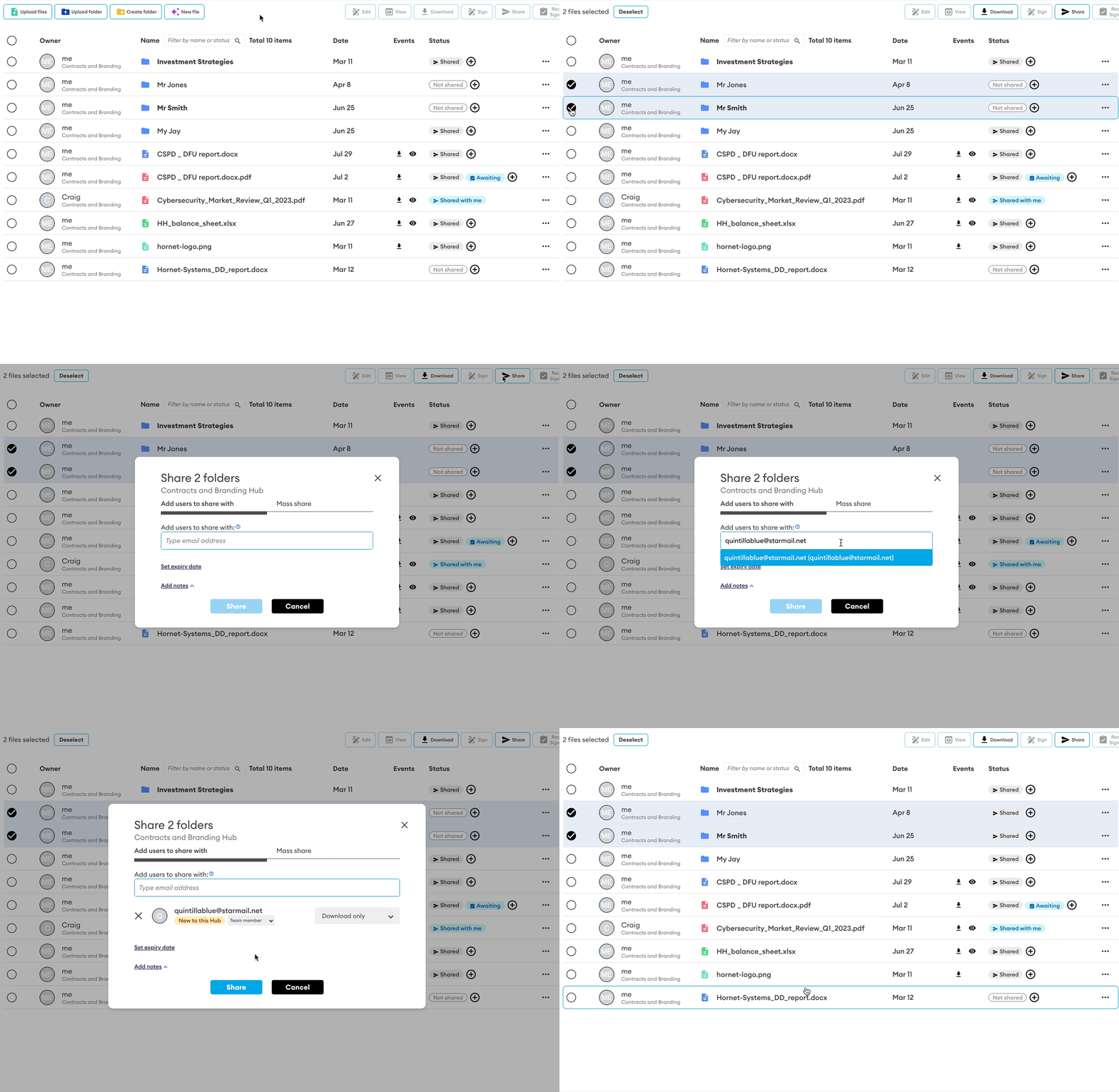
Tip: if the sharing menu doesn’t allow you to share with users who aren’t members of the selected Hub, this means the share-and-invite feature has been disabled by your organisation admin. If this is the case, send the unregistered user an invite before sharing or ask your Hub administrator to send an invite if you don’t have permission.
Invitee user types in Core Hubs
When inviting a user to a Core Hub, you must select their membership type. This determines what they can see and who they can interact with in the Hub.
Hub member - Team Member
Can see and collaborate with all other Team Members and External Members in the Hub. Suitable for internal participants and trusted collaborators.
Hub member - External Member
Can see and collaborate with Team Members only. External Members cannot see or interact with other External Members. Suitable for third parties, vendors, or external stakeholders who should not have visibility of each other.
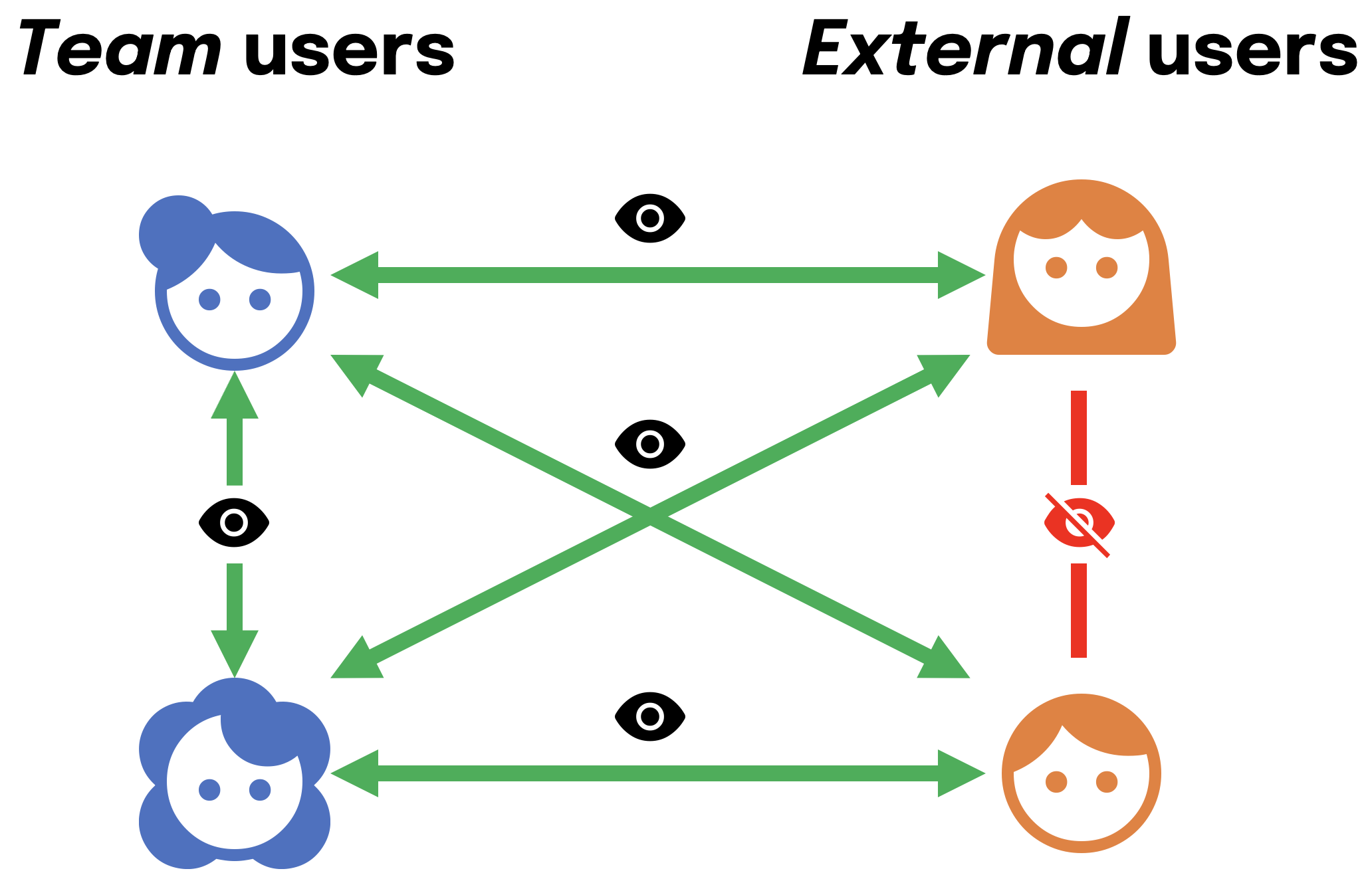
This graphic is a simple representation of who can see who (and who can share with who) in a Core Hub, based on their membership type. For a full breakdown of permissions for each role, including Core Hub Admin capabilities and member visibility rules, see Tenancy and Hub Roles article.
Your DekkoSecure administrator can add a tailored invite message in the invite message appendix via a tenancy policy. This message will appear at the bottom of your DekkoSecure invite.
Invite delivery troubleshooting
If your invitees can’t find your invite(s):
First - double-check if the invitee’s email address has been entered correctly. To remove any doubt, the best method is to copy and paste the address from your mail client.
Invitees should check their spam/junk folder or the “Other” inbox in Outlook.
If the invite cannot be found then your invitee will need to check if the DekkoSecure system notification address is being blocked by their IT administrator. If this is the case and it has been rectified you will need to re-send your invite.
If any issues persist please submit a support request - our support team will be able to investigate whether your invites are being blocked.