Enable passkeys on your account
Password-less and optional hardware-based authentication
Users with a Standard (non-SSO) account can add passkeys to sign in, with or without a password.
Passkey guidance in this article is for non-SSO users only.
If you use your employer's Entra ID (corporate SSO) account to access DekkoCORE, authentication is defined by organisation policies that DekkoSecure cannot control or set.
Things to know about passkey authentication:
- Passkeys can be stored on a device, synced through a password manager, or bound to a hardware key (e.g. YubiKey).
- You can configure multiple passkeys at the same time. This is useful for backup. For example, you might store one passkey on your phone and register a hardware key as well, so if you lose your key you can still sign in with your phone.
- Adding a passkey does not remove your password. You can sign in with either until you choose to remove the password.
- When passkeys are enabled, you can choose to disable password authentication on your account.
- If you keep password authentication on, you can sign in either with your email, password and 2FA, or with a passkey.
- If you turn password authentication off, a passkey becomes the only way to sign in. Removing the password requires that you already have a passkey and a saved recovery key.
- Signing in with a passkey means you do not need to type your email.
- A passkey sign-in satisfies two-factor authentication on its own, so you will not be prompted for a separate 2FA code.
If your organisation has hardware attestation enabled, you cannot store passkeys in iCloud Keychain, Google Password Manager, a password manager, or your browser. Your passkey must be on a device-bound hardware authenticator (e.g. a YubiKey, or a platform authenticator backed by a secure element or TPM). Any prompt offering to save the passkey to a cloud, browser, or password manager will not produce a valid passkey, so cancel those prompts and choose the security key option instead.
Enable Passkey Authentication
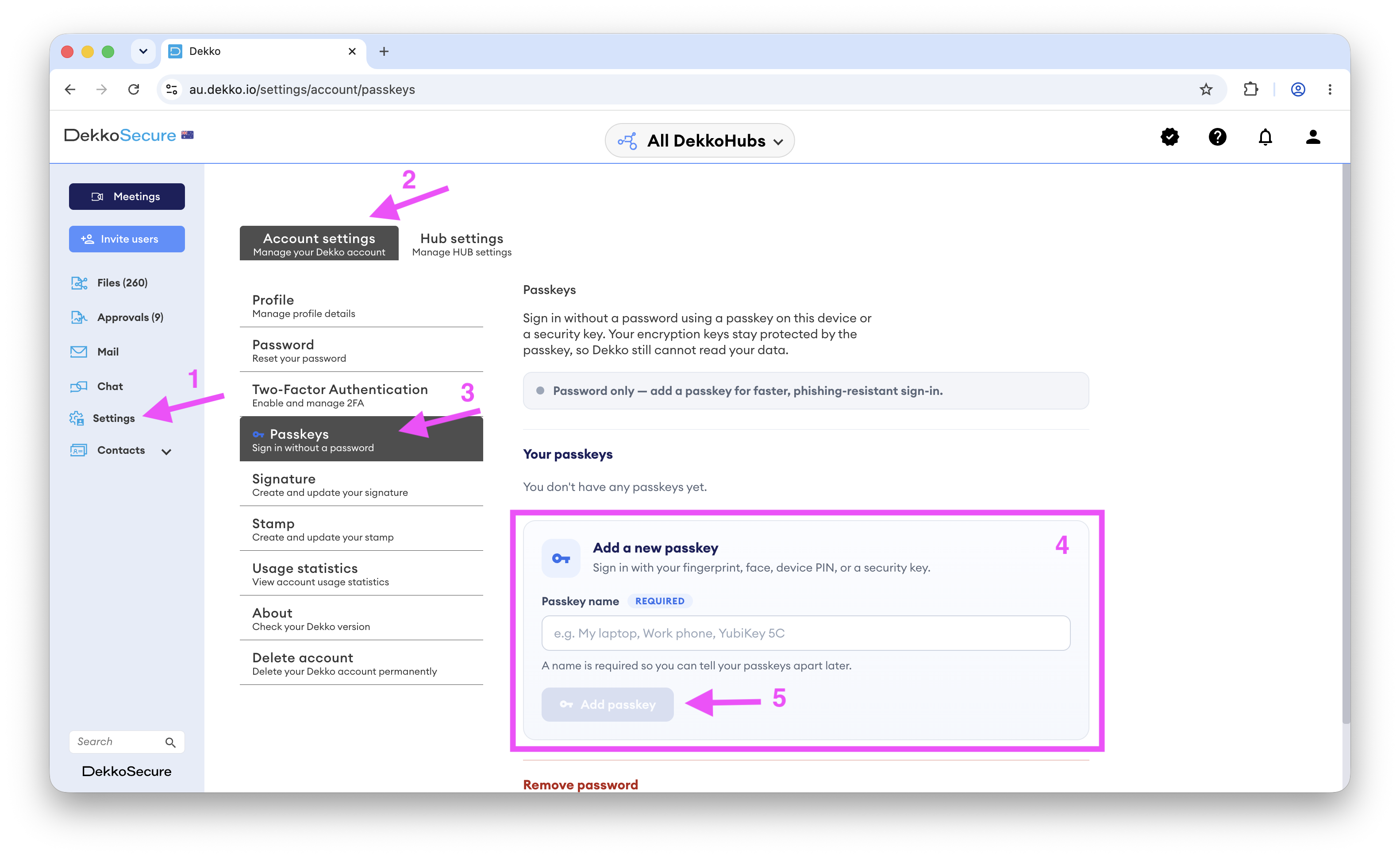
To enable Passkey Authentication, go to the Passkeys section in your account settings.
- Go to your Account settings page.
- Select the Security tab.
- Scroll down to the Passkeys section.
- In the Your passkeys section, enter a name for your new passkey. A name is required before the Add passkey button becomes active.
- Click Add passkey. Your browser or operating system will prompt you to create the passkey using a verification gesture (see "Where your passkey is stored" below).
- When you add your first passkey, you will be shown a one-time recovery key. You can Copy it, Download it (saved as
dekko-recovery-key.txt), or write it down. Save it somewhere safe and confirm you have saved it before continuing. This recovery key lets you regain access to your account if you ever lose access to all your passkeys and have turned off password sign-in, so store it securely (for example, in your password manager). It is shown when you first enrol a passkey, and again each time you regenerate it (see Manage your passkeys below).
Passkeys rely on the WebAuthn PRF extension. Use a recent version of Chrome or Edge with a platform authenticator (Windows Hello, Touch ID) or a compatible security key. If your browser or device does not support it, enrolment is stopped before any passkey is created, and you can choose an alternative method such as a hardware key.
Where your passkey is stored
The prompts you see depend on your operating system, browser, and whether you have a password manager installed. The steps below cover the most common paths.
On Windows
- If you have a password manager installed it will offer to store the passkey. Accept this to save it there.
- If you do not have a password manager, or you cancel that prompt, Windows Hello will offer to store the passkey on your device (secured by your PIN, fingerprint or face).
- If you cancel the Windows Hello prompt, the browser will show further options, including saving to your phone or using a security key (e.g. a YubiKey).
On Mac
- If you have a password manager installed, it will appear first and offer to store the passkey there.
- If you do not have one, or you cancel that prompt, macOS will offer to save the passkey to your iCloud Keychain.
- If you cancel the macOS prompt, the browser will show further options like the example below:
- Save to iCloud Keychain
- Save to your phone*
- Use a security key (e.g. a YubiKey)
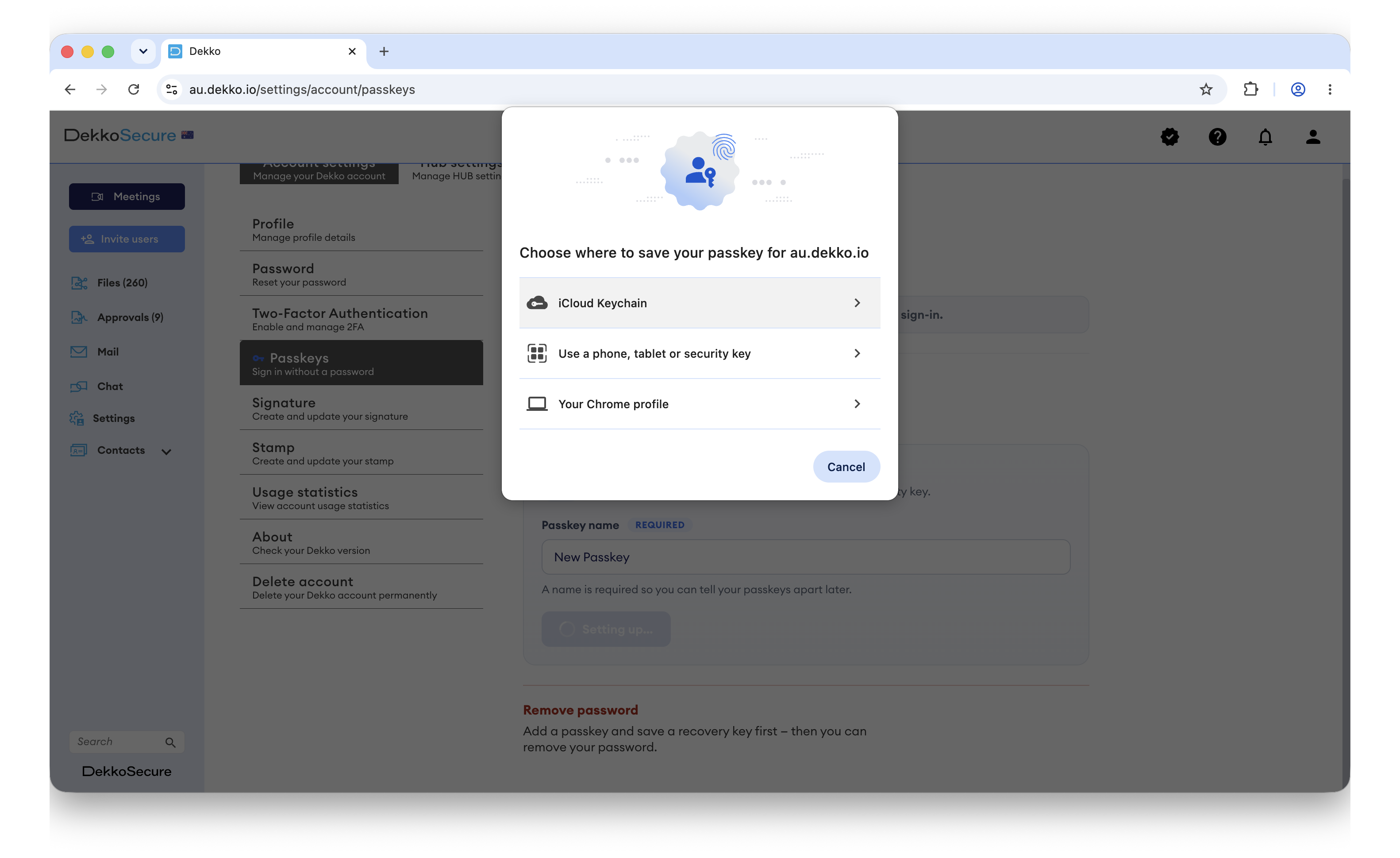
Using a hardware key (e.g. YubiKey)
If you want to store your passkey on a hardware key, cancel any password manager or operating system prompts until the browser offers a security key option, then select it and follow the steps to set up your key.
* On your phone
- If you save the passkey to an iPhone, it is stored in your iCloud Keychain.
- If your phone has a password manager such as 1Password installed, the passkey is stored there instead.
Phone-based and iCloud Keychain passkeys are not valid if your organisation has hardware attestation enabled. Use a hardware key instead.
Sign in with Passkey Authentication
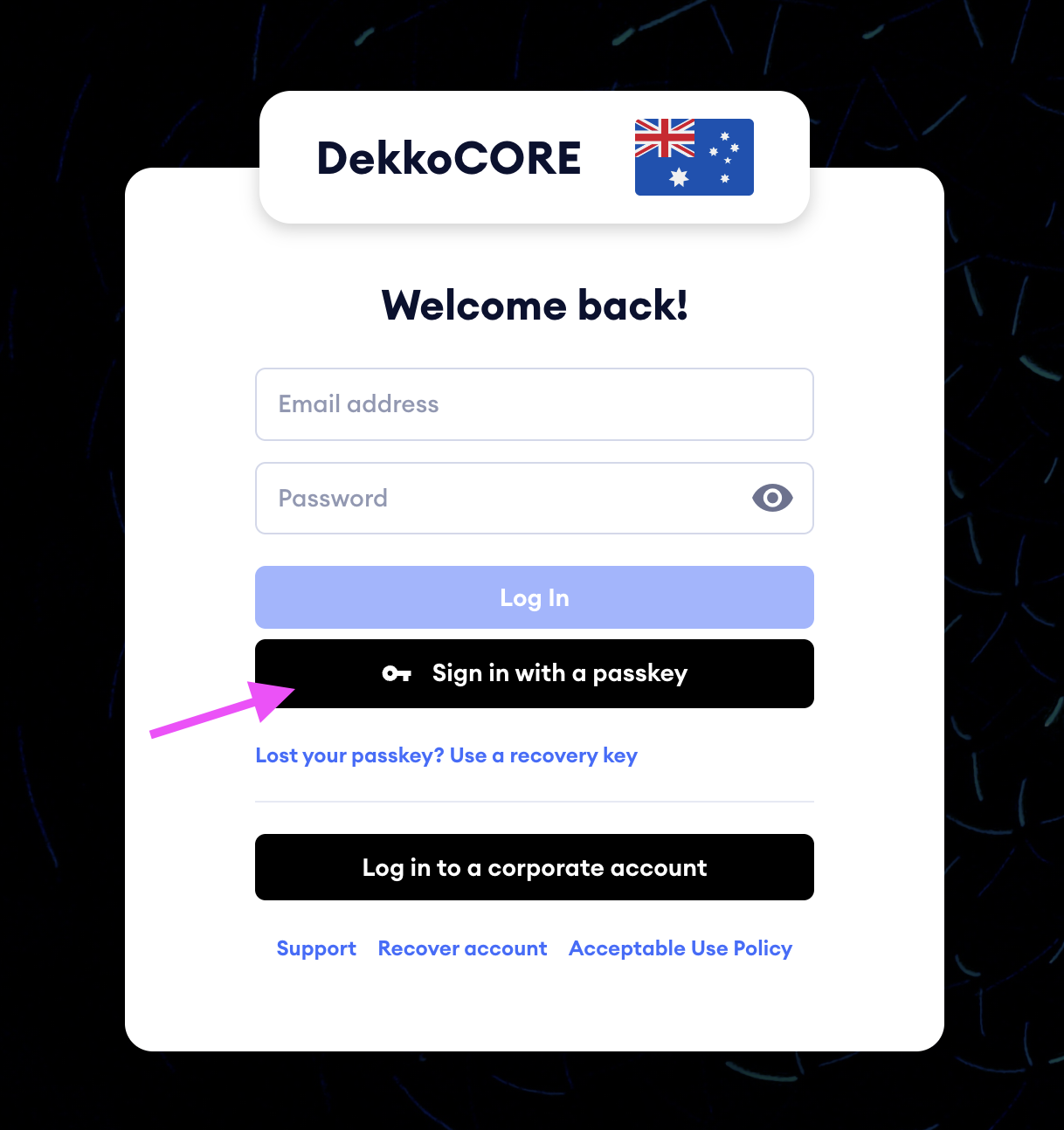
- On the DekkoCORE login page, click Sign in with a passkey.
- Choose the passkey you want to use. You do not need to enter your email first. Depending on where the passkey is stored, you may be prompted to:
- Authenticate with your password manager
- Use Windows Hello or Touch ID
- Scan a QR code to use a passkey saved on your phone
- Insert and tap your hardware key (with a PIN if you have one configured)
- If you have more than one passkey registered, you can pick whichever is most convenient at the time.
Manage your passkeys
You can manage your passkeys, recovery key and password from the Security tab of your account settings.
- Go to your Account settings page.
- Select the Security tab.
- Scroll down to the Passkeys section.
Remove a passkey
Use Remove to delete a passkey you no longer need. When you click remove passkey, it will prompt you to login with the passkey to confirm the removal.
Removing a passkey does not affect your other passkeys or your password
Regenerate your recovery key
- In the Passkeys section, select Regenerate recovery key.
- Copy, download or write down the new recovery key and store it somewhere safe.
The old recovery key stops working as soon as you regenerate it. Make sure you have saved the new key before you leave the page.
Remove your password
In the bottom of the Account security page you can remove your password, only if you have both a passkey and a password set up.
- Read the Remove password disclaimer.
- Tick the Remove password box.
- Confirm by clicking Remove password if you want to sign in with a passkey only.
- Sign in with your passkey to confirm it works.
Removing your password requires that you already have a passkey and a saved recovery key.
Once your password is removed, a passkey is the only way to sign in. If you lose all your passkeys and your recovery key, you will need to contact your DekkoSecure administrator (Tenancy Manager) or submit a support request to regain access.
Set a password
If you only have a passkey set up and your Tenancy Policy allows you to also have a password you can set up a password in the bottom of the Account security page.
Select Set a password if you want to go back to signing in with your email, password and 2FA. Your passkey sign-in remains available after you set a password.
After you have typed your new password and confirmed it. You will be prompted to confirm the change by logging in with your passkey.
Lost your passkey?
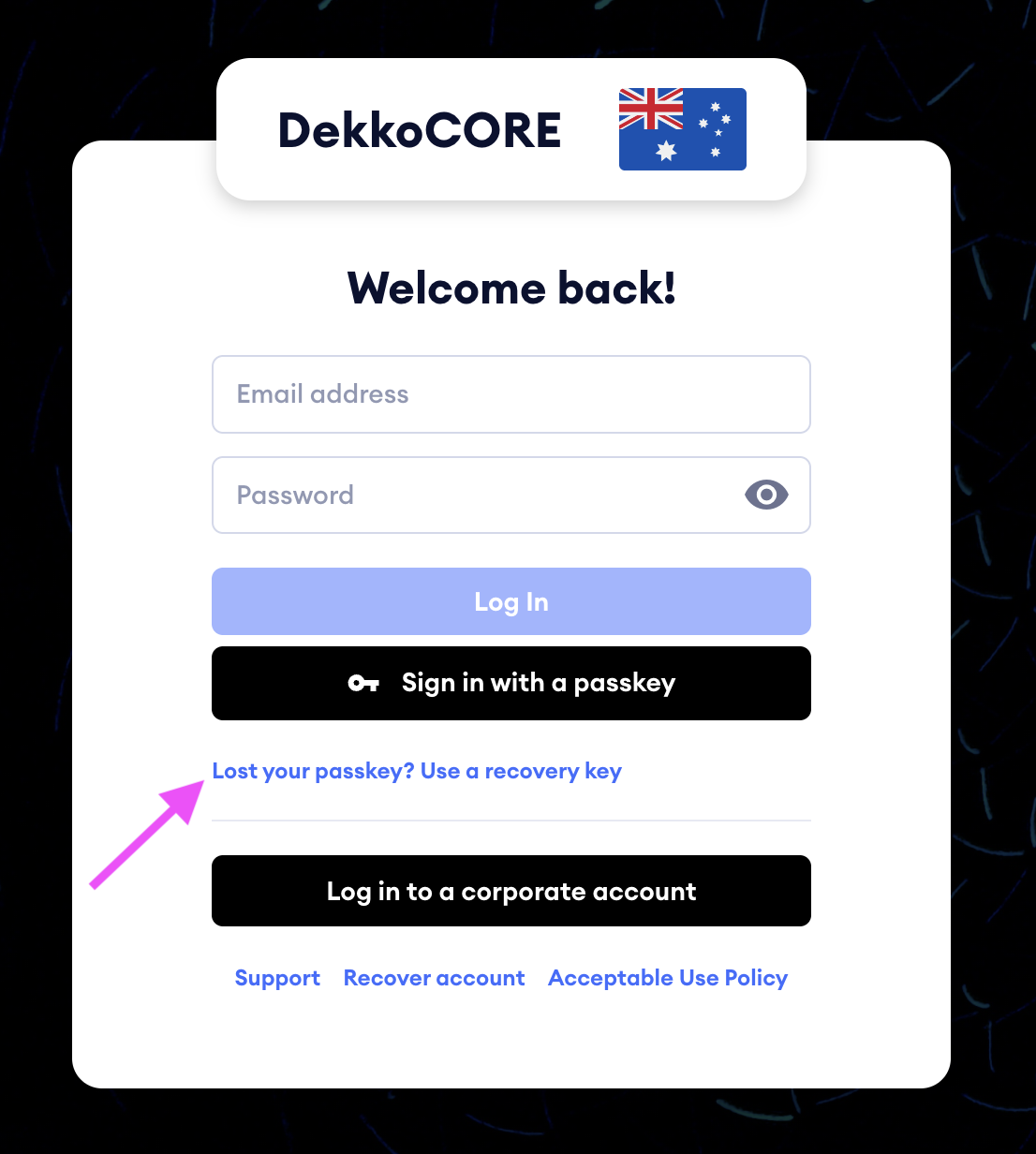
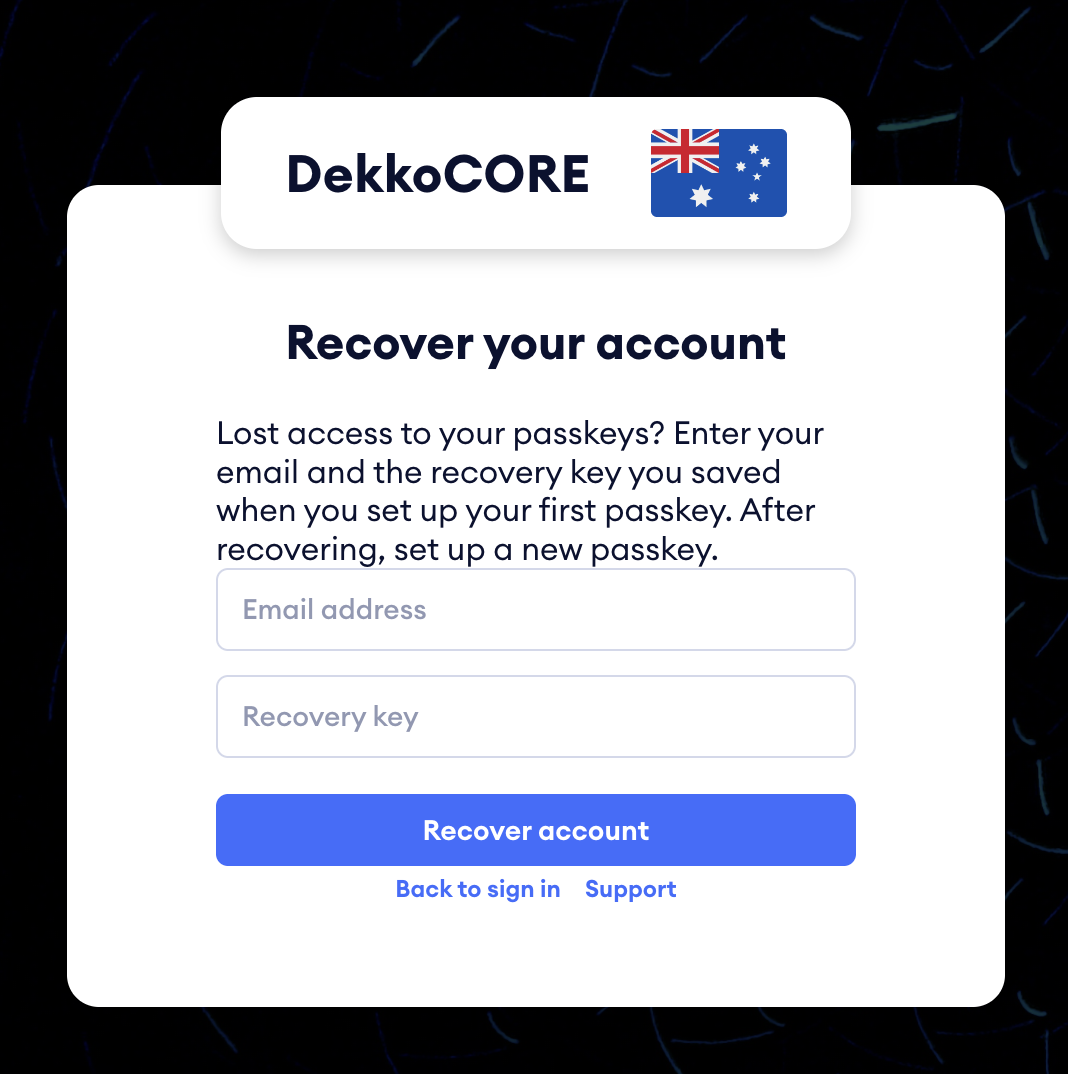
If you lose access to your passkey, you can sign in using your recovery key by selecting Lost your passkey? Use a recovery key on the login page.
If you have also lost your recovery key, or you cannot regain access, contact your DekkoSecure administrator (Tenancy Manager) or submit a support request at https://www.dekkosecure.com/request-support. An administrator can issue you a fresh single-use recovery code (valid for 48 hours) without ever having access to your account's encryption key.