

Public Submissions
Collecting files from external users without requiring a DekkoCORE account.
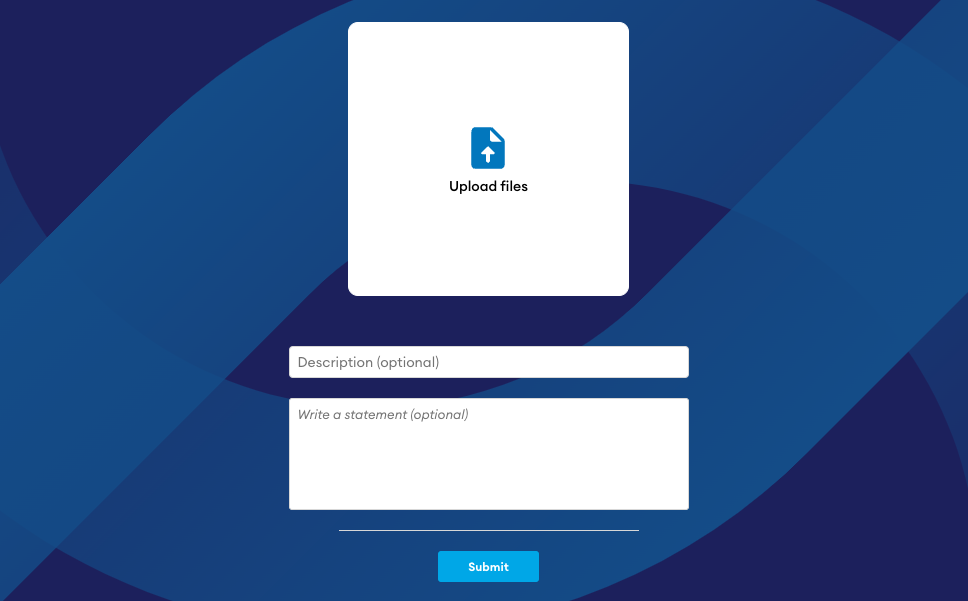
The Public Submissions feature allows unregistered users to upload content with accompanying text to a folder. Because submissions are not associated with an account, they should be considered anonymous, although the submission report records the submitter's IP address and derived location where detected. The Public Submission interface allows a submitter to add files and a message to the submission:
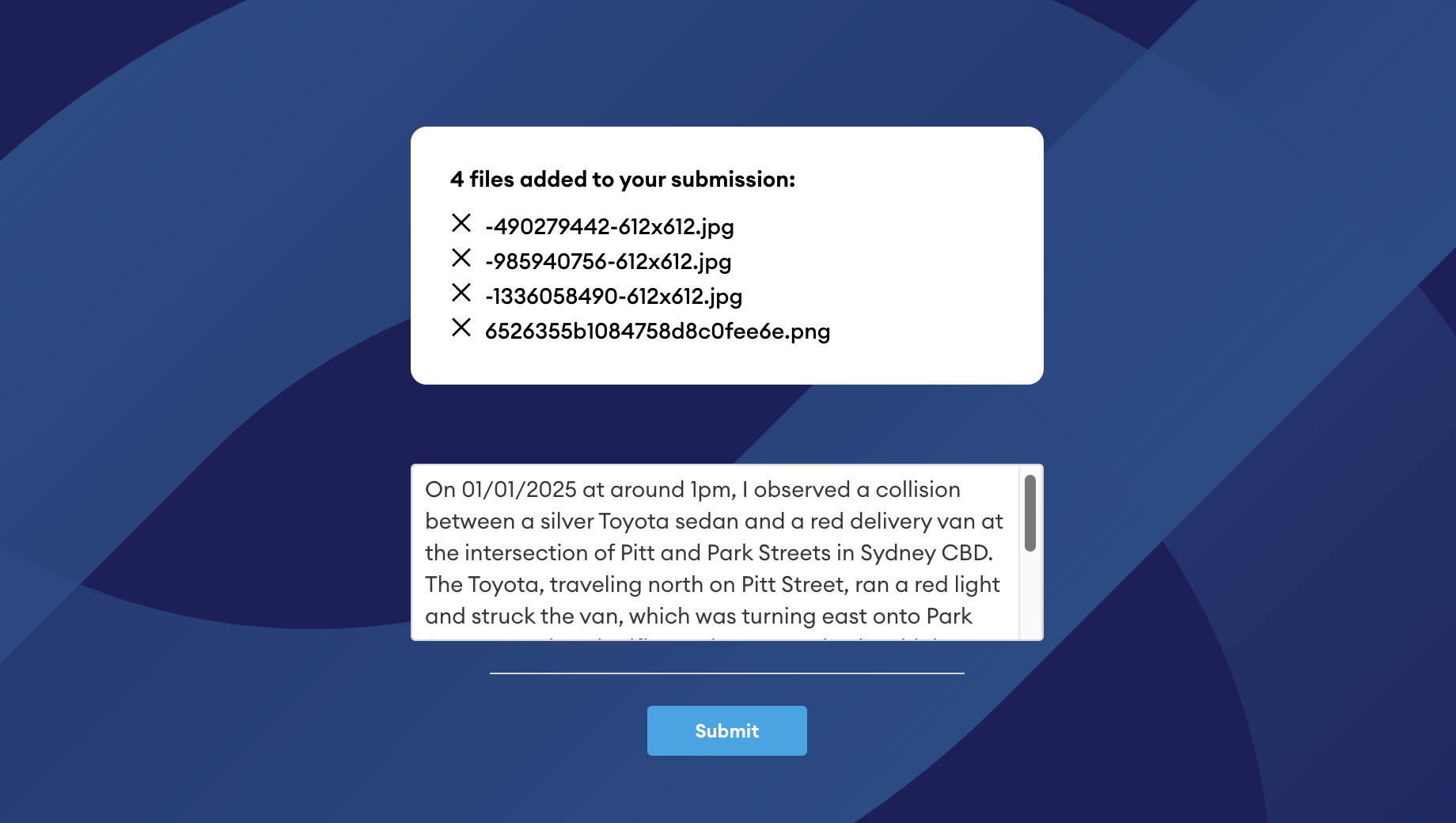
If you need to receive files from authenticated users please follow the recommended steps detailed here.
Submissions are enabled per-folder, so you can have as many Public Submission folders enabled simultaneously as you need.
Creating a Public Submission folder
Before attempting to set up a Public Submission folder, make sure the 'Allow public submissions on folders' policy is enabled in your Tenancy Manager (see Tenancy Policies):
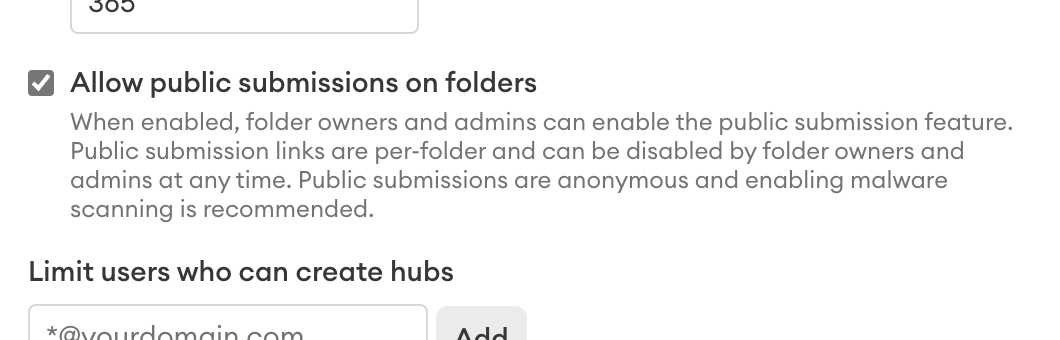
If you don’t have access to the Tenancy Manager you will need to make a request to your admin or contact your DekkoSecure account manager.
Choose an existing folder or create a new one, and share it with any users that need access to submissions.
Select the folder, and then press Submission settings in the [⋯ More] dropdown:

Confirm the submission setting by pressing Enable public submissions.
Share the submission link with whomever you need to receive a submission from.
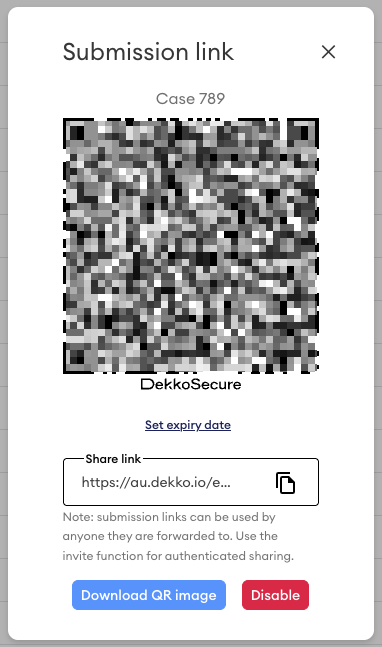
You can present the QR code physically, download the QR code and publish it, or copy the link and send via any means you deem appropriate.
You can log in to DekkoSecure on your mobile device and access the QR code for physical presentation.
Submissions are now on! You can access the submission settings at any time by pressing the Submission ON tag in the Status column:

Submission link expiration
Use the expiry option to ensure a link is invalidated after a set time:
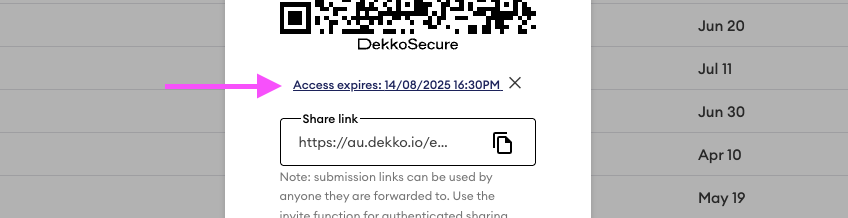
You can update expiration after a link has been enabled - just open the submission link menu!
Disabling submission links
- Select the folder, and then press Submission settings in the [⋯ More] dropdown.
- Click on the Disable button. The link will be invalidated immediately.

Reviewing submissions
Every submission creates a unique sub-folder:
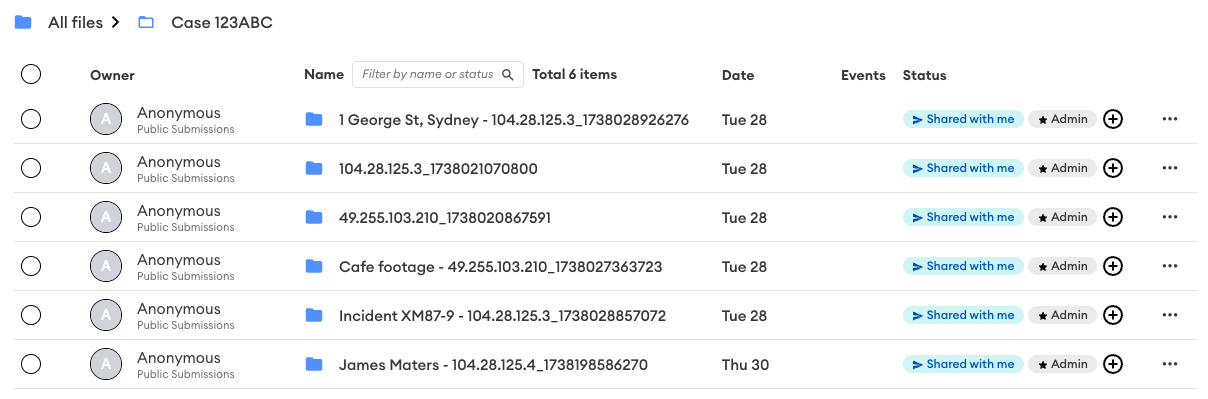
Each subfolder is named with the following format: DESCRIPTION - IP ADDRESS_TIMECODE. If a submitter does not enter a description and/or their IP address is not detected, the folder name will contain a timecode at a minimum.
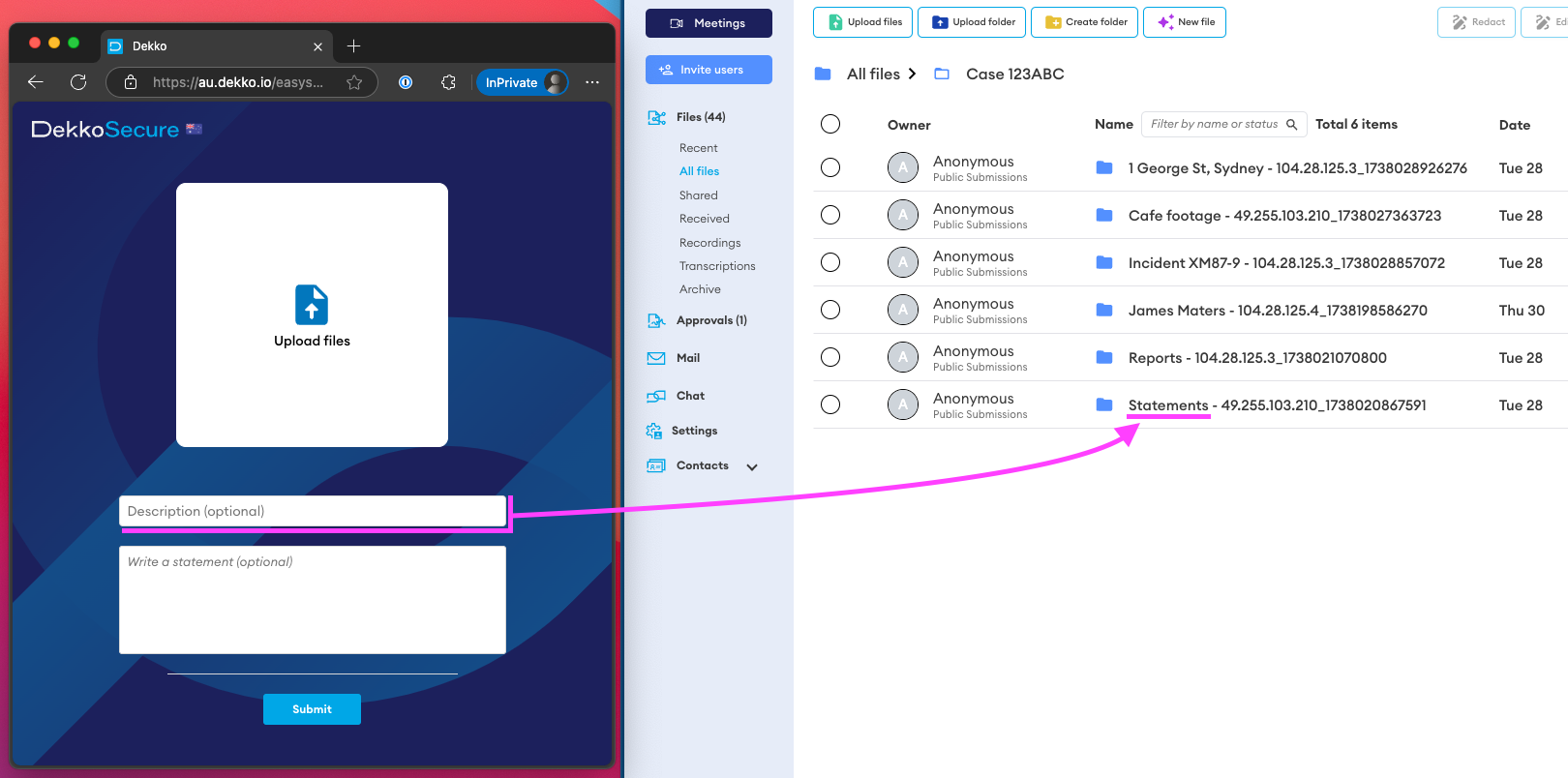
Submission folders can be renamed if you are an owner of the folder or a folder admin. Individual submissions can also be shared with additional users; press the Shared with me tag to manage sharing.
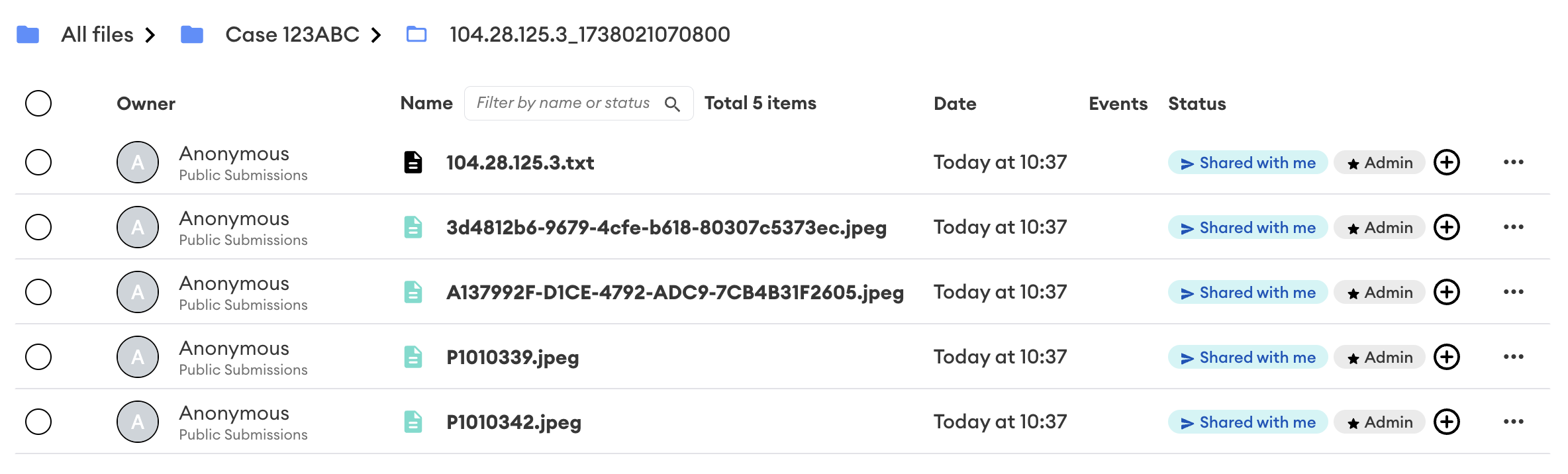
The submission sub-folder will contain the submitted files as well as a report text file that contains details about the submission, including the description and statement if one is entered:
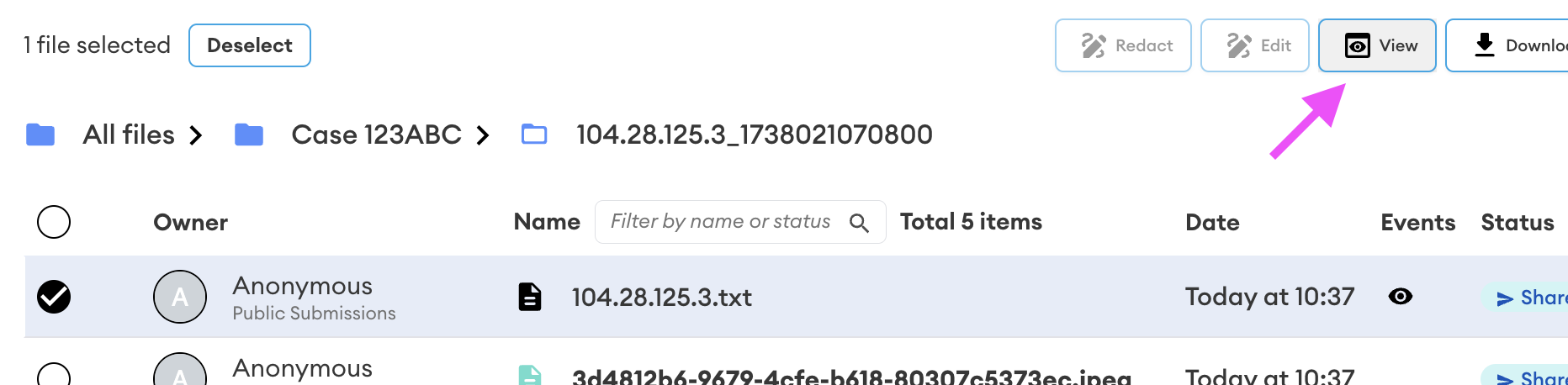
To read the text file select it, then press the View button:
The submission report text file contains:
- The submission date and time
- Device IP address and derived location
- Device information
- The submission description (if one is entered)
- The submission message (if one is entered)
- The submission file count and file list (if files are added)
Files with viewable formats can be opened in-app without downloading them.
Making a submission
Submissions can contain files only, a message only, or both files and a message.
To make a submission, simply add the content where appropriate and then press Submit:
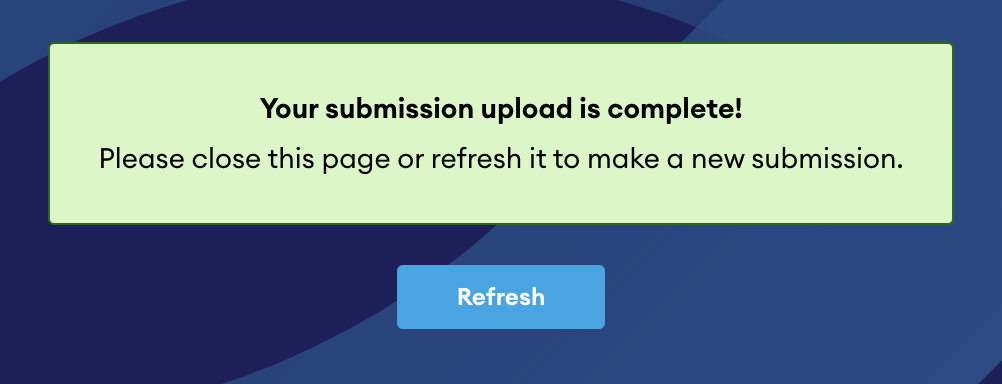
Please do not close the page until you see the submission success message:
If you’re using a mobile device you can use your camera to add a photo or video to a submission:
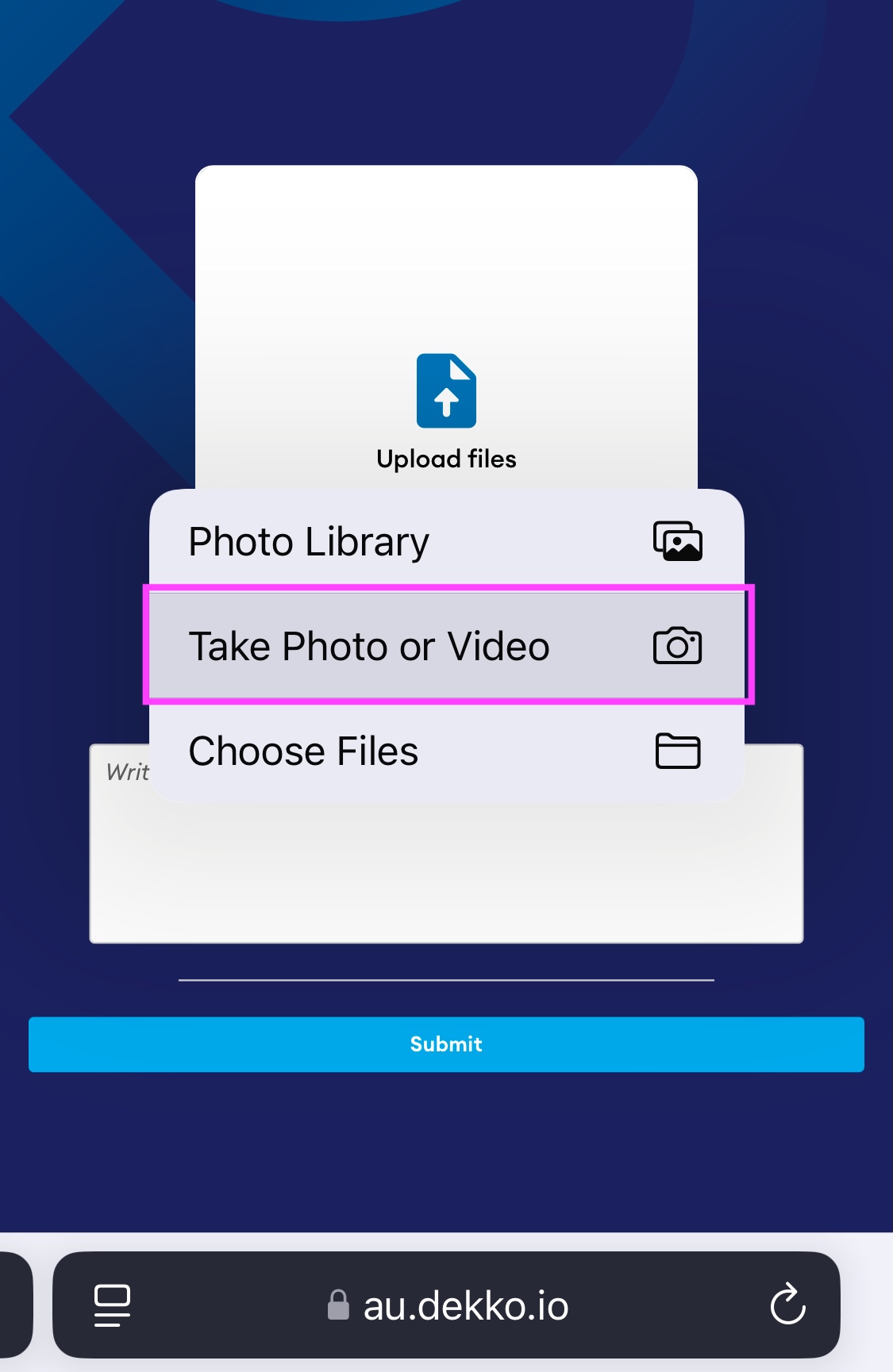
Most mobile devices do not store photos taken with your camera during submission. If you need to store submission photos on your device, take them using your camera first and then upload them to your submission.
Controlling Public Submissions
File size limits
If the File size upload limit (MBs) policy is enabled in Tenancy Management, submitters will be prevented from selecting files that exceed the specified limit.
Public Submission links and QR codes
Careful management of the distribution of submission links and QR codes is highly recommended. Anyone with the link can submit files.
For authenticated sharing use a folder with authenticated accounts.
Sharing your Public Submission folder
Folders with Public Submissions enabled can be shared with authenticated users to facilitate access to submissions. The regular steps for folder sharing should be followed.
Malware scanning
If the Malware scanning policy is enabled in Tenancy Management, submitted files will be scanned for malicious content and marked where positive results are found. Malicious files cannot be downloaded or shared.