

DekkoDrive Sync App: Install and Uninstall
Download, install and set up DekkoDrive.
What is DekkoDrive?
DekkoDrive is a Windows application that automatically encrypts, decrypts and synchronises your DekkoSecure files with a local, attached or networked storage device on your computer. When running, the application appears as a “drive” in your file explorer.
Network and permissions
The application does not require any permissions (e.g., “admin permission”) to run.
If you work in a highly secure environment you may need to request permission from your employer’s IT department to install DekkoDrive and implement the requisite network allowlist:
*.dekko.io
*.blob.core.windows.net
*.microsoftonline.com
*.microsoft.com
*.service.signalr.net
Minimum device specifications
| Minimum | Recommended | |
|---|---|---|
| CPU | 4 cores | 8 cores |
| RAM | 16 GB | 32 GB |
| Network | 100 Mbps | 1 Gbps |
| Required | |
|---|---|
| Operating System | Windows 11 or Windows Server 2025 |
| Storage | Sufficient free space to hold the full capacity of data associated with your DekkoSecure account |
DekkoDrive can be installed on any standard Windows 11 or Windows Server 2025 machine, including laptops, desktops, and virtual machines. Once installed, DekkoDrive checks for new data automatically every 5 minutes. The machine simply needs to be awake and running.
Installing DekkoDrive
Download the DekkoDrive installer provided to you.
Locate the ZIP file on your computer (e.g. your Downloads folder). Right-click it, and choose Extract All:
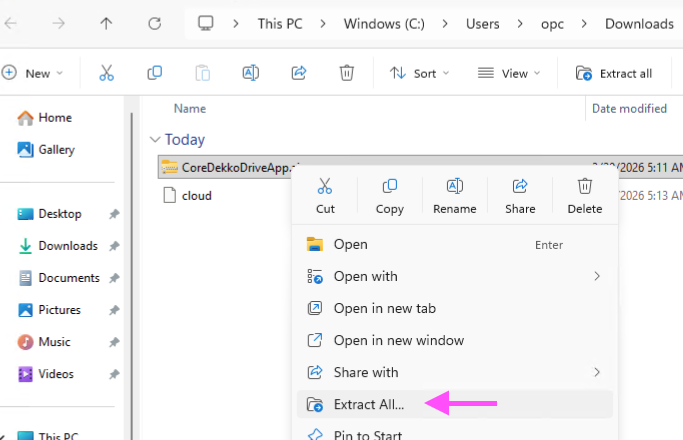
Ensure the Show extracted files option is ticked and set the extraction destination to
C:\ProgramData\DekkoDrive, then click Extract: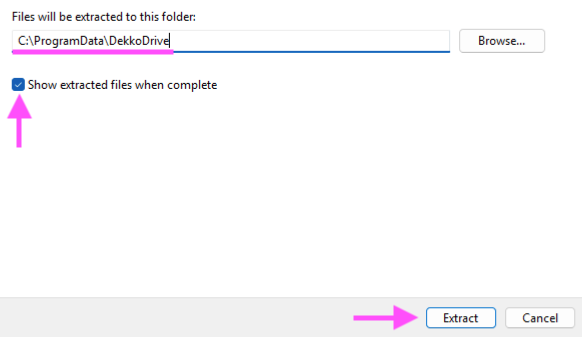
*Note: The location can be set to anywhere based on your preference, but
\ProgramData\is recommendedLocate the Dekko-Drive.exe file in the DekkoDrive folder - double-click to open it:
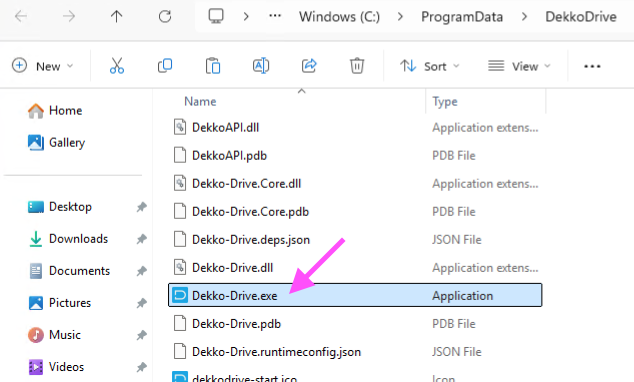
The authentication window will open. Choose your local, attached or networked storage path using the […] button.
:::warning ❗ Make sure your chosen storage path has sufficient storage before initialising any data synchronisation. :::
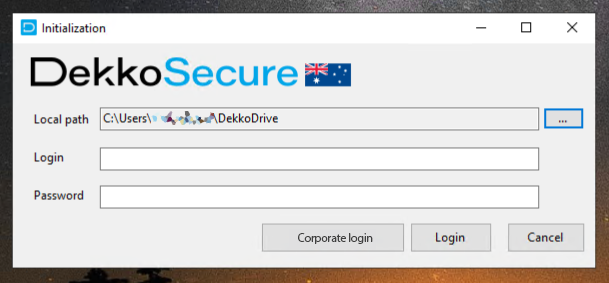
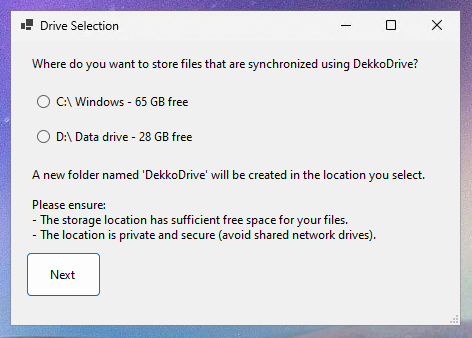
*Note: Choosing C:\ will create a “DekkoDrive folder” in your user directory. Choosing any other drive will create a DekkoDrive folder at the drive’s root directory.
For SSO users: click the Log in to a corporate account button to authenticate using your corporate credentials. Your browser will open to complete sign in if you are not authenticated already.
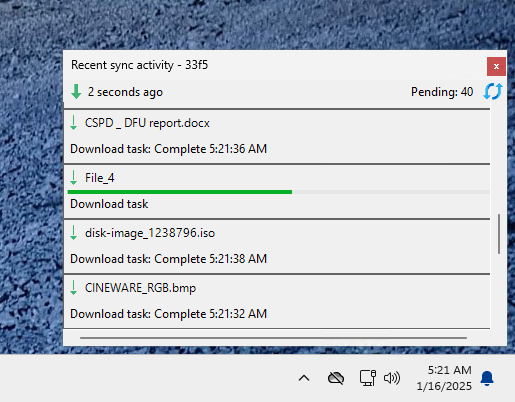
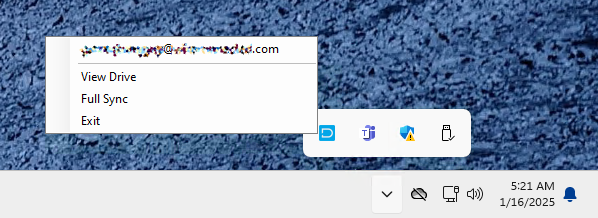
Wait for your current files to sync. Synchronisation progress can be reviewed by left-clicking on the DekkoDrive icon in your system tray. To force a synchronise of all pending uploads and downloads right-click on the DekkoDrive icon in your system tray and then Full sync.
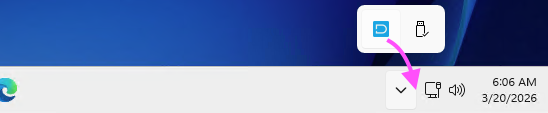
Tip: drag the DekkoDrive icon to your system tray to pin it:
Choosing the storage path
DekkoDrive supports the selection of a storage device for synchronised data. Regardless of where or what you choose, it is important to make sure that location has sufficient free space to hold the full capacity of the data associated with your DekkoSecure account.
There are a few questions you should consider when making a storage path selection, especially when using a network storage device (NAS):
- Does it have enough free space?
- Is it scalable?
- How reliable is it?
- Who has access to it?
- Are there any planned maintenance periods or hardware replacements?
- What is the performance of the drive(s) and network?
Open the DekkoDrive folder location
Right-click on the DekkoDrive icon in your system tray and then View Drive.
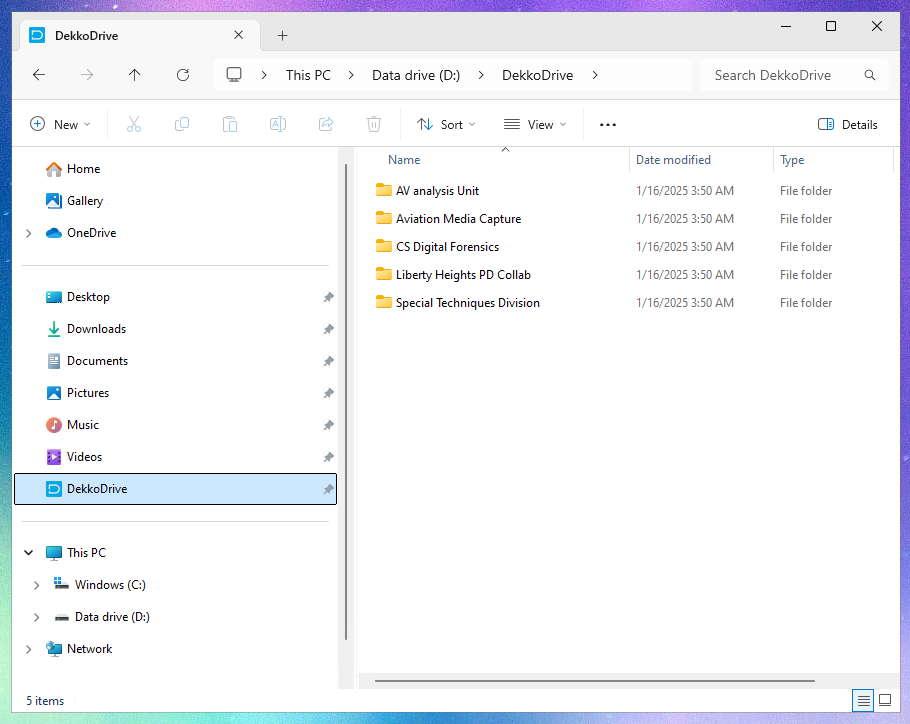
The DekkoDrive installer automatically creates a pinned shortcut to your DekkoDrive folder:
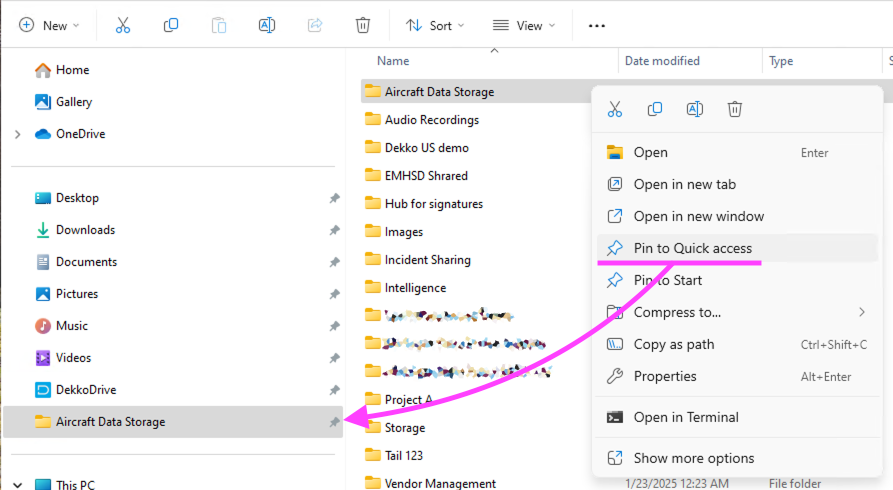
You can also pin specific Hubs (folders) or Hub sub-folders to quick access:
Uninstalling DekkoDrive
Note: uninstalling DekkoDrive does not delete files synchronised to your device.
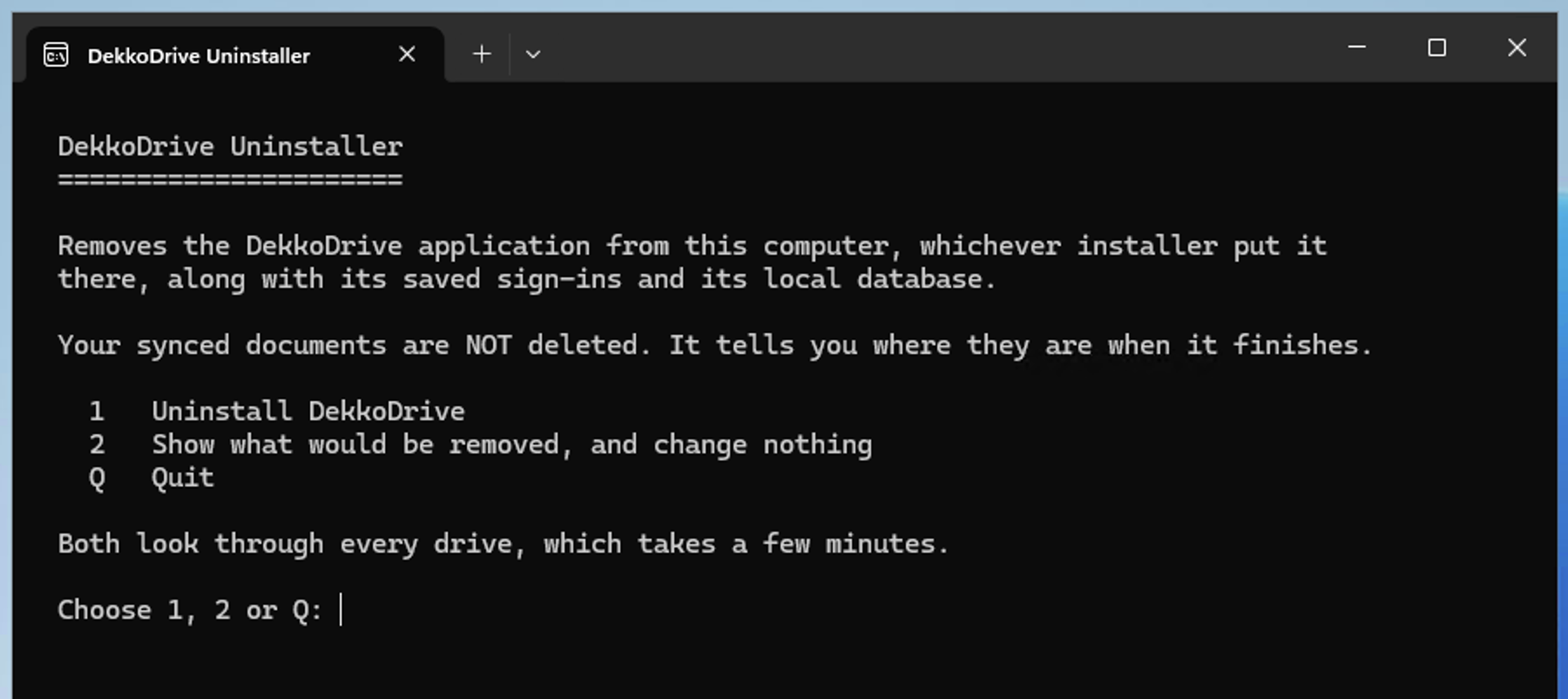
Download and open the uninstaller file:
Type 1 and press enter. The uninstaller will search your computer for DekkoDrive installation files.
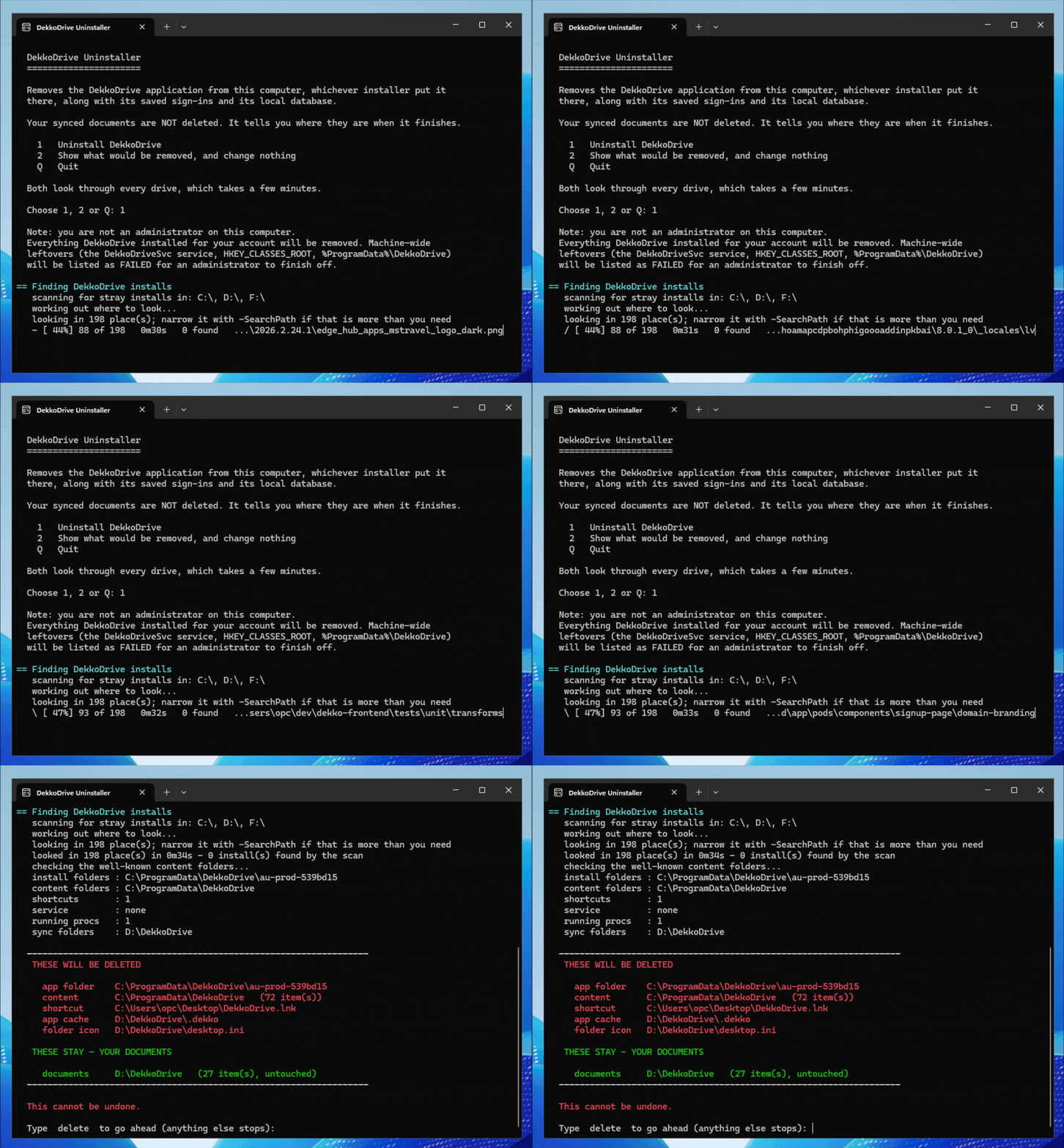
To confirm the uninstallation process, type delete and then press enter. A summary will be displayed:
![Terminal summary after uninstalling DekkoDrive, listing removed items and noting that synced documents remain in D:\\DekkoDrive, with the prompt "Open that folder in File Explorer now? \[y/n\]:".](/media/onboarding/dekkodrive-sync-app-install-and-uninstall/Screenshot_2026-09-22_at_4.06.40_pm.png)
The uninstaller will find the folder where your locally synchronised files are stored. Type y and press enter to open it. You can choose to delete the locally synchronised files at this point if required.
Close the uninstaller or type Q and press enter.
Deleting these files will not delete them from your DekkoCORE account.