Document Redaction
Redacting sensitive content from documents before sharing.
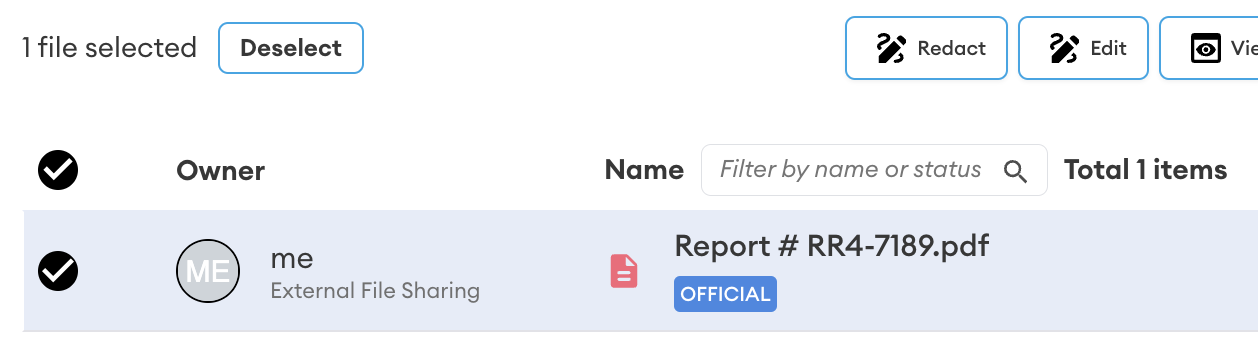
The redaction feature supports PDF files and creates a copy (with a suffix of _redacted in the file name) of the file that you choose to redact. After redactions are complete the file can be shared and/or used in an eSignature request. Redactions cannot be removed by any shared recipients.
To apply a redaction select the file and then press Redact:
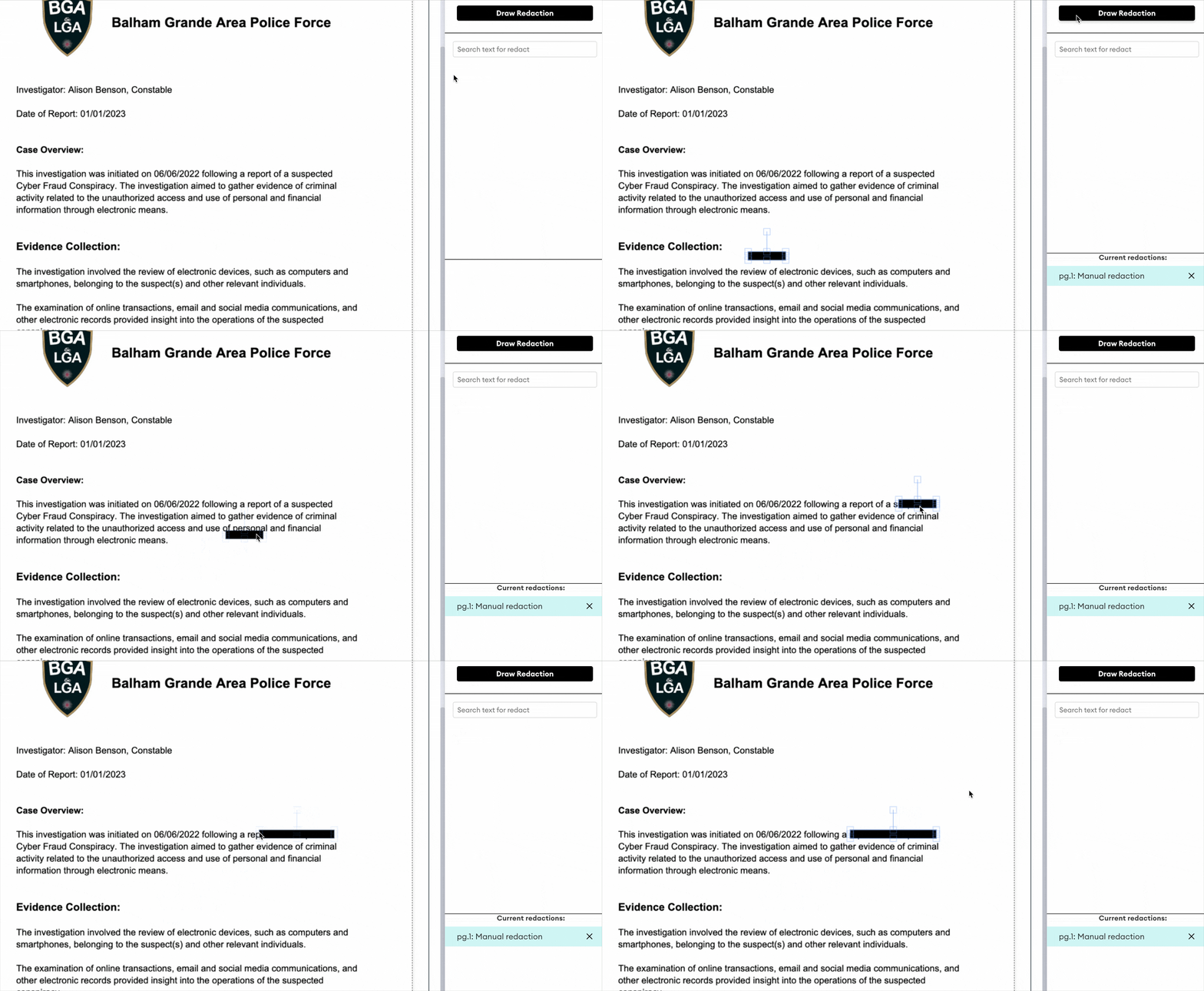
Draw a redaction
The simplest method of redaction is to draw it. To do this, press the Draw Redaction button and a standard redaction block will appear on the page. Place it in the appropriate position and then resize as needed:
Redact by search
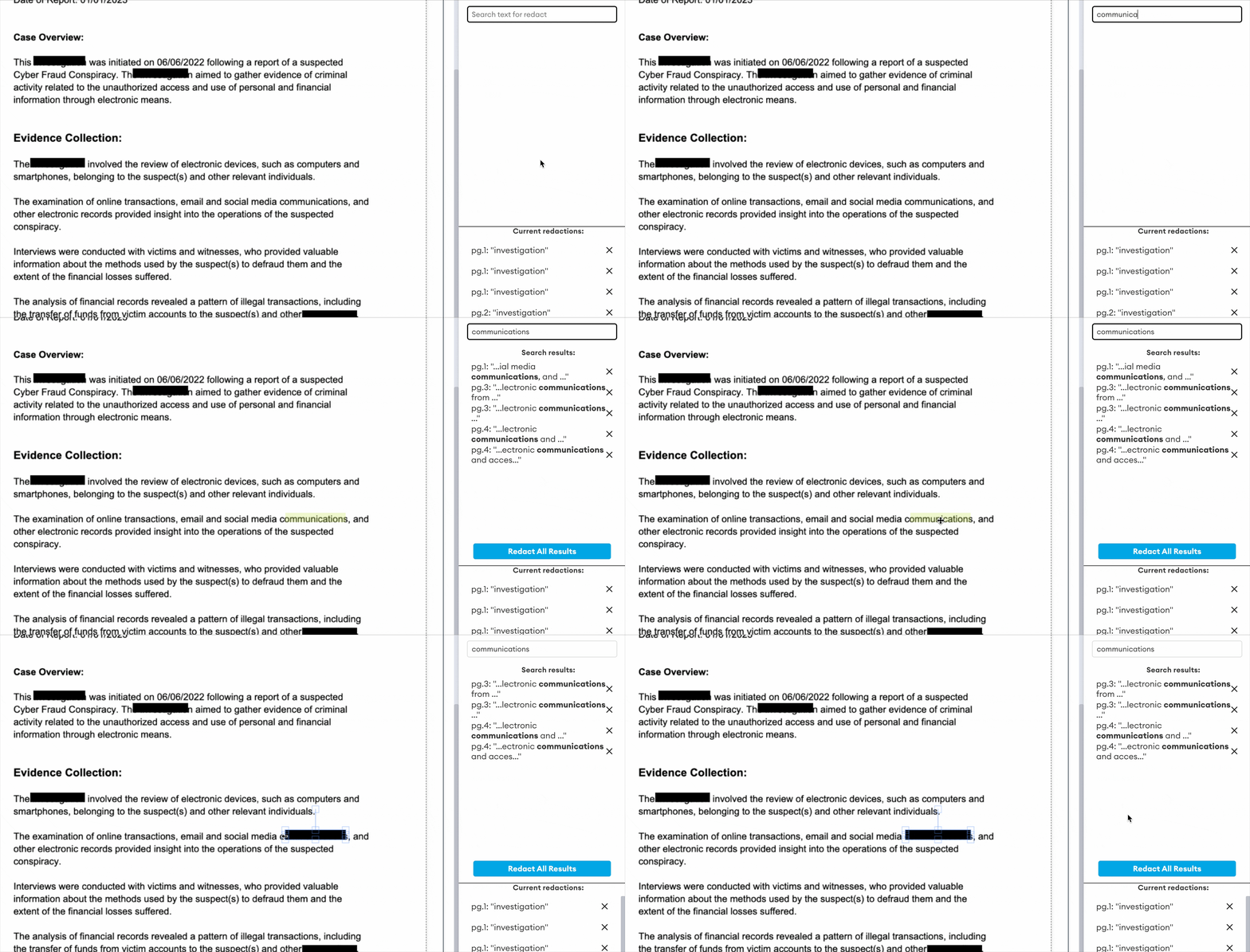
To quickly redact a word or string of words use the search field. Results will be listed with their associated page numbers and adjacent text. Press the Redact All Results button to apply redactions against all matched terms.
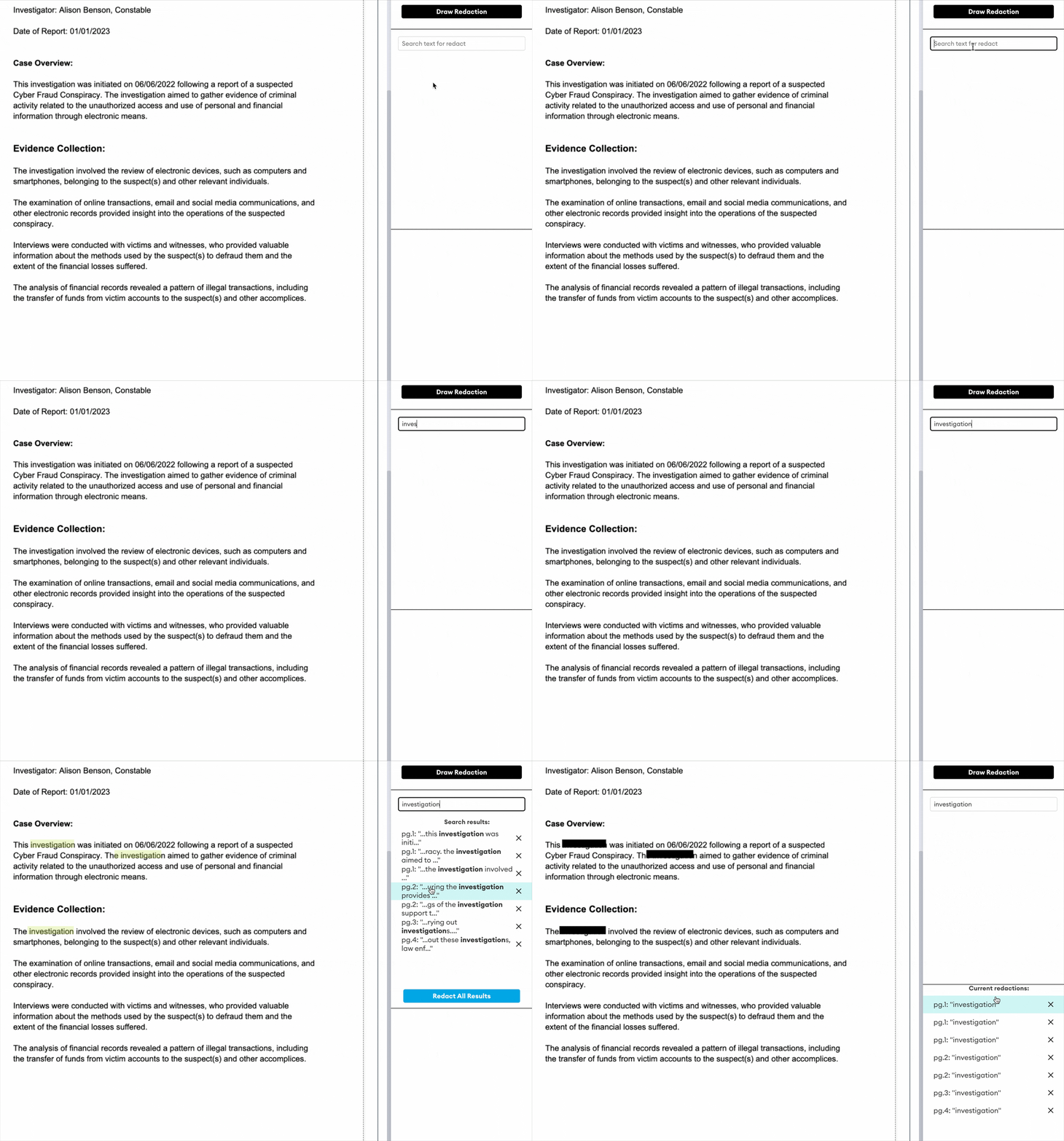
After searching, you can also redact individual matches by clicking the highlight for that match on the page:
Note: the search capability will not always find 100% of all possible matches. Always thoroughly check redactions (or missing redactions) before finalising the redacted file and sharing it.
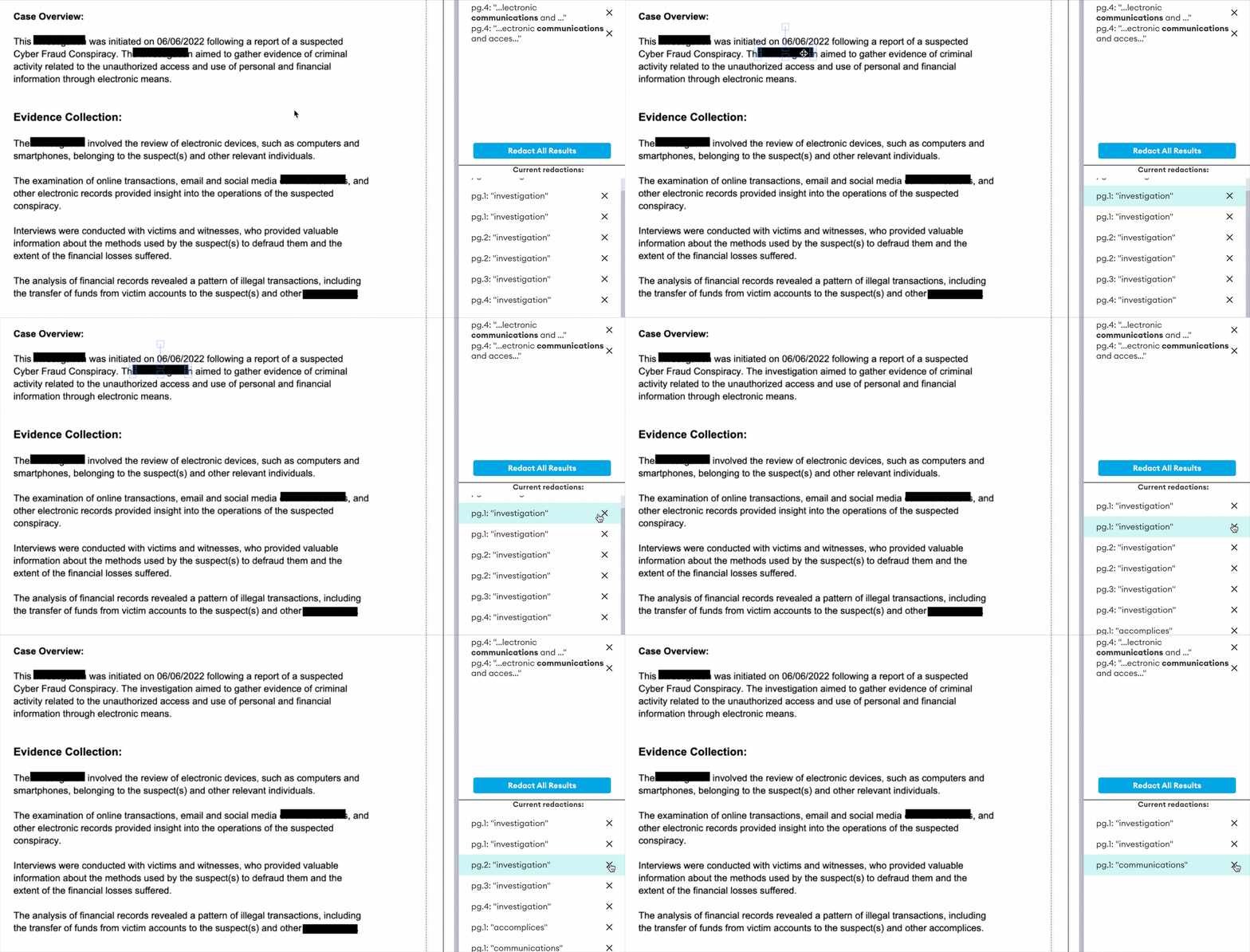
Remove a redaction
If you were the one adding the redactions, all applied redactions will appear in the Current redactions list. Identify the redaction in the list, click it on the document page to highlight it, then press the ✕ button in the highlight list.